Get LibreOffice to Recognize Your Java Runtime

Install a compatible Java runtime, enable it in LibreOffice, and troubleshoot an empty JRE list without changing unrelated settings.
If your Windows 11 computer keeps crashing or shows persistent errors, knowing how to boot in safe mode Windows 11 lets you diagnose problems with only core system files loaded. This mode disables most third-party drivers and startup programs. The methods below work on both Home and Pro editions without extra software.
Safe Mode starts Windows with a minimal set of drivers and services. It is useful for removing stubborn malware, fixing display driver conflicts, or uninstalling recent updates that broke the system. You can reach it through the Settings app, the sign-in screen, System Configuration, or advanced recovery options. Each path leads to the same low-resource environment where you can run tools like Device Manager or the Command Prompt.
Before starting, create a restore point if possible and note any recent changes to your PC. Windows 11 requires you to interrupt the normal boot process three times in a row or use menu options to reach the recovery environment first.
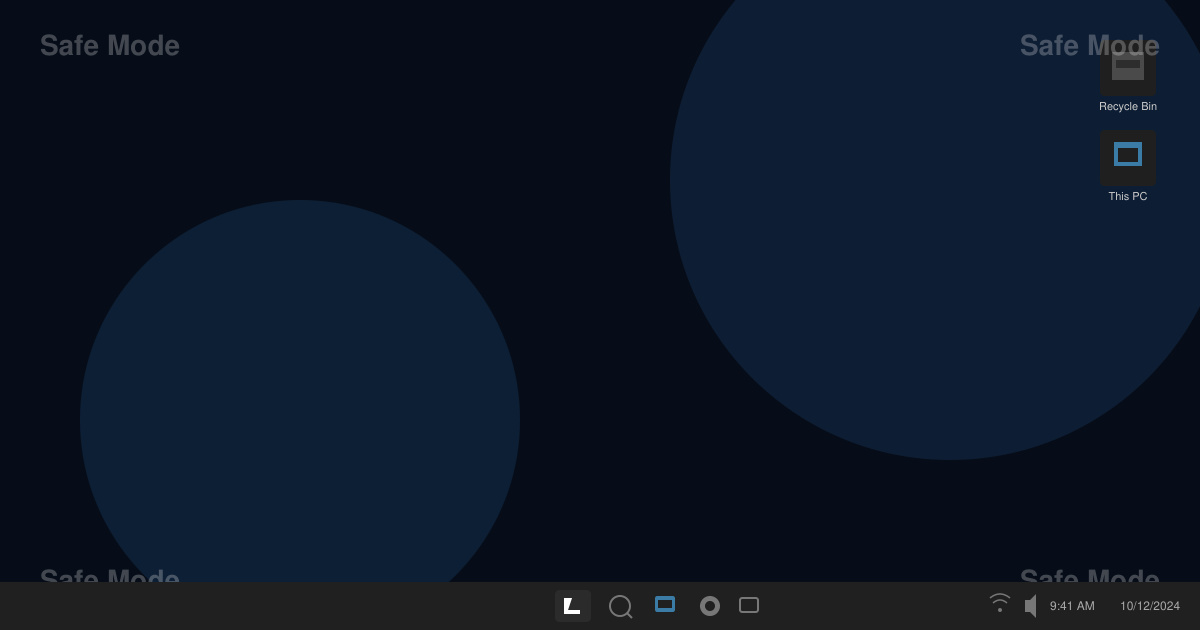
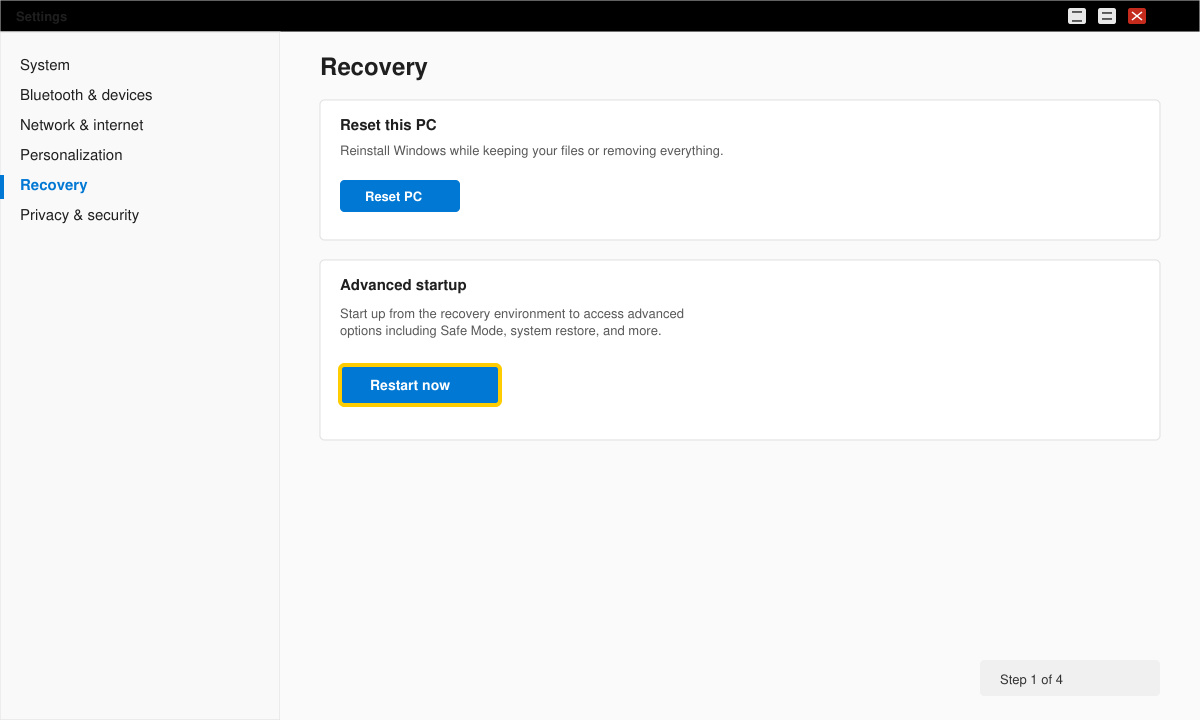
Open the Settings app by pressing Windows key + I. Click System in the left sidebar, then scroll down and select Recovery. Under Advanced startup click the Restart now button. Your PC will reboot into the blue Choose an option screen.
On the Choose an option screen select Troubleshoot. Next choose Advanced options, then Startup Settings. Click the Restart button at the bottom of the Startup Settings page.
After the restart you see a numbered list. Press 4 or F4 on your keyboard to start in Safe Mode. Press 5 or F5 if you also need network access for downloading drivers or updates while troubleshooting.
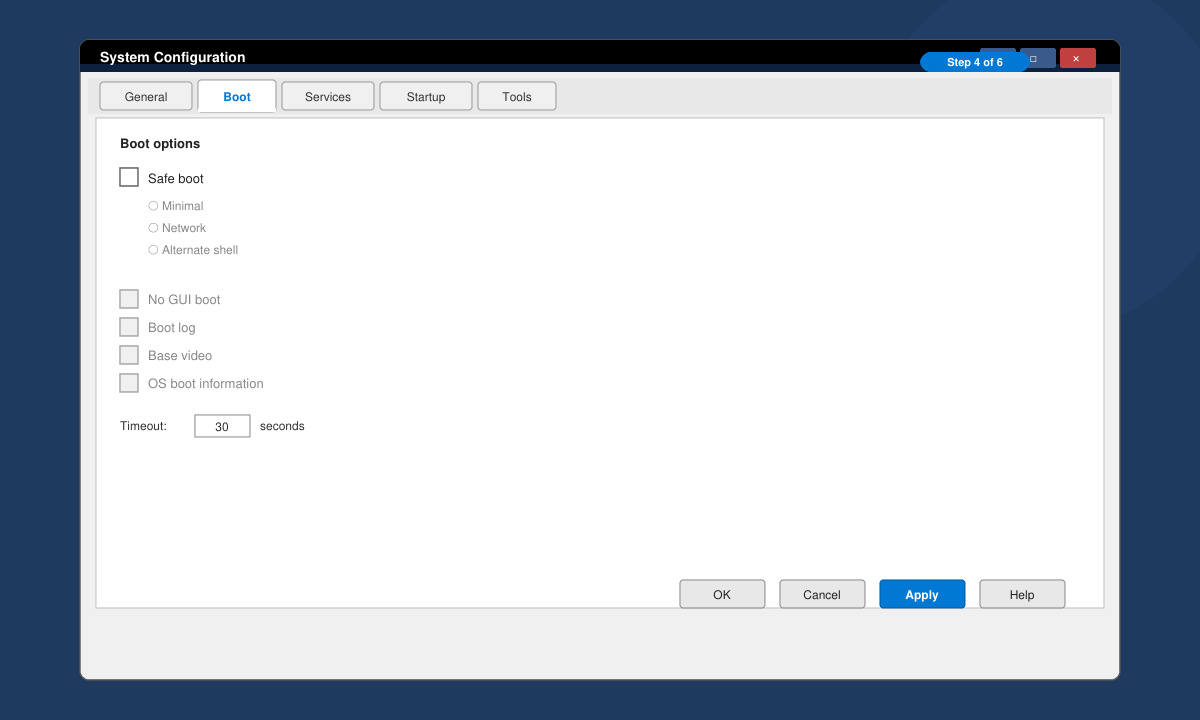
Once finished, open System Configuration by typing msconfig in the Start menu. On the Boot tab uncheck Safe boot and click OK. Restart normally to return to the full Windows 11 desktop.
If the Settings route is unavailable, force the recovery environment by holding the power button during boot three times in succession. From the sign-in screen hold Shift while clicking Restart. Both paths lead to the same Troubleshoot menu described above. For command-line users, open an elevated Command Prompt and run the command bcdedit /set {default} safeboot minimal followed by a restart.
Yes. Boot from the Windows 11 installation media, select Repair your computer, then follow the same Troubleshoot path to reach Startup Settings.
No. Safe Mode only limits which drivers and programs load. Your personal files and installed applications remain untouched.
Windows loads a basic display driver. Once you finish troubleshooting, restart normally to restore your usual resolution and graphics settings.
Mastering how to boot in safe mode Windows 11 gives you a reliable way to repair driver conflicts and remove problematic software without third-party tools.
Install a compatible Java runtime, enable it in LibreOffice, and troubleshoot an empty JRE list without changing unrelated settings.
Build a small LibreOffice container, convert office documents without a GUI, and verify PDF output while limiting host-file access.
Reduce oversized LibreOffice presentation files by compressing embedded photos, choosing sensible image settings, and checking slide quality before sharing.
Match LibreOffice’s page dimensions to your printer, check printable margins, and correct scaling before printing a custom-size document.
Replace repeated cell access with bulk range reads and writes, then benchmark the result and protect formulas in large Calc workbooks.
Split a long manuscript into chapters, assemble them in Writer, and keep styles, contents, and export checks consistent.
Use Base’s direct PostgreSQL option to enter your server details, sign in, save an ODB connection file, and troubleshoot common access errors.
Install a font in your Linux user font folder, restart LibreOffice Flatpak, and confirm it appears in Writer without weakening the app sandbox.
Protect your work and isolate network-drive save crashes in LibreOffice on macOS Sonoma with a local-first workflow, permission checks, and targeted tests.
Preserve leading zeros in Calc by setting ID columns to Text during CSV import, checking the preview, and verifying the saved data.








