Get LibreOffice to Recognize Your Java Runtime

Install a compatible Java runtime, enable it in LibreOffice, and troubleshoot an empty JRE list without changing unrelated settings.
Dealing with No Sound Chrome Browser issues stops you from enjoying videos, music, or video calls. The problem usually stems from a few common settings or conflicts that you can resolve without reinstalling the browser. This article gives you precise, ordered fixes that work for most users.
Chrome relies on your operating system’s audio output, hardware acceleration settings, and its own media handling. Conflicts arise when Chrome flags are enabled incorrectly, extensions interfere with audio, or the browser cache becomes corrupted. Before changing anything, confirm that sound works in other applications on the same device.
Make sure Chrome is updated to the latest stable version, as older builds often contain audio bugs that Google has already patched.
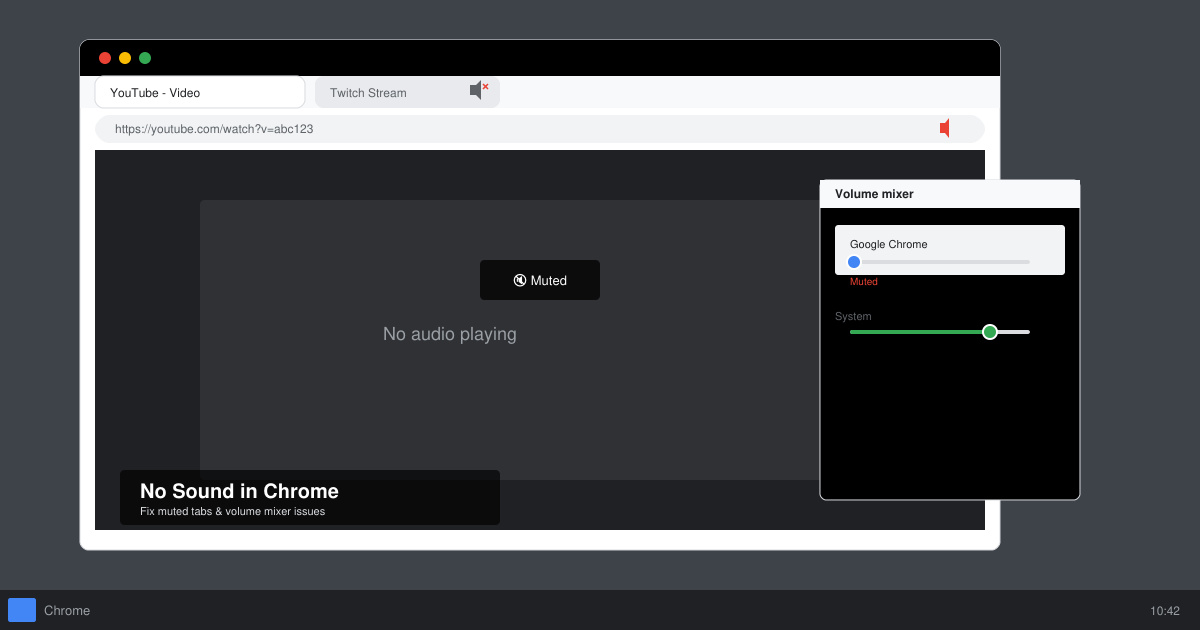
Click the speaker icon in your taskbar or menu bar and raise the master volume. Then open the problematic tab in Chrome, right-click the page, and select “Unmute” if the option appears. Also check the volume slider inside the specific website player.
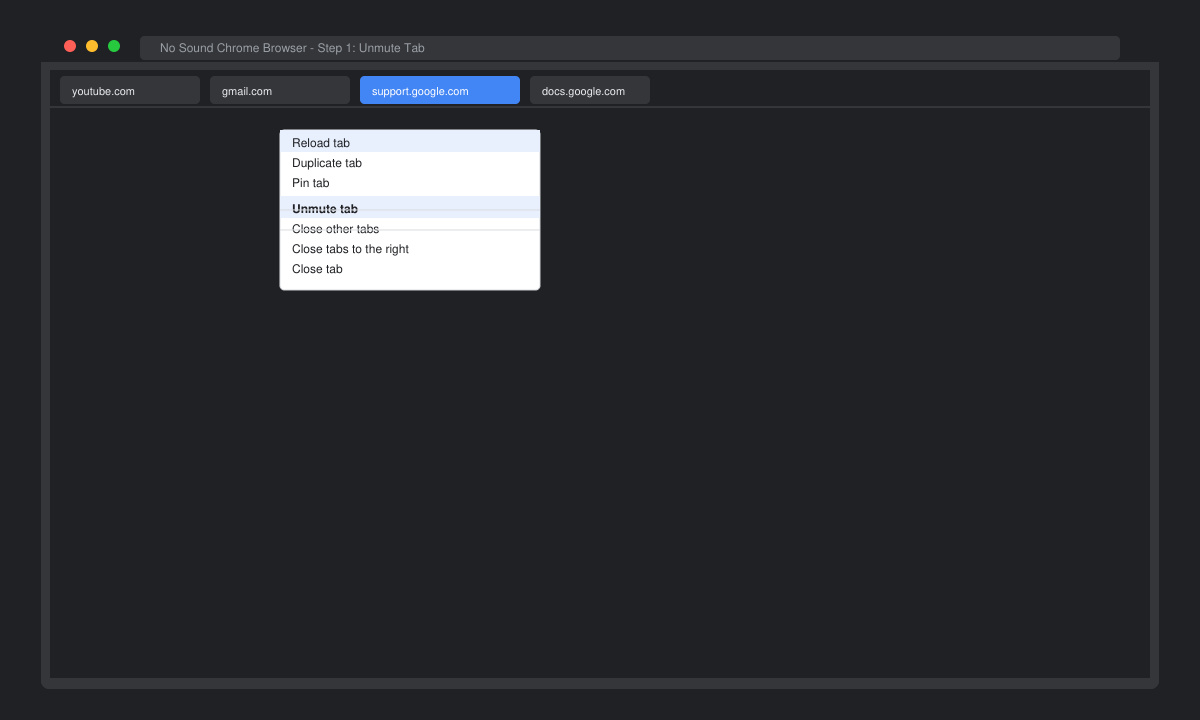
Type chrome://settings/system in the address bar and press Enter. Turn off the toggle labeled “Use hardware acceleration when available,” then click Relaunch. This forces Chrome to use software rendering, which often restores audio when GPU drivers conflict.
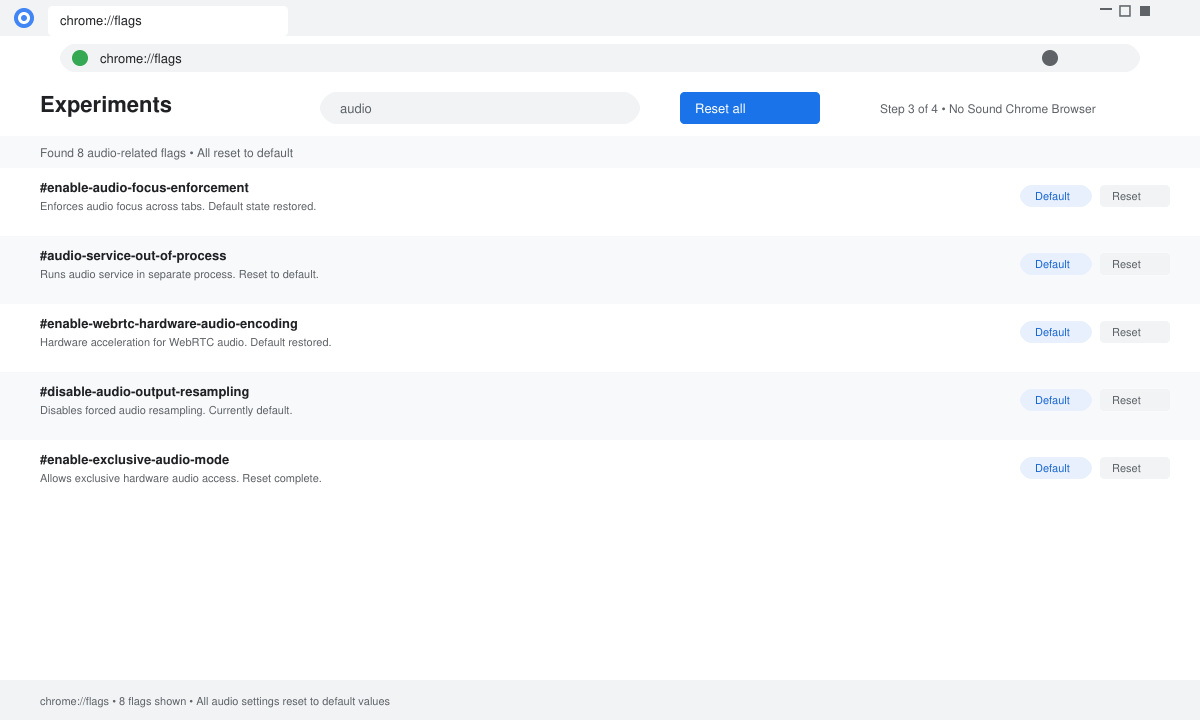
Go to chrome://settings/clearBrowserData, select “Cached images and files,” and clear the data. Next visit chrome://flags, search for “audio” and reset any non-default entries to their original state, then relaunch Chrome.
Enter chrome://extensions in the address bar. Turn off all extensions one by one, testing sound after each change. Pay special attention to ad blockers, VPNs, and download managers that can intercept media streams.
If previous steps fail, uninstall Chrome through your system’s app settings. Delete the remaining user data folder at %LOCALAPPDATA%\Google\Chrome (Windows) or ~/Library/Application Support/Google/Chrome (Mac), then download the latest installer from google.com/chrome and reinstall.
YouTube uses a separate audio pipeline. Try disabling hardware acceleration first, then clear site data specifically for youtube.com under Settings → Privacy and security → Cookies and other site data.
Yes. Sign in to a Google account before making changes so bookmarks and passwords sync. All fixes above preserve your profile data unless you manually delete the Chrome user folder.
Mobile versions rarely lose sound entirely. Check the device volume, app permissions for Chrome, and ensure no Bluetooth device is connected that routes audio elsewhere.
Following the ordered steps above resolves No Sound Chrome Browser in the large majority of cases. Start with the simple volume and hardware-acceleration checks, then move to extensions and flags if needed.
Install a compatible Java runtime, enable it in LibreOffice, and troubleshoot an empty JRE list without changing unrelated settings.
Build a small LibreOffice container, convert office documents without a GUI, and verify PDF output while limiting host-file access.
Reduce oversized LibreOffice presentation files by compressing embedded photos, choosing sensible image settings, and checking slide quality before sharing.
Match LibreOffice’s page dimensions to your printer, check printable margins, and correct scaling before printing a custom-size document.
Replace repeated cell access with bulk range reads and writes, then benchmark the result and protect formulas in large Calc workbooks.
Split a long manuscript into chapters, assemble them in Writer, and keep styles, contents, and export checks consistent.
Use Base’s direct PostgreSQL option to enter your server details, sign in, save an ODB connection file, and troubleshoot common access errors.
Install a font in your Linux user font folder, restart LibreOffice Flatpak, and confirm it appears in Writer without weakening the app sandbox.
Protect your work and isolate network-drive save crashes in LibreOffice on macOS Sonoma with a local-first workflow, permission checks, and targeted tests.
Preserve leading zeros in Calc by setting ID columns to Text during CSV import, checking the preview, and verifying the saved data.








