Get LibreOffice to Recognize Your Java Runtime

Install a compatible Java runtime, enable it in LibreOffice, and troubleshoot an empty JRE list without changing unrelated settings.
How to Sync One Drive keeps your documents, photos, and folders identical on your computer, phone, and the cloud. Once configured, changes made on one device appear everywhere else without extra effort. This guide covers the precise actions needed to complete the setup on desktop and mobile.
Windows 10 and 11 include OneDrive by default. If the icon is missing from the system tray, open the Microsoft Store, search for OneDrive, and install it. Sign in with the Microsoft account that holds your files. The setup wizard then asks where to place the local OneDrive folder; accept the suggested location or choose another drive.
After signing in, the wizard lists all folders stored in your OneDrive account. Select only the ones you want available offline. Click Next, then Finish. Files now appear in File Explorer under the OneDrive heading and sync automatically whenever you are connected to the internet.
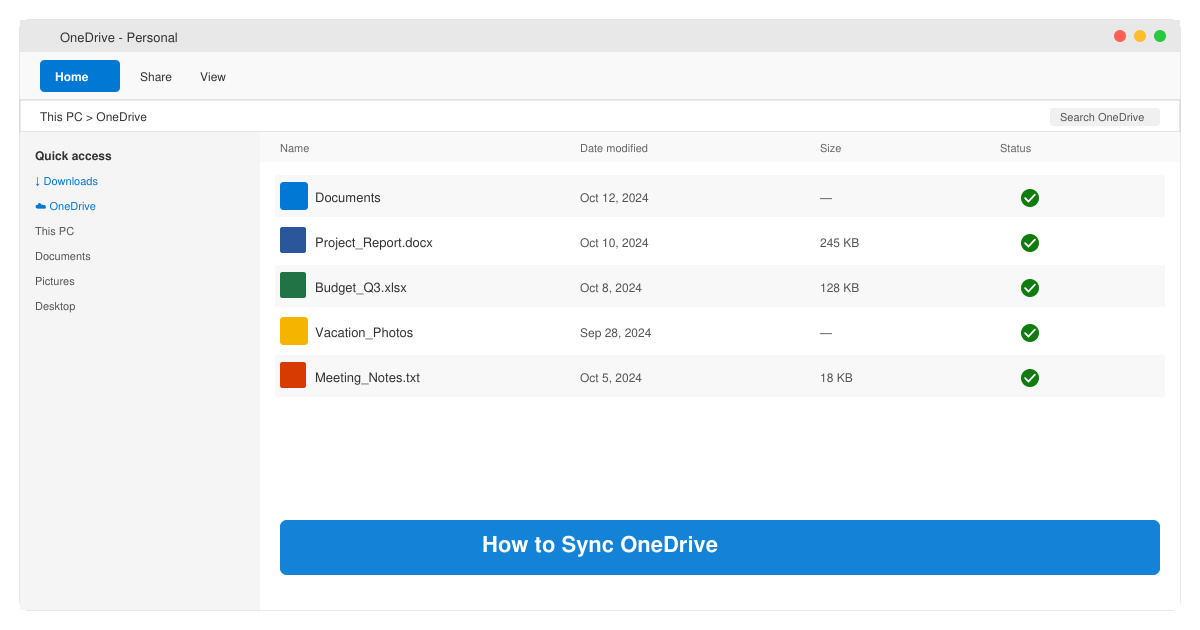
Right-click the white or blue cloud icon in the Windows system tray. Choose Settings from the menu, then switch to the Account tab. Click the Choose folders button to open the folder selection window.
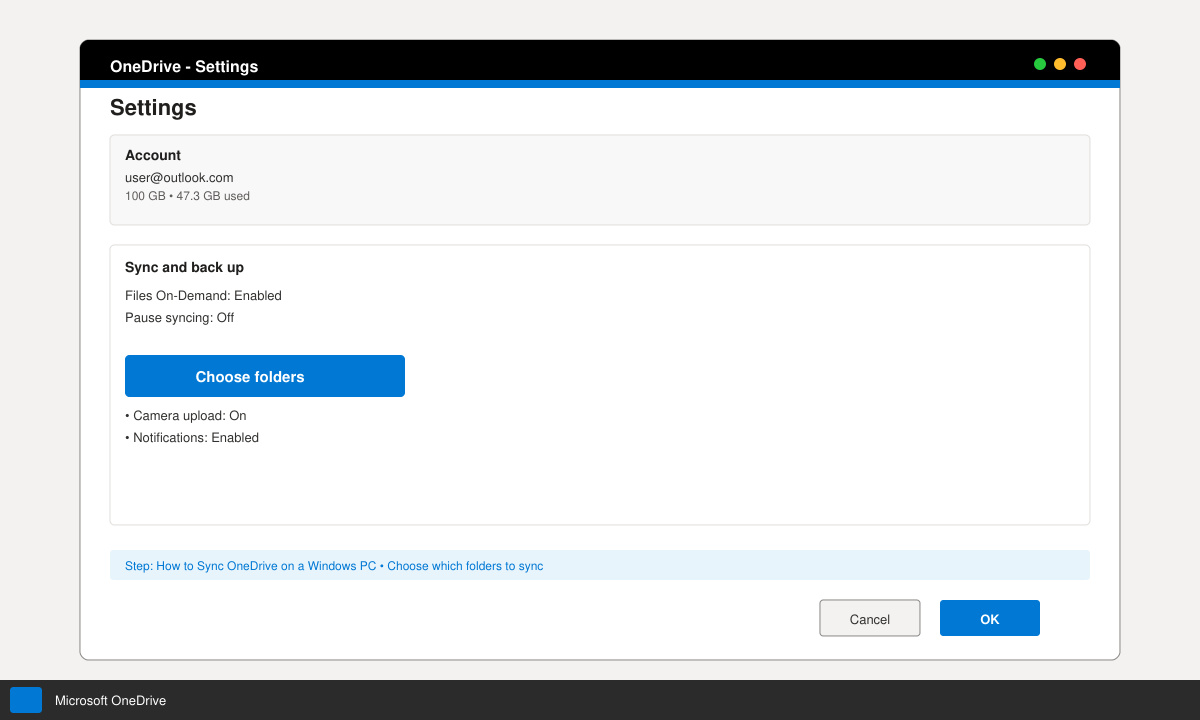
Uncheck any folders you do not need on this device. Leave checked only the folders you want downloaded locally. Click OK. OneDrive immediately begins downloading the selected content.
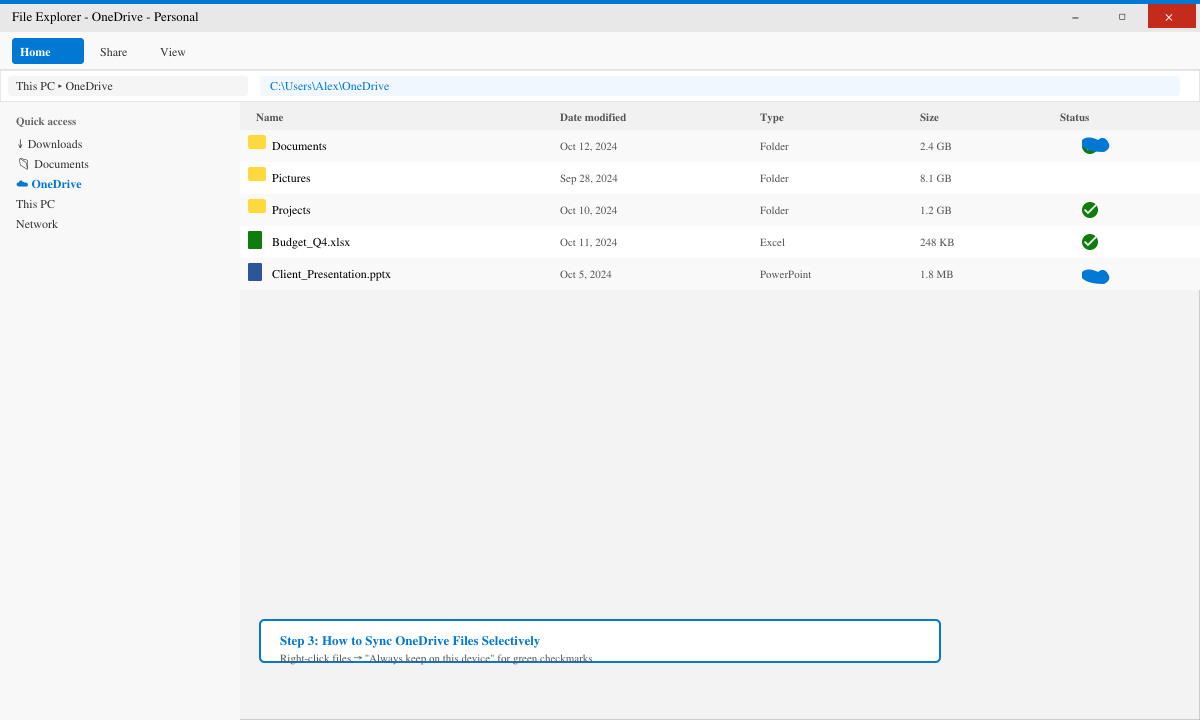
Return to File Explorer and look for the OneDrive folder. Files with green checkmarks are fully synced. Files with blue cloud icons remain in the cloud only until you open them. Right-click any file and choose Always keep on this device if you want it stored offline permanently.
Install the OneDrive app from the App Store on a Mac or from Google Play on Android. Sign in with the same account and repeat the folder selection process so every device mirrors the folders you need.
Yes, but only for files set to Always keep on this device. Online-only files require an internet connection to open or edit.
Yes. Open the shared folder in OneDrive on the web, click Add shortcut to My files, then enable that folder in the Choose folders window on your computer.
Time depends on folder size and connection speed. A 10 GB folder typically finishes in 10–20 minutes on a standard broadband link.
Following these steps ensures How to Sync One Drive runs reliably on all your devices with minimal ongoing maintenance.
Install a compatible Java runtime, enable it in LibreOffice, and troubleshoot an empty JRE list without changing unrelated settings.
Build a small LibreOffice container, convert office documents without a GUI, and verify PDF output while limiting host-file access.
Reduce oversized LibreOffice presentation files by compressing embedded photos, choosing sensible image settings, and checking slide quality before sharing.
Match LibreOffice’s page dimensions to your printer, check printable margins, and correct scaling before printing a custom-size document.
Replace repeated cell access with bulk range reads and writes, then benchmark the result and protect formulas in large Calc workbooks.
Split a long manuscript into chapters, assemble them in Writer, and keep styles, contents, and export checks consistent.
Use Base’s direct PostgreSQL option to enter your server details, sign in, save an ODB connection file, and troubleshoot common access errors.
Install a font in your Linux user font folder, restart LibreOffice Flatpak, and confirm it appears in Writer without weakening the app sandbox.
Protect your work and isolate network-drive save crashes in LibreOffice on macOS Sonoma with a local-first workflow, permission checks, and targeted tests.
Preserve leading zeros in Calc by setting ID columns to Text during CSV import, checking the preview, and verifying the saved data.








