Restore Jitsi Screen Sharing on macOS Sonoma
Enable screen capture for your browser, choose the right sharing source, and isolate Jitsi screen-share failures on macOS Sonoma.
You click Jitsi Meet’s screen-share button on macOS Sonoma, choose a window, and the share either never starts or appears blank to everyone else. Start by allowing the browser to capture the screen in macOS, then quit and reopen the browser and try sharing one window or the full display. If the permission is already enabled, test in another Jitsi-supported desktop browser; this separates a macOS permission problem from a browser or meeting-server issue.
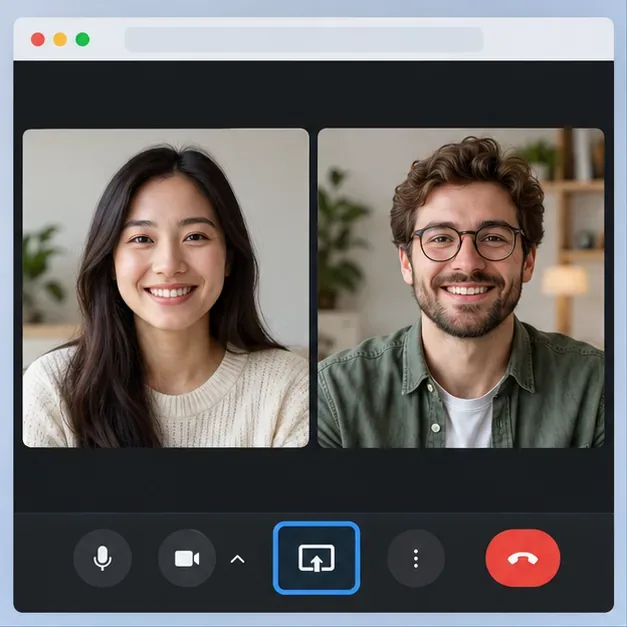
Sonoma protects screen content through the Screen & System Audio Recording privacy control. In System Settings, open Privacy & Security, scroll to Screen & System Audio Recording, and allow the browser you are using for Jitsi. Apple documents that apps and websites can appear in this list and that users can switch their access on or off.
Look for the actual browser you launched, such as Safari, Chrome, Firefox, or Edge—not a similarly named app you do not use. If the browser is missing, return to the meeting, click the share control once, and respond to any macOS prompt. Then revisit Privacy & Security. On a managed Mac, a configuration profile may control the permission; ask your administrator if the setting is unavailable or locked.
After changing the toggle, fully quit the browser with Command-Q and reopen it, then rejoin the meeting. This refreshes the browser’s session with macOS. Avoid granting broad capture access to software you do not recognize; screen capture can expose sensitive information visible on your display.
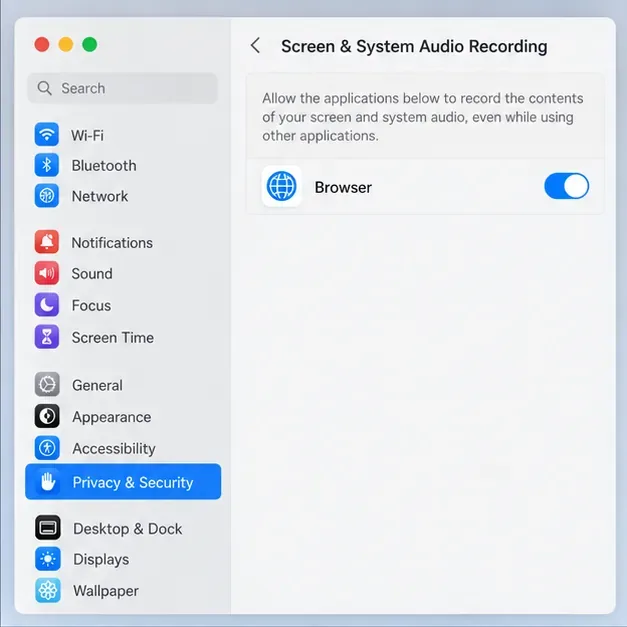
Once the Jitsi meeting is open again, select the screen-share control. Depending on the browser, macOS version, and Jitsi deployment, the next step may be a browser dialog or a macOS sharing picker. Choose the target—an entire display, an individual window, or a browser tab when offered—and confirm with Share or the equivalent button. Merely opening the picker does not start sharing.
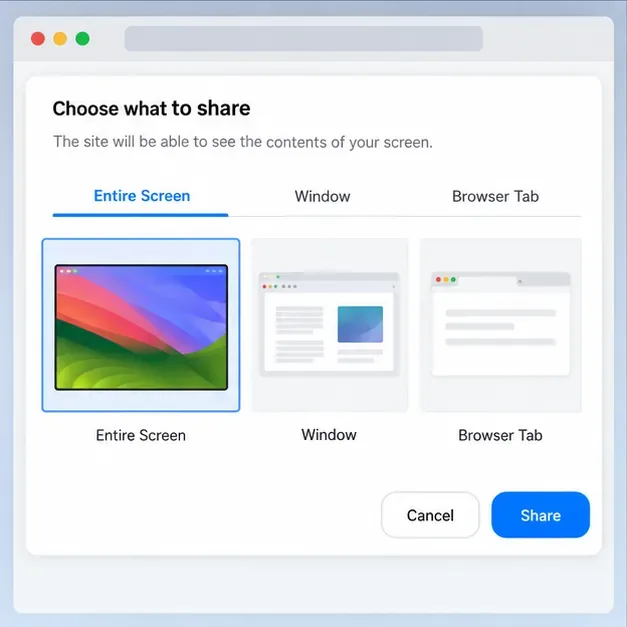
For a quick diagnosis, choose Entire Screen first. If that works but a particular window does not, the problem is limited to source selection or that app’s window. If the full screen also fails, continue to the browser checks below. Close the picker with Cancel only if you intend to stop; selecting a source and confirming are separate actions.
A missing macOS permission is a direct reason to check Sonoma’s privacy setting, but a blank share is not proof that permission is the only cause. It may instead be the selected source, browser support, or a server-side setting. Likewise, microphone or camera permissions are separate controls; changing them is not a screen-sharing fix unless those devices are also failing.
Jitsi’s current browser documentation supports Safari and major desktop browsers, but it does not promise identical picker behavior for every browser release or self-hosted configuration. Use the second-browser comparison and a simple window test before changing deeper system settings.
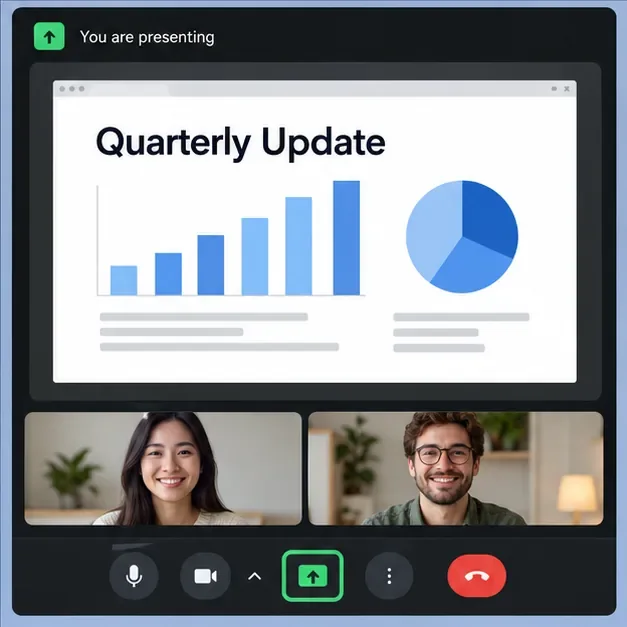
Start a short test meeting with another participant. Share one ordinary window, confirm that the participant can see it update, then stop sharing from the meeting toolbar. Repeat with the full display only if that is what you need. If one browser still fails while another works, report the browser name and version to its support channel; if all participants and browsers fail on one self-hosted instance, send the host the affected meeting time and ask them to review its screen-sharing configuration.
Documentation checked October 10, 2026. The exact capture picker can vary by browser and version.
Enable screen capture for your browser, choose the right sharing source, and isolate Jitsi screen-share failures on macOS Sonoma.
Test Element Desktop through Xwayland, preserve your local data, and isolate graphics or package issues when Linux Wayland crashes the app.
Set up Element Android with UnifiedPush and ntfy, then check the self-hosted Matrix gateway and Android background settings when alerts fail.
Restore background photo detection by checking Nextcloud upload settings, iOS permissions, battery mode, and the limits of iPhone background scheduling.
Compare ONLYOFFICE font hinting modes, check zoom and Linux font availability, and verify whether blur is limited to the editor or affects the whole desktop.
Convert a PDF locally in ONLYOFFICE Desktop Editors, then review the DOCX for layout changes, scanned pages, and text that needs correction.
Add your ownCloud account to ONLYOFFICE Desktop Editors, understand what the connection enables, and choose between direct access, sync, and browser editing.
Use the right portal or WebDAV address, test HTTPS reachability from your phone, and distinguish private-network, TLS, and login problems.
Build and test a custom ONLYOFFICE Desktop Editors plugin, install its .plugin archive, and activate developer tools for debugging.
Make a Python function available in Calc, run it against the open spreadsheet, and troubleshoot missing macros or imports without mixing up LibreOffice and system Python.