Home
» Technology
»
Ubuntu Server 24.04 Minimal vs Standard: Performance Benchmarks Explained
Ubuntu Server 24.04 Minimal vs Standard: Performance Benchmarks Explained
A virtual private server feels tight on memory, so you reinstall Ubuntu Server 24.04 LTS and face an early choice: the default Ubuntu Server installation or Ubuntu Server (minimized). It is tempting to assume that fewer packages automatically mean faster web requests, shorter database queries, and higher CPU throughput. The difference is more nuanced. A smaller starting package set can reduce disk use and background activity, but it does not, by itself, make the processor or storage device faster.
Bottom line: Choose the minimized installation when you want a lean starting point and are comfortable adding only the tools you need. Choose standard when you want the broader default server toolset. Compare boot time, idle memory, disk footprint, and actual application performance separately rather than collapsing them into a single "faster" label.
Evidence note (October 9, 2026): This article explains a reproducible benchmarking method and the results each metric can establish. It does not present original measured scores from two matched Ubuntu 24.04 installations. No unverified RAM, disk, boot-time, or throughput figures are represented as test findings.
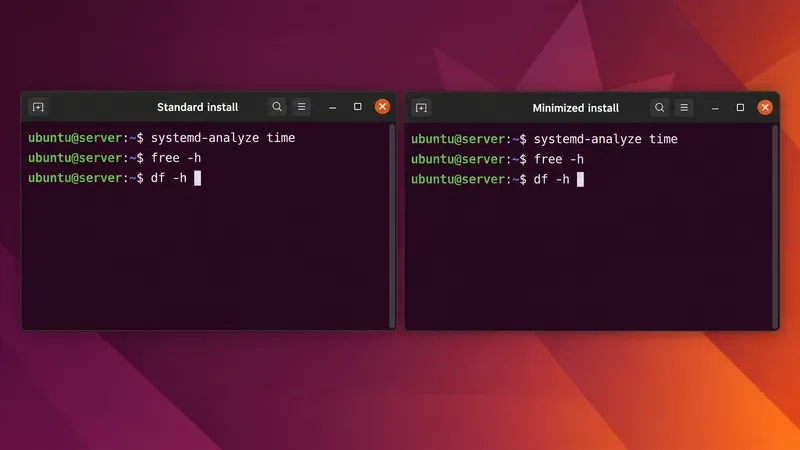
Standard and minimized server terminals with the same diagnostic commands queued: systemd-analyze time, free -h, and df -h. Actual values must come from your own matched systems.
What is the difference between standard and minimized Ubuntu Server?
Ubuntu Server's Subiquity installer offers two installation sources: ubuntu-server for standard (the default) and ubuntu-server-minimal for minimized. Canonical documents these source identifiers and advises checking casper/install-sources.yaml on the chosen ISO because installer identifiers can change. See the Canonical Subiquity autoinstall source documentation.
Both are Ubuntu Server 24.04 LTS, not two differently optimized CPU architectures or separate Linux distributions. What primarily changes is the software delivered at installation time. Exactly which packages appear depends on the installation media revision, optional choices, updates, drivers, and subsequently installed applications. Do not assume that a list published for one image build applies unchanged to every 24.04 point-release installer.
The minimized server option should not be confused with minimal Ubuntu cloud images, a separate image family, or with the Ubuntu Desktop minimal-install option. The Ubuntu 24.04 LTS release notes discuss a substantial reduction in the package count and downloadable size of minimal cloud images relative to earlier releases. Those published cloud-image examples are not a controlled standard-versus-minimized live-server ISO benchmark, and their numbers should not be reused as if they were.
Which performance benchmarks matter?
Metric
What minimized might change
What the number actually tells you
Installed package count
Typically fewer packages before adding your workload
Maintenance footprint, not processing speed
Disk space used
Potentially less space consumed by the base system
Available capacity; not disk IOPS or latency
Idle memory available
Potential benefit if fewer background services are active
Headroom for the application and filesystem cache
Boot and service-readiness time
Could improve if fewer startup jobs are on the critical path
How quickly a server becomes usable after reboot
CPU-only benchmark
No intrinsic performance increase from removing unrelated packages
Mostly CPU, kernel, scheduler, power-state, and benchmark conditions
Storage I/O benchmark
No guaranteed improvement on the same device and filesystem
Workload-specific bandwidth, IOPS, and latency
Application response time
Depends on active processes, available memory, and configuration
What matters to real users under comparable load
Expected behavior is not a measured result. A minimized machine may consume fewer resources immediately after installation. But once both machines run the same database, container runtime, monitoring agent, and web server, the observed gap may shrink, disappear, or change direction. The only defensible conclusion comes from measuring the target workload.
Start with a fair test setup, not a stopwatch
Build two disposable virtual machines from the same Ubuntu Server 24.04 LTS ISO revision, one standard and one minimized. Assign identical vCPU counts, RAM, virtual disks, filesystems, boot mode, hypervisor settings, network attachment, and storage class. For physical machines, use equivalent hardware and test under similar thermal and power conditions. Keep the machines off production traffic.
On both systems, apply the same security updates and reboot. Record cat /etc/os-release, uname -r, and lscpu, plus the installer image version and test date. Ubuntu Server 24.04 normally uses the general-availability kernel track but can optionally use Hardware Enablement kernels; different kernel tracks would compromise an installation-type-only comparison. The Ubuntu kernel documentation on GA and HWE kernels explain this distinction.
Collect two sets of measurements:
Fresh-install baseline: Immediately after identical updates, before installing a workload. This isolates the practical differences in the installation defaults.
Production-like baseline: After installing the same application packages, enabling the same services, and applying identical configurations. This shows whether the initial footprint difference still matters.
Use at least several runs per test, preferably five or more after a warm-up, and compare medians as well as variability. Reboot and measure boot time across multiple boots. Never compare a cold-boot result on one system to an already-warm result on the other.
Measure the easy differences first
1. Count installed packages and check disk space
Package count and storage use are usually the most straightforward characteristics to inspect. On each VM, run:
Record the count, the used space on the root filesystem, and the filesystem layout. Ensure the root partitions have comparable sizes; otherwise, an apparent difference may come from partitioning. Disk usage also includes logs, package caches, and filesystem metadata, so identical installation times and comparable update histories matter.
2. Compare available RAM, not just "free" RAM
After both systems have been idle for a consistent settling period, run:
Look at the available column in free as well as used. Linux uses otherwise idle memory for cache, which can be reclaimed when applications need it. A smaller value in the free column does not automatically indicate a problem. Check whether the additional memory use belongs to services you actually plan to keep.
3. Compare boot time and find slow services
For each boot, use the systemd tools supplied with the distribution:
systemd-analyze time
systemd-analyze blame
systemd-analyze critical-chain
systemd-analyze time reports boot-stage timing, but it does not necessarily mean the application is ready to accept requests. The blame list can also mislead because units may initialize in parallel and some service types are not measured the same way. Investigate the critical chain, then separately check the exact service endpoint you care about. These limitations are documented in the Ubuntu 24.04 systemd-analyze manual.
For instance, if a server runs an HTTP API, measure time from reboot until the API health endpoint succeeds. If a host runs a database, check that a query succeeds. That readiness measurement is more actionable than the operating system reaching a boot target.
Then test CPU and storage under controlled load
4. Run the same CPU workload on both machines
For a simple CPU comparison, install an identical version of sysbench on each disposable VM after recording the fresh-install footprint. Then run the same command:
sudo apt update
sudo apt install sysbench
sysbench --threads=1 --time=30 cpu --cpu-max-prime=20000 run
Compare events per second and latency across repeated runs. The sysbench project documentation provide the command syntax and built-in CPU test. Use a second run with the same higher thread count only if it fits the assigned CPU count. A reduced package set alone does not justify claiming a CPU speedup; unexpected differences should prompt a check of host CPU contention, clock behavior, kernel version, and background processes.
5. Test disk I/O without benchmarking a production disk
For an optional storage experiment, install fio on both test machines and create identical test files on a disposable filesystem with ample free space. The following commands create a 256 MiB file under the current user's home directory, then run a bounded random-read workload against that file:
Run both machines with identical disks and I/O parameters. A 256 MiB file may be too small to model your database or storage device accurately; enlarge the file and vary the workload only when sufficient scratch space and a safe test environment are available. Record IOPS, bandwidth, and latency distribution, not just the biggest bandwidth figure. The Ubuntu 24.04 fio manual explain workload parameters. Never point write tests at a raw block device containing useful data.
6. Test the real application last
Install precisely the same application stack on both machines, including web or database versions, connection limits, logging, TLS, caching, and monitoring. Send an equivalent request mix from a separate load generator, with the same concurrency and test duration. Measure throughput, median and 95th-percentile response latency, error rate, CPU utilization, memory pressure, and swapping. Use the same dataset and make sure neither machine shares a noisy storage backend without accounting for contention.
For a small API server, a difference in idle memory matters if one configuration starts swapping during load. For a CPU-bound worker with plenty of spare RAM, the identical application binary may deliver essentially similar throughput. Neither outcome can be asserted before testing.
How to interpret conflicting benchmark results
Lower package count but equal CPU scores: This is entirely consistent. Fewer installed tools need not change compute performance.
Lower disk usage but equal IOPS: Free space and device speed are different properties. Look at storage hardware, I/O pattern, filesystem, and caching.
Faster systemd boot but equally slow application readiness: The bottleneck may be the application startup, network dependencies, or database recovery.
Less idle RAM but equal request latency: Minimized may offer useful capacity headroom, yet the current workload is not memory-constrained.
Wildly changing scores between runs: Investigate noisy neighbors, CPU frequency scaling, updates, scheduled tasks, thermal throttling, and cache warming before declaring a winner.
If the measured advantage is only a tiny amount of idle disk space but your operational workflow repeatedly needs missing administration utilities, the standard install can be the more productive choice. If your servers are automatically provisioned and run a tightly defined service, a minimized base often makes package selection easier to audit.
Should you switch an existing server to minimized?
Usually not solely to chase benchmark numbers. For a working standard installation, first inspect its actual active services and measure the application. Removing unrelated packages may not improve an already healthy workload, and careless package removal can break networking, recovery, logging, or remote management. Canonical's Ubuntu security guidance on unnecessary packages recommend choosing an appropriately minimal starting installation instead of indiscriminately removing default packages.
If a rebuild is worthwhile, back up data and configuration, verify a restore, install the minimized option on a new instance, and explicitly provision the necessary packages. Validate SSH access, updates, time synchronization, backups, monitoring, firewall policy, and application health before moving traffic. If an administrator regularly relies on bundled diagnostics or varied roles, the standard installation may be preferable even if its fresh-install footprint is larger.
Security is related but separate: fewer packages may reduce how much software you need to maintain, but this is not proof of a particular CVE reduction. Both installation types still require security updates and service hardening.
Final verification checklist
Confirm both machines are Ubuntu Server 24.04 LTS with the same architecture, patch level, kernel track, and installer generation.
Document the selection of standard or minimized, the optional installer choices, and the services added afterward.
Compare package count, root filesystem use, and available memory after identical updates and an idle settling period.
Repeat boot and application-readiness measurements over multiple restarts, reporting medians rather than a single best run.
Use matching parameters for CPU, storage, and application workloads, and record errors and latency distributions.
Run the application with identical dependencies, configuration, and data, then decide whether any difference affects capacity, reliability, or deployment time.
Practical conclusion: Minimized is usually the better starting footprint for narrowly scoped, automated servers; standard offers a fuller default toolset. Neither option is universally faster. On Ubuntu Server 24.04 LTS, the most useful benchmark is the one that measures your service under the workload it must actually handle.