When a workbook gives a different result in ONLYOFFICE Spreadsheet Editor than in Excel, first compare the formula itself, the cell inputs, and the workbook settings. Do not replace the formula with a guessed alternative: check separators and function support, then force a recalculation. ONLYOFFICE provides formula autocomplete and settings for formula language, regional separators, the 1904 date system, and iterative calculation; these are the first places to investigate.
Identify the kind of mismatch
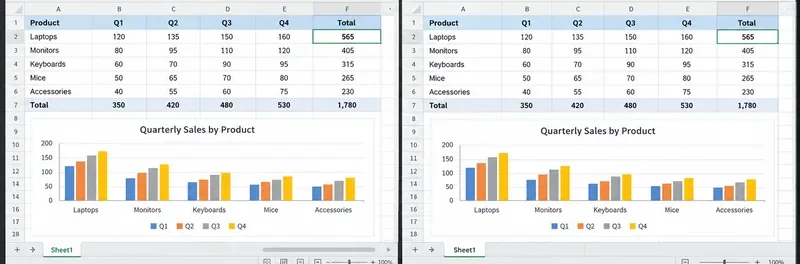
Before changing anything, save a copy of the workbook. In each application, select the result cell and compare the formula bar, referenced cells, and displayed number format. A result that looks different may be a display issue: for example, a date serial or a value with hidden decimal places can appear inconsistent while the underlying number is similar.
| What you see | Check first |
|---|
#NAME? or a formula rejected on entry | Function spelling, formula language, argument separators, and whether the function is supported by your editor version. |
#VALUE!, #N/A, or an unexpected zero | Input types, blanks, text stored as numbers, lookup range, and whether referenced data moved. |
| A stale result after editing inputs | Recalculate the sheet or workbook; check calculation settings. |
| Dates differ by a fixed number of days | Compare the workbook’s 1900/1904 date system setting. |
| Only the last decimal places differ | Compare precision, rounding in the formula, and displayed decimal places. |
Check formula syntax and regional settings
In ONLYOFFICE, click the cell and inspect the formula bar. Confirm that the formula begins with =, parentheses are balanced, ranges point to the intended cells, and text arguments use quotation marks. When a formula has multiple arguments, use the separator expected by the editor’s current regional setup. A formula copied from another computer may use a different decimal mark or list separator.
Open the Spreadsheet Editor’s Advanced Settings and review Regional settings. The official ONLYOFFICE Advanced Settings documentation describes Formula Language, Region, and separators based on regional settings, with custom decimal and thousands separators available. Match these to the workbook and your locale rather than changing separators at random. Formula language controls the names shown for functions, so a function name copied from a differently configured editor can be rejected even when the intended calculation is valid.
Use Formula Autocomplete as a syntax check: type = and the first characters of the function, then select a listed function and follow its displayed argument pattern. ONLYOFFICE’s function insertion instructions explain the autocomplete list and argument entry. If the function you need does not appear, consult the editor’s function reference and confirm the installed ONLYOFFICE version supports it. Do not assume that every new Excel function behaves identically in every spreadsheet editor or release.
Recalculate and compare the inputs
If a result appears frozen, press F9 to recalculate the entire workbook or Shift+F9 to recalculate the current worksheet. These shortcuts are listed in the official ONLYOFFICE Spreadsheet Editor keyboard shortcuts. Then edit a harmless test input in a copy and undo it; see whether dependent formulas update.
If the result is still wrong, inspect the source cells. A number imported as text, an empty string returned by another formula, an unexpected space, or a lookup key with a different data type can cause a formula to behave differently. Test a small representative formula in an empty cell, such as =SUM(B2:B6), and compare both the formula and its inputs in Excel and ONLYOFFICE. For lookups, verify exact-match settings, lookup and return ranges, and whether the key exists. Avoid wrapping the formula in IFERROR just to hide the symptom; that can conceal a broken reference or missing match.
Compare workbook settings that change results
Date calculations: In Advanced Settings, compare the “Use 1904 date system” option with the workbook’s expected date system. ONLYOFFICE documents this setting for workbooks created in Excel for Mac versions that used the 1904 system. A mismatch can shift date values even if the formulas are unchanged.
Circular references: If a formula depends on its own result, the workbook uses iterative calculation. Check whether iterative calculation is enabled and compare maximum iterations and maximum change in ONLYOFFICE’s Calculating settings. A difference in those settings can leave the two editors with different stopping points. If the circular reference is accidental, correct the dependency instead of enabling iteration.
Precision and rounding: Compare formulas at full precision, not only their formatted display. If the workbook needs a stable currency or reporting result, use an explicit rounding rule at the point where the business rule requires it, for example =ROUND(A1,2). Do not enable “precision as displayed” merely to force a visual match: Microsoft warns that this setting can have cumulative effects on stored values in its rounding precision guidance.
When only one function still differs
Check the exact function name and arguments against the function references for the installed ONLYOFFICE and Excel versions. The same name does not guarantee every edge case, newer function, or legacy compatibility behavior is identical. Excel’s current formula compatibility guidance also notes that compatibility can depend on the Excel version targeted by the workbook. If a function is unavailable, replace it only with a documented equivalent and test that replacement against representative inputs, including blanks, errors, and boundary values.
For an important workbook, preserve the original and test a copy in both applications. If the mismatch remains, record the formula, exact cell inputs, error text, application versions, and relevant settings; a minimal workbook with the affected cells makes the problem easier to isolate.
Verification checklist
- The formula bar shows the intended formula and cell references in both editors.
- Formula names and separators match the ONLYOFFICE formula language and regional settings.
- F9 recalculates the workbook, and changing a test input updates dependent results.
- Date system and iterative calculation settings match the workbook’s needs.
- Key results agree for normal, blank, error, and boundary-case inputs; displayed formatting is not masking a numeric difference.
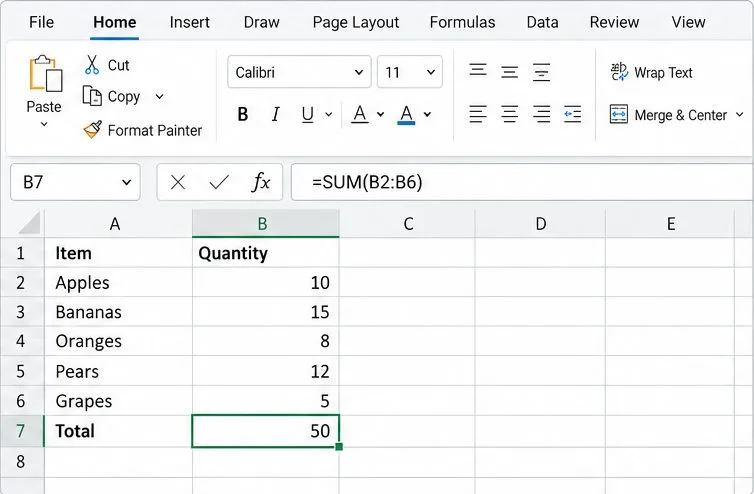
The formula bar and selected total cell make it easier to compare formula syntax with the visible result.
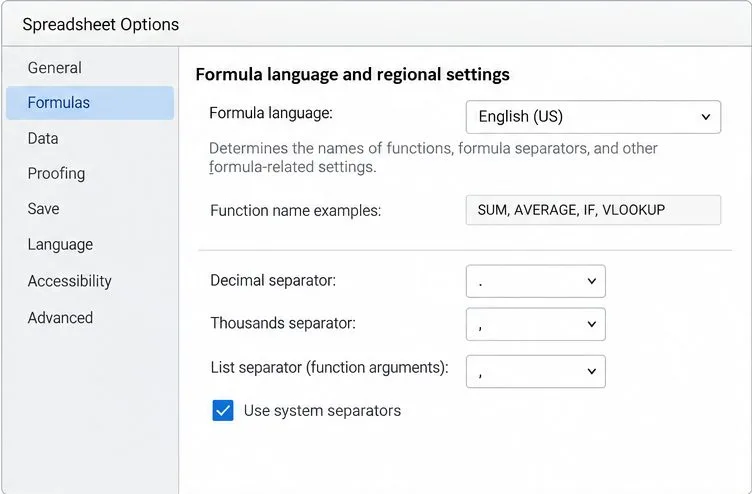
Compare formula language and separator settings when a formula copied from Excel is rejected.
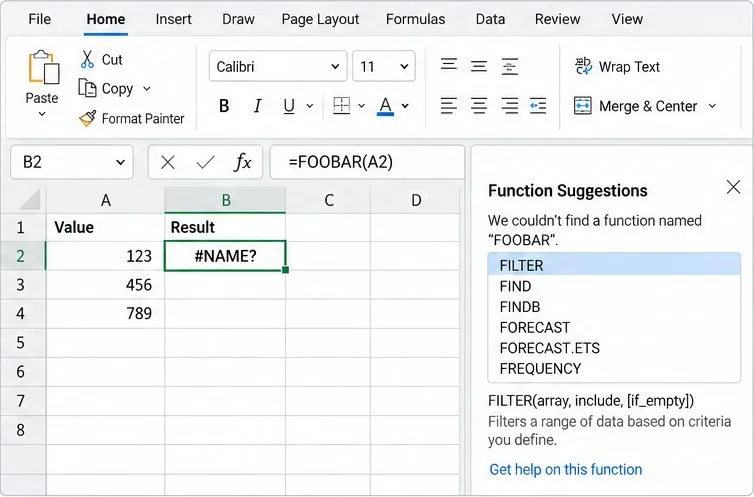
A name error is a cue to verify the function spelling and whether the editor recognizes that function.
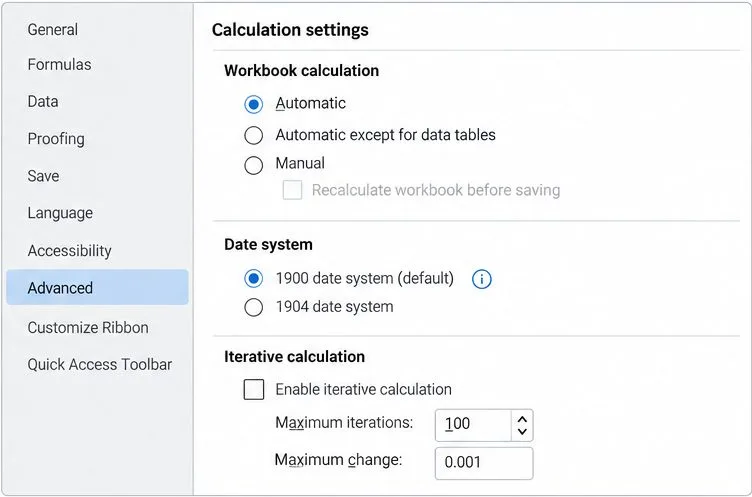
Date system and iterative calculation options can affect results even when formula text matches.