Writer vs. Word Page Numbers: Styles, Sections, and Restarts
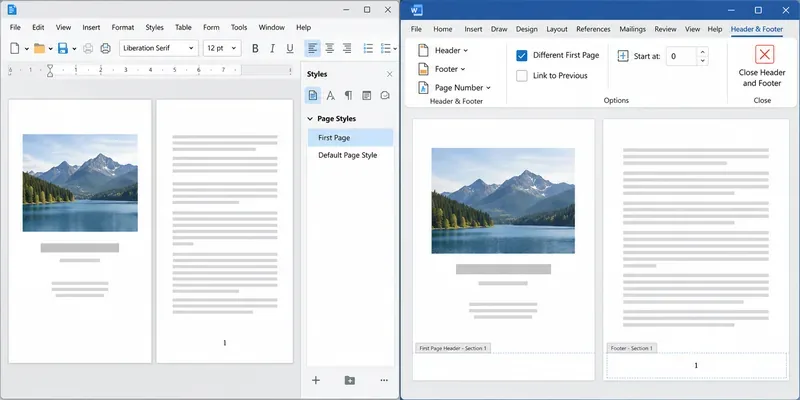
Learn how Writer page styles and Word section links affect cover pages, Roman numerals, and numbering restarts when you move a document.
LibreOffice Writer and Microsoft Word both insert dynamic page-number fields, but they organize the rules around those fields differently. Writer uses page styles to control headers, footers, and page layout; Word uses sections, whose headers and footers are linked to the previous section by default. When moving a document between the apps, map the result you want to the other app’s structure instead of repeating the same menu clicks. The current Writer Help and Microsoft Support instructions were checked October 9, 2026; menu labels can vary by version and platform.
In both apps, a page number is a field that displays a page number, not ordinary text you should type by hand. It can update when pagination changes. In Writer, choose Insert > Page Number to place a field in the current page style’s header or footer, or use Insert > Field > Page Number at the cursor. In Word, insert a page number in a header or footer from Insert > Page Number; Word also exposes the Page field through its header-and-footer tools. For a simple document numbered from the first page, either app can handle this without a special section or style. Choose a header or footer position and confirm the number repeats on later pages.
A Writer page style can define the page’s margins, orientation, headers, footers, and columns. A style can name a “Next Style,” so a title page can use First Page and then move to Default Page Style. A manual page break can also apply a different style or set a new page number. In Word, a section break creates a new formatting region. The header or footer in that section is linked to the corresponding header or footer in the previous section unless you turn Link to Previous off. These are the documented models; the exact layout changes a particular imported file needs depend on how that file was built.
| Desired result | Writer approach | Word approach |
|---|---|---|
| Hide the cover number; let page 2 display 2 | Use First Page style without a number footer, then Default Page Style with a page-number field. | Select Different First Page for the section; keep the normal sequence. |
| Hide the cover number; make page 2 display 1 | At the body’s first paragraph, insert a manual break with the body page style and set the new page number to 1. | Select Different First Page, then set Page Number > Format Page Numbers > Start at to 0. |
| Use Roman numerals for front matter, then Arabic numerals | Use separate page styles with the required number formats and a page-style change between them. | Insert a next-page section break, unlink the appropriate header or footer, and set the number format for each section. |
| Restart at 1 for a new chapter | Use a manual page break and set the new page number, applying another style only if the layout also changes. | Start a new section, turn off Link to Previous for the header or footer that contains the number, and set Start at 1. |
For Writer, the Insert > Page Number wizard adds a number to the current page style; more complex sequences use page styles and a manual break. The LibreOffice Writer page-numbering help describes both methods. In Word, a plain page break does not create a new section. Use Layout > Breaks > Next Page when the numbering format or header/footer behavior must change for following pages. See Microsoft’s instructions for numbering different Word sections.
Not by itself. Word’s Different First Page option hides content in the first page’s header or footer, but the page counter can continue; page 2 may therefore show 2. To make it display 1, use Start at 0 as Microsoft’s instructions for starting page numbering later documents. Writer’s First Page style can omit the footer while the next page continues the count; to restart at 1, set the new page number in the manual break. Decide whether you want to hide a number or change the count, then verify the first numbered page.
Word links matching header and footer types separately. If the number is in the footer, unlink that section’s footer; changing the header link will not solve it. First-page and odd/even header-footer variants create separate contexts too. After adding a section break, open the exact footer or header containing the number and check its link state. Microsoft’s Microsoft’s explanation of Link to Previous explains this behavior.
It does not. In Writer, a manual page break can include a page-style change and a numbering restart. In Word, a page break moves text to the next page but does not isolate section formatting; use a section break for that. If a number change unexpectedly affects earlier pages, show formatting marks in Word and look for the section break before editing the header or footer again.
The verified difference is structural: page styles in Writer and sections in Word. The practical effect depends on the document. A basic continuous sequence may look the same in both, while a cover, Roman-numbered contents, restarted chapter numbers, or different odd/even footers needs a deliberate mapping. The documentation does not establish that every converted file will change in the same way, so inspect the actual file rather than assuming a conversion has preserved each transition.
Open the document in the target app and check the cover, the first page that should show a number, every style or section transition, and the last page. Confirm both the displayed number and its format. If the result is going to print or be shared as PDF, review the exported PDF as well. For current control names, consult LibreOffice Writer page-numbering help, LibreOffice page-style documentation, LibreOffice Page Number Wizard help, Microsoft’s instructions for starting page numbering later, and Microsoft’s page-number field instructions.
Learn how Writer page styles and Word section links affect cover pages, Roman numerals, and numbering restarts when you move a document.
You've just nailed a great product demo. The energy was right, you handled objections like a pro and you could see the lightbulb moment on your prospect's face. The Zoom call is over, you click “End Recording,” and you feel great.
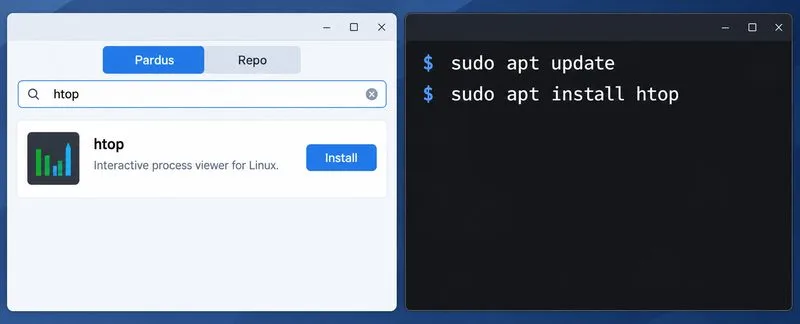
Compare Pardus Software Center with APT commands to find, install, remove, and update packages using the method that fits your task.
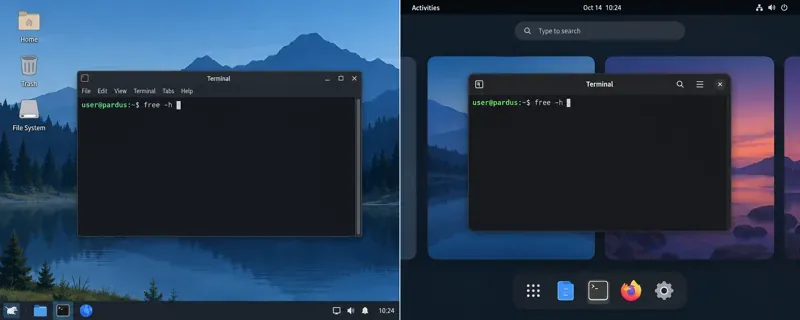
See what Pardus’s published RAM requirements mean, then compare XFCE and GNOME on the same PC with repeatable MemAvailable readings.
See where HamoniKR 8.0 fits in a business desktop plan, what its Korean-focused features support, and what to verify before a wider rollout.
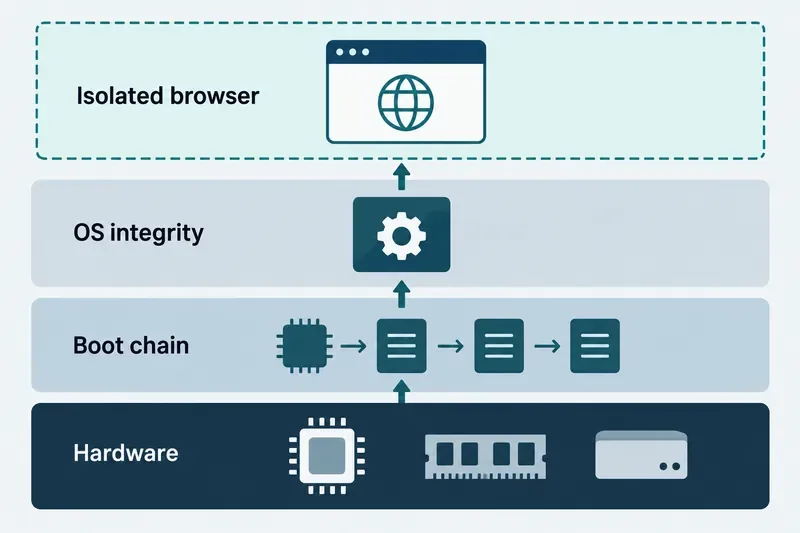
Understand how Gooroom’s boot verification and runtime protections fit together, what “sandbox” means, and which settings you should verify on your device.
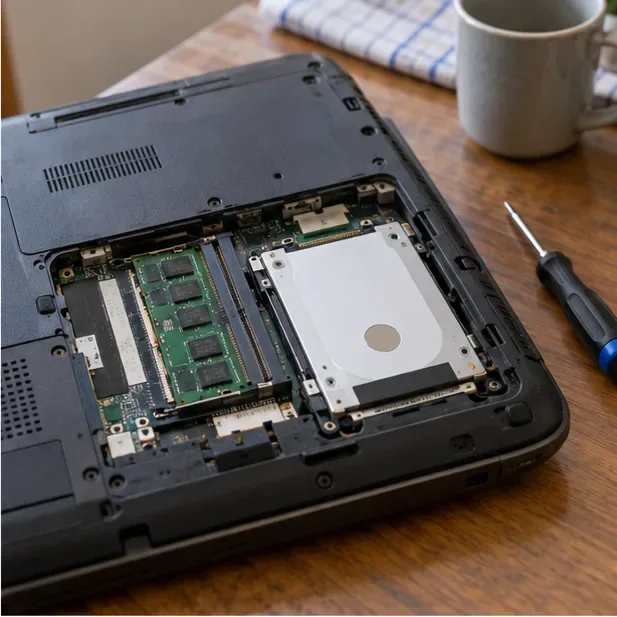
Compare HamoniKR 8.0 LTS and Lite requirements, then test Wi-Fi, graphics, and laptop controls from a live USB before installing.
Compare the current SLES and RHEL baselines, understand why kernel numbers do not predict speed, and build a fair test around your real server workload.
Compare Ubuntu Server 24.04 minimized and standard installs across RAM, disk space, boot time, CPU, and real workloads—without misleading benchmark claims.
A practical 2026 guide to AI, smart-home sensors, remote monitoring, fall safety, privacy, and how technology can support aging in place without replacing care.