Pardus Software Center or APT? Choosing the Right Tool
Compare Pardus Software Center with APT commands to find, install, remove, and update packages using the method that fits your task.
If by “PETA” you mean Pardus’s graphical package tool, the official name I could verify is Pardus Software Center, as shown on the Pardus applications page; I could not confirm “PETA” as its current official name. Use Software Center when you want to browse applications visually. Use APT in the terminal when you know the package name, need a concise system update, or want commands you can repeat. Both manage software from configured sources, but their views and available listings are not identical.
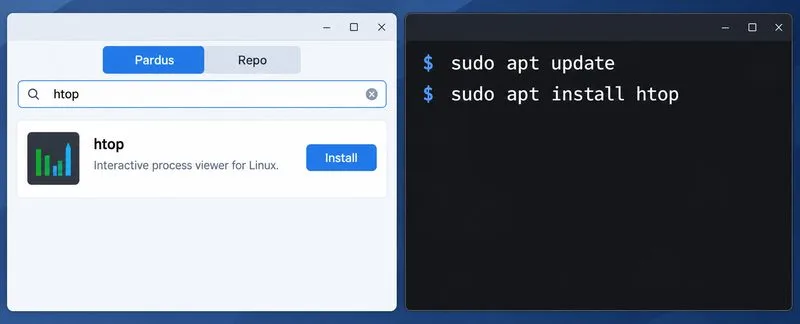
Pardus Software Center is the graphical app for finding, installing, removing, and updating applications. The Pardus installation help article describes two areas: the Pardus tab presents an app-store-style catalog with descriptions and other app information, while the Repo area offers repository package browsing with functionality similar to Synaptic. That distinction matters: a catalog listing is convenient for discovering familiar apps, while the repository view is closer to browsing package names and system components.
Pardus’s help article also documents installing from the terminal with APT. This is why the comparison is not simply “a separate Pardus package format versus Linux commands.” APT is the package-management command-line interface used by Debian-based systems, including Pardus; see the Debian APT manual. The GUI provides a visual path for common tasks; APT exposes package actions and system updates as explicit commands.
The Pardus help article describing these tabs was last updated in June 2022. Names and screen details may differ in a newer Pardus edition, so use the current application’s labels rather than expecting every button to match an older guide.
Choose the graphical tool when you are discovering software by purpose instead of knowing its exact Debian package name. You can search the catalog, read the available description, and use its Install action. For a routine desktop application, this avoids memorizing command syntax and makes it easier to notice the application’s own information before installing it.
Use the Repo view when the app-store catalog does not show what you need, or when you want to browse packages provided by configured repositories. It provides a more package-oriented view, but it does not make every package safe or appropriate to install. System libraries and low-level components can affect other software, so do not install or remove packages solely because their names look familiar.
Software Center is also suitable for a one-time visual update or removal. Before confirming removal, read any summary of additional packages the tool proposes to remove. If the list includes desktop or system components you do not recognize, cancel and investigate first.
Use APT when you know what you want to do and want a clear record of the action. The standard pattern for installing a package is to refresh package metadata, then install by package name:
sudo apt update
sudo apt install htop
The Pardus help documentation uses htop as an example. Here, update downloads current package information from configured sources; it does not itself upgrade installed applications. install asks APT to install the named package and resolve its dependencies. APT shows the proposed changes before continuing, so review the package list and confirm only if it makes sense.
Other useful commands include:
apt search htop searches package metadata for a matching package name or description.apt show htop displays package details such as its description and dependencies.sudo apt remove htop removes the package but usually leaves modified system-wide configuration files.sudo apt upgrade installs available upgrades for installed packages. Review APT’s proposed changes before accepting.apt full-upgrade can remove installed packages when that is necessary to complete an overall upgrade, so inspect its proposed removals carefully. The Debian APT manual describes apt as an interactive end-user command and recommends dedicated tools such as apt-get for scripts, where more stable command behavior is preferred.
They overlap, but they are not guaranteed to show the same presentation or every identical item. Software Center’s Pardus catalog is designed around applications and may show descriptions, screenshots, or other catalog details. The Repo area presents repository packages. APT works from the repositories configured on the computer and lets you search, inspect, install, remove, or upgrade using package names.
Neither interface bypasses repository configuration. If a package is missing from APT and the Repo view, changing to the GUI will not automatically make it available. Check whether the package exists in Pardus’s supported sources before adding an outside repository or downloading a standalone .deb file. Mixing Debian repositories or packages built for a different Pardus release can create dependency conflicts.
For automation, use apt-get rather than copying interactive apt output into a script. For everyday manual terminal work, apt is a readable option. Use sudo only for commands that change the system; search and show commands do not need administrator privileges.
After a graphical install, look for the app’s installed or Open state in Software Center, then launch it from the applications menu. After a terminal install, check with apt list --installed htop or launch the application. For an update, confirm APT finished without errors and review its summary; compare the installed package’s version afterward if you need to verify a particular upgrade. These checks confirm the requested package action, but they do not certify that every available package is appropriate for your system.
Compare Pardus Software Center with APT commands to find, install, remove, and update packages using the method that fits your task.
See what Pardus’s published RAM requirements mean, then compare XFCE and GNOME on the same PC with repeatable MemAvailable readings.
See where HamoniKR 8.0 fits in a business desktop plan, what its Korean-focused features support, and what to verify before a wider rollout.
Understand how Gooroom’s boot verification and runtime protections fit together, what “sandbox” means, and which settings you should verify on your device.
Compare HamoniKR 8.0 LTS and Lite requirements, then test Wi-Fi, graphics, and laptop controls from a live USB before installing.
Compare the current SLES and RHEL baselines, understand why kernel numbers do not predict speed, and build a fair test around your real server workload.
Compare Ubuntu Server 24.04 minimized and standard installs across RAM, disk space, boot time, CPU, and real workloads—without misleading benchmark claims.
A practical 2026 guide to AI, smart-home sensors, remote monitoring, fall safety, privacy, and how technology can support aging in place without replacing care.
Learn how cities can turn mobility, land-use, climate, and community data into safer, greener, more walkable neighborhoods without putting technology before people.
Compare leading UAV and aerospace engineering programs for drones, autonomy, controls, UAS operations, and graduate research, with verified 2026 updates.