Pardus 25.2 XFCE vs GNOME: A Fair RAM Comparison
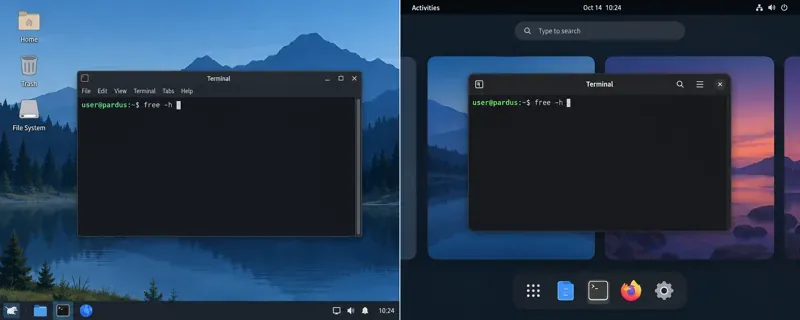
See what Pardus’s published RAM requirements mean, then compare XFCE and GNOME on the same PC with repeatable MemAvailable readings.
For a low-memory computer, Pardus XFCE is the more sensible edition to test first: Pardus publishes lower minimum and recommended RAM requirements for XFCE than for GNOME. Those requirements are not an idle-memory benchmark, however, and I could not verify a published, controlled RAM comparison between the two Pardus editions. To choose confidently, compare the same Pardus release on the same hardware and use MemAvailable as your main system-wide signal.
As of October 9, 2026, Pardus’s download page lists Pardus 25.2 XFCE and Pardus 25.2 GNOME. Its listed minimum RAM is 1,024 MB for XFCE and 4,096 MB for GNOME. The Pardus 25 release notes give recommended memory as 4 GB or more for XFCE and 8 GB or more for GNOME. These are vendor requirements for running the editions, not measurements of how much RAM each desktop consumes after login.
| Edition | Published minimum RAM | Published recommended RAM | What this supports |
|---|---|---|---|
| Pardus XFCE | 1,024 MB | 4 GB+ | A lower-memory starting point |
| Pardus GNOME | 4,096 MB | 8 GB+ | More headroom recommended by Pardus |
The release notes identify XFCE 4.20.2 and GNOME 48.4 in the Pardus 25 release. Package revisions can change in a point release, so record the edition, ISO, update date, and desktop version when publishing your own result. The different requirements are useful evidence of Pardus’s intended resource envelope, but they do not tell you the exact idle-RAM gap on your PC.
Read the official Pardus download requirements and Pardus 25 release notes before comparing downloads.
Use one computer and compare installed systems, rather than comparing one live USB session with one installed desktop. A live session can add its own memory and storage effects. Keep the hardware, firmware settings, display resolution, connected devices, network state, and available RAM the same. Install the same Pardus release and apply updates to both editions on the same day; note the kernel and desktop versions.
free -h. Record the available value, total memory, and swap use. For kernel counters, run grep -E '^(MemTotal|MemAvailable|Buffers|Cached|SReclaimable|SwapTotal|SwapFree):' /proc/meminfo. Linux documents these counters in the kernel’s /proc filesystem reference.for i in {1..5}; do date -Is; grep -E '^(MemTotal|MemAvailable|Buffers|Cached|SReclaimable|SwapTotal|SwapFree):' /proc/meminfo; sleep 60; done.Linux uses spare RAM for caches, so a high “used” figure does not automatically mean the desktop is short on memory. The MemAvailable field estimates how much memory can be made available to new applications without swapping. The free command also reports an “available” column; compare that value consistently across both installations. GNOME System Monitor can show memory and swap history, while Xfce Task Manager monitors process memory, but those interfaces serve different purposes. For the edition-level comparison, use the same kernel counters on both systems.
Do not add every process’s resident memory to estimate total desktop use: shared libraries and shared memory can be counted in more than one process. Also keep swap in view. If one system has begun swapping, a single RAM figure may hide a noticeable difference in responsiveness. Write down RAM capacity and swap configuration with every result.
For a repeatable summary, report the median MemAvailable after idle login and during the fixed workload, plus swap used, hardware, Pardus ISO/build, kernel, desktop version, and number of runs. You can describe estimated memory pressure as MemTotal - MemAvailable, but label it as an estimate rather than “the desktop’s exact footprint.”
If the computer has 4 GB of RAM or less, start with XFCE and verify that your everyday applications remain responsive; Pardus’s published requirements make it the lower-memory candidate. If the computer has 8 GB or more, GNOME falls within Pardus’s recommended range, so choose based on your preferred workflow and the measured workload you actually use. Between those points, compare both editions on the machine before committing.
There is no verified universal RAM difference to quote from the official sources reviewed here. Your own result will vary with background services, updates, graphics drivers, hardware, and applications. Treat the official RAM requirements as planning guidance and your repeated MemAvailable readings as the benchmark. The comparison is useful when the test conditions are identical and the result is reported with its system details.
See what Pardus’s published RAM requirements mean, then compare XFCE and GNOME on the same PC with repeatable MemAvailable readings.
See where HamoniKR 8.0 fits in a business desktop plan, what its Korean-focused features support, and what to verify before a wider rollout.
Understand how Gooroom’s boot verification and runtime protections fit together, what “sandbox” means, and which settings you should verify on your device.
Compare HamoniKR 8.0 LTS and Lite requirements, then test Wi-Fi, graphics, and laptop controls from a live USB before installing.
Compare the current SLES and RHEL baselines, understand why kernel numbers do not predict speed, and build a fair test around your real server workload.
Compare Ubuntu Server 24.04 minimized and standard installs across RAM, disk space, boot time, CPU, and real workloads—without misleading benchmark claims.
A practical 2026 guide to AI, smart-home sensors, remote monitoring, fall safety, privacy, and how technology can support aging in place without replacing care.
Learn how cities can turn mobility, land-use, climate, and community data into safer, greener, more walkable neighborhoods without putting technology before people.
Compare leading UAV and aerospace engineering programs for drones, autonomy, controls, UAS operations, and graduate research, with verified 2026 updates.
A practical guide to AI-powered surgical robotics: current capabilities, levels of autonomy, precision benefits, limits, regulation, and evaluation criteria.