Rescue Zoom Demo Recordings Before You Publish Them as Evergreen Product Videos
You've just nailed a great product demo. The energy was right, you handled objections like a pro and you could see the lightbulb moment on your prospect's face. The Zoom call is over, you click “End Recording,” and you feel great.
Then, you open the file.
Your initial response is likely, "I cannot let anybody see this. And you're right. That screen will display a grainy, soft video of your face in a small box. The best part? The videos are stamped all over with "John Doe (Host)" and "Jane Smith (Guest)". This is like a privacy nightmare and it appears unprofessional.
However, there's lots of gold inside that rough ugly recording. This demonstration wasn't a single occurrence: it's the building blocks for your next major evergreen product video. This is the kind of content that can be working for you round the clock, generating leads and educating customers while you're sleeping. The trick is to scrub it down and put the finishing touches on it so it looks like a million bucks.
The Hidden Problem with Raw Zoom Footage
The excitement of a great live demo always crashes into the reality of a Zoom recording. We’ve all been there. The video quality isn't just a little off; it's a dealbreaker for publishing.
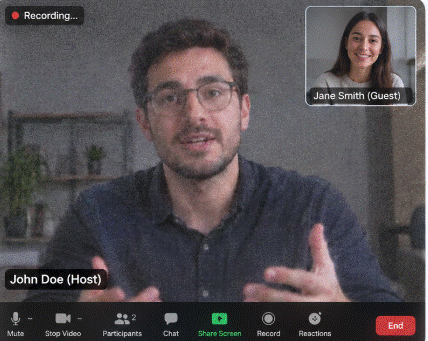
This is a massive problem for SaaS companies and consultants. You invest hours in making the ultimate walkthrough of your software. You'd like to make that a video that lives on your website, your onboarding emails, or as a lead magnet. However, that raw footage isn't ready for prime time.
First, there’s the quality issue. Unless you have a studio setup, your camera likely looks like a blurry webcam, even though your product screens are crisp. This contrast is jarring for a viewer. You need a free video quality enhancer to polish the entire image and bring your face and screen captures into harmony.
Then, you face the annoying burned-in names. Zoom forces participant names and labels directly onto the video file. This is a huge problem if you're trying to publish a public-facing video. You can’t just crop them out without losing half your screen. You need a tool to remove text from video to scrub those labels off . Seeing a floating "John Doe (Host)" over your face is a surefire way to lose a viewer's trust immediately.
The "Wait, What?" Moment After Recording
So you have this awesome recording but it has too much clutter. The problem is that nobody wants to see a “live recording.” They want an elegant and professional video that tells them about you and your product. They want to learn without any distractions.
This is what Zawa aims to address. Zawa is the brand to save your best Zoom demos from the recycle bin. We help you cut through the clutter and give you a clean, branded video that makes you sound like a pro.
It is a simple process. You're holding this unpolished, low-resolution, ugly-captioned file and you feel like you are defeated. However, there is no need to re-record. You don't necessarily need to pay a lot of money for an editor. All you need is a better workflow.
How to Rescue a Zoom Recording Without a Degree in Video Editing
Let's walk through the rescue mission. It doesn't require you to learn complex software or spend hours in a timeline.
Step 1: Fix the Quality
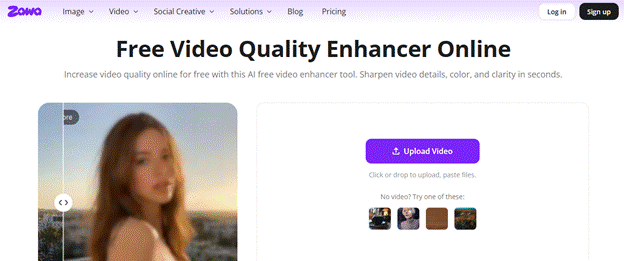
The first thing you notice is the fuzziness! The webcam quality is usually of low resolution and makes you look less reliable. If you don't want to let that substandard video affect your demo, just use a free video quality enhancer to enhance the whole video.
- Open Zawa’s Video Enhancer.
![]()
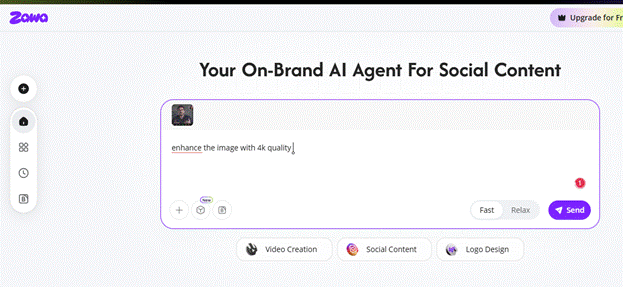
- Click Upload and select your recorded demo video. Choose the desired output quality, such as 1K, 2K, or 4K, depending on the original recording quality. Zawa’s enhancer is designed to upscale low-resolution video and improve clarity.
![]()
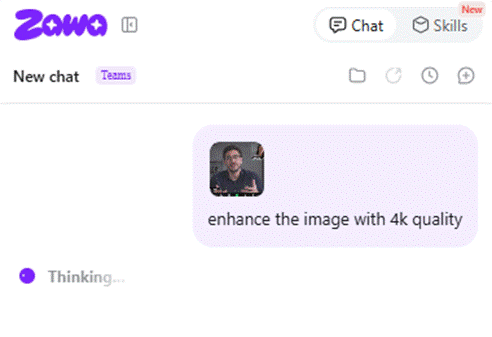
- Allow Zawa to process the video automatically.
![]()
- Preview the enhanced version and compare it with the original.
- Download the improved video when you are satisfied with the result.
![]()
Tip: If the webcam image is especially soft, use the enhanced version as the source for the next step. Improving the footage first can make the final video look cleaner.
Step 2: Clean Up the Screen
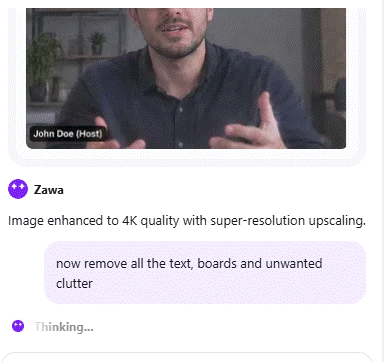
Next, you need to address the clutter on the screen. Your demo should be about your product, not the Zoom interface. This is where you need to remove text from video.
![]()
Zawa’s tool lets you magically erase those distracting, burned-in names and labels. You can wipe the slate clean, leaving just your beautiful product screens and your face. This instantly makes the video look professional and private.
![]()
Step 3: Make it Evergreen
When the video is clean, it's time to publish it. You can put it on your website as an evergreen product video. It can be posted on YouTube as a how-to video. You can even include it in an e-mail sequence. The goal is to take a live, one-off moment and turn it into a piece of content that works for you forever. Your best demo can be viewed by every new lead or customer, without you having to be on the call.
This process transforms your demo from a disposable sales call into a powerful marketing asset.
Bonus Step: Trim the Fat
Before you publish, take two minutes to cut the awkward parts. The “can everyone hear me?” moments. The long silences. The rambling tangents.
Most free video tools let you trim the beginning and end. Do it. A tight, focused 3-minute video beats a meandering 10-minute one every single time. Your viewers will thank you by actually watching until the end.
Why This Matters for Your Business
Think about the time you save. Instead of doing five live demos a day, you can create one amazing evergreen video. You can send that to leads at the top of the funnel to pre-qualify them and show off your product’s value. Then, when you do hop on a live call, the prospect is already educated and excited.
It also builds massive trust. If your video looks professional, it's a sure sign of a high quality and legitimate business. It will demonstrate that you care about the details and value your viewer's time. Plus, it addresses a significant challenge: no more privacy issues with burned-in Zoom names!
Your Demo is Too Good to Waste
If you've put in the effort to create a fantastic product, you want to promote it like a pro! You have so much content in your Zoom recordings. Don't let low resolution, poor video quality and substandard text overlays deter new customers.
It is possible to overcome this with the technology we have now. You don't have to be a video professional to make your demos look like they were professionally produced. Zawa allows you to save that great demo, edit it, and make it into a great evergreen asset that works for your business 24 hours a day. Now, it's time to use those recordings for you.
Conclusion: The finished video should feel intentional
You don't have to spend a fortune to produce a strong evergreen product video. It requires a clear screen, clear sound, helpful captioning, and something to keep the viewer engaged.
The most important thing that the original Zoom demo has is a real person explaining how the product works. Your task is to take out the meeting residue without taking out that human voice.
Fix the soft image. Strip away the old labels. Replace messy captions with clean ones. Cut the parts that belonged to the live call.
Then publish the version that feels like it was made for the next viewer, not the version that merely survived the last meeting.
Meta Description
Stop wasting perfect Zoom demos! Learn to rescue raw recordings by fixing video quality and stripping burned-in captions. Turn your best SaaS demos into evergreen product videos with Zawa.
AI Detection:
![]()
![]()