Calc VLOOKUP vs XLOOKUP: Choose the Right Lookup Formula

Compare exact matches, left-side lookups, missing-value handling, and version support so you can choose a reliable Calc formula.
Use XLOOKUP for most new lookups if your workbook will be opened in LibreOffice 24.8 or later; it defaults to an exact match and lets you choose separate search and result ranges. Use VLOOKUP when you need compatibility with older Calc versions or when the lookup value is in the first column of a compact table. If you keep VLOOKUP, include its fourth argument as 0 or FALSE for an exact match.
These functions solve the same basic problem: find a key, such as a product code, and return related information from another cell. The important differences are how each formula defines its ranges, what it assumes when an option is omitted, and whether the file must work in older software.
VLOOKUP searches down the first column of a rectangular table and returns a value from a numbered column to its right. XLOOKUP separates the search range from the return range, so the return values can be on either side of the keys. XLOOKUP also accepts a custom value for a missing match and can search in reverse order.
For example, suppose A2:A5 contains product IDs and B2:B5 contains prices. Cell F2 contains the ID to find. In Calc, the exact-match VLOOKUP formula is:
=VLOOKUP(F2;A2:B5;2;0)
The equivalent XLOOKUP formula is:
=XLOOKUP(F2;A2:A5;B2:B5;"Not found")
Both return the matching price. Calc commonly displays semicolons between function arguments according to locale settings; if formulas in your installation use commas, use the separator Calc expects. The examples use one-cell results and one-dimensional lookup ranges.
Choose XLOOKUP for a new workbook when you know recipients use LibreOffice 24.8 or newer. The function became available in LibreOffice 24.8, according to the official XLOOKUP help page. Its default match mode is exact, so a missing exact key does not silently return a nearby value.
The function pattern is =XLOOKUP(search_criterion;search_array;result_array;[if_not_found];[match_mode];[search_mode]). The first three arguments identify the key, the one-dimensional range to search, and the range to return from. A fourth argument such as "Not found" replaces the usual #N/A result when no match exists.
VLOOKUP cannot return a value to the left of its first table column. XLOOKUP can, because the search and result ranges are independent. For example, if IDs are in C2:C100 and department names are in A2:A100, use:
=XLOOKUP(F2;C2:C100;A2:A100;"ID not found")
This layout also avoids a fragile column index. If someone inserts a column into a VLOOKUP table, the hard-coded index can point to a different field. XLOOKUP’s explicit result range makes the intended return column easier to inspect.
When duplicate keys are present and you want the last match, XLOOKUP supports reverse search with its search mode. For a vertical range, the final argument -1 searches from last to first:
=XLOOKUP(F2;A2:A100;B2:B100;"Not found";0;-1)
This returns the result associated with the last exact occurrence. Use it only when row order has a defined meaning, such as newest records appearing last. If duplicates should be treated as an error, clean or validate the data instead of choosing one occurrence implicitly.
Keep VLOOKUP when the file must open in an older LibreOffice release that does not include XLOOKUP, or when the destination application may not recognize XLOOKUP. The official Calc documentation describes VLOOKUP’s table and index arguments and its optional sorted-range argument; consult the official spreadsheet functions reference.
For an exact match, the pattern is =VLOOKUP(key;table;column_index;0). The index counts columns from the left edge of the selected table: 1 means its first column, 2 means its second. The lookup key must be in that first column, and the returned field must be to its right.
The fourth argument matters. If you omit it or set it to TRUE, VLOOKUP uses approximate matching and expects the first column to be sorted in ascending order. That behavior can be useful for ranges such as tax brackets, where each row marks a lower boundary. It is risky for IDs, names, and unsorted lists. For those, specify 0 or FALSE.
To provide a custom missing-key response with VLOOKUP, use =IFNA(VLOOKUP(F2;A2:B5;2;0);"Not found"). This keeps the exact-match setting visible and handles only the not-available error. Avoid wrapping the formula in a broad error handler unless you also want to hide unrelated problems, such as an invalid range reference.
LibreOffice’s help states that XLOOKUP is available since version 24.8. It also notes that XLOOKUP is not part of OpenDocument Version 1.3’s OpenFormula standard, and identifies a Microsoft function namespace for interoperability. That means file format alone does not guarantee every older or third-party spreadsheet application will calculate the function. For mixed software environments, test the workbook in the oldest target application or use an established formula such as exact-match VLOOKUP where its layout fits.
Also note a documented array-formula condition: when XLOOKUP’s result array is a range of cells, the function must be entered as an array formula. The simple examples above return a single corresponding value. If you want a formula to return multiple cells, consult the version-specific help and test how the target application handles the array result.
For most new Calc sheets, XLOOKUP offers clearer ranges and safer exact-match defaults. Use VLOOKUP when backward compatibility matters or its first-column-to-the-right layout is already appropriate, and make its match mode explicit.
Compare exact matches, left-side lookups, missing-value handling, and version support so you can choose a reliable Calc formula.
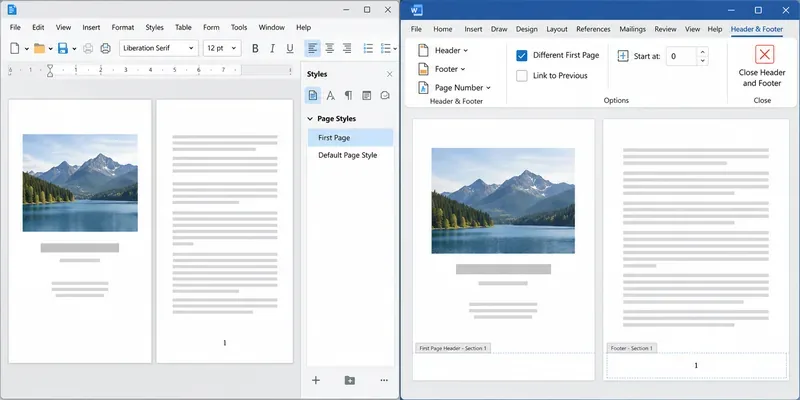
Learn how Writer page styles and Word section links affect cover pages, Roman numerals, and numbering restarts when you move a document.
You've just nailed a great product demo. The energy was right, you handled objections like a pro and you could see the lightbulb moment on your prospect's face. The Zoom call is over, you click “End Recording,” and you feel great.
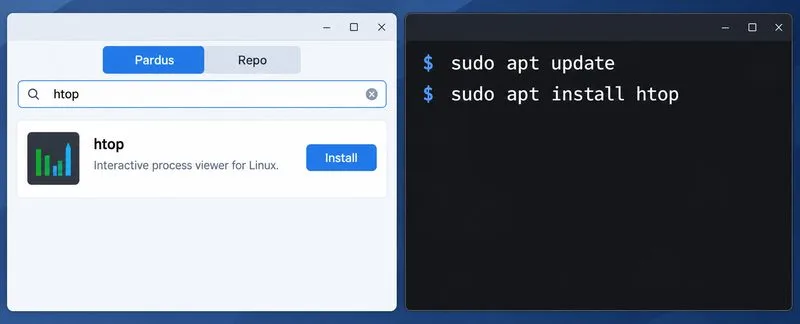
Compare Pardus Software Center with APT commands to find, install, remove, and update packages using the method that fits your task.
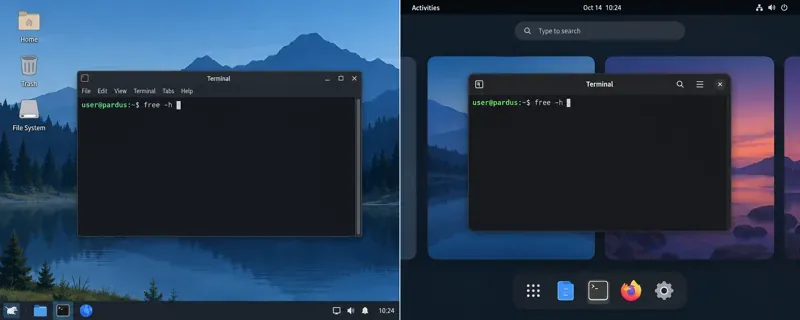
See what Pardus’s published RAM requirements mean, then compare XFCE and GNOME on the same PC with repeatable MemAvailable readings.
See where HamoniKR 8.0 fits in a business desktop plan, what its Korean-focused features support, and what to verify before a wider rollout.
Understand how Gooroom’s boot verification and runtime protections fit together, what “sandbox” means, and which settings you should verify on your device.
Compare HamoniKR 8.0 LTS and Lite requirements, then test Wi-Fi, graphics, and laptop controls from a live USB before installing.
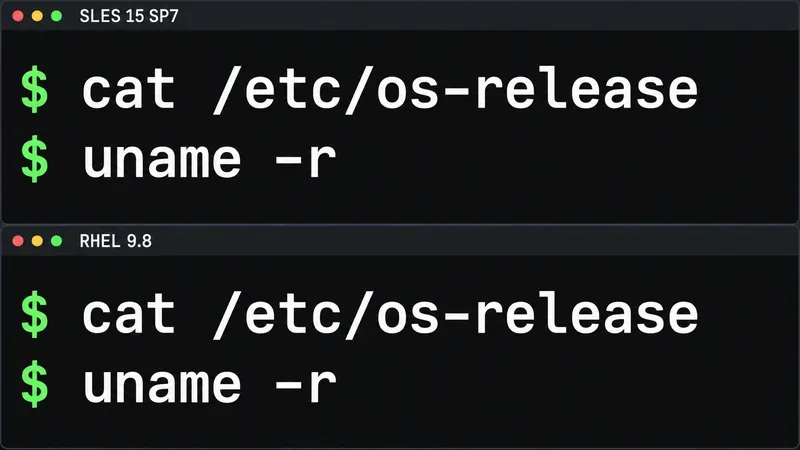
Compare the current SLES and RHEL baselines, understand why kernel numbers do not predict speed, and build a fair test around your real server workload.
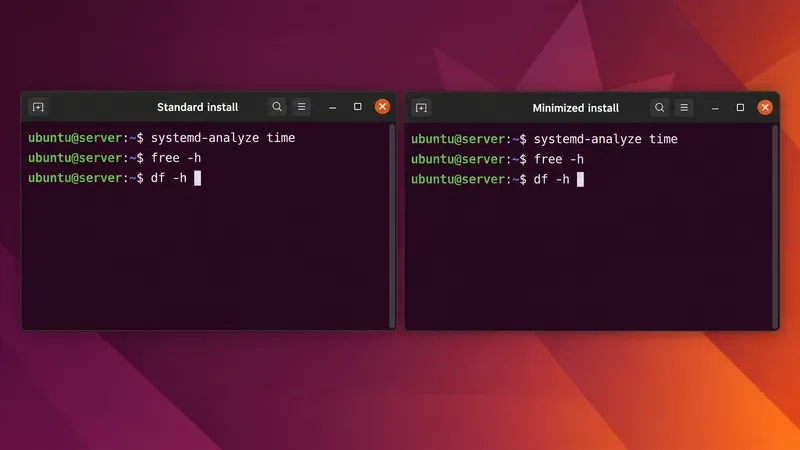
Compare Ubuntu Server 24.04 minimized and standard installs across RAM, disk space, boot time, CPU, and real workloads—without misleading benchmark claims.