For files created and routinely edited in Microsoft Office Open XML formats such as DOCX, XLSX, and PPTX, both ONLYOFFICE Docs and Microsoft 365 web apps can preserve familiar formatting. Microsoft 365 web is usually the lower-risk choice when a document depends on Microsoft-specific features or must match Microsoft Word or Excel closely. ONLYOFFICE Docs is a practical alternative for OOXML-focused editing and collaborative deployments, but its own documentation says non-OOXML files may be converted to OOXML for editing. Neither product can guarantee pixel-identical rendering for every file, font, or advanced object.
Use the checklist below to evaluate the actual files you exchange. “Formatting fidelity” means more than whether a file opens: check page flow, fonts, tables, charts, formulas, and what happens after you save and reopen it.
Quick comparison by file type
| What you need to preserve | Microsoft 365 web apps | ONLYOFFICE Docs | Safer decision |
|---|
| DOCX text documents | Word for the web edits DOCX and supports common text formatting, styles, and tables. Some layout and authoring features differ from desktop Word. | Document Editor supports DOCX and other formats; non-OOXML files may be converted to OOXML for editing. | Test advanced layout in both; favor Word web for Microsoft-dependent documents. |
| XLSX workbooks | Cell and number formatting display similarly to Excel, but some workbook features can be unavailable or prevent browser editing. | Spreadsheet Editor supports XLSX and common spreadsheet formats; unsupported or converted features need file-specific review. | Use Excel web for Microsoft-specific workbook behavior; test charts, external data, and macros carefully. |
| ODT or ODS | Microsoft documents known formatting differences when editing OpenDocument files in Word or Excel. | ONLYOFFICE can open and edit many OpenDocument formats, often by conversion to OOXML. | Keep a native-format master or validate a saved copy before switching tools. |
| Print-ready output | Word web’s editing view may not show all page formatting; Microsoft directs users to desktop Word for certain print features. | Page layout and export behavior depend on document content and the Docs deployment/version. | Export to PDF and inspect the PDF before distribution. |
Where layout differences show up
Word documents: pagination, fonts, and objects
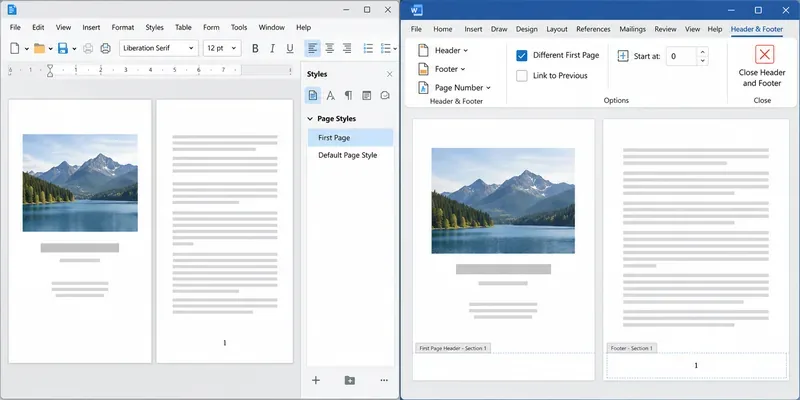
Simple reports built from ordinary paragraphs, headings, and tables are the easiest to move between editors. More fragile files use exact page breaks, section-specific headers and footers, columns, floating pictures, text boxes, footnotes, or carefully positioned shapes. A small font substitution or different line wrapping can push a paragraph onto another page even when the text and styles remain intact.
Word for the web presents documents in Print Layout, but its Editing view does not show every page-formatting detail, and some features work differently from desktop Word. Microsoft also lists features that are available in desktop Word but not Word for the web. ONLYOFFICE’s supported-format documentation distinguishes native formats from formats that are converted for viewing or editing. Therefore, opening a DOCX successfully is not proof that every layout element will round-trip unchanged.
Excel workbooks: numbers, charts, and unsupported features
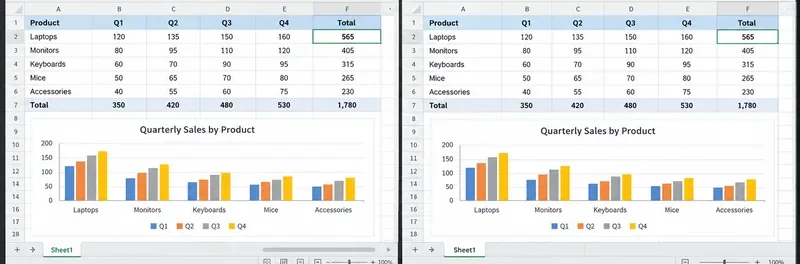
For a conventional XLSX workbook, verify number formats, conditional formatting, row heights, column widths, merged cells, print areas, and chart labels. Excel for the web documents that cell and range formatting generally appears similarly to Excel, while also identifying unsupported workbook features. Certain external-data tables may show the most recently saved values rather than a live refresh, and some files may not be editable in the browser until unsupported content is addressed.
ONLYOFFICE lists XLSX as a supported spreadsheet format and documents chart-editing controls, but support for a file type does not mean every Excel-specific feature behaves identically. If the workbook relies on macros, external connections, specialized charts, or embedded objects, use the application that owns those features for final editing and recalculation. Do not make an editing copy that removes unsupported features unless you understand what will be discarded.
Presentations and OpenDocument files
For PPTX decks, compare slide masters, theme fonts, image cropping, animations, transitions, and speaker notes on representative slides. A quick pass over the title slide alone can miss problems on a dense chart or a slide with grouped objects. For ODT, ODS, or ODP files, conversion can affect layout or feature behavior because the formats encode document structures differently. Microsoft’s ODT and ODS guidance describes partial support and possible formatting or usability changes; ONLYOFFICE’s format tables show which formats it handles natively or through conversion.
A practical fidelity test before choosing
- Make a copy of a representative file. Include the most complicated page, sheet, or slide you regularly use. Keep the original unchanged.
- Record what matters. Note page count, line breaks, table dimensions, font names, chart labels, formula results, and any special objects. A PDF exported from the source application can serve as a visual reference, but it does not validate formulas or editability.
- Open the copy in each web editor. Inspect the same pages or sheets at the same zoom. Look for substituted fonts, shifted page breaks, clipped text, altered chart styling, missing objects, or browser warnings about unsupported features.
- Save and reopen in the target format. Download or save the edited copy as DOCX, XLSX, or PPTX as appropriate, then reopen it in the application your recipients use. For a file destined for Microsoft Office desktop, that final round trip matters more than the browser preview alone.
- Check output separately. Export a PDF when print appearance matters. For spreadsheets, compare formula results and refresh-dependent data; for presentations, run the slideshow and inspect transitions. Keep the source file and the tested copy until the result is approved.
Decision checklist
- Choose Microsoft 365 web first when the team already stores files in Microsoft 365, uses Word or Excel-specific features, or needs the closest browser workflow to Microsoft Office.
- Choose ONLYOFFICE Docs for evaluation when OOXML editing and collaboration fit your environment and you can test representative files before migrating. Confirm the exact Docs version and deployment, because the online editor may be supplied through different integrations or server configurations.
- Keep a desktop editor in the workflow when a file uses complex page layout, specialized charts, macros, external data, or a strict print specification. Browser editors have feature limits by design.
- Keep ODT/ODS as the master when open-document fidelity is a requirement; make a separate OOXML copy for partners if needed, then compare the result.
For primary details, consult ONLYOFFICE Document Editor supported formats, its Spreadsheet Editor supported formats and integration FAQ on OOXML conversion. Microsoft’s current references include Word for the web differences, Word web and desktop feature comparison, Excel web and desktop differences, and Microsoft’s ODT compatibility notes. Feature support can change, so check the current documentation and test your own files before a broad migration.