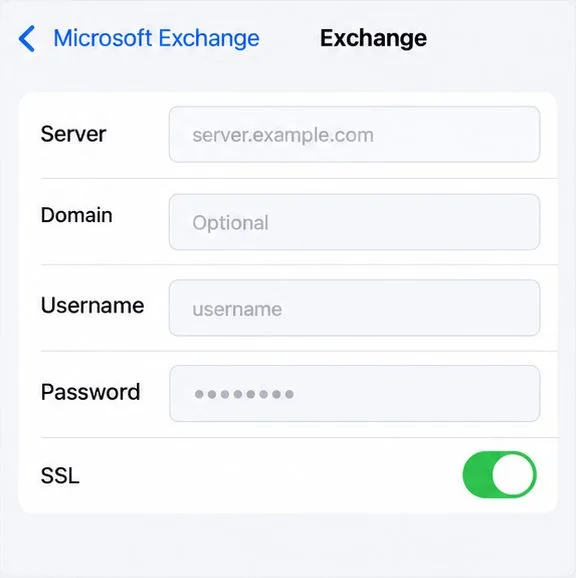
Get Zimbra ActiveSync Working on Your iPhone
Resolve iOS connection failures by checking the Zimbra Mobile Sync setting, server hostname, HTTPS certificate, and Exchange account details in the right order.
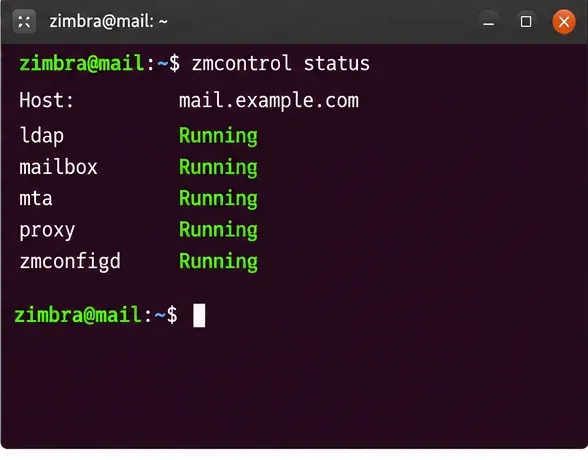
When zmcontrol status shows Zimbra host services as Stopped, first identify the affected component and read its startup errors instead of repeatedly restarting the entire mail server. If services stayed down after a reboot, check available disk space, attempt a controlled start, and use the relevant Zimbra logs to find the specific cause.
A stopped mailbox, MTA, LDAP, proxy, or configuration daemon can have different causes. The commands below apply to typical Linux-based Zimbra Collaboration installations; exact services and control scripts vary by release and server role. Run these checks on the affected host, not automatically on every server in a multi-server deployment.
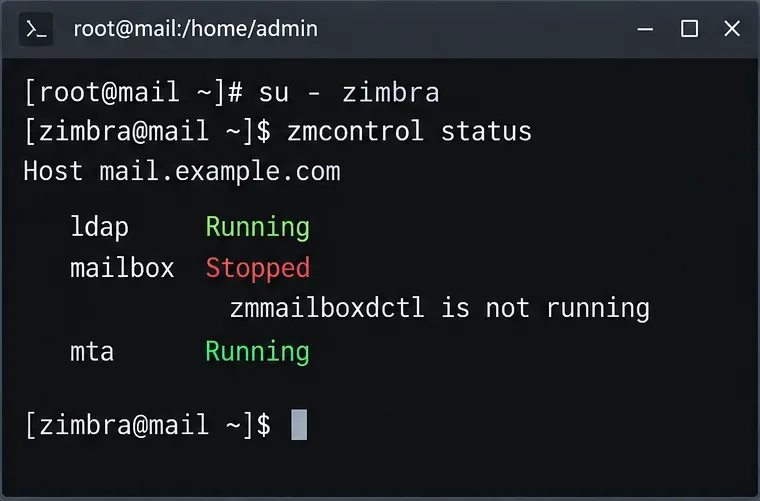
Connect over SSH, switch to the zimbra account, and capture the full output, including indented explanations beneath any stopped service:
su - zimbra
zmcontrol status
The Host line identifies the server being queried. A result such as mailbox Stopped followed by zmmailboxdctl is not running identifies the failed controller but does not yet explain why it failed. Other components may still be healthy. Zimbra's zmcontrol command reference documents the status and lifecycle commands.
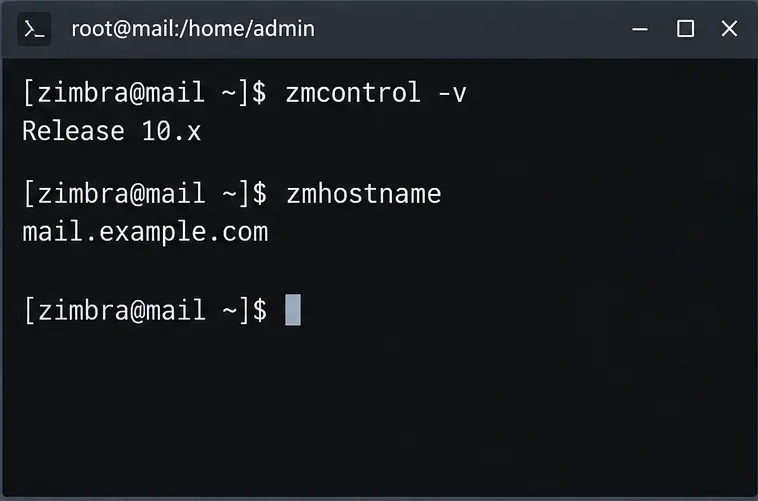
Still as zimbra, collect the installed build and Zimbra hostname:
zmcontrol -v
zmhostname
Record these values before using an older troubleshooting article or a command suggested for another Zimbra release. An LDAP-only server should not be expected to report every service found on a single-server installation. Compare against the services intended for this host.
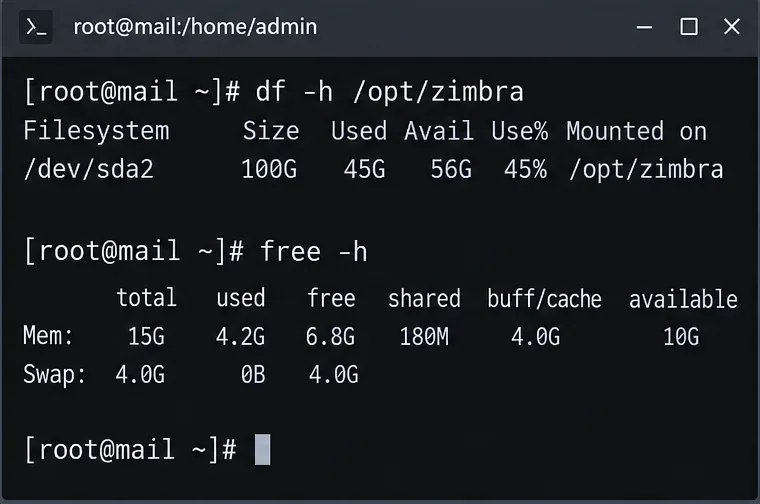
As a privileged Linux administrator, inspect the filesystems that hold Zimbra data and logs, as well as available memory:
df -h / /opt/zimbra /var/log
df -i /opt/zimbra
free -h
A full filesystem or exhausted inodes can prevent services from creating database, log, or PID files. If /opt/zimbra is on a separate volume, also verify that its expected mount is present. Resolve any capacity or mount problem before restarting; do not delete mail stores, database files, or unfamiliar logs to make space.
If the host was recently rebooted and several services remain stopped, run the standard start command as zimbra:
zmcontrol start
zmcontrol status
If production services are otherwise running, avoid a blanket zmcontrol restart, which interrupts healthy components. A single failed service may be recoverable with its own control script after its underlying error is corrected. A startup line that says Done is not sufficient by itself: a daemon can exit moments later, so always repeat the status check.
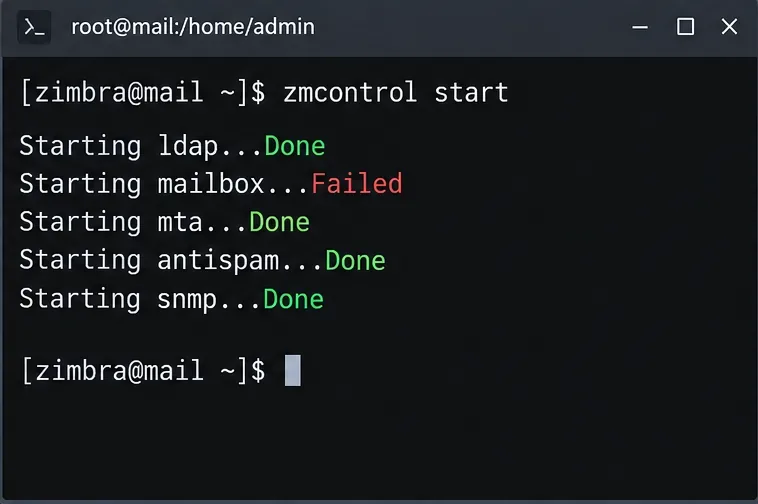
For a mailbox startup failure, check these files as zimbra:
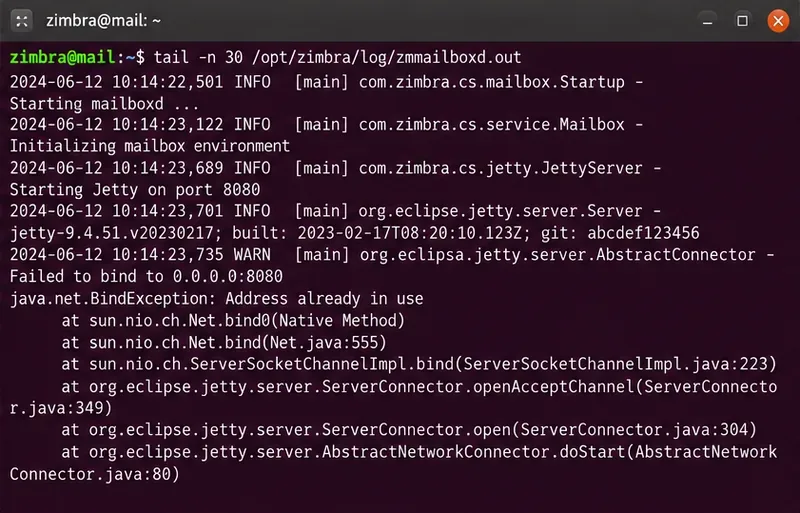
tail -n 80 /opt/zimbra/log/zmmailboxd.out
tail -n 80 /opt/zimbra/log/mailbox.log
For LDAP, Postfix, authentication, or antivirus-related failures, examine /var/log/zimbra.log. For zmconfigd, inspect /opt/zimbra/log/zmconfigd.log. Zimbra documents these paths in its log file reference and configuration daemon reference.
Look for the first meaningful error near the attempted startup: Address already in use, Permission denied, No space left on device, LDAP connection failures, database errors, or a stale PID. Match the timestamp to your attempt. A generic “not running” line is usually a symptom rather than the root cause.
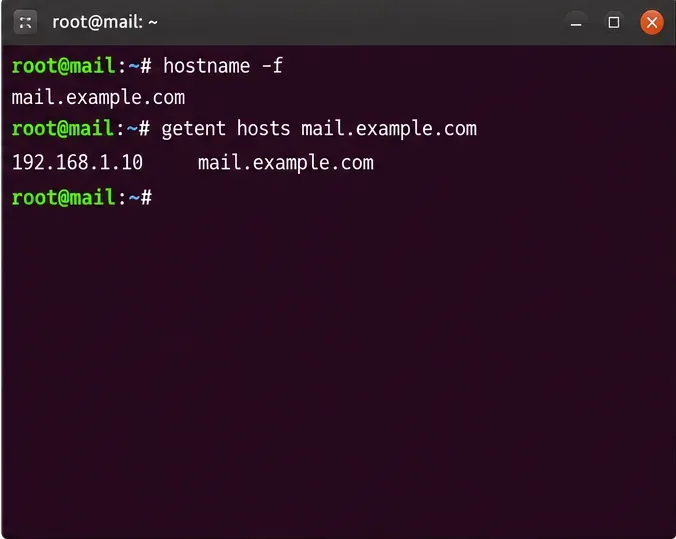
If the logs show LDAP connection or hostname-resolution errors, compare the system's fully qualified domain name with Zimbra's configuration:
hostname -f
zmhostname
getent hosts "$(zmhostname)"
zmlocalconfig ldap_url
Check that each configured LDAP endpoint resolves to the correct address from the affected server and that the required network path is reachable. Zimbra's LDAP troubleshooting documentation identifies failure to start, resolve, or connect to LDAP as separate causes. Fix DNS, host mapping, firewall policy, or a failed LDAP host according to your topology; do not rename a production Zimbra server merely to make the strings match.
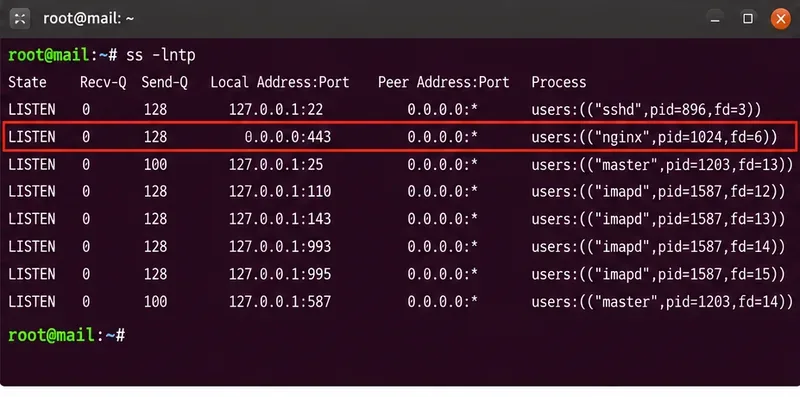
If the log says Address already in use, run the following as root and identify the process listening on the exact port named in the error:
ss -lntpA listener on port 443 may be normal when Zimbra proxy is configured. A conflict exists only when a different process occupies a port that the failed Zimbra component needs. Confirm ownership and configuration before stopping any process; do not assume every nginx or postfix listener is foreign to Zimbra.
If the log specifically reports incorrect ownership or permissions under /opt/zimbra, Zimbra provides /opt/zimbra/libexec/zmfixperms for use as root. Review the effect and schedule a maintenance window first; the extended option can take substantially longer. See the Zimbra permissions procedure. Avoid blanket recursive chown commands.
If an error explicitly identifies a stale PID, first confirm the referenced process no longer exists and that the service is safely stopped before touching its specific PID file. Never delete every PID file while services remain active. Zimbra's stale PID guidance covers this less common situation. Database corruption or certificate problems need their own version-specific procedure, not an improvised reset.
After correcting the confirmed cause, start the affected service using the appropriate control script, or run zmcontrol start if the host's services were previously down. Then verify:
zmcontrol statusConfirm that every expected and enabled service on this host reports Running. Wait briefly and rerun the command to catch a process that starts and exits. For a mailbox or proxy incident, test the applicable webmail or IMAP login; for an MTA incident, check a controlled inbound and outbound message and the mail queue. Watch the corresponding log for fresh errors rather than relying only on a green status line.
If the same service stops again, retain the service status, startup output, Zimbra release, timestamps, and the relevant short log excerpts before escalating. Do not post unredacted account data, tokens, or passwords in a public support request.
Resolve iOS connection failures by checking the Zimbra Mobile Sync setting, server hostname, HTTPS certificate, and Exchange account details in the right order.
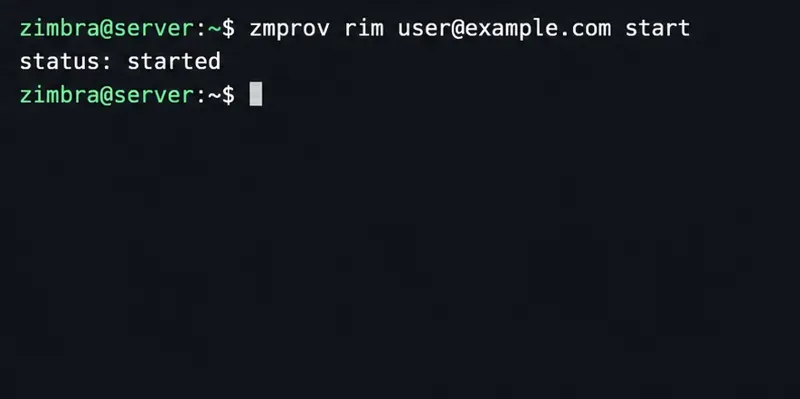
Restore mailbox search by checking index storage, running a targeted Zimbra reindex, and verifying results when it completes.
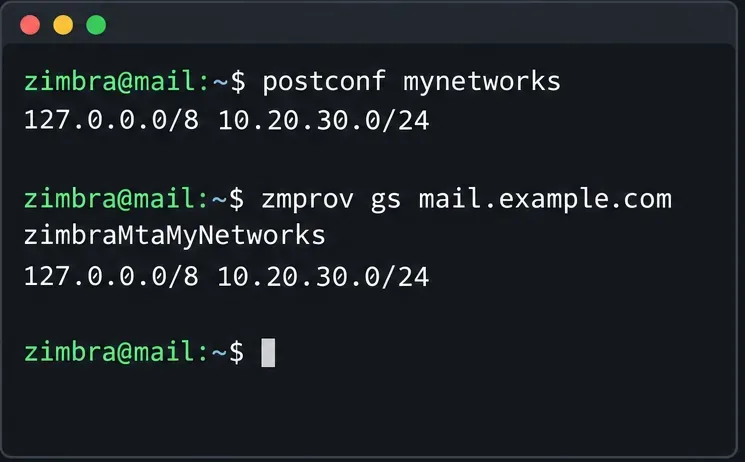
Narrow Zimbra’s trusted relay networks safely, preserve required local addresses, and verify that only approved IPs can relay without SMTP authentication.
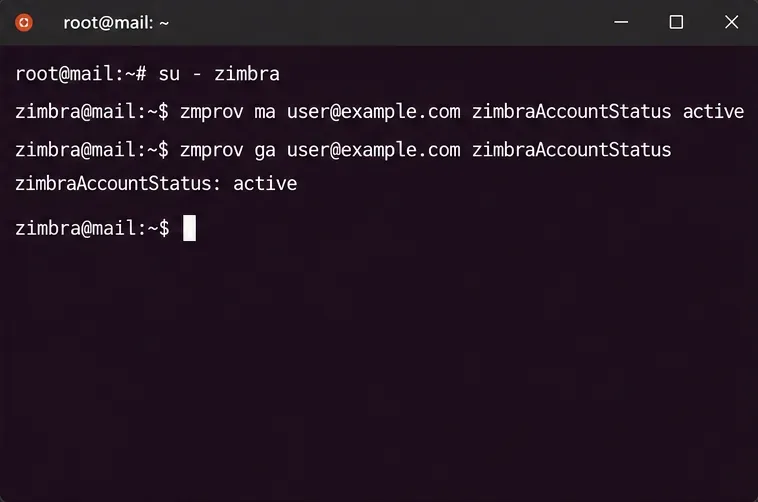
Diagnose Zimbra account lockouts, check authentication logs, safely reactivate a mailbox, and stop repeated failed sign-ins without disabling protection.
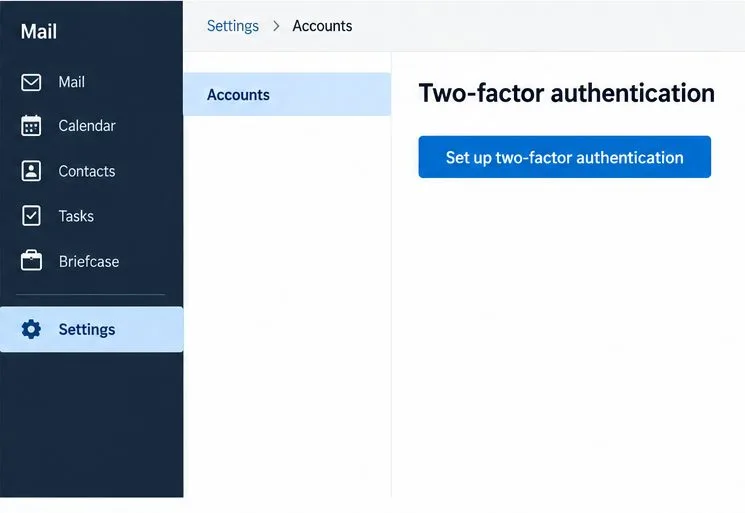
Enable Zimbra two-factor authentication for administrator accounts, choose an enrollment policy, and verify Web Client setup before relying on the second factor.
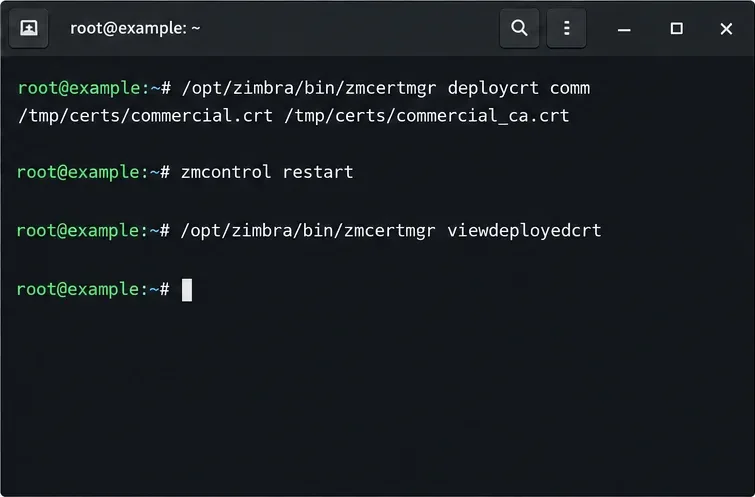
Prepare the matching key and CA chain, verify the certificate with zmcertmgr, and deploy it on Zimbra with a service and hostname check.
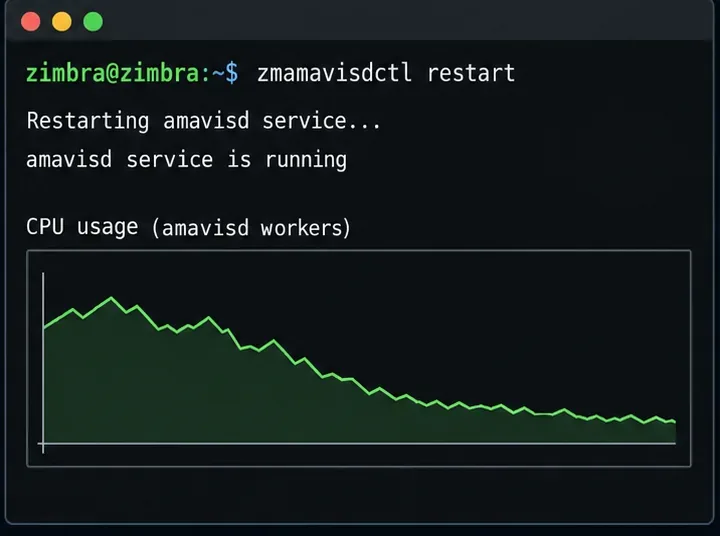
Trace high Amavis CPU to a stuck scan, inspect Zimbra logs and queues, and recover mail filtering safely with release-aware checks.
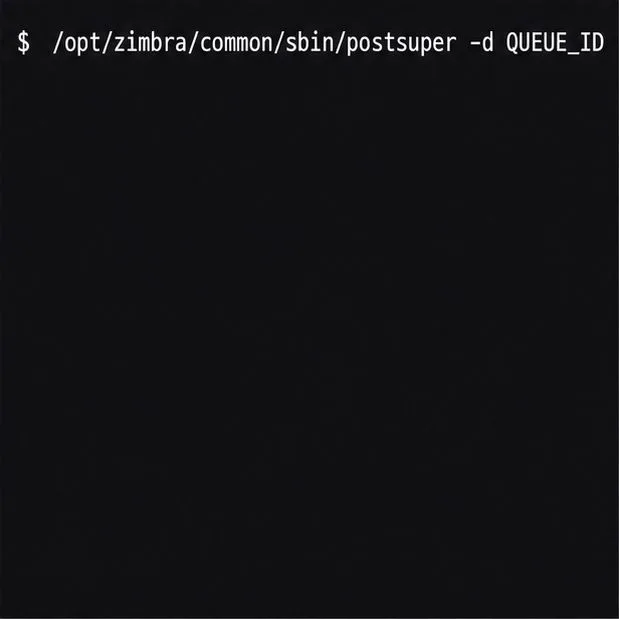
Inspect the Zimbra Postfix queue, fix the cause of delayed delivery, and safely request a retry. Learn when to remove a specific message and what never to purge blindly.
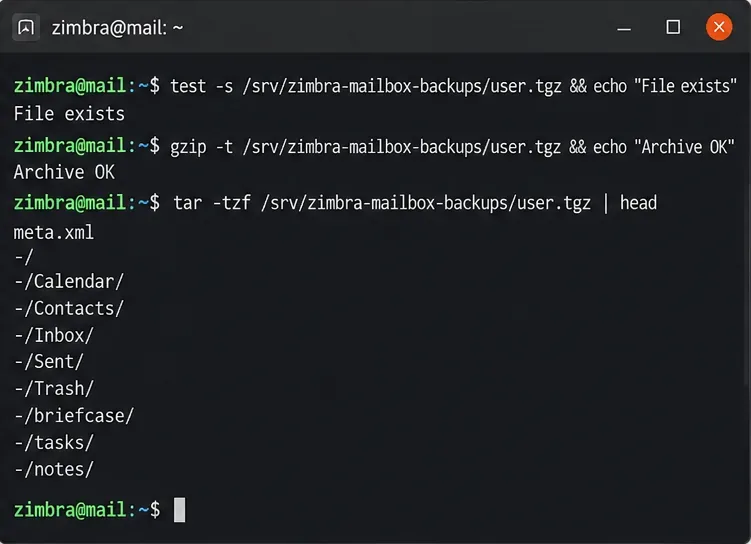
Export an individual Zimbra Community Edition mailbox, validate its TGZ backup, and restore missing items without overwriting existing mail.