How to Download Chrome on Macbook
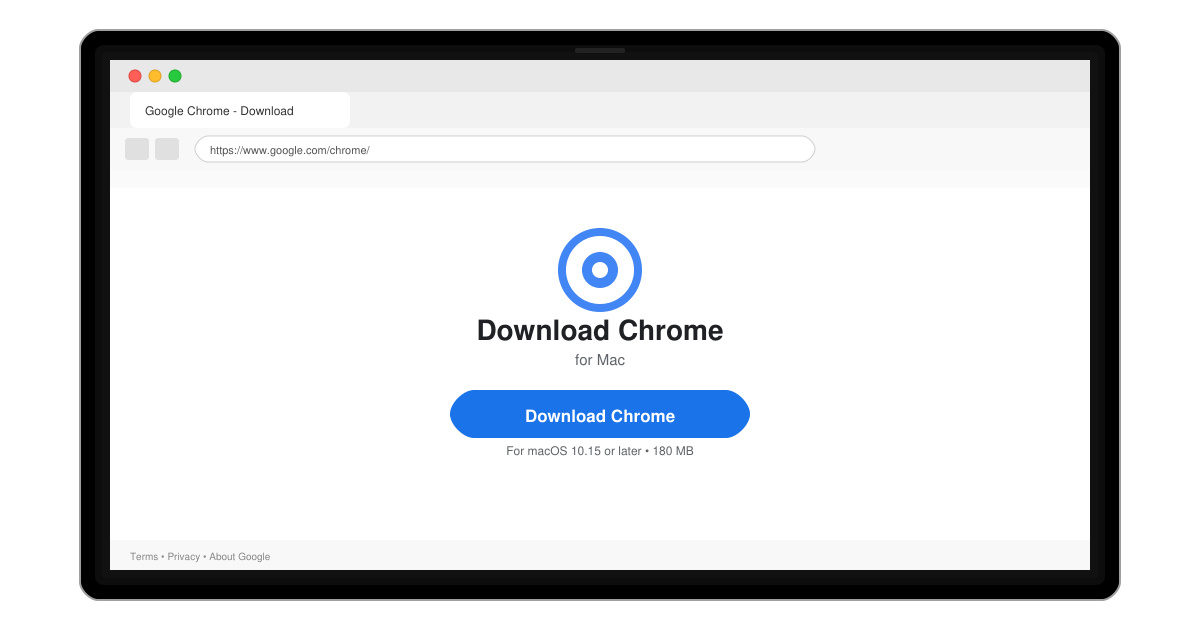
Follow this guide on how to download Chrome on Macbook to get Google Chrome running quickly and safely on your device.
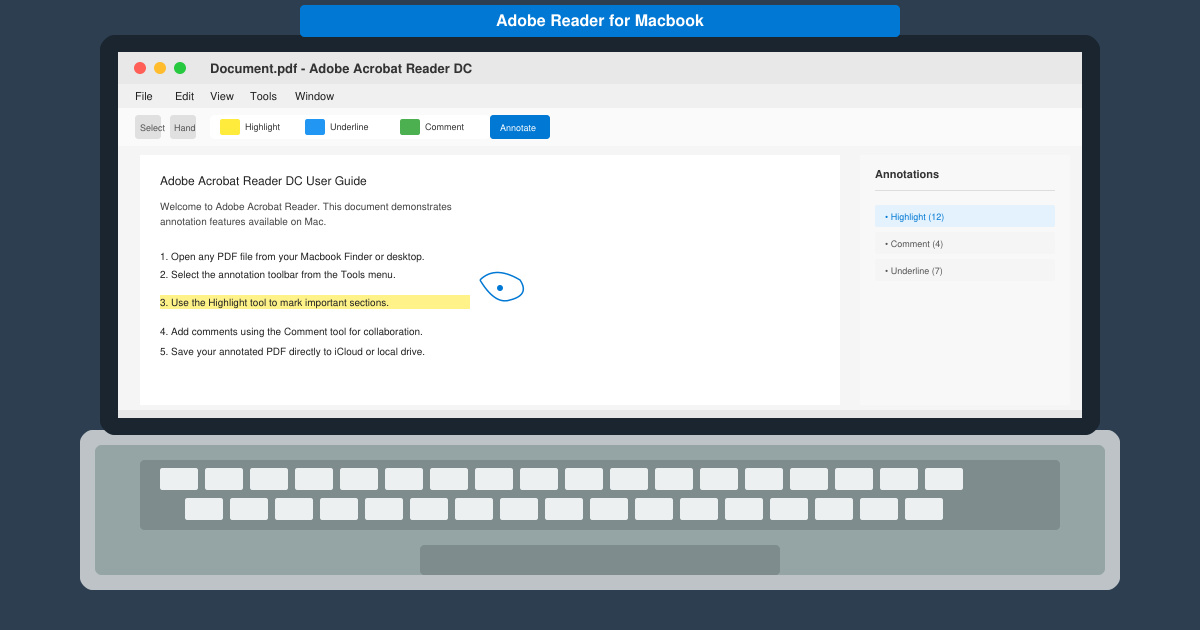
Adobe Reader for Macbook integrates directly with macOS Finder and supports the latest PDF standards. Users gain access to cloud storage sync via Adobe Document Cloud, dark mode compatibility, and reliable printing options that preserve layout. The app also receives regular security updates that keep your system protected when handling sensitive files.
Compared with Preview, Adobe Reader for Macbook adds advanced markup tools such as sticky notes, text highlighting, and redaction. These features prove useful for students, professionals, and anyone who regularly reviews contracts or research papers on a Macbook.
Open Safari or your preferred browser and go to get.adobe.com/reader. Make sure you are on the official Adobe site to avoid third-party installers. Click the Download button for macOS, then allow the .dmg file to finish downloading.
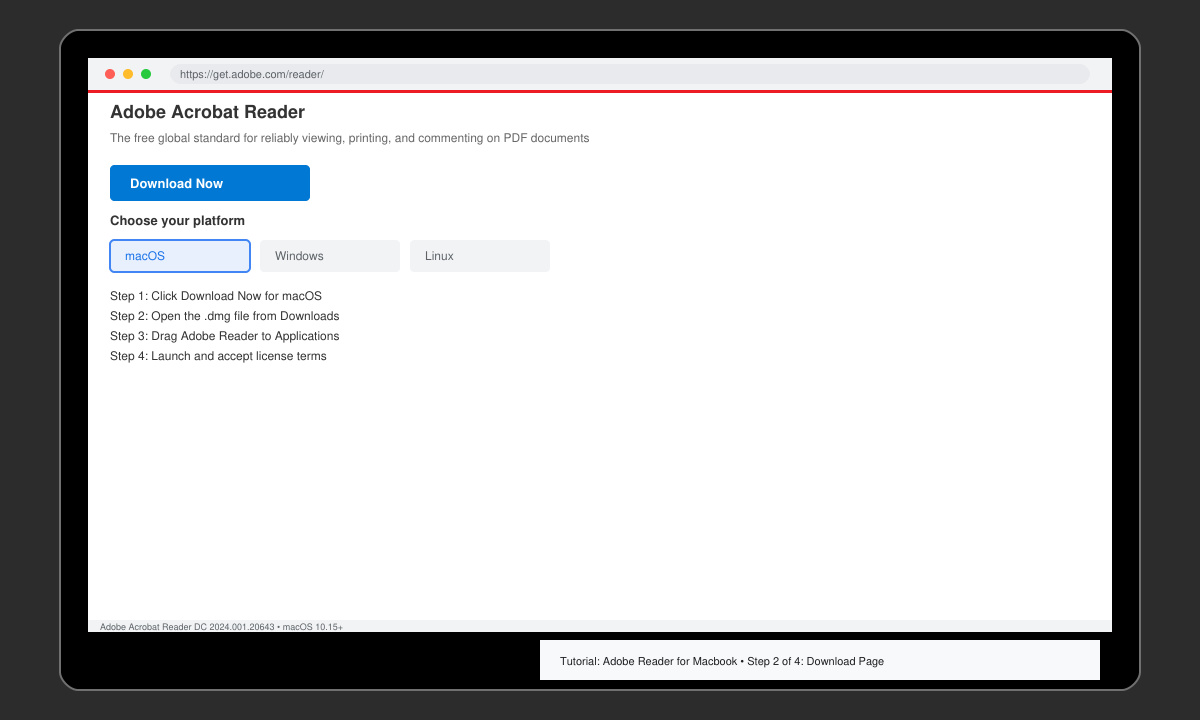
Locate the downloaded file in your Downloads folder and double-click the .dmg. Drag the Adobe Acrobat Reader icon into the Applications folder when prompted. Eject the disk image afterward and launch the app from Launchpad or the Applications folder.
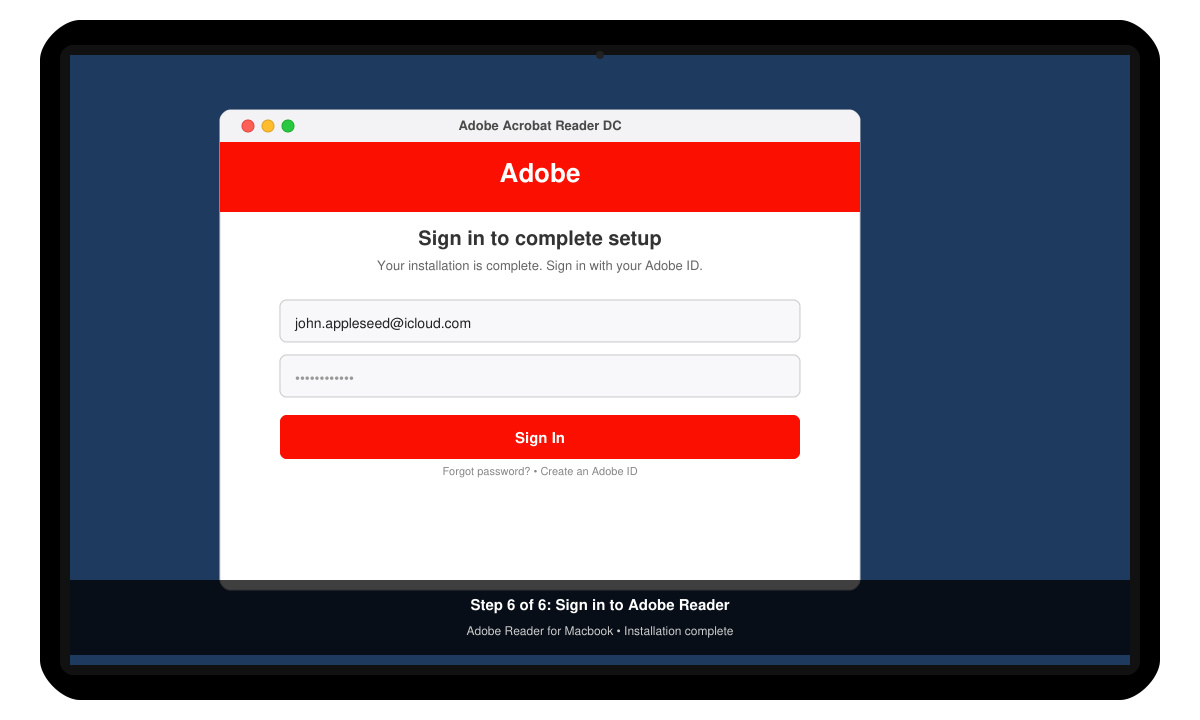
Upon first launch, Adobe Reader for Macbook asks for an Adobe ID. Enter your existing credentials or create a free account. This step unlocks cloud features and automatic updates.
Right-click any PDF file, choose Open With, and select Adobe Acrobat Reader. Go to Reader > Preferences to set default zoom level, enable continuous scrolling, and configure the toolbar layout to match your workflow.
Yes, the core PDF viewer is free. Paid upgrades are available only if you need advanced editing features through Adobe Acrobat Pro.
Adobe Reader for Macbook works fully offline once installed. Cloud sync and certain online services require an internet connection.
The current version runs natively on both Intel and Apple Silicon Macbooks with no Rosetta translation required.
Following these steps gives you a reliable PDF solution tailored for Macbook users. Adobe Reader for Macbook remains the standard choice when consistent rendering and annotation tools matter most.
Follow this guide on how to download Chrome on Macbook to get Google Chrome running quickly and safely on your device.
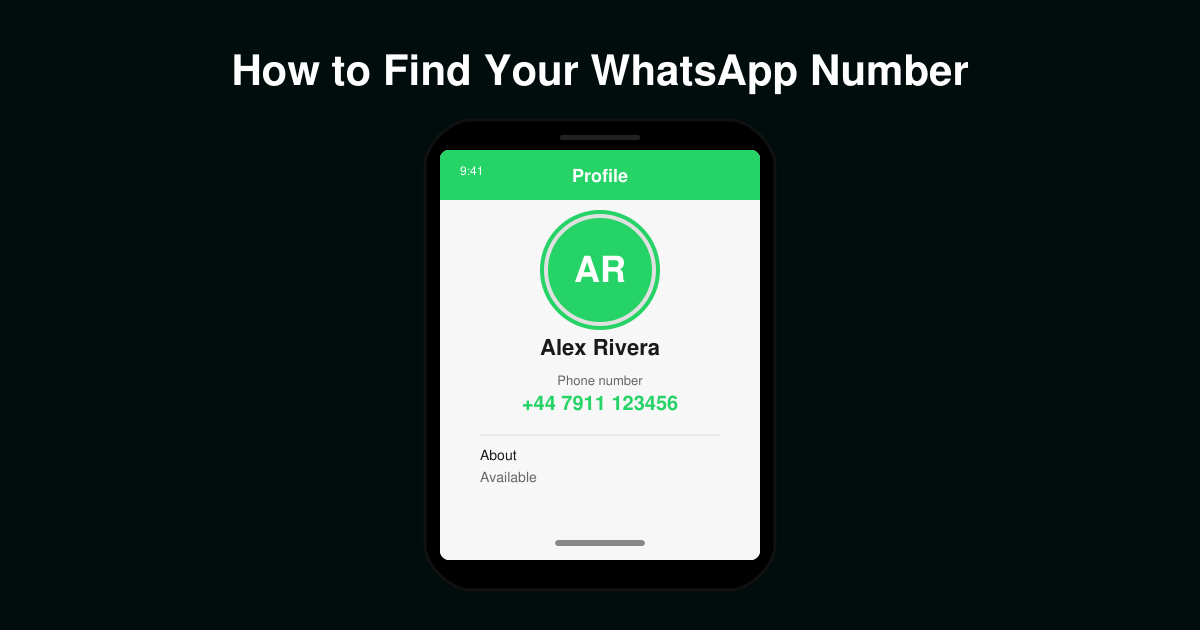
Discover exactly how to find your WhatsApp number on Android, iPhone, and desktop in under a minute. Follow these clear steps to view the number linked to your account.
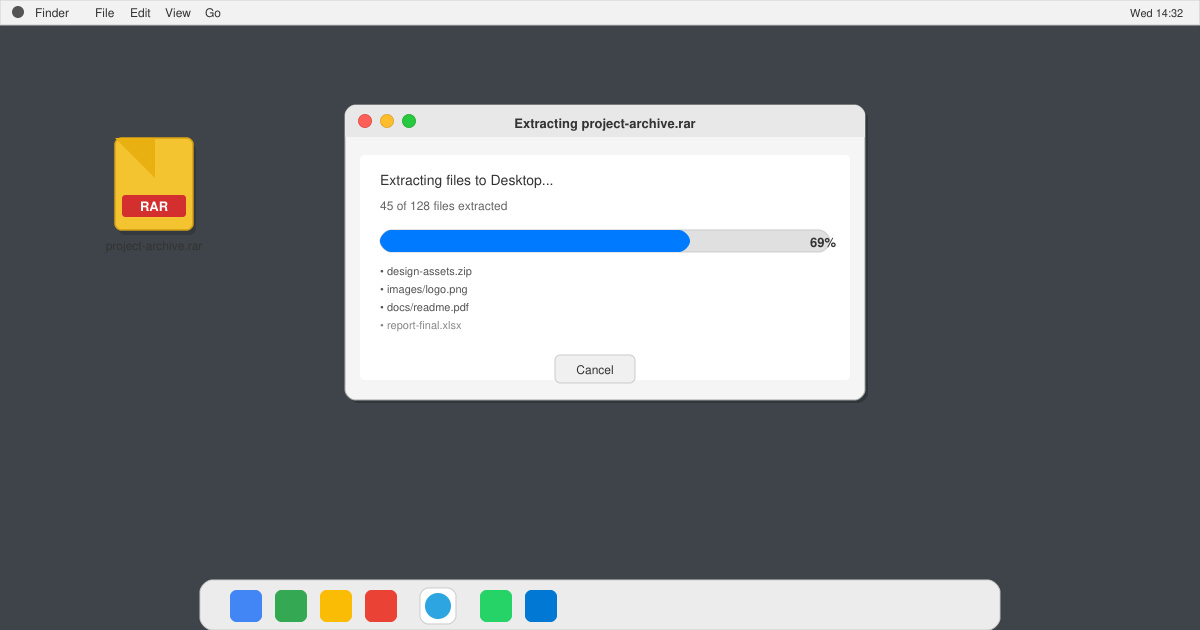
Learn how to open RAR file in Mac OS using free tools. This guide shows the fastest ways to extract RAR archives on your Mac in minutes.
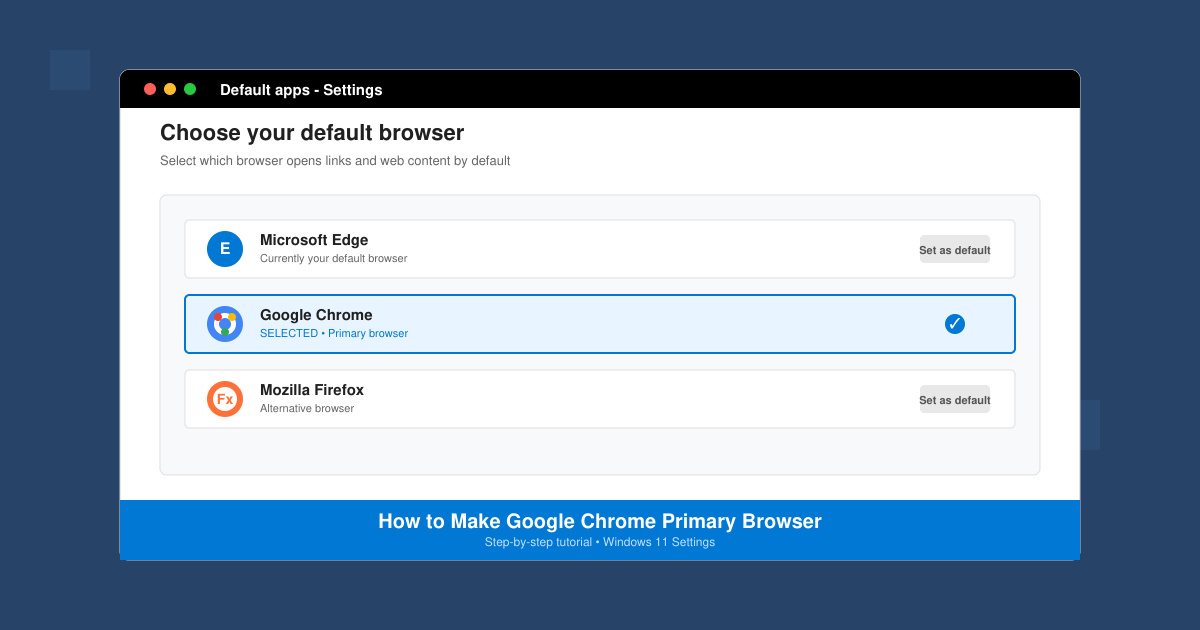
How to make Google Chrome primary browser on Windows, macOS, Android, and iOS with clear step-by-step instructions. Set Chrome as your default browser in minutes for better speed and sync.
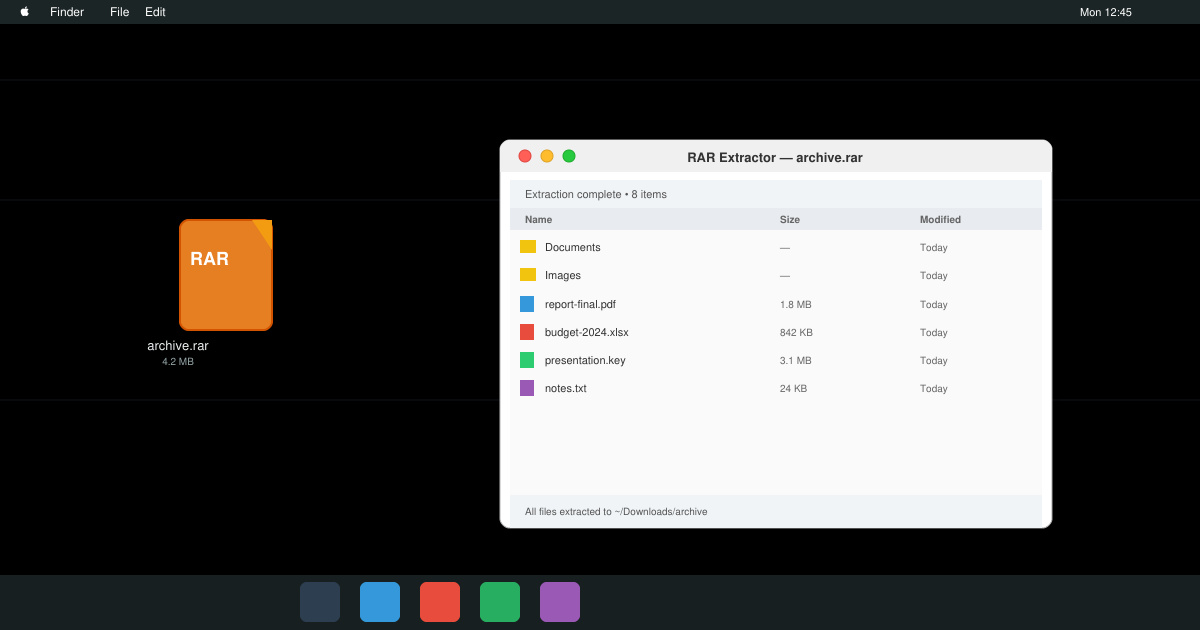
Need a rar program for mac to open RAR files? Learn the fastest way to install and use a reliable extractor on macOS in minutes.
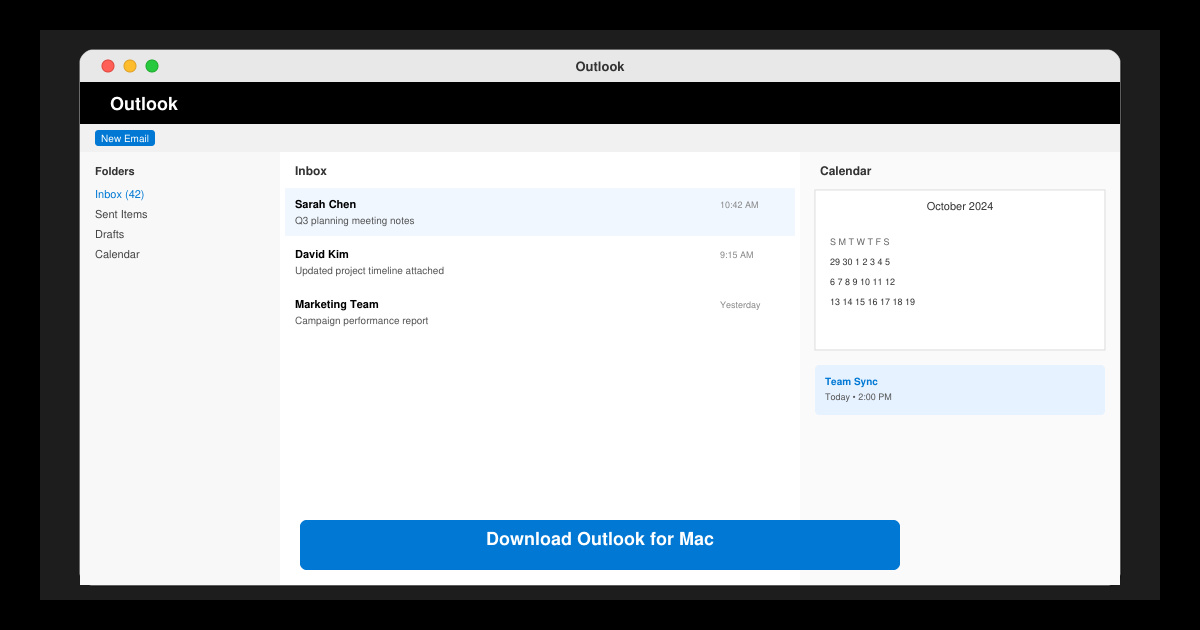
Download Outlook for Mac from the official Microsoft source and install it on your Mac in minutes. Follow this guide for the latest version compatible with macOS.
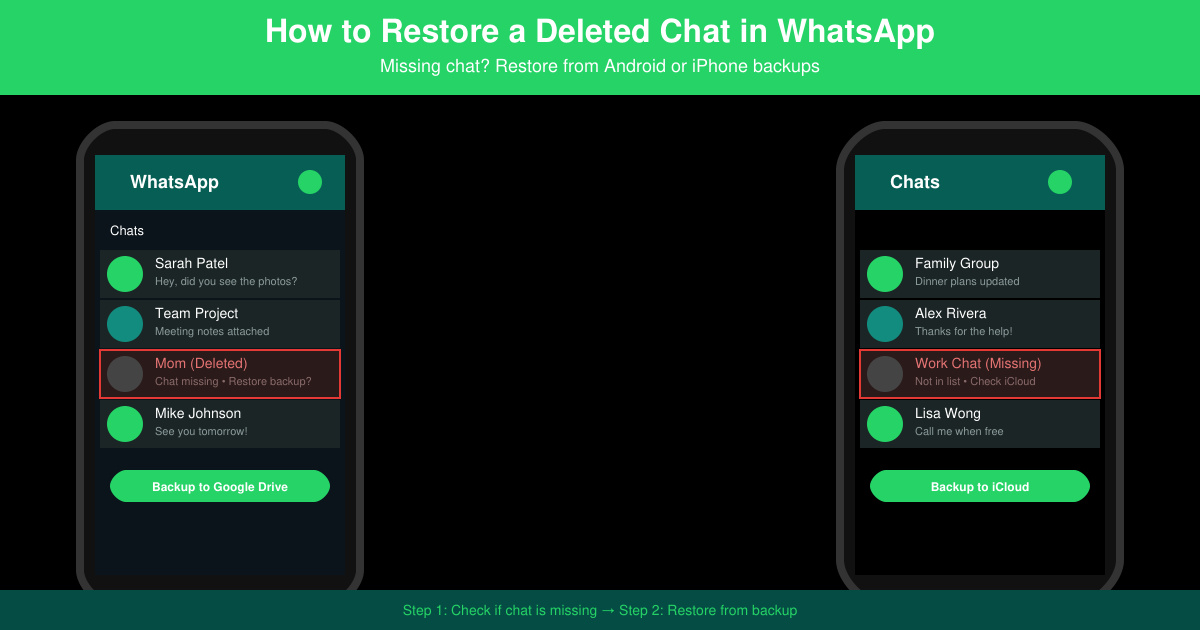
Learn exactly how to restore a deleted chat in WhatsApp on Android and iPhone using local or Google Drive backups. Follow these steps to recover conversations in minutes.
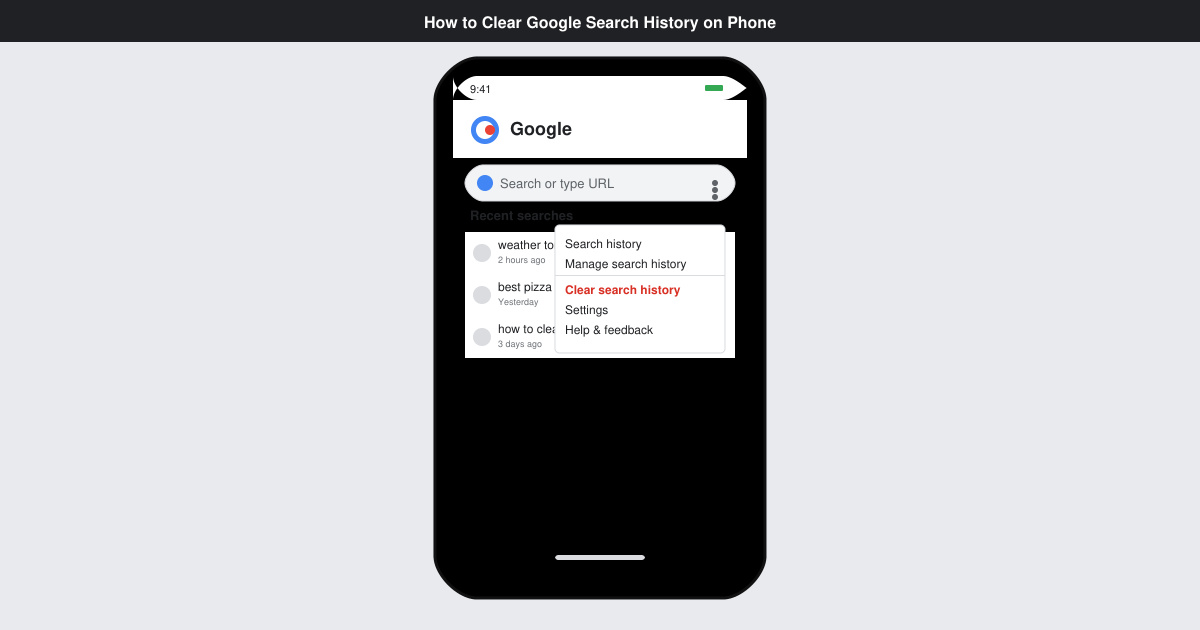
Learn how to clear Google search history on phone in just a few taps. Follow these exact steps for Android and iOS to remove search activity and improve privacy.
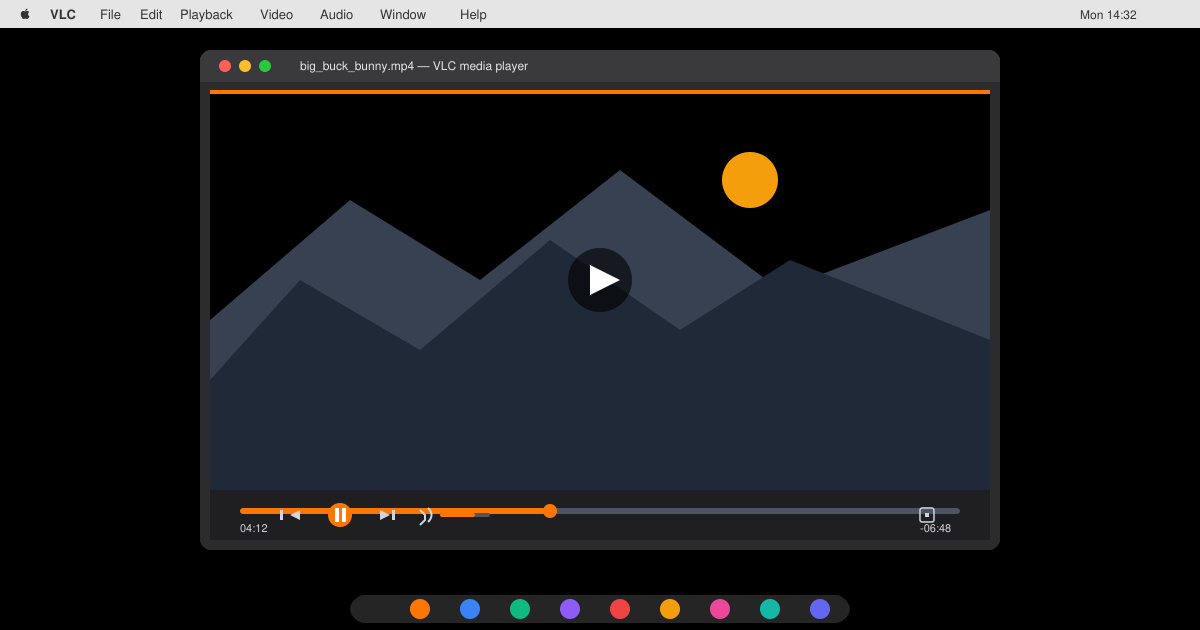
Complete your VLC Player Download Mac safely from the official source. This guide shows the exact steps to install VLC Media Player on macOS for reliable video and audio playback.
Learn how to Chromecast from iPhone to TV quickly and reliably. Follow these exact steps to stream videos, photos, and apps from your iPhone to any Chromecast device.