How to Download Chrome on Macbook
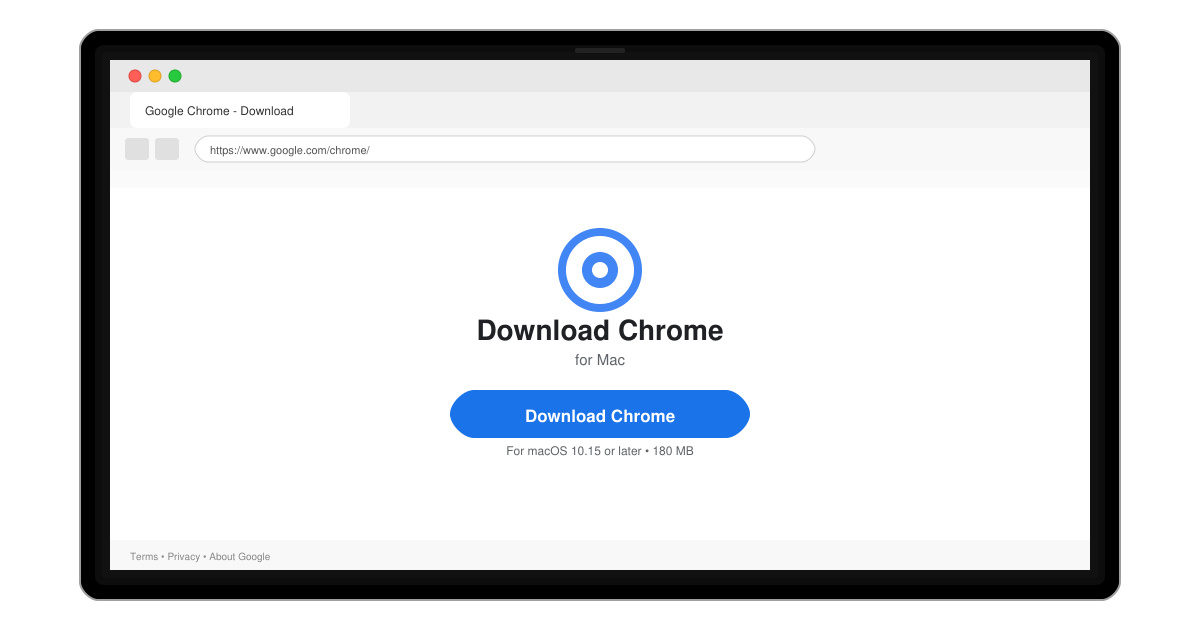
Follow this guide on how to download Chrome on Macbook to get Google Chrome running quickly and safely on your device.
Need to share your number or confirm which one is connected to your account? Learning how to find your WhatsApp number takes less than a minute once you know where to look in the app. This guide shows the precise menu paths on Android, iPhone, and WhatsApp Web so you can locate it instantly.
WhatsApp stores your registered phone number inside your profile section rather than on the main chat screen. The number displays at the top of the settings page along with your name and photo. You can reach this area from both the mobile app and the desktop version, though the navigation differs slightly between platforms. Before you begin, make sure you have the latest version of WhatsApp installed and that you are logged into the correct account.
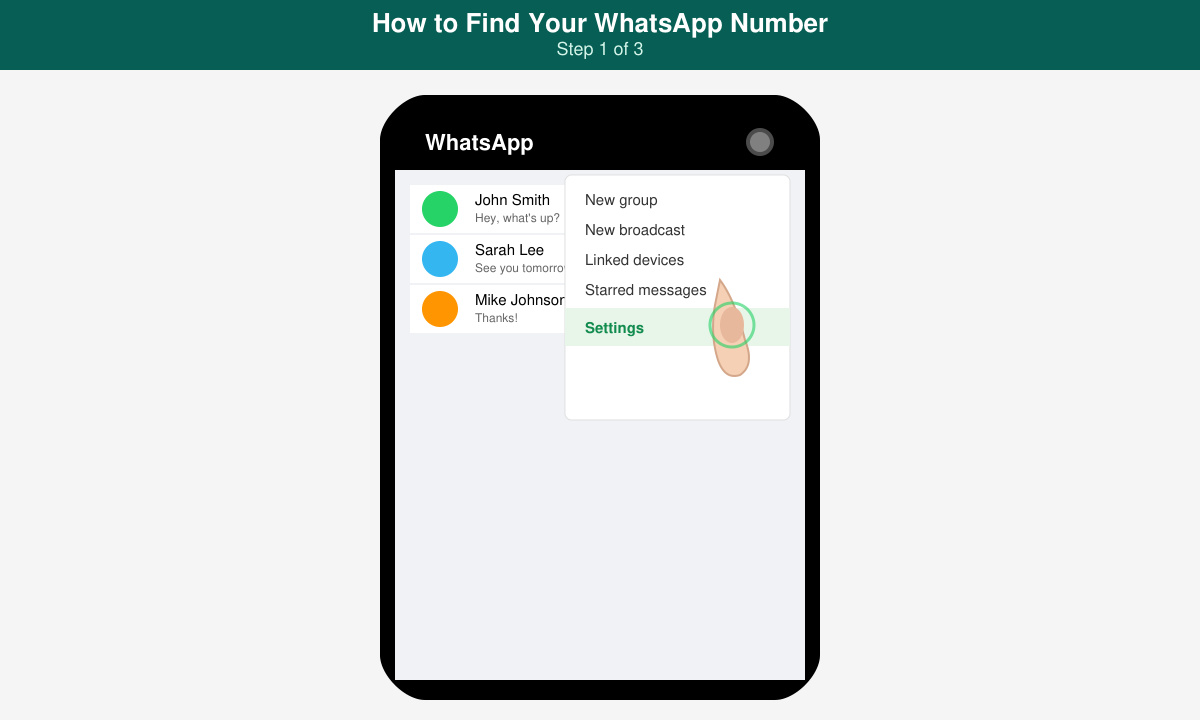
Launch the WhatsApp app on your phone. On Android, tap the three vertical dots in the top-right corner. On iPhone, tap the Settings icon at the bottom right of the screen.
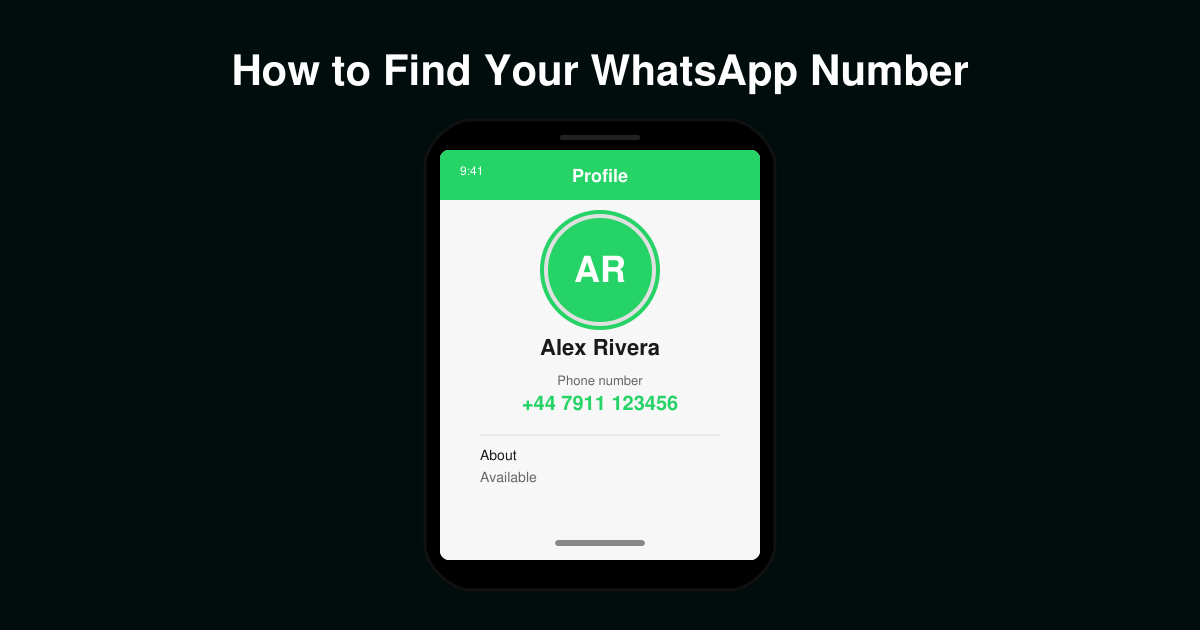
Select Settings, then tap your name and profile picture at the very top of the screen. This opens the full profile view where your phone number is listed directly below your display name.
Your WhatsApp number appears in international format with the country code. You can tap it to copy the number to your clipboard if you need to paste it elsewhere.
Check that the displayed number matches the SIM card currently in your device. If it shows a different number, you will need to change your number through the same profile screen by selecting the Change Number option.
Go to web.whatsapp.com in your browser or launch the WhatsApp desktop application and scan the QR code with your phone to link the session.
In the top-left corner, click your profile photo. A sidebar panel opens that shows the same profile information visible on your phone, including the registered phone number.
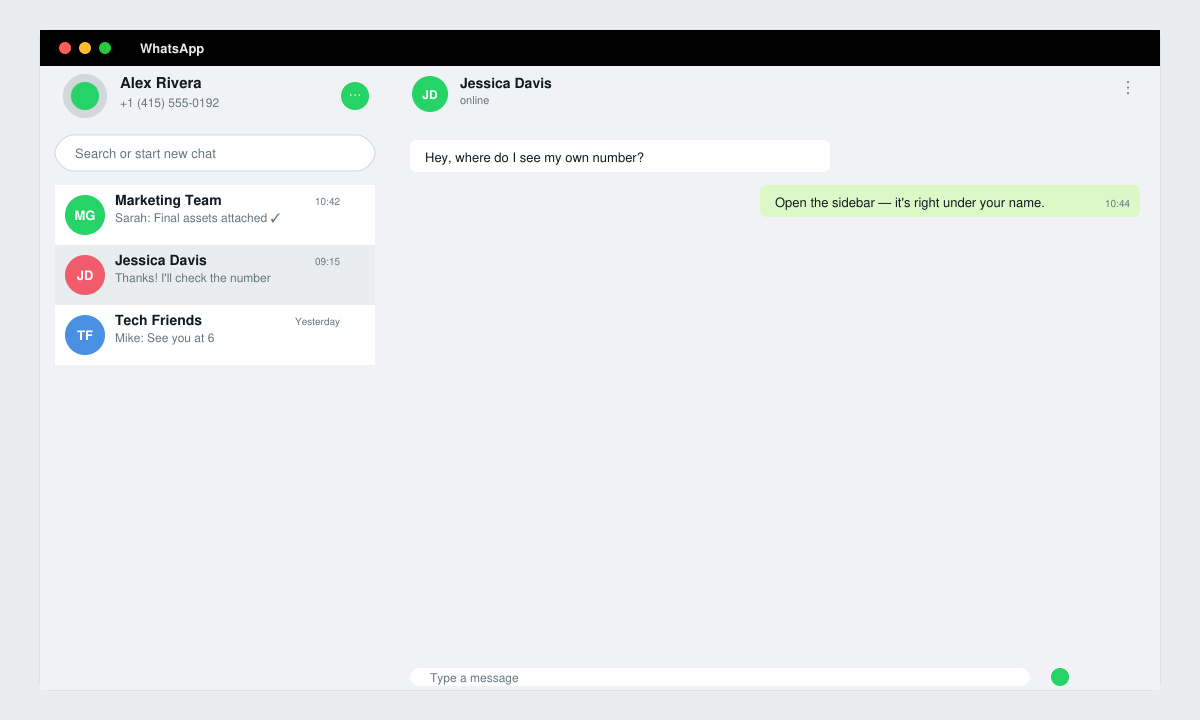
The number appears under your name. Hover over it and click the copy icon if you need the number in text form for another application.
No. The number is stored only inside the WhatsApp profile and is not visible in your phone’s contact list or SIM settings unless you manually saved it there earlier.
The main chat list does not display your own number. You must navigate to Settings and your profile to view it.
Use the Change Number option inside the same profile screen. WhatsApp will migrate your groups and chats to the new number automatically after verification.
Following the short menu path described above lets you locate your WhatsApp number on any device in seconds. Keep this location in mind whenever you need to confirm or share the number linked to your account.
Follow this guide on how to download Chrome on Macbook to get Google Chrome running quickly and safely on your device.
Discover exactly how to find your WhatsApp number on Android, iPhone, and desktop in under a minute. Follow these clear steps to view the number linked to your account.
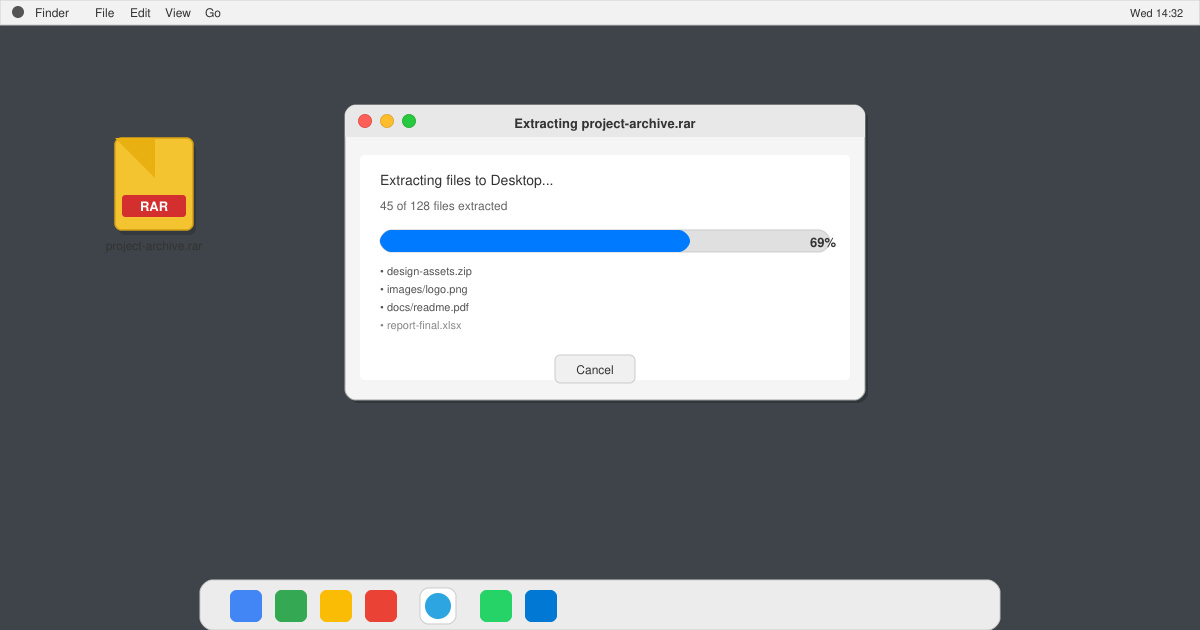
Learn how to open RAR file in Mac OS using free tools. This guide shows the fastest ways to extract RAR archives on your Mac in minutes.
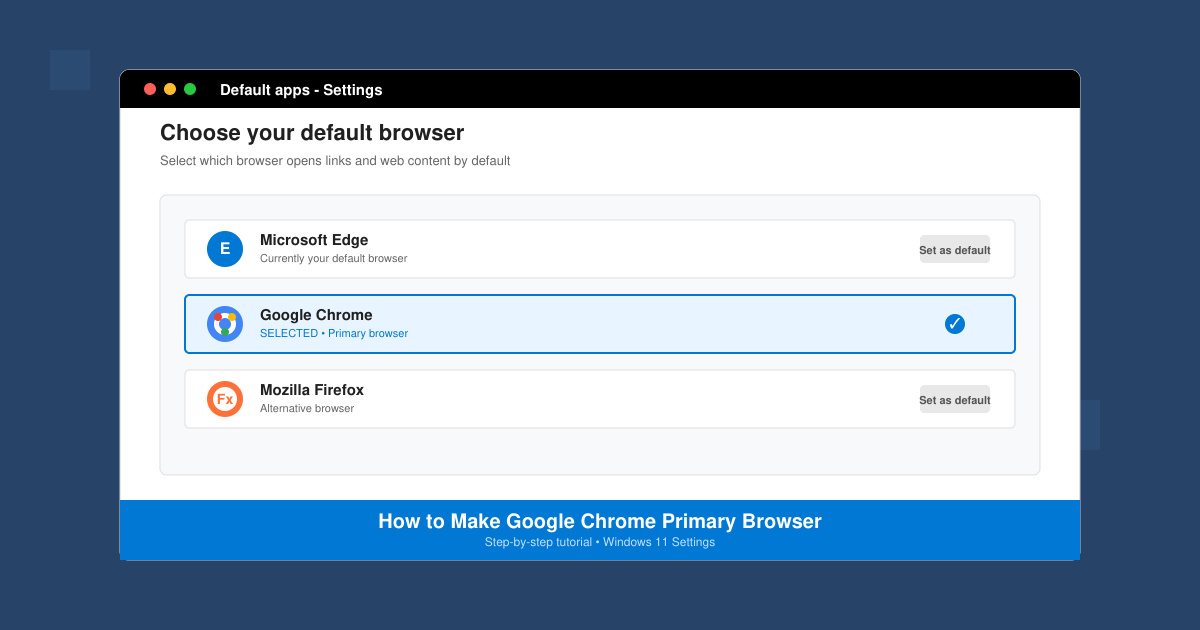
How to make Google Chrome primary browser on Windows, macOS, Android, and iOS with clear step-by-step instructions. Set Chrome as your default browser in minutes for better speed and sync.
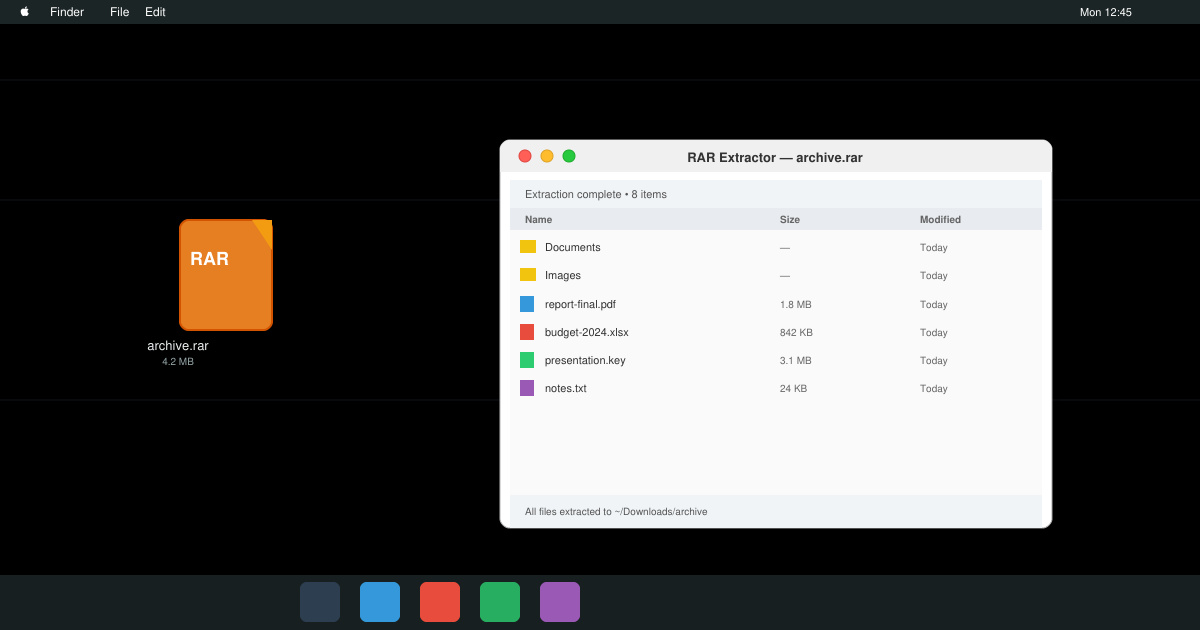
Need a rar program for mac to open RAR files? Learn the fastest way to install and use a reliable extractor on macOS in minutes.
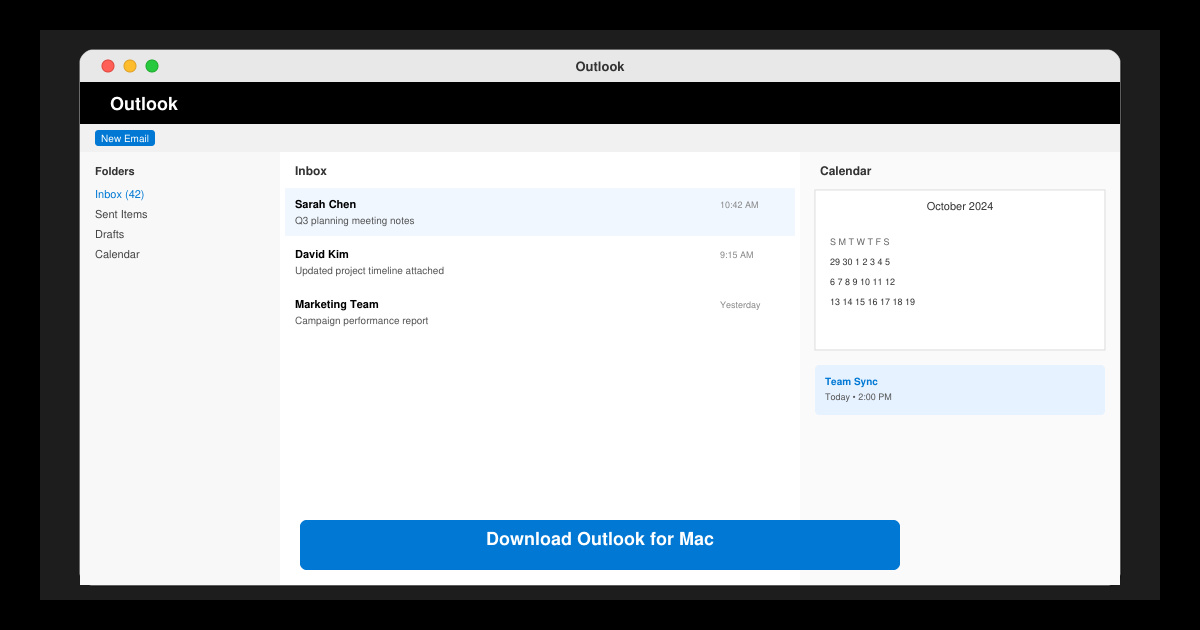
Download Outlook for Mac from the official Microsoft source and install it on your Mac in minutes. Follow this guide for the latest version compatible with macOS.
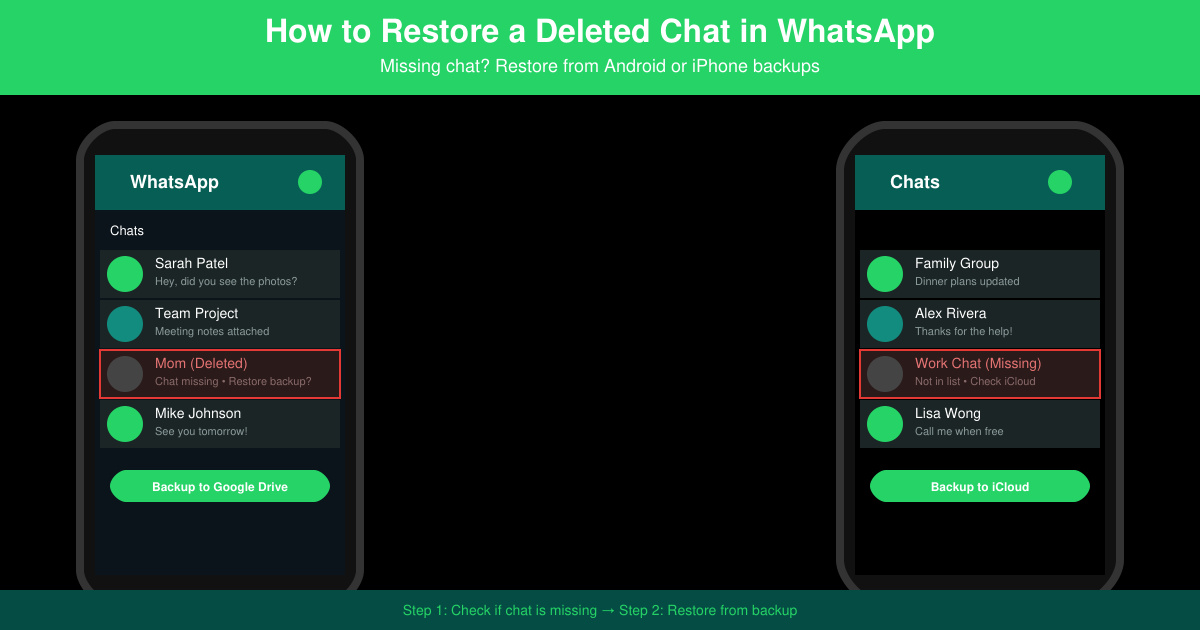
Learn exactly how to restore a deleted chat in WhatsApp on Android and iPhone using local or Google Drive backups. Follow these steps to recover conversations in minutes.
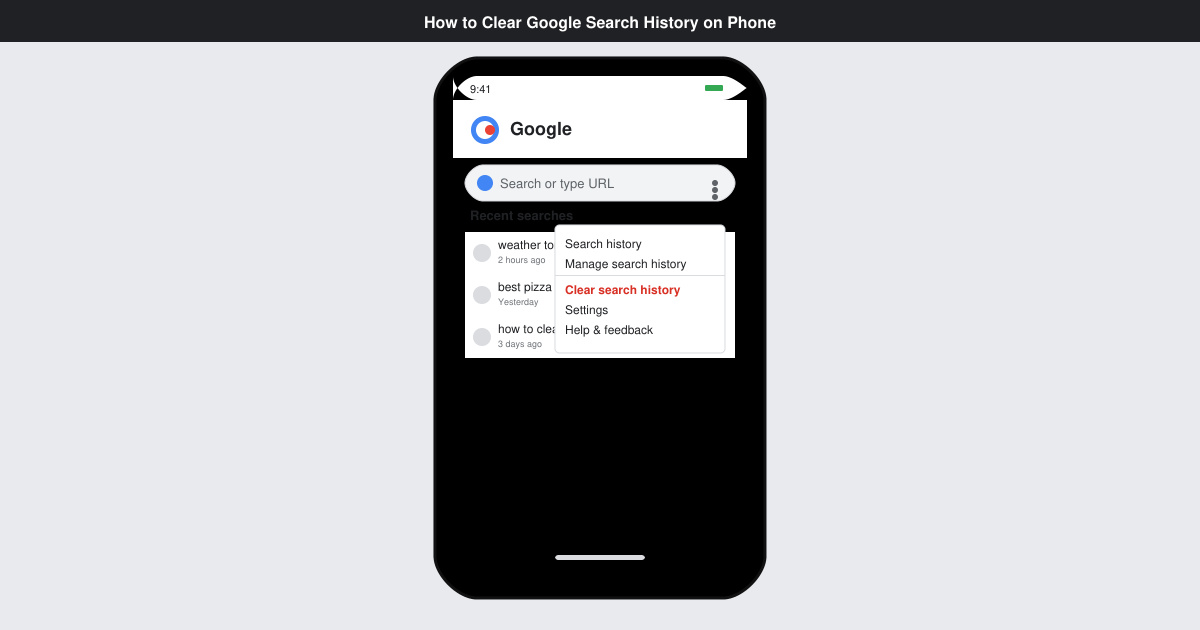
Learn how to clear Google search history on phone in just a few taps. Follow these exact steps for Android and iOS to remove search activity and improve privacy.
Complete your VLC Player Download Mac safely from the official source. This guide shows the exact steps to install VLC Media Player on macOS for reliable video and audio playback.
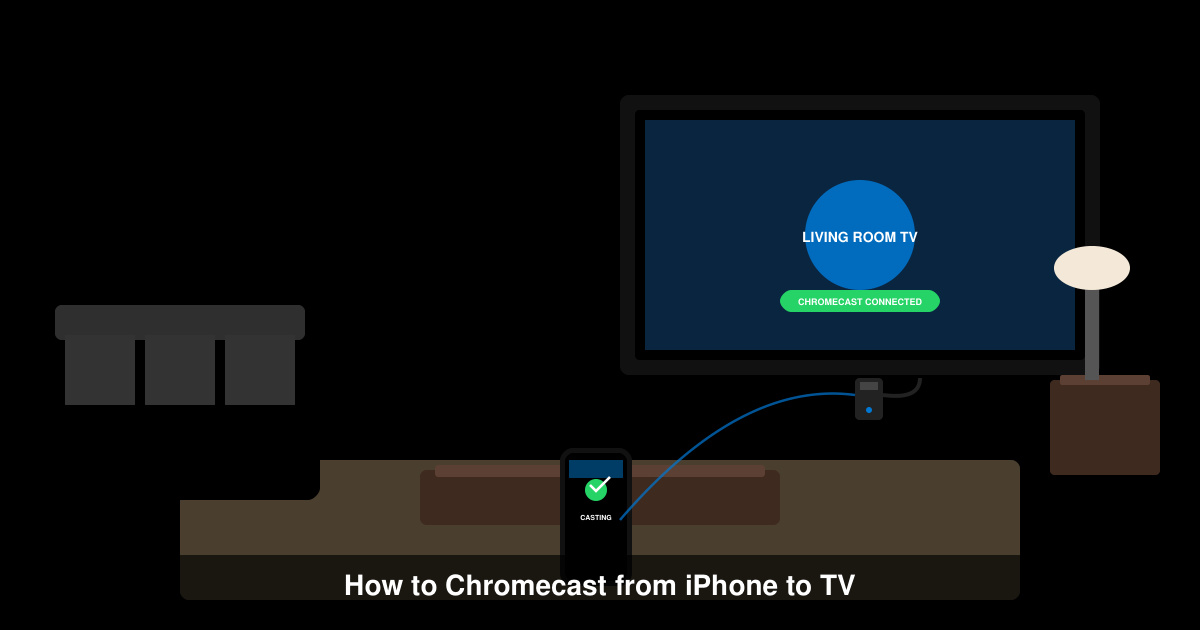
Learn how to Chromecast from iPhone to TV quickly and reliably. Follow these exact steps to stream videos, photos, and apps from your iPhone to any Chromecast device.