How to Download Chrome on Macbook
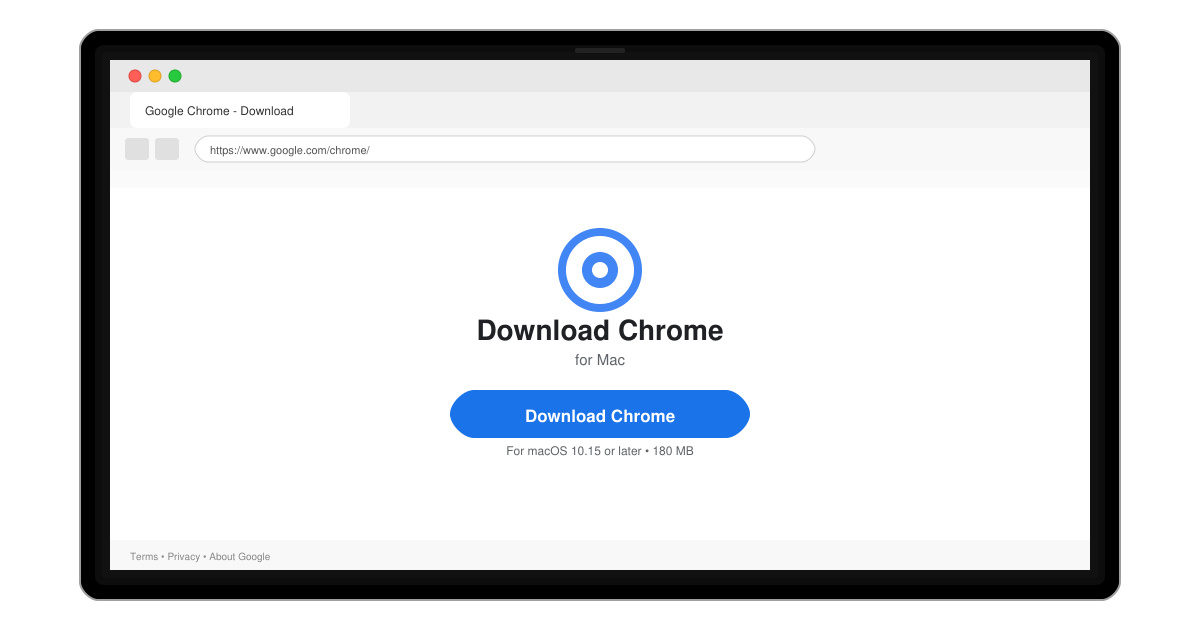
Follow this guide on how to download Chrome on Macbook to get Google Chrome running quickly and safely on your device.
Chromecast from iPhone to TV works smoothly once your devices share the same Wi-Fi network and you use the correct apps. This process lets you send content from supported iPhone apps straight to your television without cables. The steps below cover setup, casting, and troubleshooting in detail.
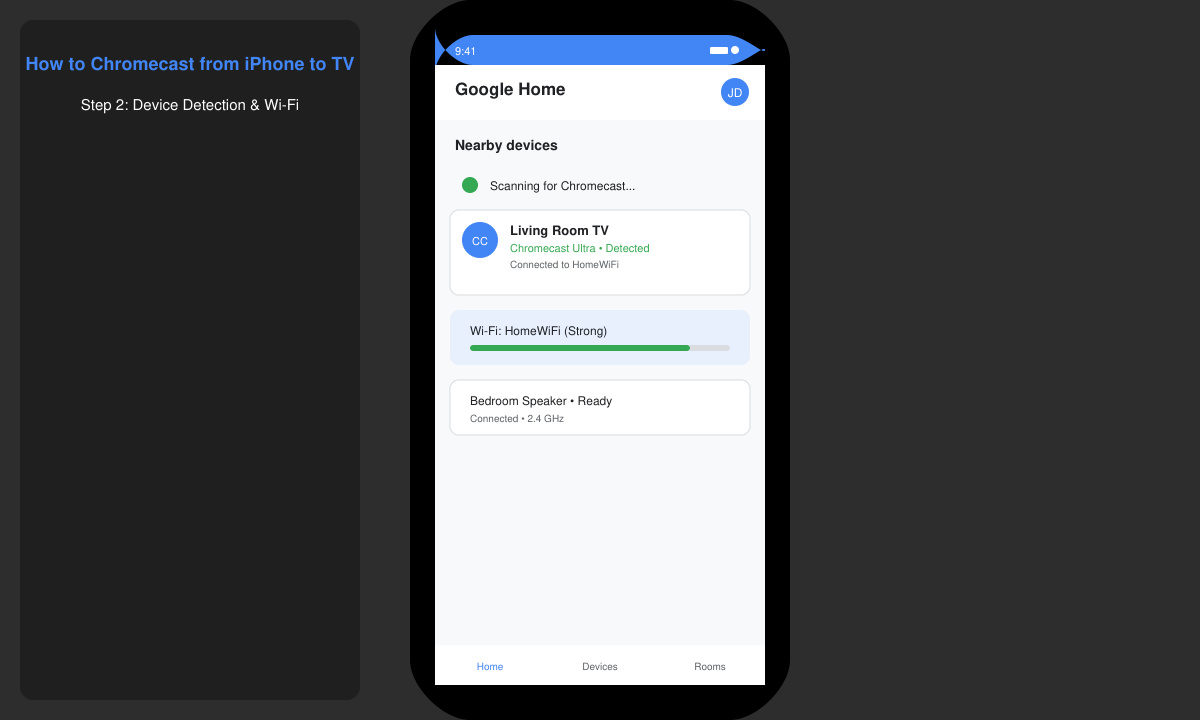
Chromecast devices require the Google Home app for initial setup and ongoing control. Your iPhone must stay connected to the same 2.4 GHz or 5 GHz Wi-Fi network as the Chromecast. Not every app supports casting, so look for the Cast icon inside YouTube, Netflix, Spotify, or Disney+.
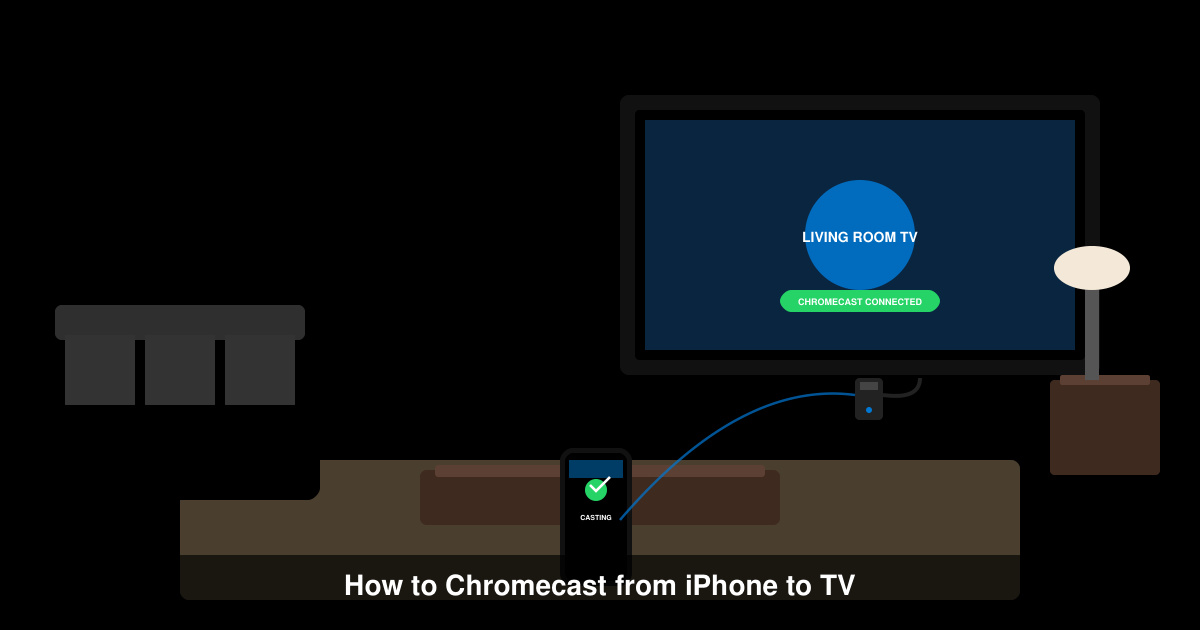
Download Google Home from the App Store if you do not already have it. Open the app, sign in with the same Google account you will use for the Chromecast, and grant location and local network permissions when prompted.
Plug the Chromecast into your TV’s HDMI port and connect its power cable. In Google Home, tap the + icon, select “Set up device,” and follow the on-screen instructions to name the device and connect it to your Wi-Fi network. Wait until the TV shows the ready screen with the device name.
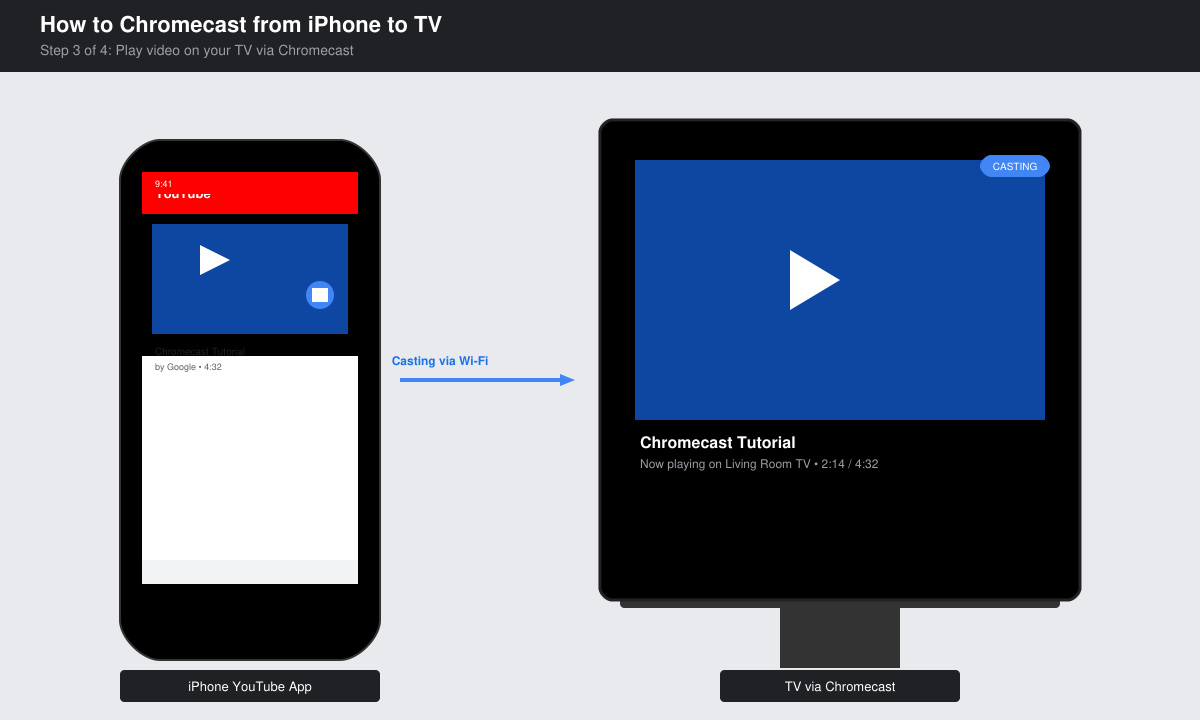
Launch an app such as YouTube or Netflix on your iPhone. Play any video, then tap the Cast icon that looks like a rectangle with Wi-Fi waves. Select your Chromecast device from the list. The video should switch to the TV within a few seconds.
Use the app’s playback controls on your iPhone to pause, skip, or adjust volume. To stop casting, tap the Cast icon again and choose “Stop casting.” The content returns to the iPhone screen automatically.
For photos, open the Google Photos app, select a picture or album, and tap the Cast icon. For full-screen mirroring, install a reputable third-party app such as Replica from the App Store, connect to your Chromecast, and follow its mirroring instructions.
If the Cast icon does not appear, confirm both devices use the same Wi-Fi network and restart your router. Update the Google Home app and iOS to the latest versions. Disable any VPN on the iPhone, as it often blocks discovery. When audio drops out, lower the iPhone volume or toggle the TV’s audio output settings.
No. The Google Home app is required to set up and manage the Chromecast device even if you cast from other apps afterward.
Only apps that have built-in Cast support display the icon. Apps without this feature need screen-mirroring workarounds.
No. Once connected to Wi-Fi, all streaming happens over your local network and does not consume cellular data.
Follow the steps above and you can Chromecast from iPhone to TV reliably every time. Keep the Google Home app updated for the smoothest experience.
Follow this guide on how to download Chrome on Macbook to get Google Chrome running quickly and safely on your device.
Discover exactly how to find your WhatsApp number on Android, iPhone, and desktop in under a minute. Follow these clear steps to view the number linked to your account.
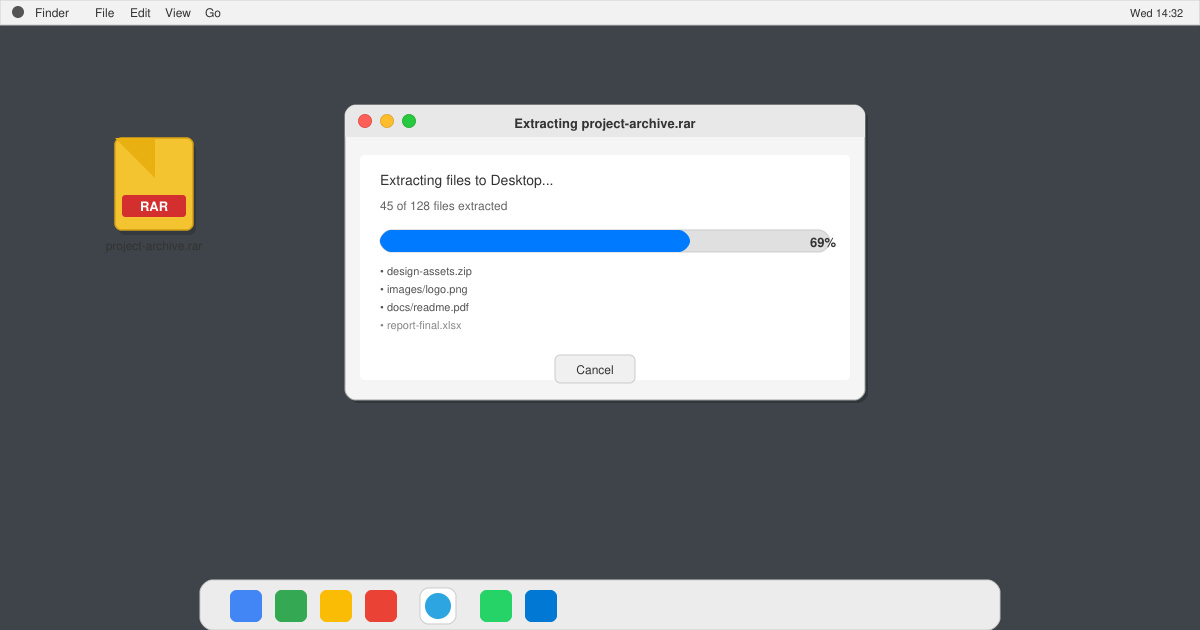
Learn how to open RAR file in Mac OS using free tools. This guide shows the fastest ways to extract RAR archives on your Mac in minutes.
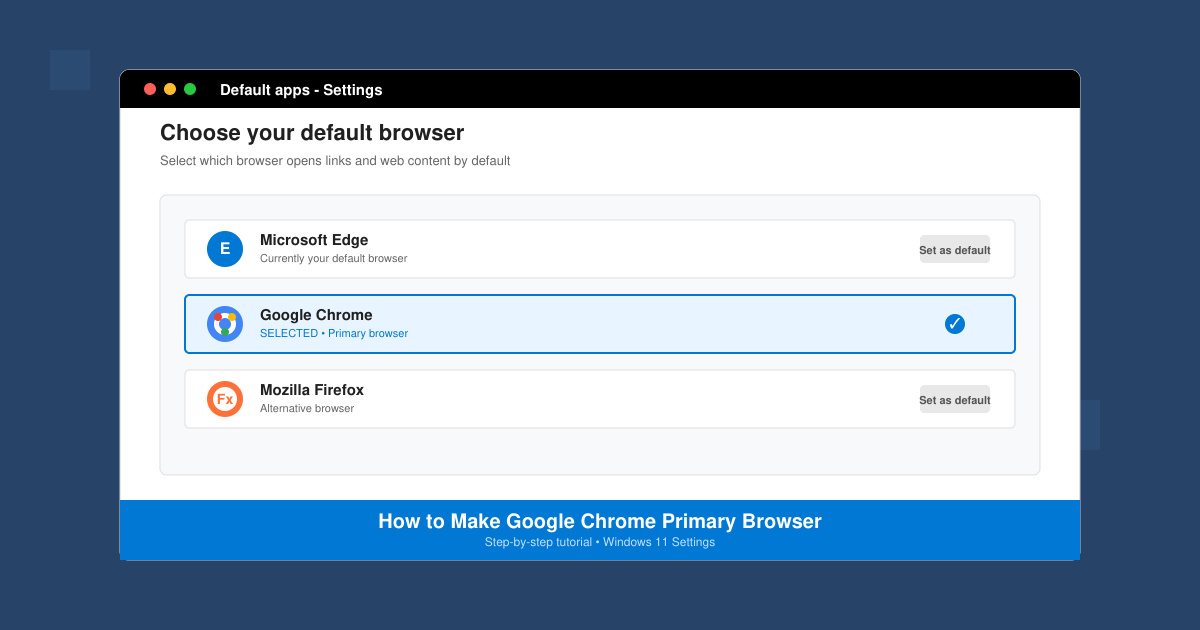
How to make Google Chrome primary browser on Windows, macOS, Android, and iOS with clear step-by-step instructions. Set Chrome as your default browser in minutes for better speed and sync.
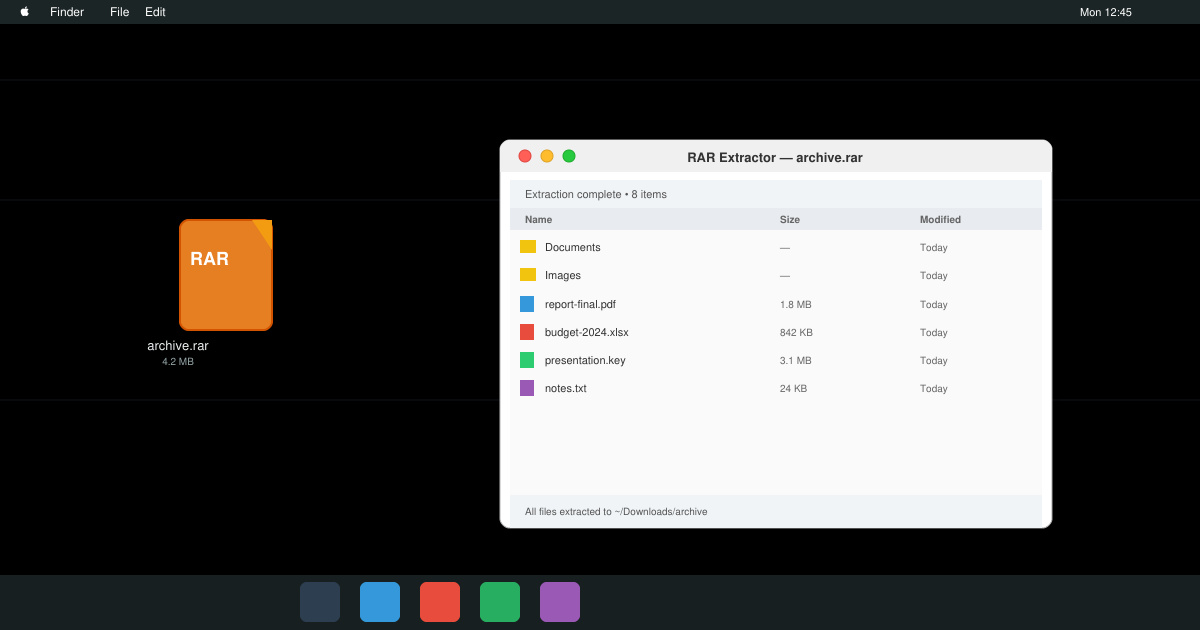
Need a rar program for mac to open RAR files? Learn the fastest way to install and use a reliable extractor on macOS in minutes.
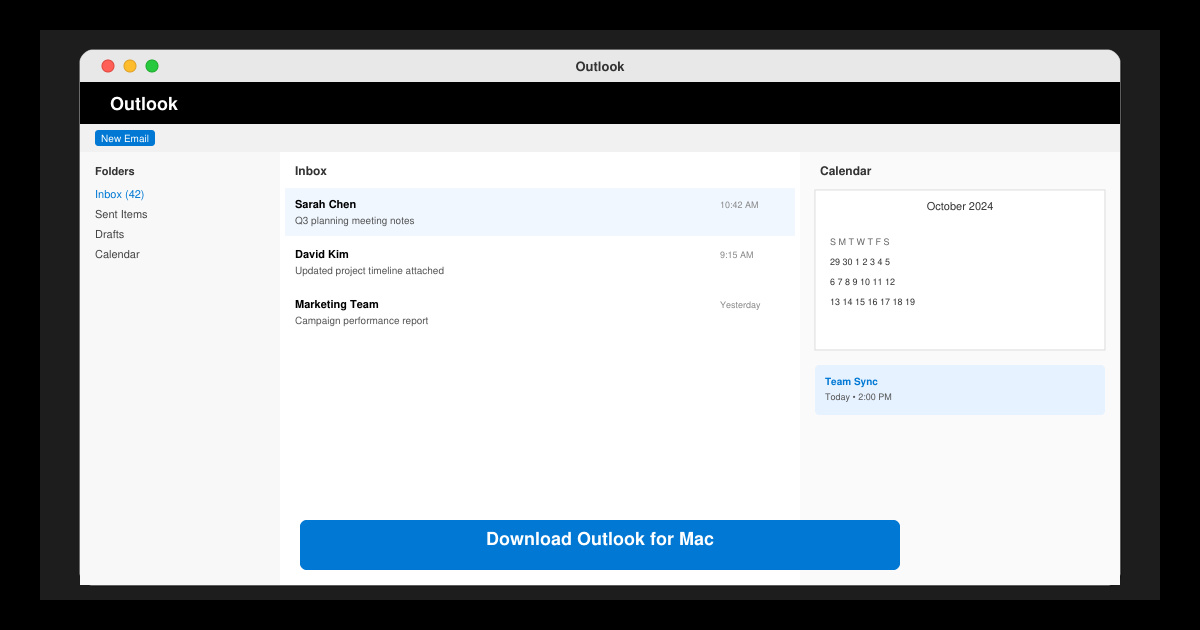
Download Outlook for Mac from the official Microsoft source and install it on your Mac in minutes. Follow this guide for the latest version compatible with macOS.
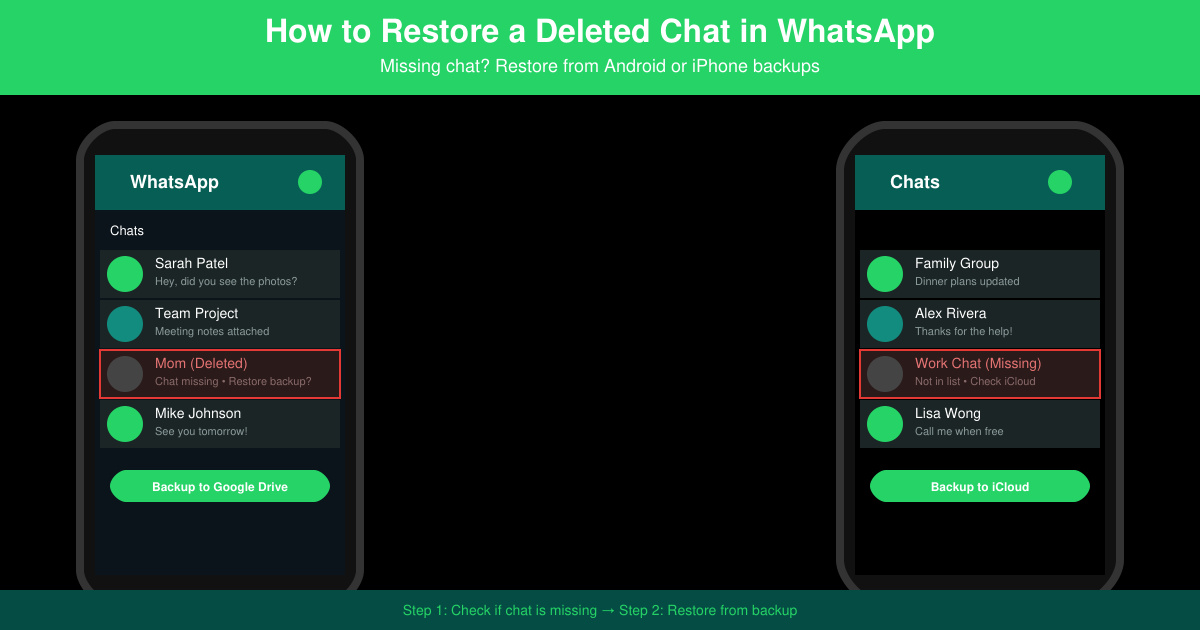
Learn exactly how to restore a deleted chat in WhatsApp on Android and iPhone using local or Google Drive backups. Follow these steps to recover conversations in minutes.
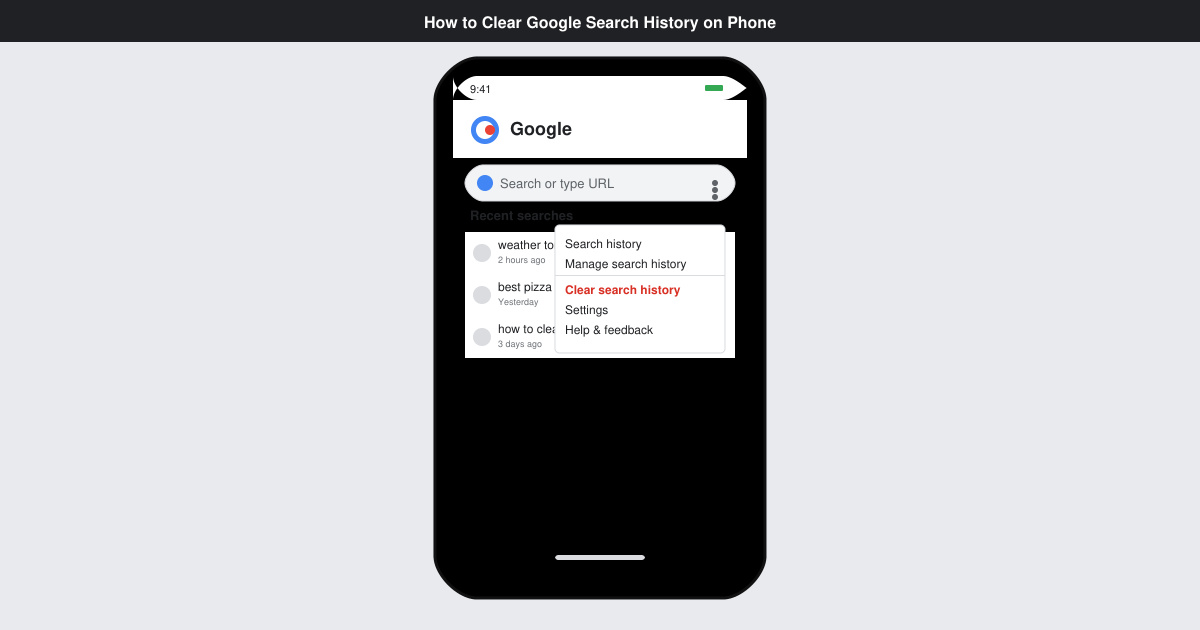
Learn how to clear Google search history on phone in just a few taps. Follow these exact steps for Android and iOS to remove search activity and improve privacy.
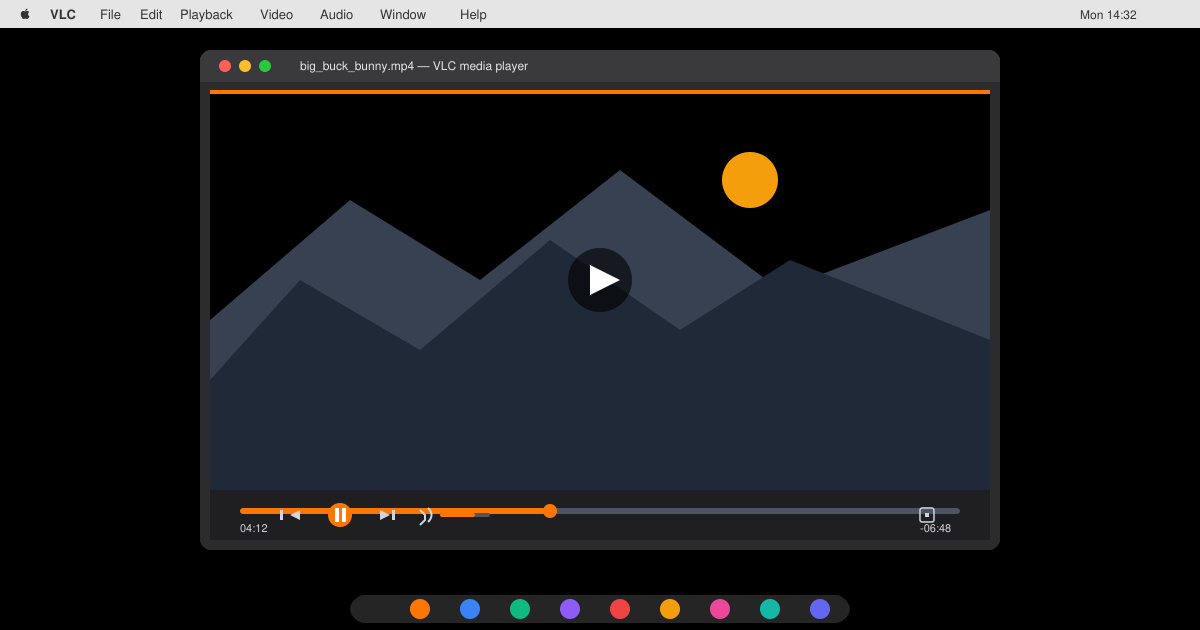
Complete your VLC Player Download Mac safely from the official source. This guide shows the exact steps to install VLC Media Player on macOS for reliable video and audio playback.
Learn how to Chromecast from iPhone to TV quickly and reliably. Follow these exact steps to stream videos, photos, and apps from your iPhone to any Chromecast device.