How to Download Chrome on Macbook
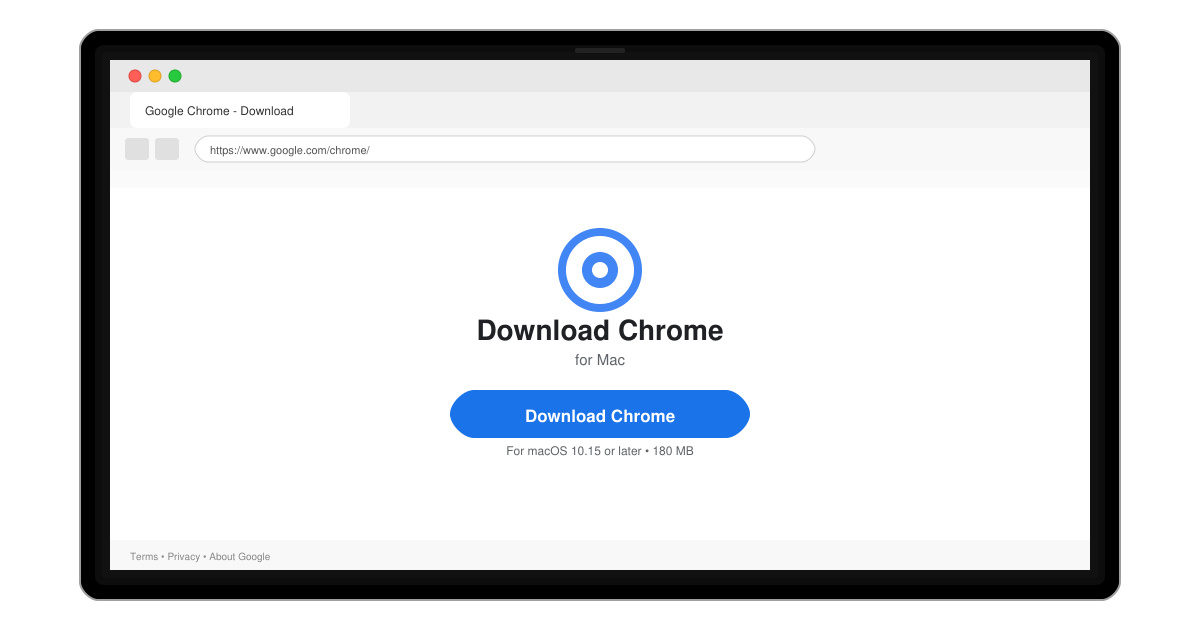
Follow this guide on how to download Chrome on Macbook to get Google Chrome running quickly and safely on your device.
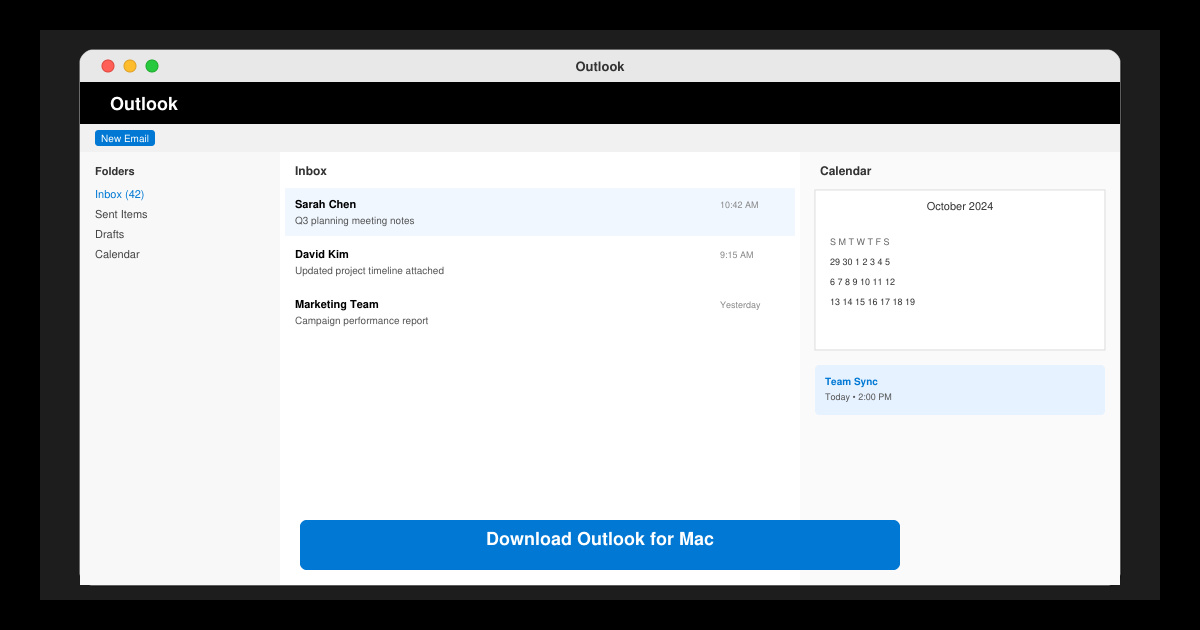
Need a reliable email client on your Apple computer? Download Outlook for Mac to access Microsoft 365, Exchange, Gmail, and iCloud accounts in one place. The desktop version provides advanced calendar tools, focused inbox, and seamless integration with other Microsoft apps. This guide shows the exact steps to obtain and set up the official app.
Your Mac must run macOS Ventura 13 or later for the current version of Outlook. You also need at least 4 GB of RAM and 10 GB of free storage. A Microsoft account is required for activation, whether you use a free Outlook.com address or a paid Microsoft 365 subscription.
Open Safari and go directly to microsoft.com/en-us/microsoft-365/outlook. Click the "Download Outlook" button on the page. If prompted, sign in with the Microsoft account you want to use with the app.
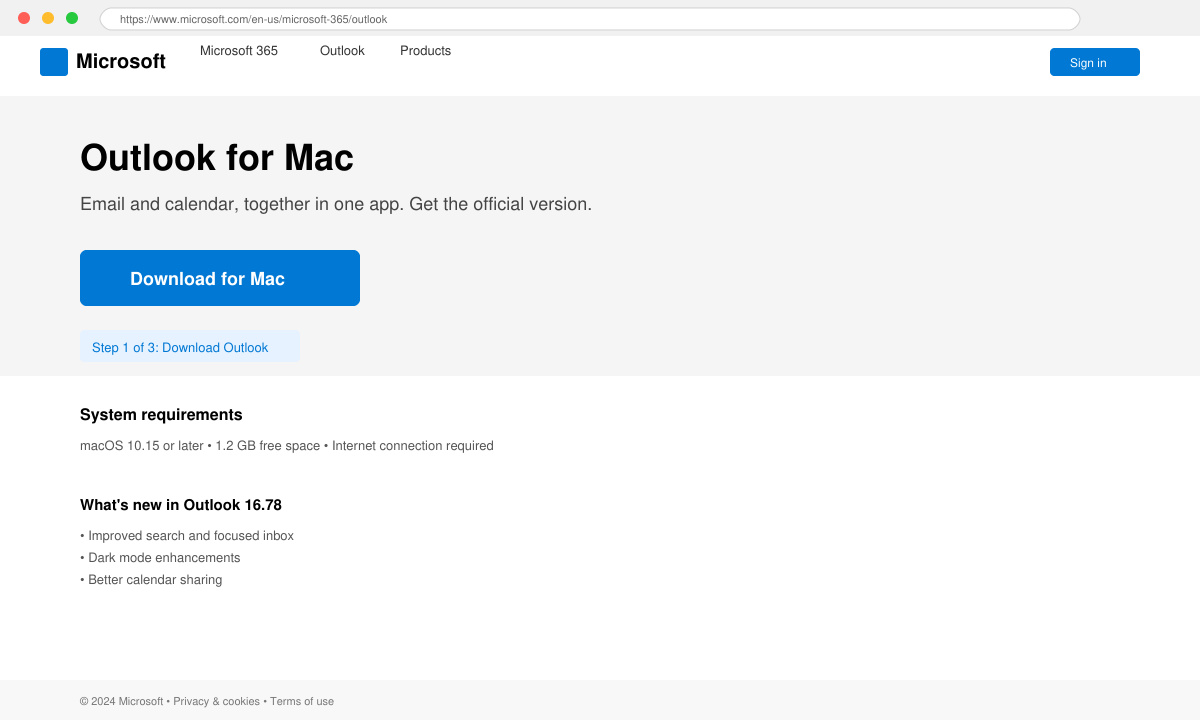
The download begins automatically as a .pkg file. Save it to your Downloads folder. The file size is typically around 800 MB, so the process takes one to three minutes on most connections.
Double-click the downloaded Outlook.pkg file. Follow the on-screen prompts, accept the license agreement, and enter your Mac administrator password when requested. The installation finishes in under two minutes.
Open Outlook from the Applications folder or Launchpad. Enter your email address and password. Outlook automatically detects Microsoft 365, Exchange, or Outlook.com accounts. For Gmail or other providers, select the account type and complete the OAuth login.
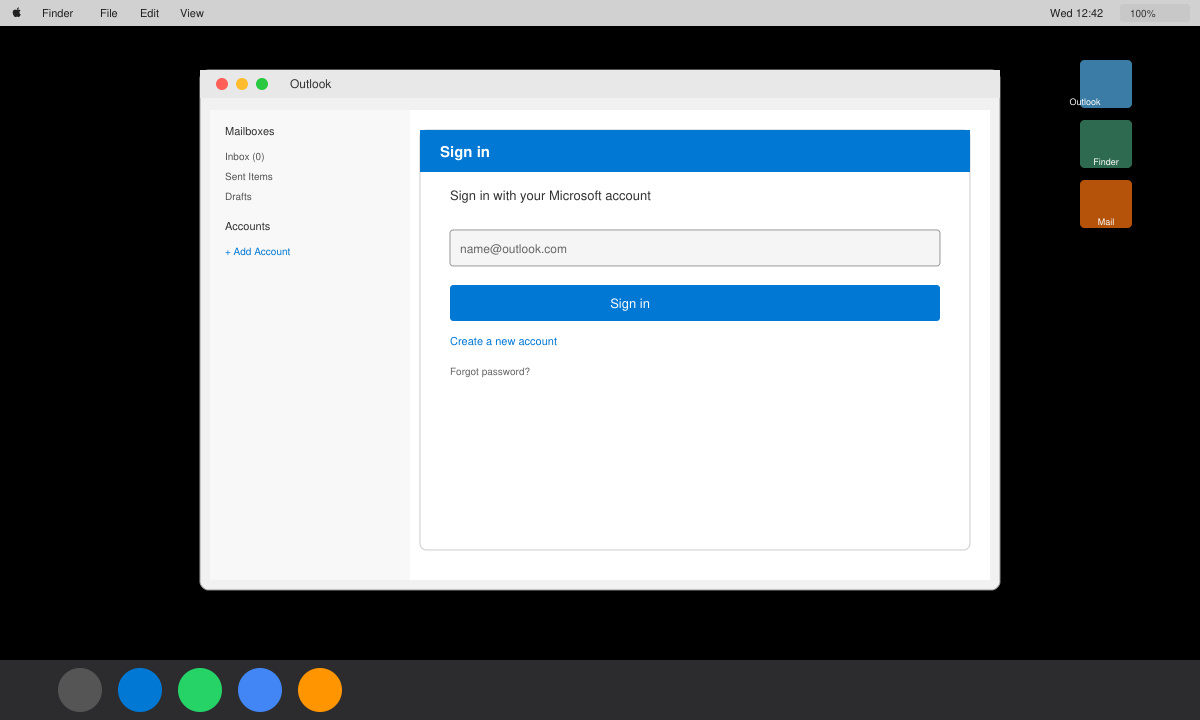
A basic version works with Outlook.com accounts at no cost. Full features and support for multiple accounts require a Microsoft 365 subscription.
Microsoft no longer offers the full Outlook desktop app through the Mac App Store. Always use the direct download from the official Microsoft website to receive the latest updates.
Yes. You can read and compose emails offline. Messages sync automatically once your Mac reconnects to the internet.
Following the steps above gives you a fully functional copy of Outlook on your Mac with minimal effort.
Follow this guide on how to download Chrome on Macbook to get Google Chrome running quickly and safely on your device.
Discover exactly how to find your WhatsApp number on Android, iPhone, and desktop in under a minute. Follow these clear steps to view the number linked to your account.
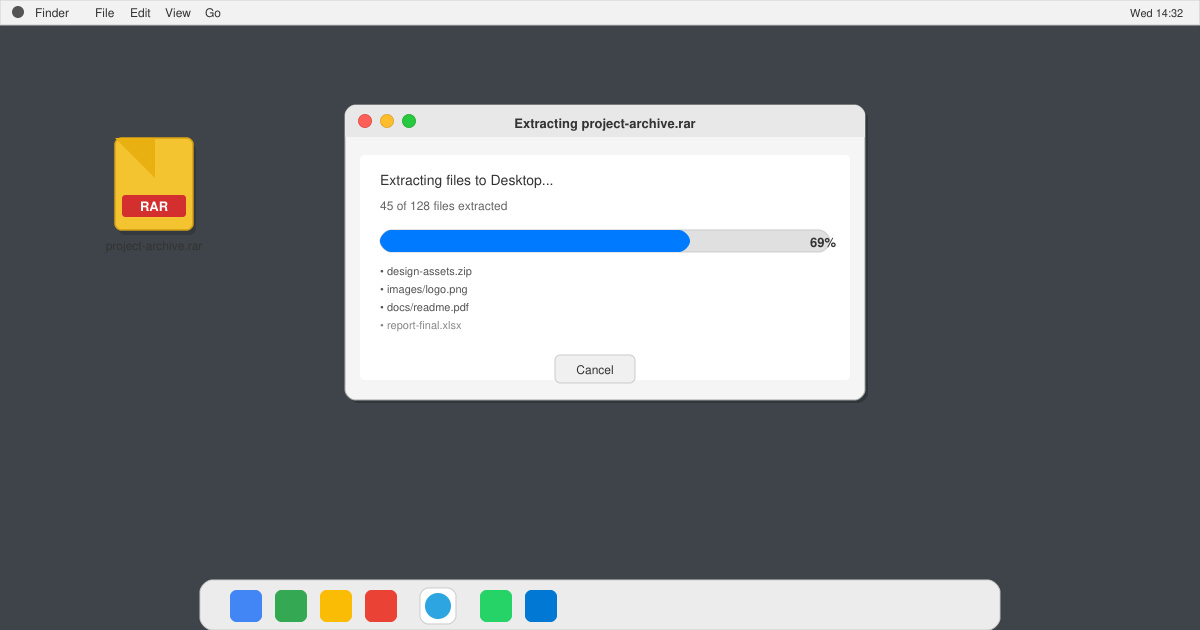
Learn how to open RAR file in Mac OS using free tools. This guide shows the fastest ways to extract RAR archives on your Mac in minutes.
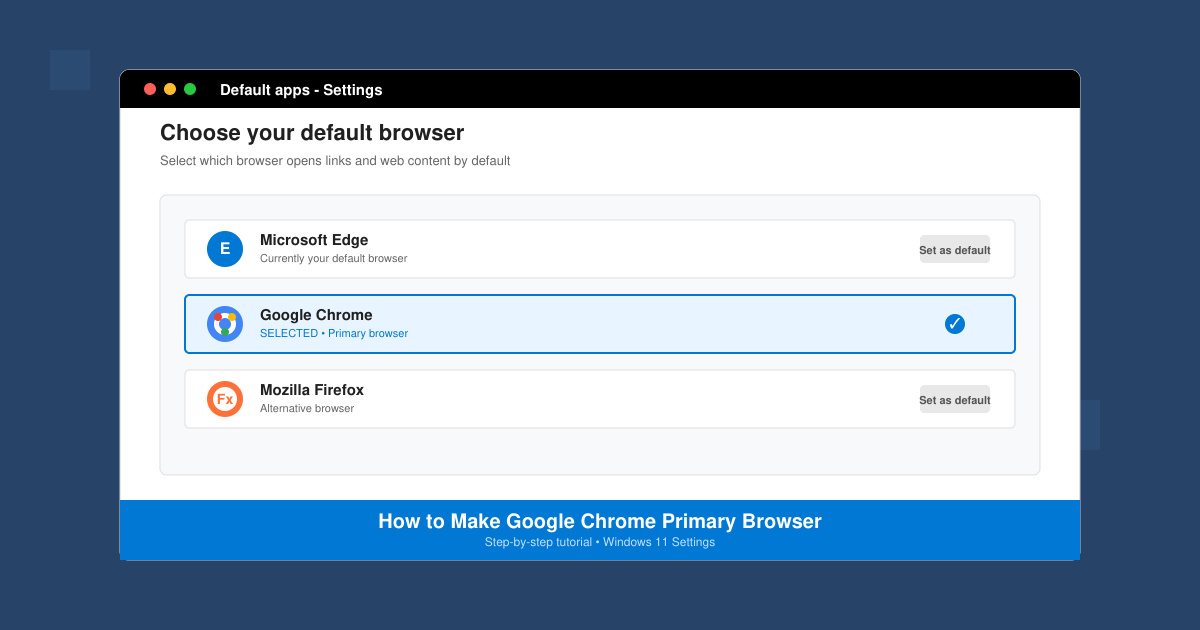
How to make Google Chrome primary browser on Windows, macOS, Android, and iOS with clear step-by-step instructions. Set Chrome as your default browser in minutes for better speed and sync.
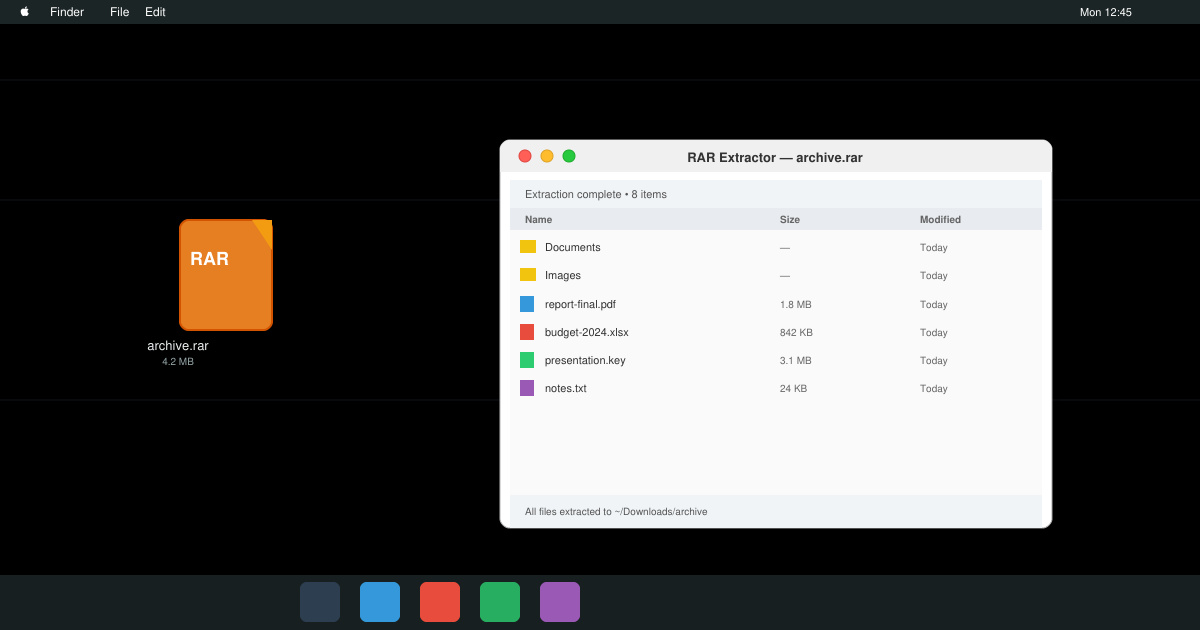
Need a rar program for mac to open RAR files? Learn the fastest way to install and use a reliable extractor on macOS in minutes.
Download Outlook for Mac from the official Microsoft source and install it on your Mac in minutes. Follow this guide for the latest version compatible with macOS.
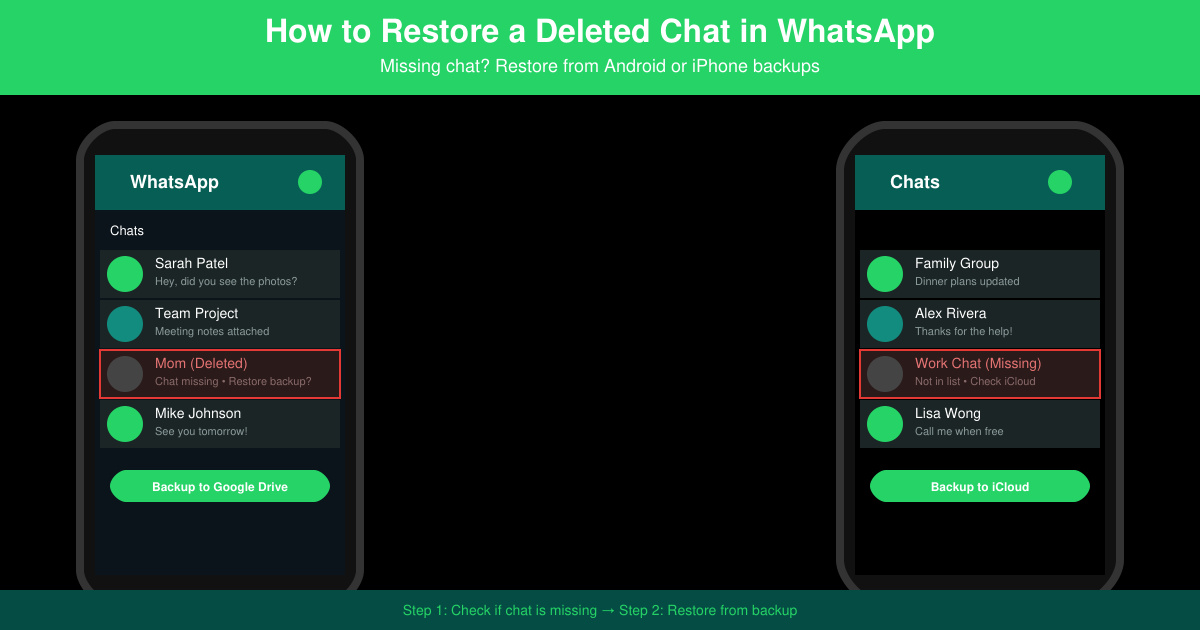
Learn exactly how to restore a deleted chat in WhatsApp on Android and iPhone using local or Google Drive backups. Follow these steps to recover conversations in minutes.
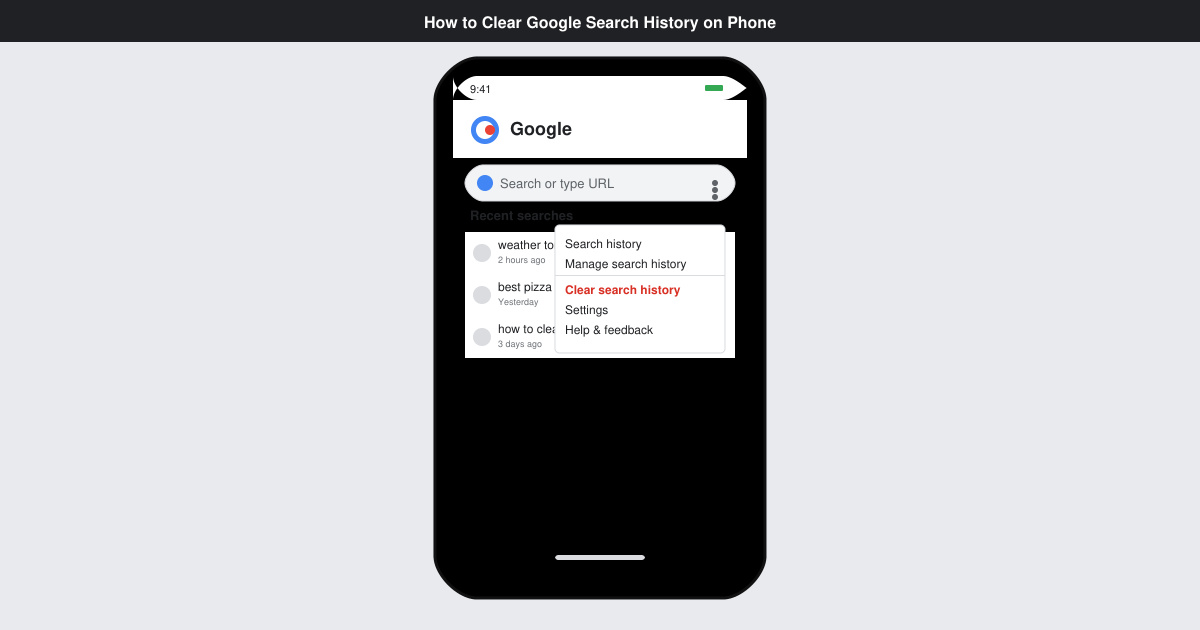
Learn how to clear Google search history on phone in just a few taps. Follow these exact steps for Android and iOS to remove search activity and improve privacy.
Complete your VLC Player Download Mac safely from the official source. This guide shows the exact steps to install VLC Media Player on macOS for reliable video and audio playback.
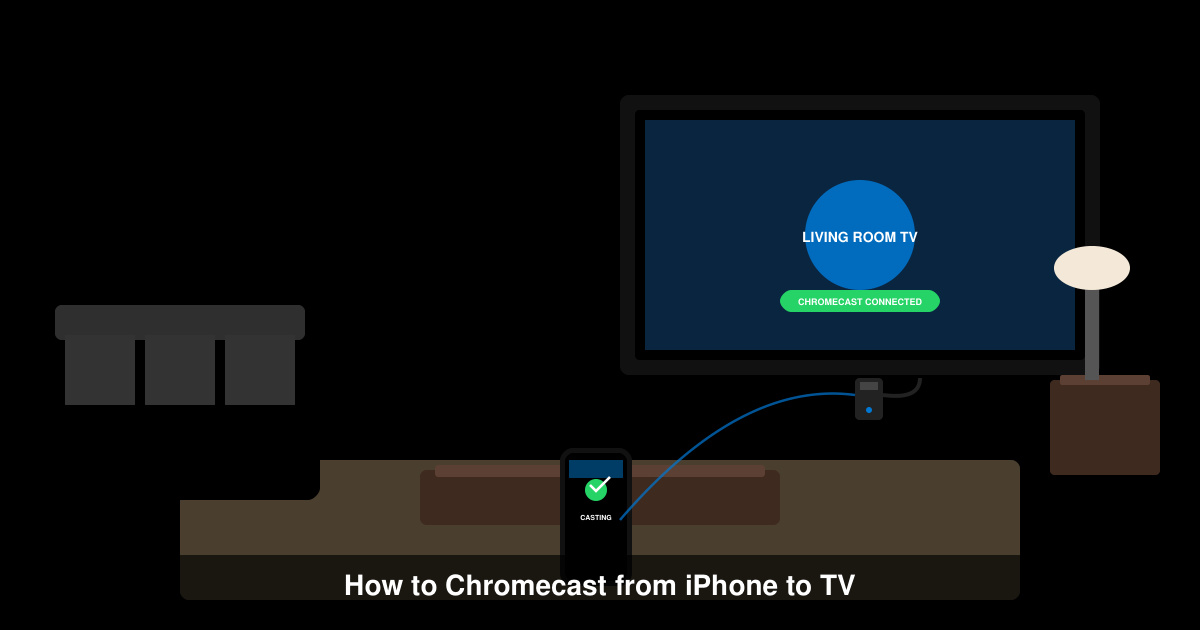
Learn how to Chromecast from iPhone to TV quickly and reliably. Follow these exact steps to stream videos, photos, and apps from your iPhone to any Chromecast device.