How to Download Chrome on Macbook
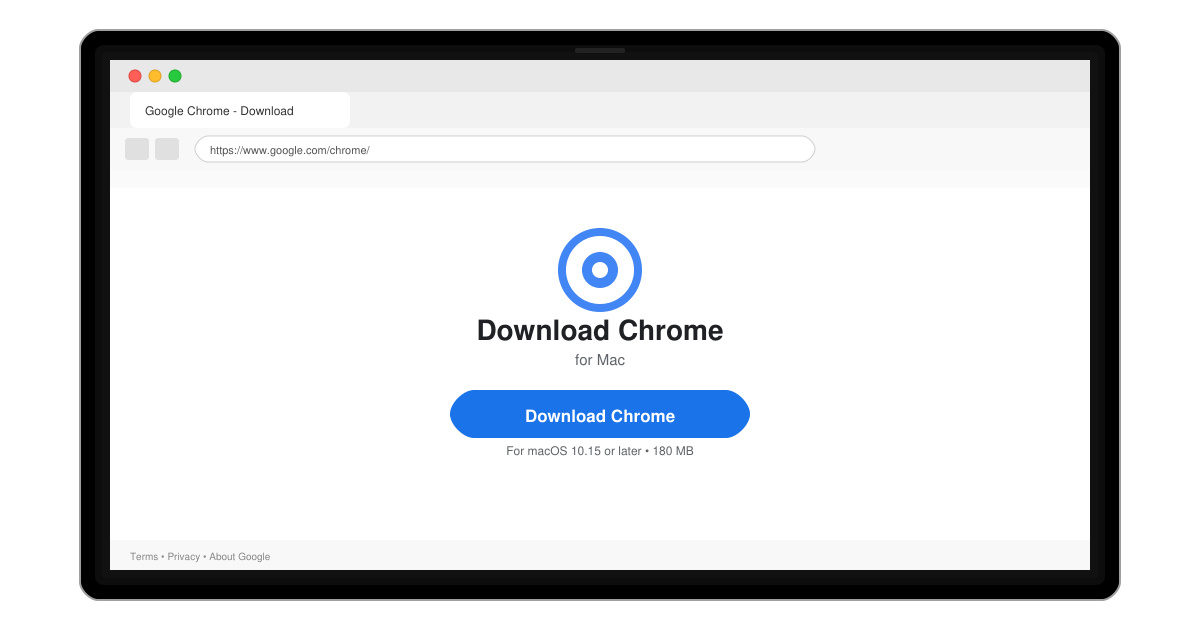
Follow this guide on how to download Chrome on Macbook to get Google Chrome running quickly and safely on your device.
macOS does not include native support for RAR archives, so users often search for how to open RAR file in Mac OS. The good news is that free, reliable tools make the process simple and fast. This article covers the two most effective methods to extract RAR files on any Mac.
Apple built support for ZIP and a few other formats directly into Finder, but RAR remains unsupported. Without a dedicated extractor, double-clicking a RAR file produces no result or an error. Installing one lightweight app or using the built-in Terminal solves the issue permanently and keeps your workflow smooth.
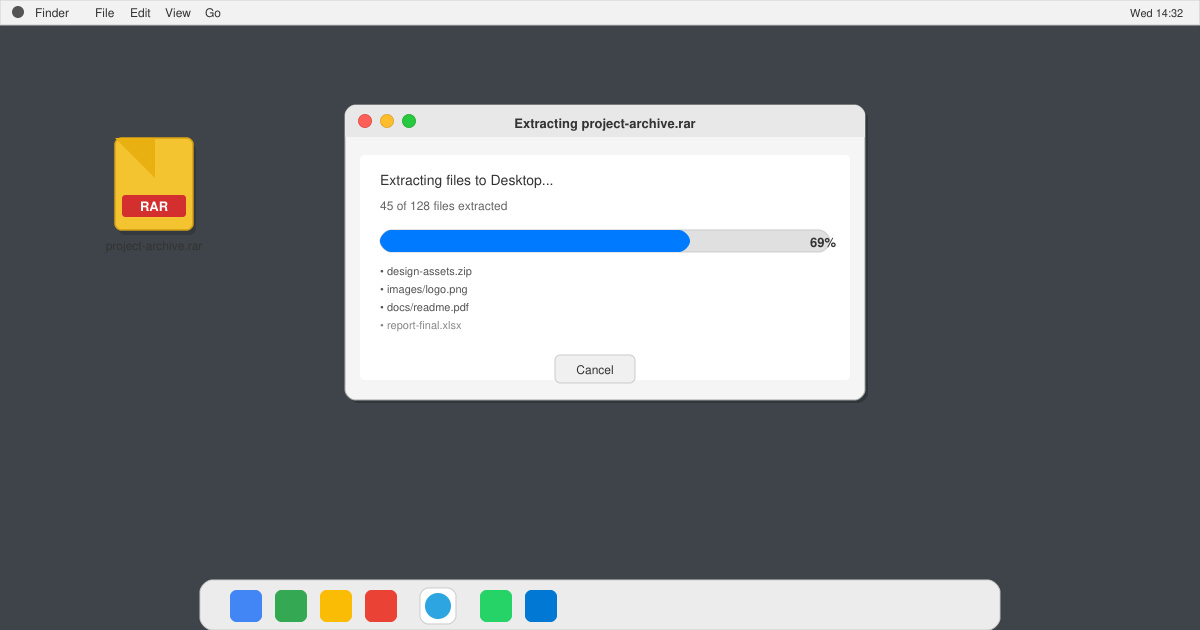
Open the App Store on your Mac and search for “The Unarchiver” by developer Incredible Bee. Click Get, then Open once the download finishes. The app weighs under 10 MB and requires no payment or registration.
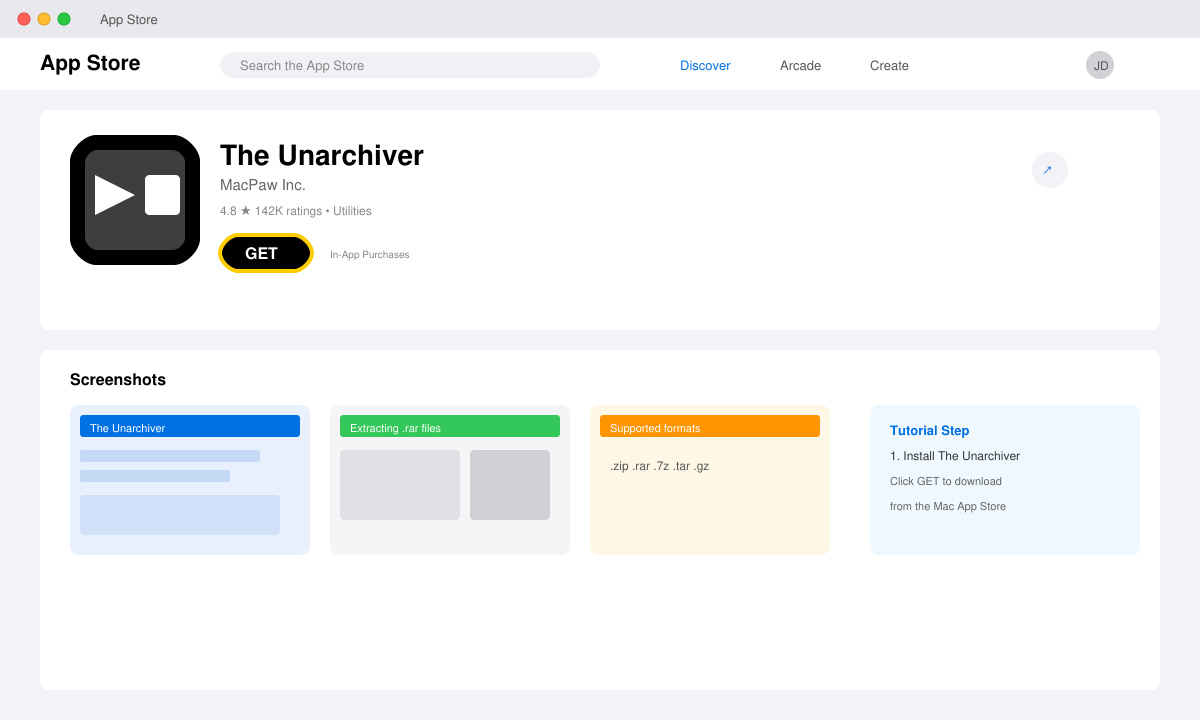
Locate your RAR file in Finder. Right-click it, choose Open With, and select The Unarchiver. The contents extract to the same folder automatically. You can also drag the RAR file directly onto the Unarchiver icon in the Dock for the same result.
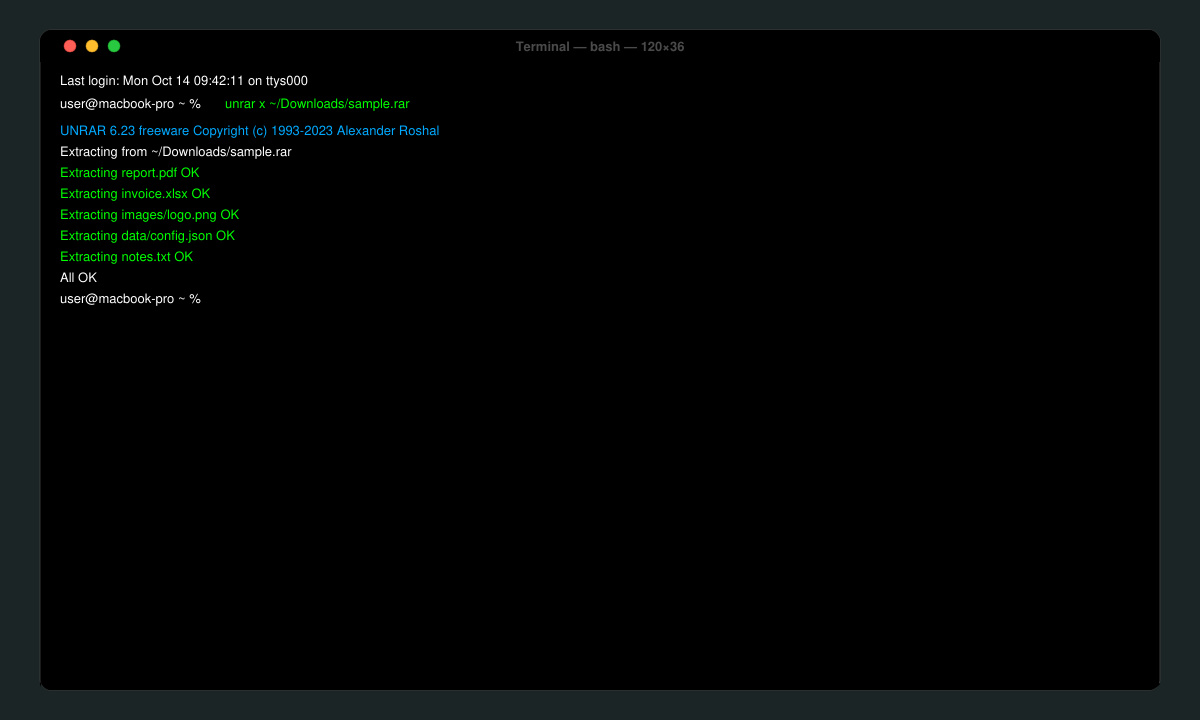
If you prefer not to install apps, open Terminal from Applications > Utilities. Install Homebrew first with the official one-line command, then run “brew install unrar”. Navigate to the folder containing the RAR file using cd and type “unrar x filename.rar” to extract everything.
Right-click any RAR file, select Get Info, scroll to Open with, and choose The Unarchiver from the menu. Click Change All to apply the setting system-wide. Double-clicking RAR files will now extract them automatically.
Only if you use the Terminal method with Homebrew, which still requires one initial command-line installation of the unrar utility.
Yes, the current version fully supports RAR5 archives as well as older RAR versions and split multi-part files.
After installing The Unarchiver and setting it as the default app, Finder will handle RAR files the same way it handles ZIP files.
With either The Unarchiver or the Terminal unrar command, you can reliably open RAR file in Mac OS and extract contents in seconds. Choose the method that matches your preference for apps or command-line tools.
Follow this guide on how to download Chrome on Macbook to get Google Chrome running quickly and safely on your device.
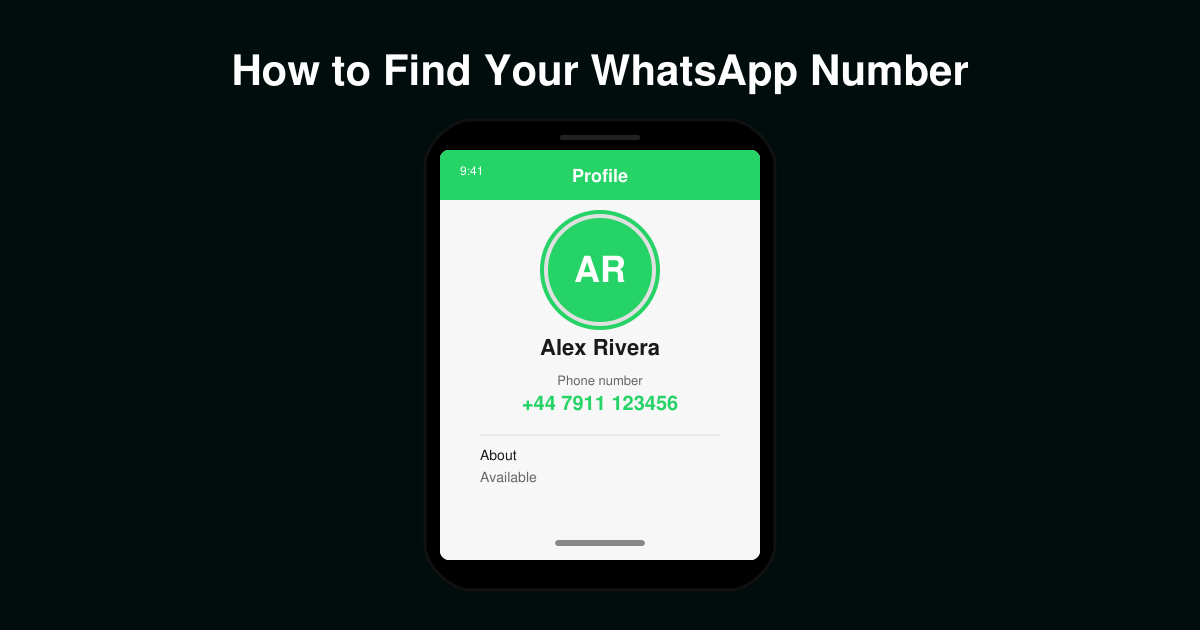
Discover exactly how to find your WhatsApp number on Android, iPhone, and desktop in under a minute. Follow these clear steps to view the number linked to your account.
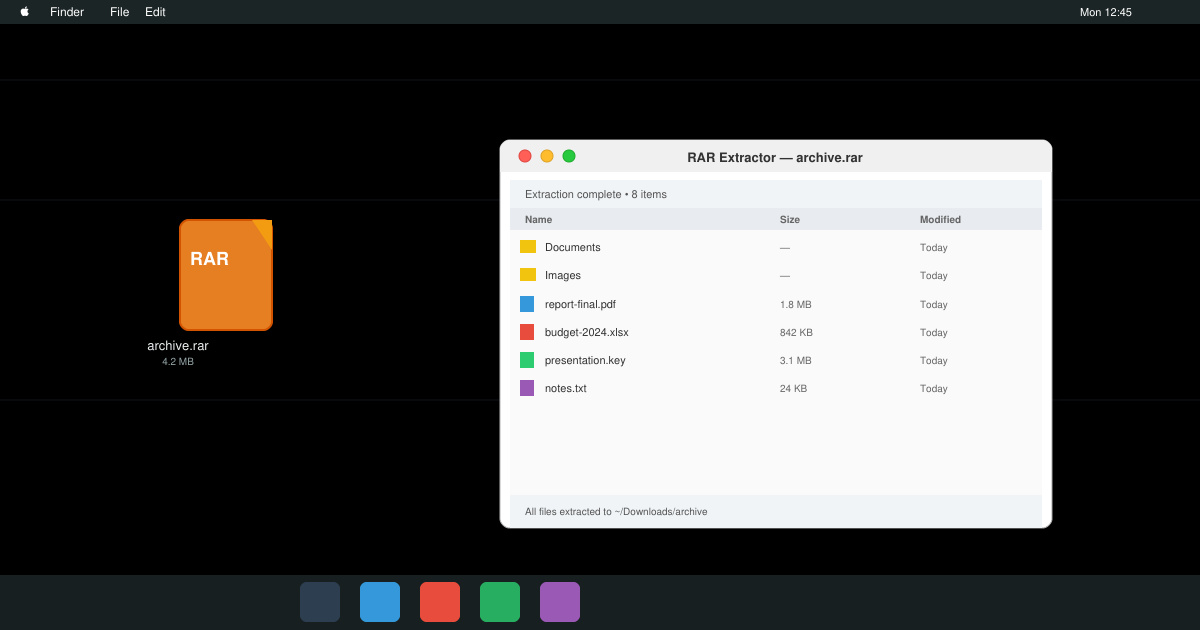
Learn how to open RAR file in Mac OS using free tools. This guide shows the fastest ways to extract RAR archives on your Mac in minutes.
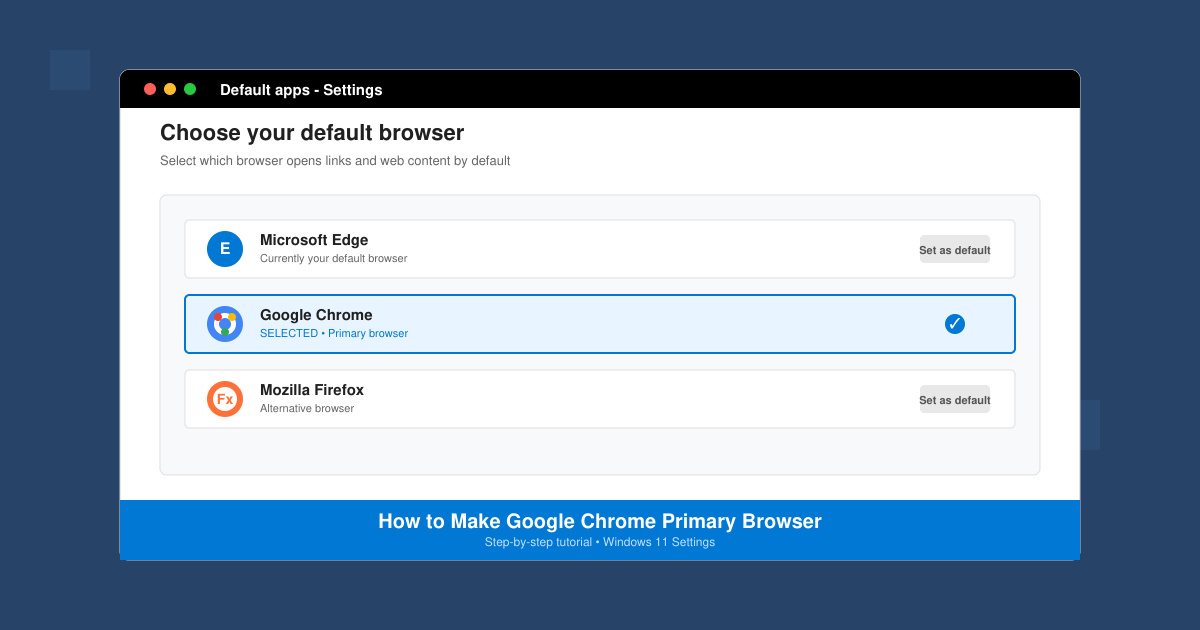
How to make Google Chrome primary browser on Windows, macOS, Android, and iOS with clear step-by-step instructions. Set Chrome as your default browser in minutes for better speed and sync.
Need a rar program for mac to open RAR files? Learn the fastest way to install and use a reliable extractor on macOS in minutes.
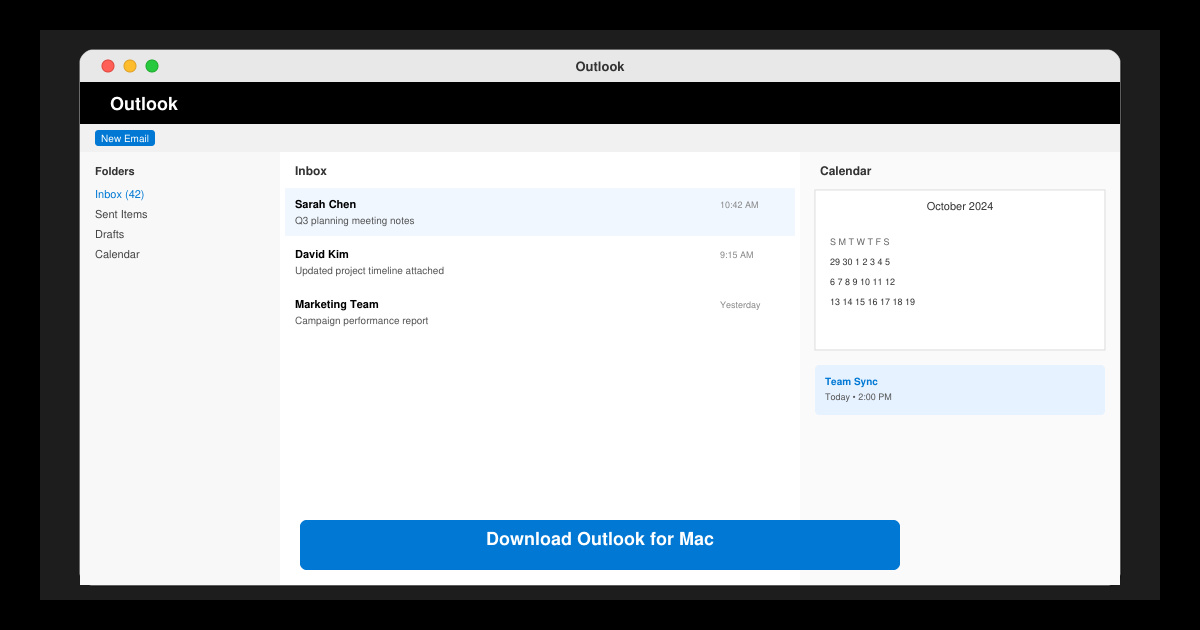
Download Outlook for Mac from the official Microsoft source and install it on your Mac in minutes. Follow this guide for the latest version compatible with macOS.
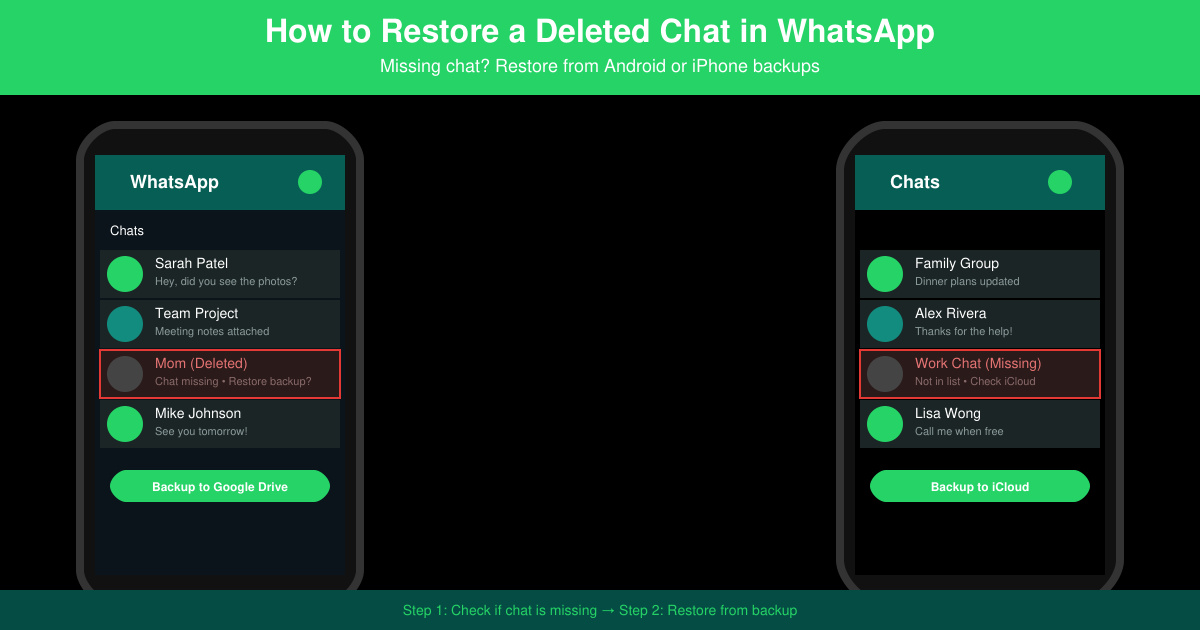
Learn exactly how to restore a deleted chat in WhatsApp on Android and iPhone using local or Google Drive backups. Follow these steps to recover conversations in minutes.
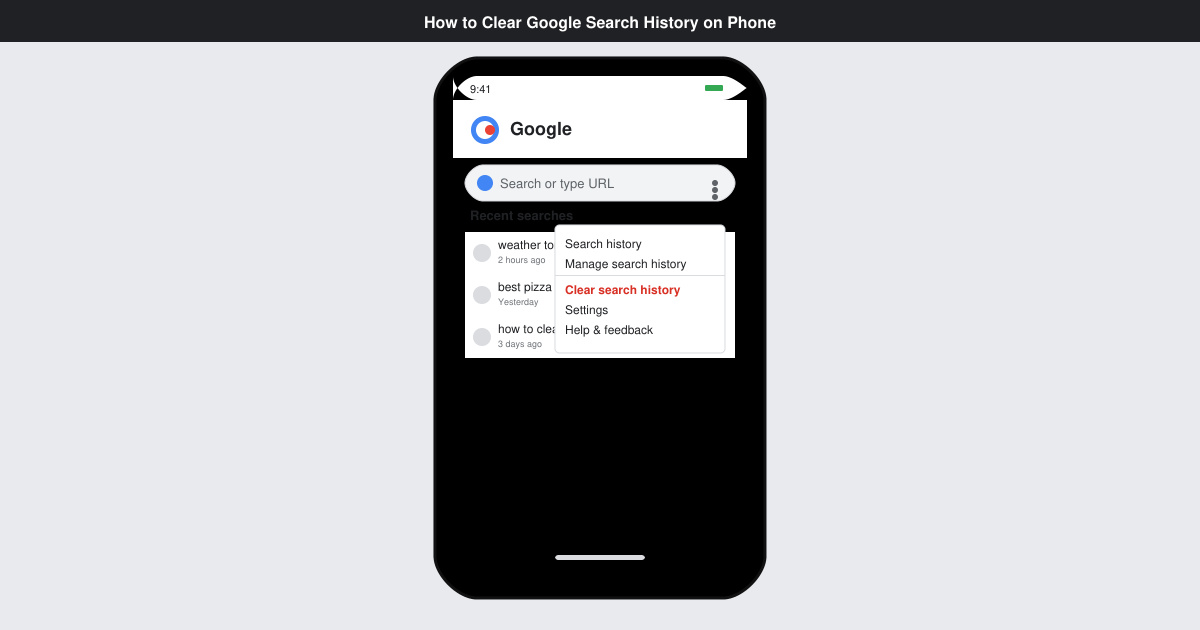
Learn how to clear Google search history on phone in just a few taps. Follow these exact steps for Android and iOS to remove search activity and improve privacy.
Complete your VLC Player Download Mac safely from the official source. This guide shows the exact steps to install VLC Media Player on macOS for reliable video and audio playback.
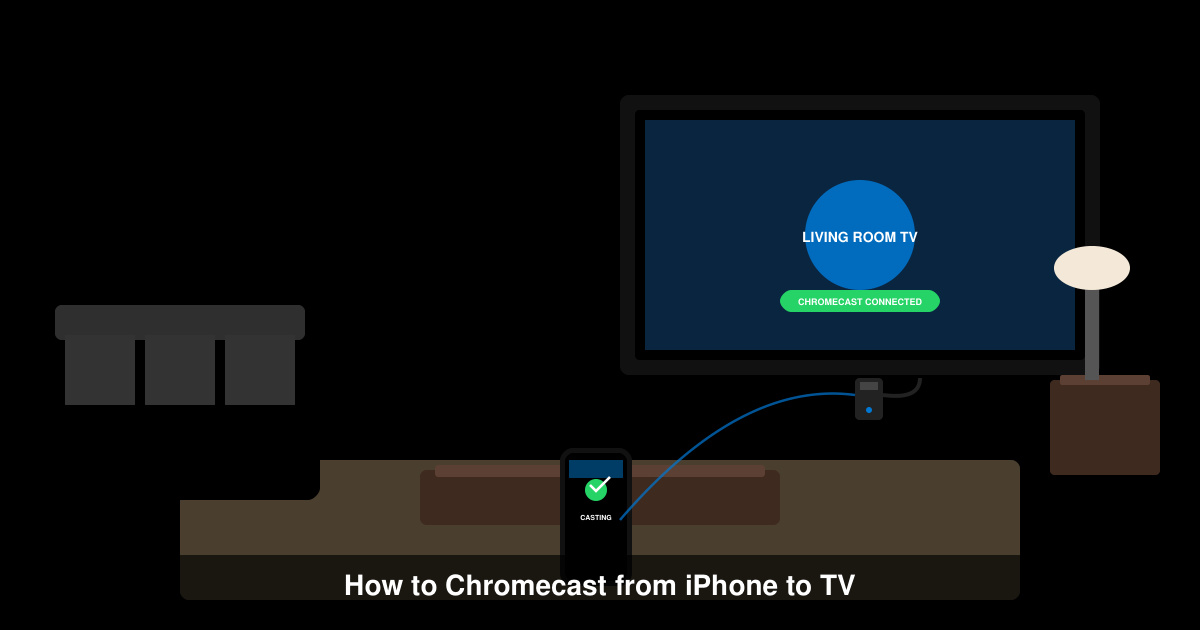
Learn how to Chromecast from iPhone to TV quickly and reliably. Follow these exact steps to stream videos, photos, and apps from your iPhone to any Chromecast device.