How to Download Chrome on Macbook
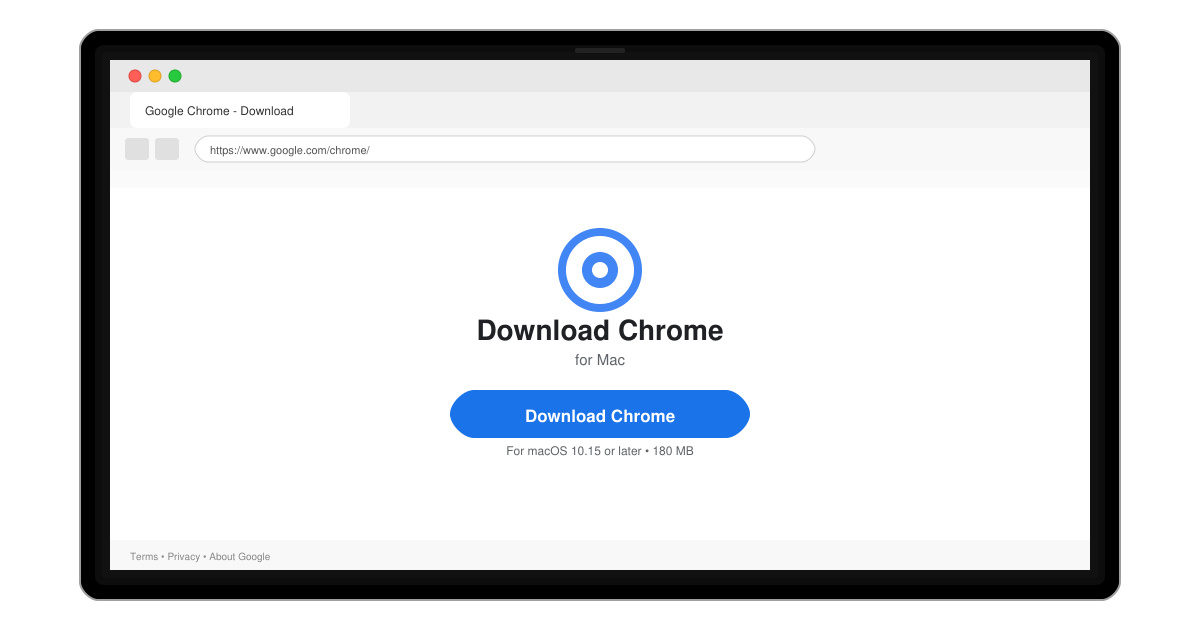
Follow this guide on how to download Chrome on Macbook to get Google Chrome running quickly and safely on your device.
If you want to know how to clear Google search history on phone, the process takes less than a minute once you know the exact menus. Whether you use an Android or iOS device, you can delete recent searches directly in the Google app or Chrome without affecting your account. This article gives precise steps for both platforms plus troubleshooting tips.
Google stores every search you make while signed in, building a detailed activity log that includes web searches, voice queries, and location data. Clearing this history removes personalized suggestions and reduces the amount of information available if your phone is lost or shared. It does not delete saved passwords or other account data.
Before starting, make sure you are signed into the correct Google account. The steps below work on the latest versions of the Google app and Chrome browser.
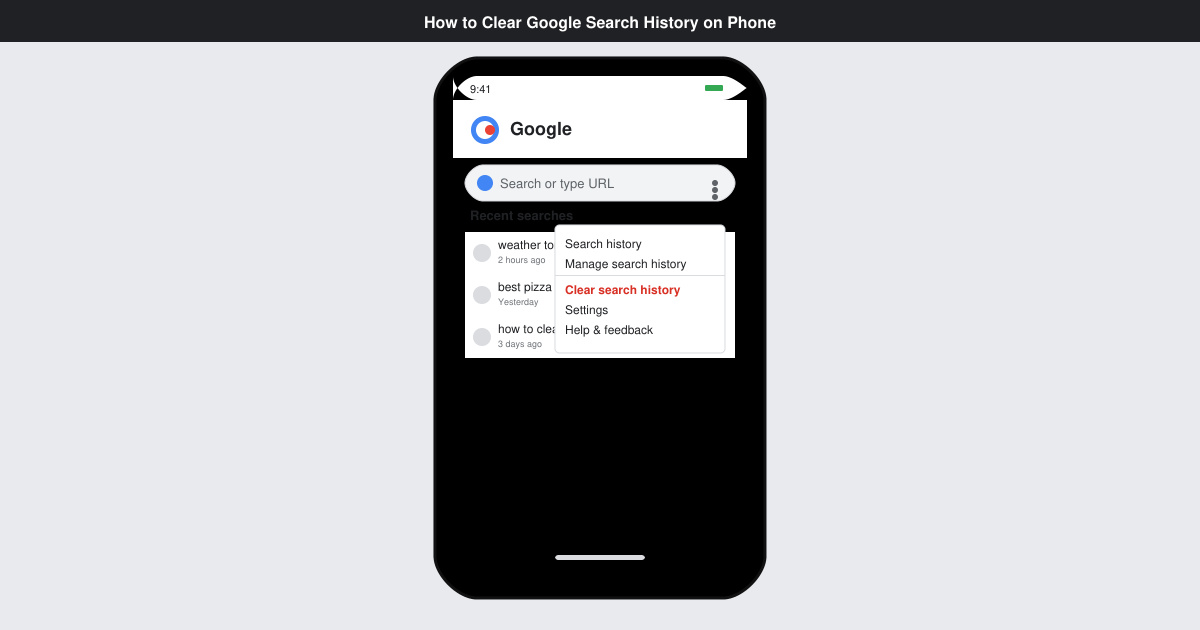
Launch the Google app on your phone. Tap your profile picture in the top right corner, then select "Google Account" to reach the main account page.
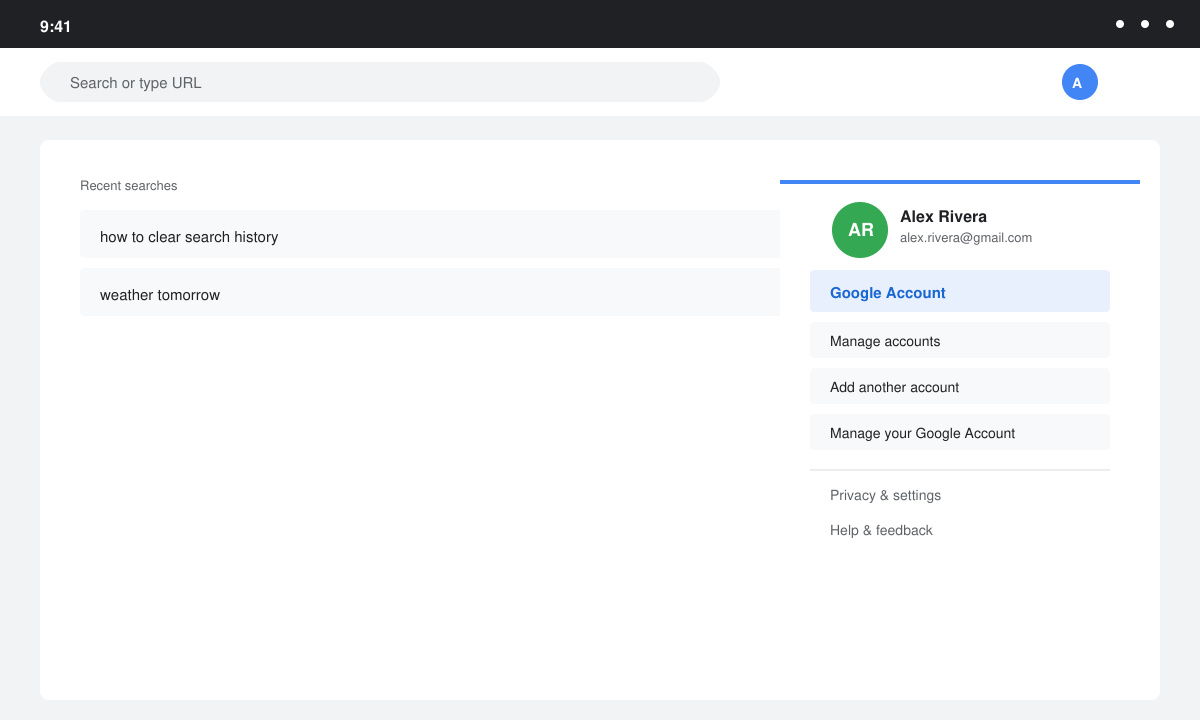
On the account page, scroll down and tap "Data & privacy." Under the "History settings" section, tap "My Activity." This opens a chronological list of all your searches and interactions.
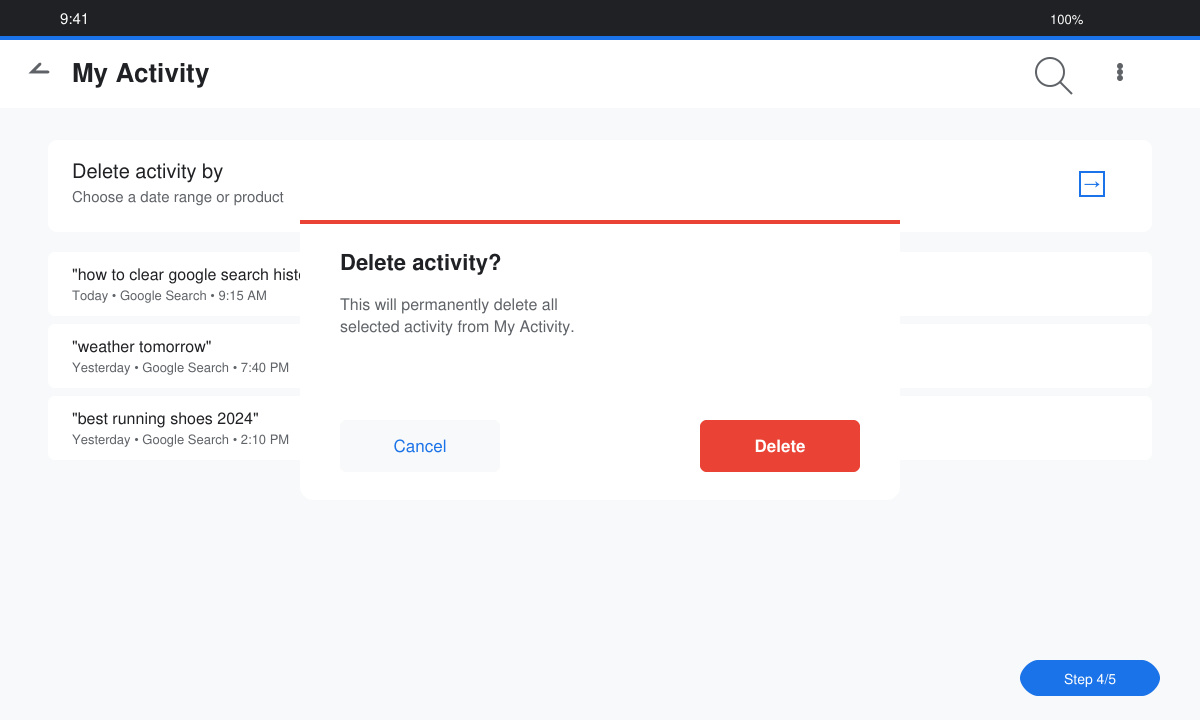
To remove specific searches, tap the three-dot menu next to an entry and choose "Delete." For bulk removal, tap the three-dot menu at the top right of the My Activity screen and select "Delete activity by." Choose "All time" or set a custom date range, then confirm with "Delete."
Still on the Data & privacy page, tap "Web & App Activity" and toggle the switch to off. This stops Google from saving new searches going forward while keeping your account functional.
If you mainly search through Chrome, open the browser and tap the three-dot menu in the top right. Select "History," then "Clear browsing data." Choose the "Basic" tab, set the time range to "All time," check "Browsing history," and tap "Clear data." This removes searches performed inside Chrome but leaves activity saved directly to your Google account untouched.
No. It only removes the selected activity. Bookmarks, saved passwords, and other Google services remain intact.
Yes. All steps above work while you stay signed in. Signing out only prevents new activity from being saved to that account during the session.
Partially. Turning off Web & App Activity reduces ad personalization based on searches, but Google still uses other signals such as location and app usage.
Following the steps above lets you quickly remove unwanted search data from your phone and regain control over your Google activity.
Follow this guide on how to download Chrome on Macbook to get Google Chrome running quickly and safely on your device.
Discover exactly how to find your WhatsApp number on Android, iPhone, and desktop in under a minute. Follow these clear steps to view the number linked to your account.
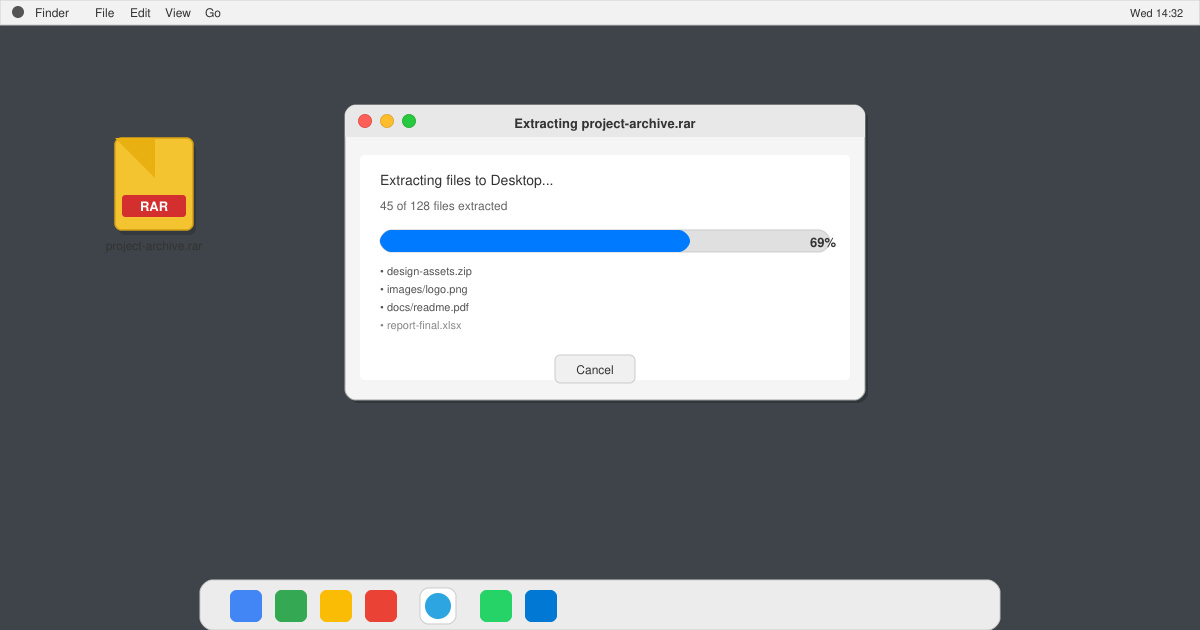
Learn how to open RAR file in Mac OS using free tools. This guide shows the fastest ways to extract RAR archives on your Mac in minutes.
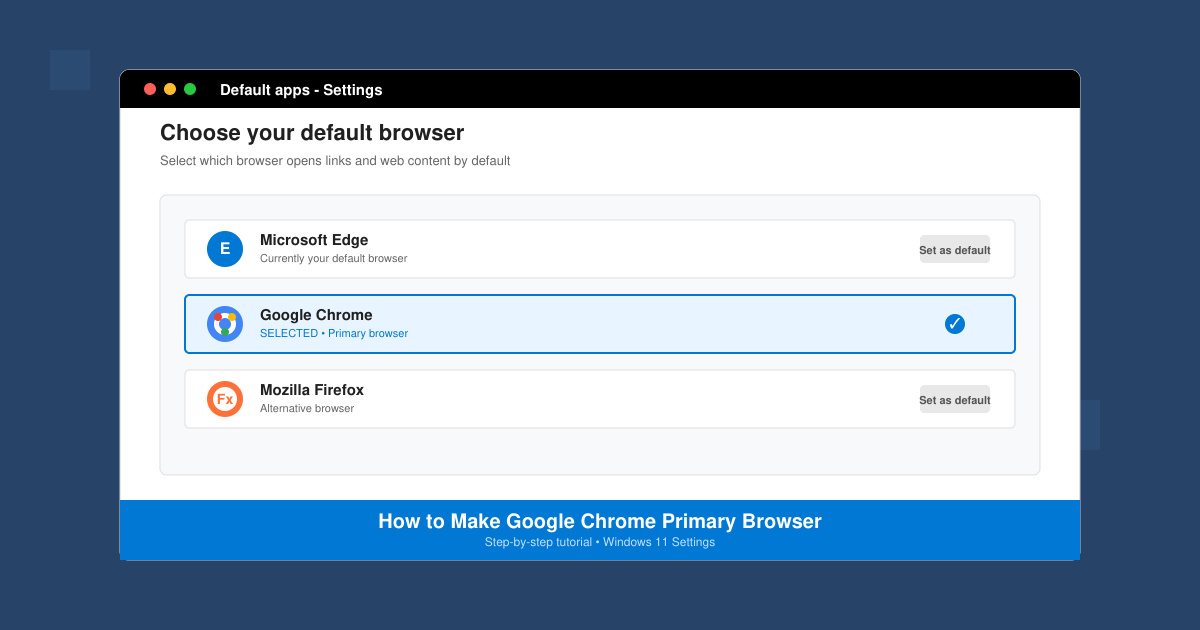
How to make Google Chrome primary browser on Windows, macOS, Android, and iOS with clear step-by-step instructions. Set Chrome as your default browser in minutes for better speed and sync.
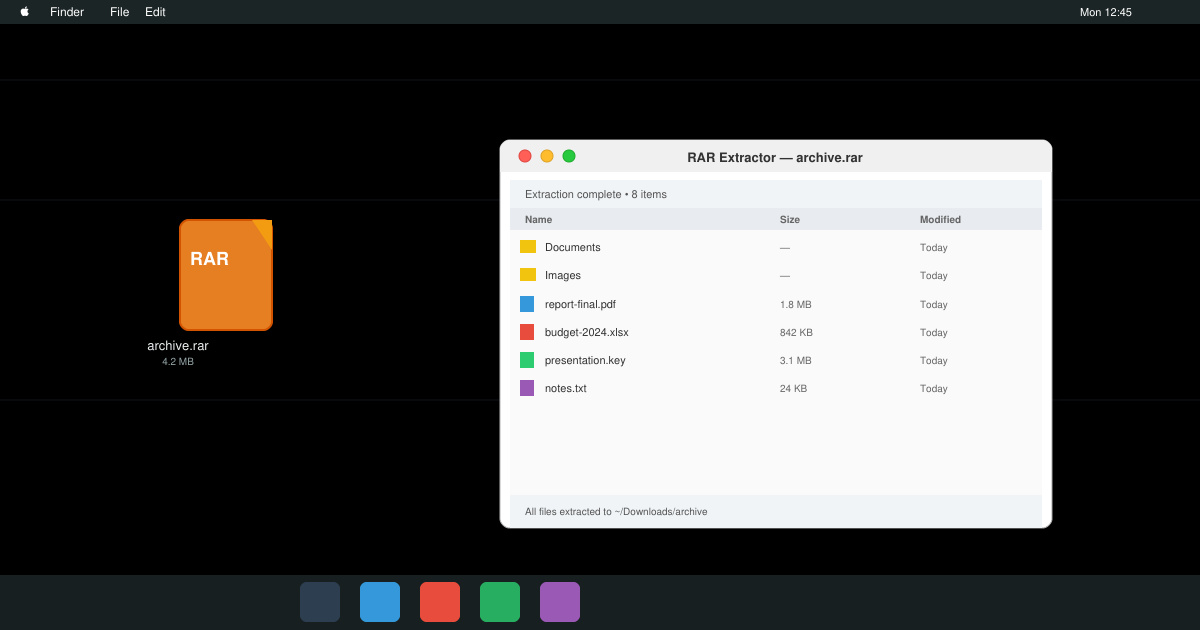
Need a rar program for mac to open RAR files? Learn the fastest way to install and use a reliable extractor on macOS in minutes.
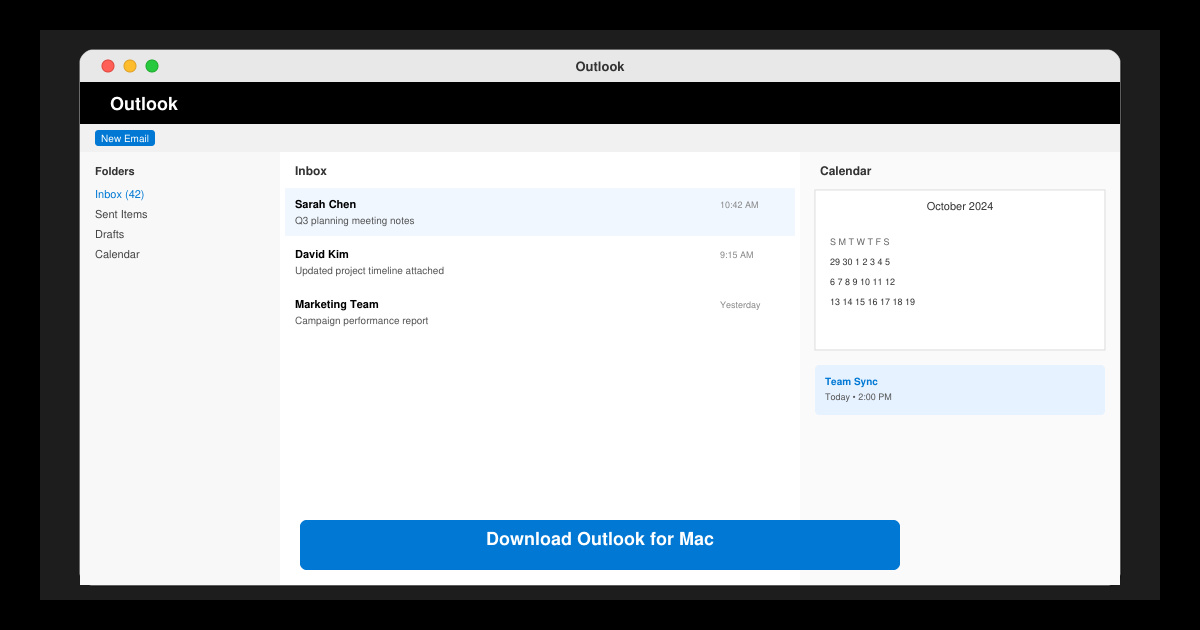
Download Outlook for Mac from the official Microsoft source and install it on your Mac in minutes. Follow this guide for the latest version compatible with macOS.
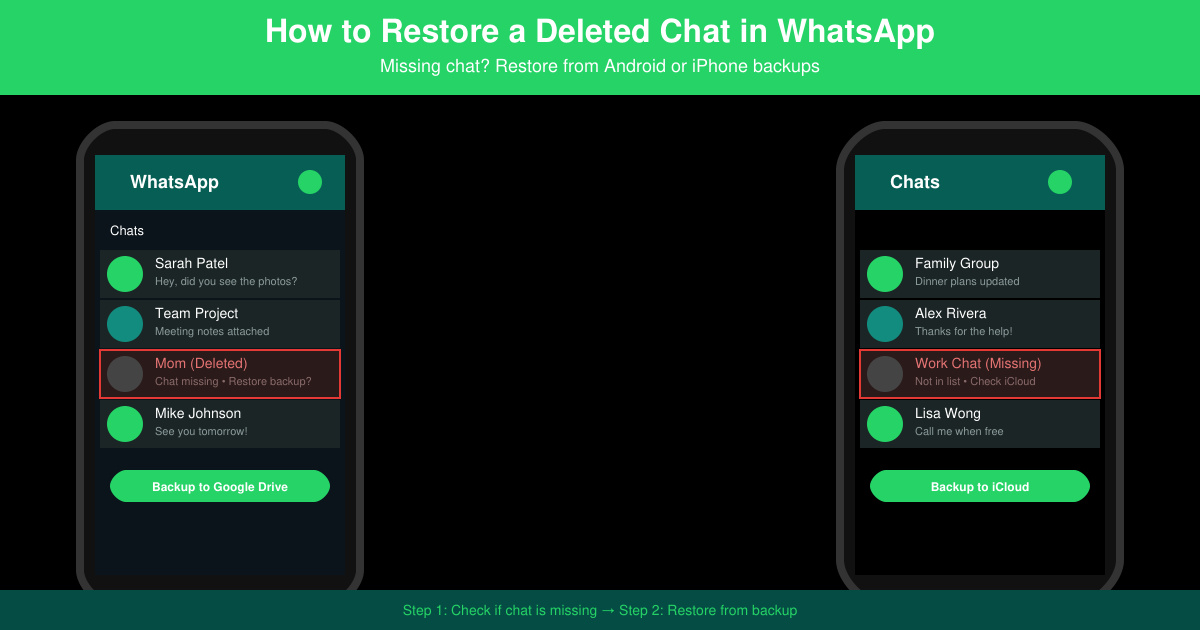
Learn exactly how to restore a deleted chat in WhatsApp on Android and iPhone using local or Google Drive backups. Follow these steps to recover conversations in minutes.
Learn how to clear Google search history on phone in just a few taps. Follow these exact steps for Android and iOS to remove search activity and improve privacy.
Complete your VLC Player Download Mac safely from the official source. This guide shows the exact steps to install VLC Media Player on macOS for reliable video and audio playback.
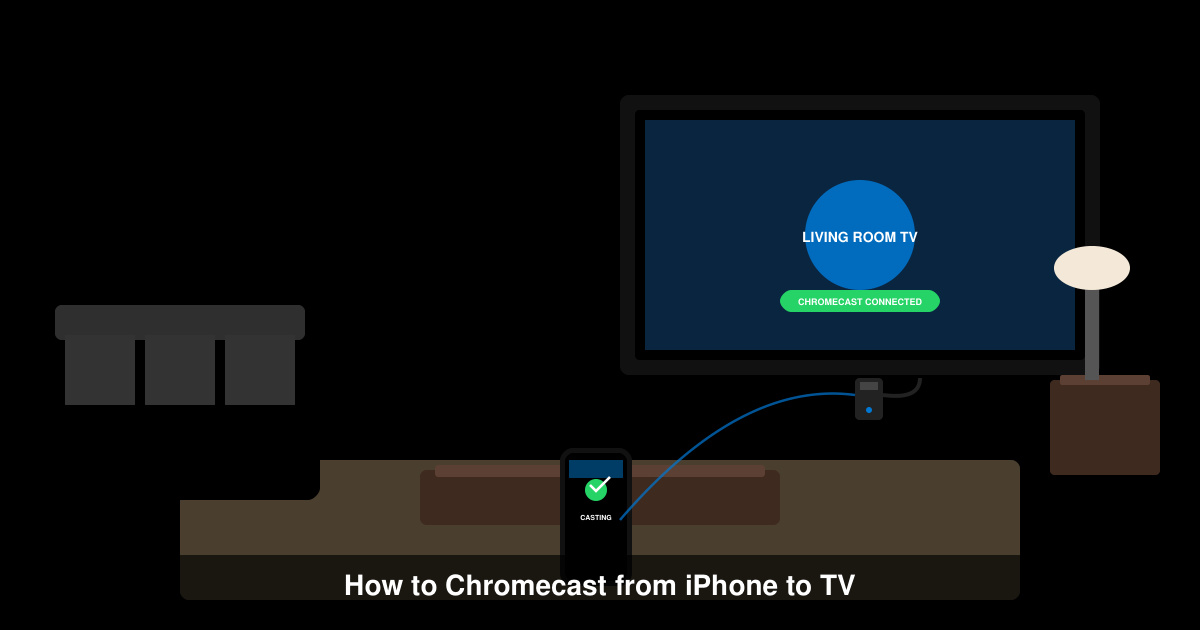
Learn how to Chromecast from iPhone to TV quickly and reliably. Follow these exact steps to stream videos, photos, and apps from your iPhone to any Chromecast device.