How to Download Chrome on Macbook
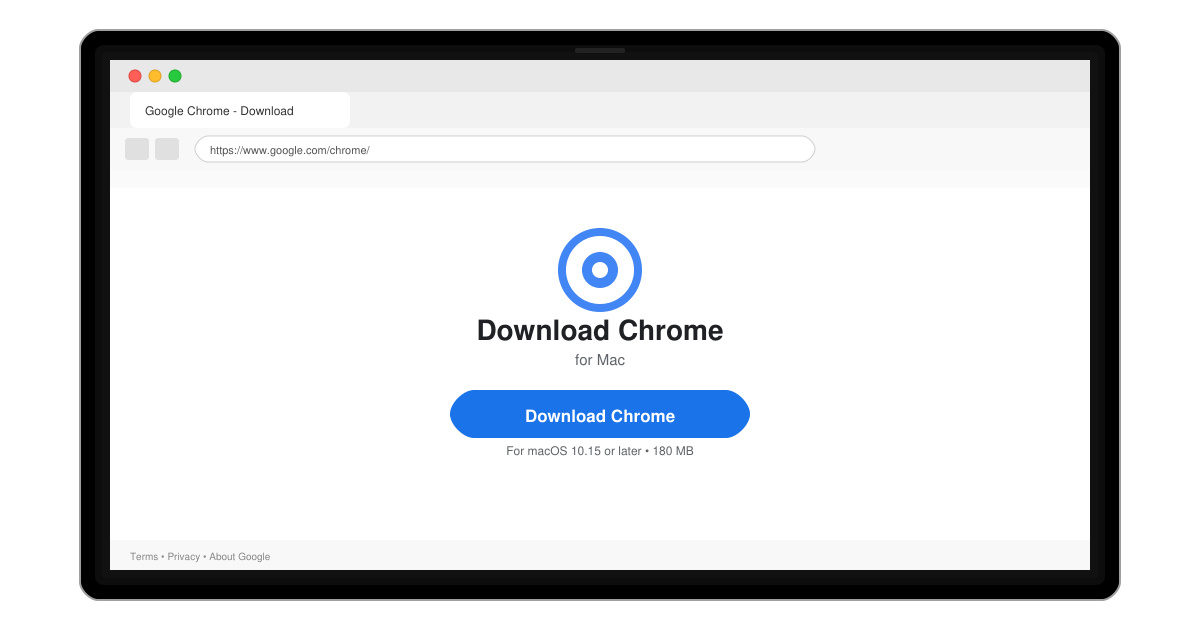
Follow this guide on how to download Chrome on Macbook to get Google Chrome running quickly and safely on your device.
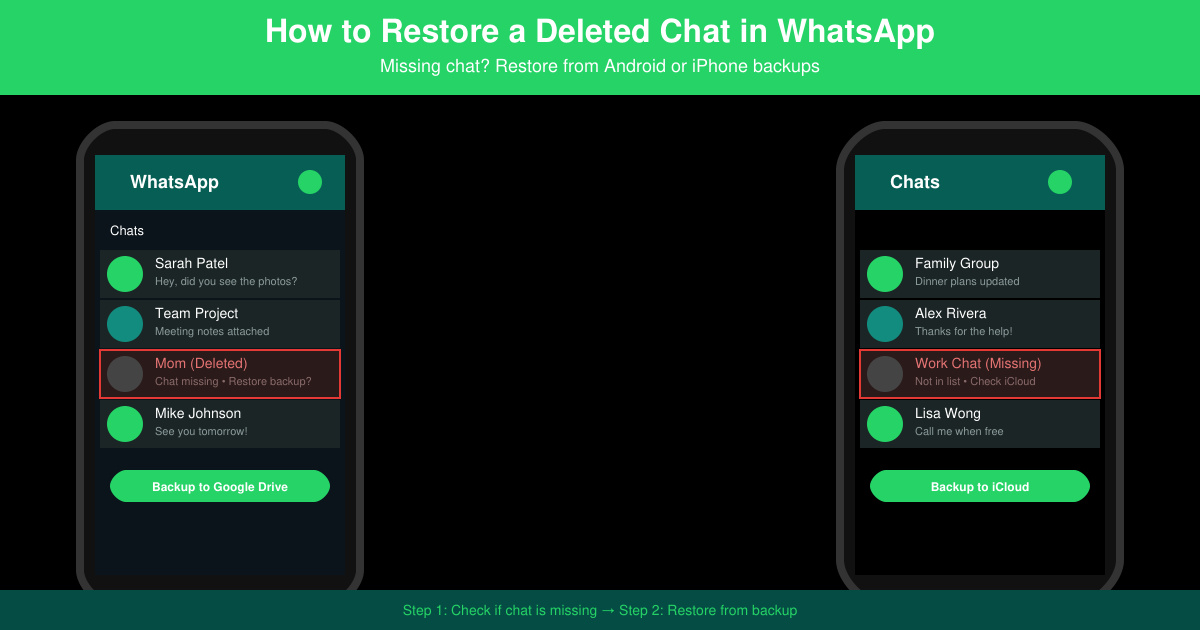
Losing a WhatsApp conversation happens more often than you think. You can restore a deleted chat in WhatsApp if you have a recent backup available, whether stored locally on your device or in the cloud. This guide walks through the precise steps for both Android and iOS so you can get your messages back without extra tools.
WhatsApp creates automatic backups of your chats. On Android these can live in Google Drive or a local folder. On iPhone they are stored in iCloud. You must have created at least one backup before the chat was deleted, otherwise recovery is not possible through normal means. Confirm your backup exists first by checking the date in WhatsApp settings.
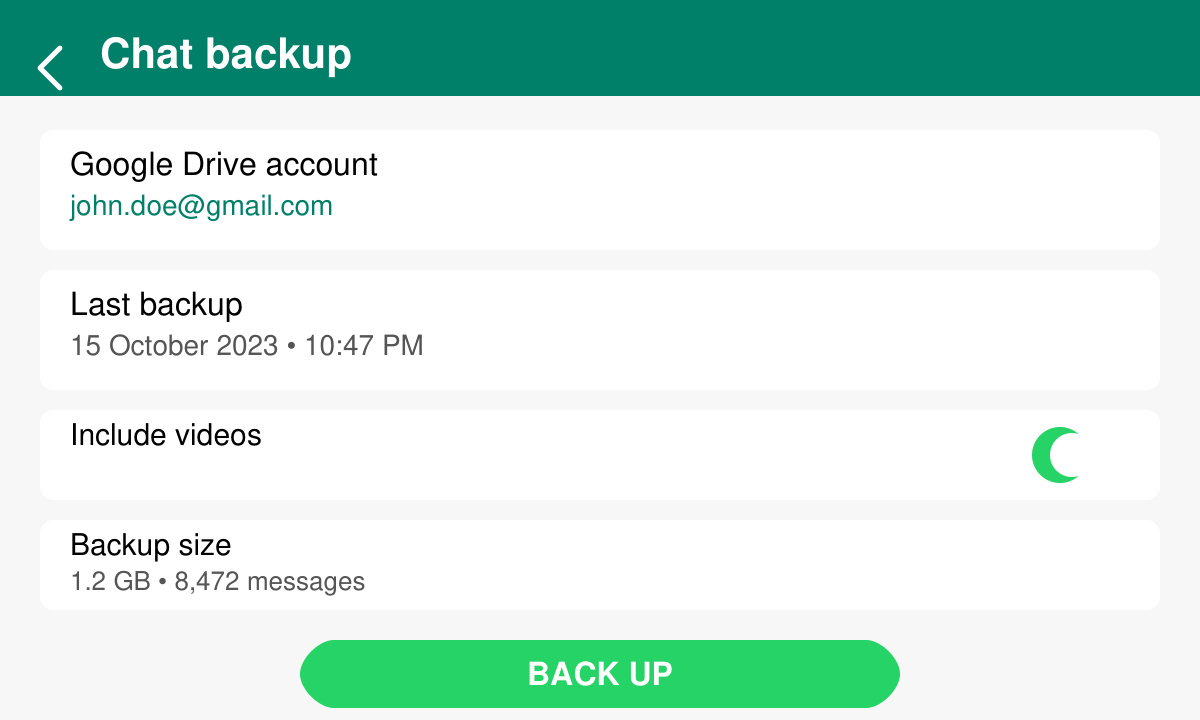
Open WhatsApp, tap the three-dot menu, go to Settings > Chats > Chat backup. Note the last backup date and the Google account listed. If no recent backup appears, the chat cannot be restored this way.
Long-press the WhatsApp icon on your home screen or app drawer, select Uninstall, then open the Play Store, search for WhatsApp, and tap Install. Do not open the app yet after installation finishes.
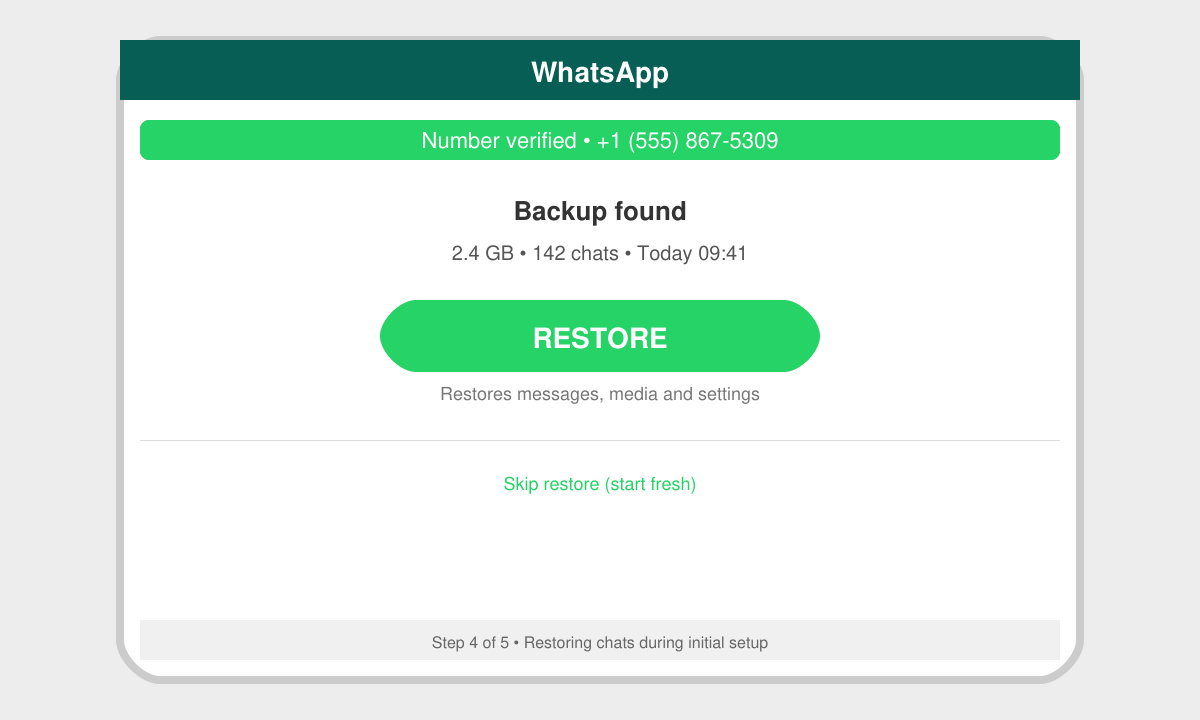
Open the newly installed WhatsApp, enter your phone number, and wait for the verification code. When prompted with the backup found screen, tap Restore. The deleted chat will reappear once the process completes.
Go to iPhone Settings > [Your Name] > iCloud > Manage Storage > WhatsApp. Confirm a backup exists with a date before the chat was deleted.
Press and hold the WhatsApp icon until it jiggles, tap the minus sign, then choose Delete App. Open the App Store, search WhatsApp, and reinstall it.
Launch WhatsApp, verify your number, and tap Restore Chat History when the option appears. The deleted conversation returns after the download finishes.
If the restore button does not appear, ensure you are logged into the exact same Google or iCloud account used for the backup. Another frequent problem occurs when the backup is older than the deletion date. In that case create a fresh backup of any remaining chats before attempting another restore. Users on the same phone number but different devices must complete the restore on the original device first.
No. WhatsApp does not keep deleted messages on its servers, so a prior backup is required for recovery.
Yes. Any chats created after the backup date will be replaced by the older version. Export important new conversations first.
Yes. The backup and restore process is identical between the standard and Business versions of the app.
Following these exact steps lets you restore a deleted chat in WhatsApp quickly when a backup is available. Always verify your backup dates before uninstalling the app to avoid unnecessary data loss.
Follow this guide on how to download Chrome on Macbook to get Google Chrome running quickly and safely on your device.
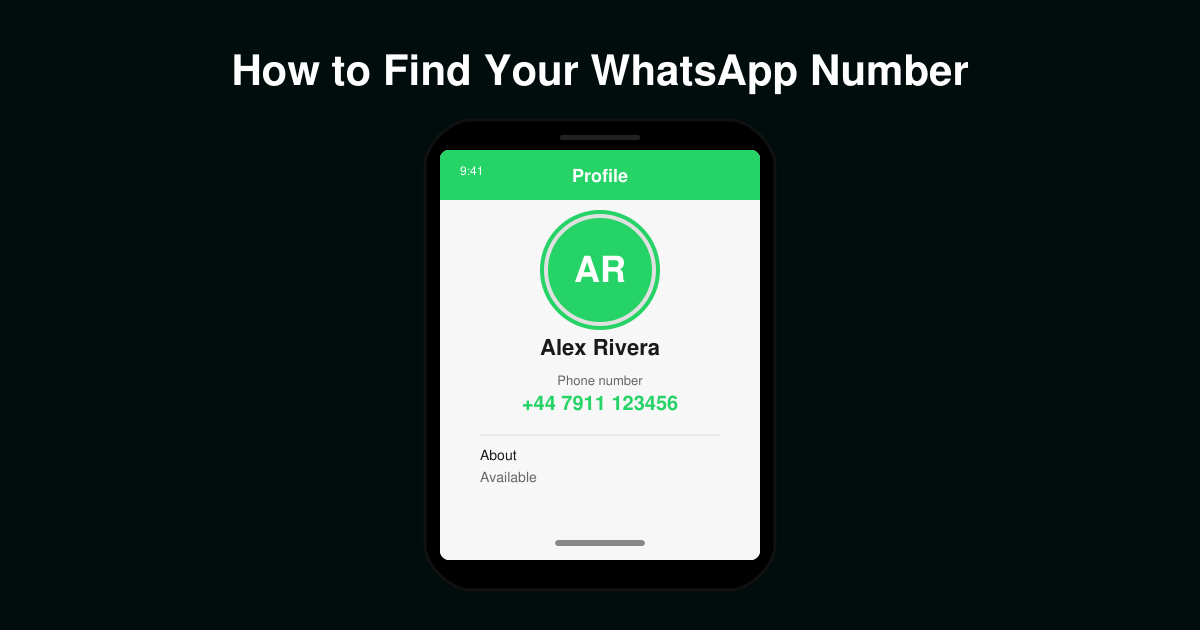
Discover exactly how to find your WhatsApp number on Android, iPhone, and desktop in under a minute. Follow these clear steps to view the number linked to your account.
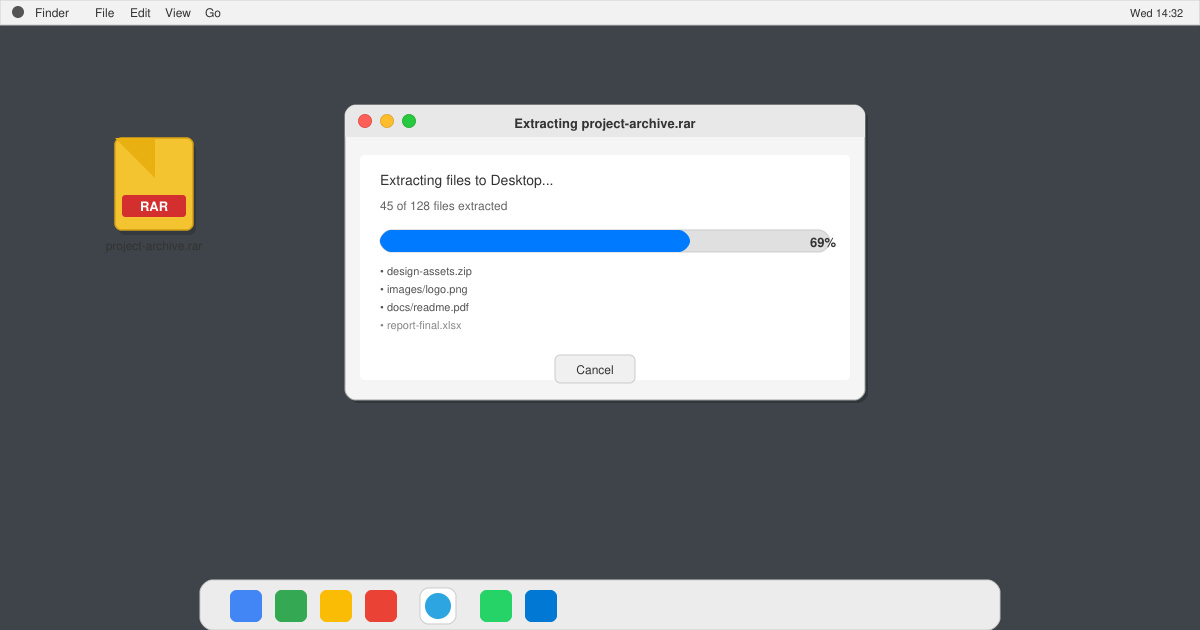
Learn how to open RAR file in Mac OS using free tools. This guide shows the fastest ways to extract RAR archives on your Mac in minutes.
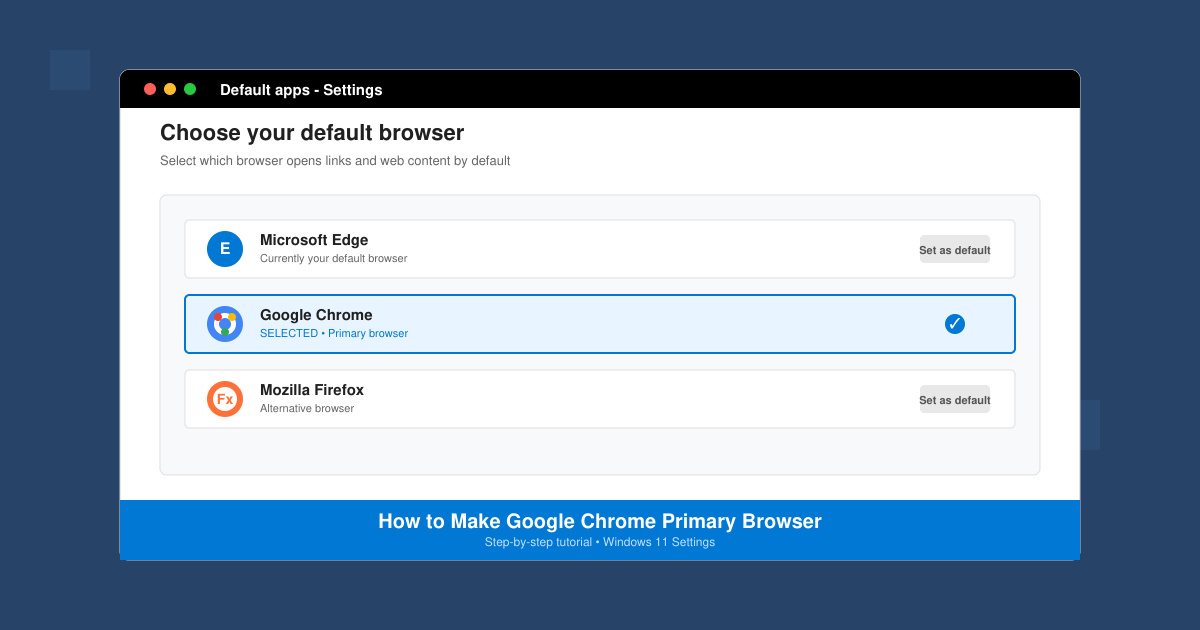
How to make Google Chrome primary browser on Windows, macOS, Android, and iOS with clear step-by-step instructions. Set Chrome as your default browser in minutes for better speed and sync.
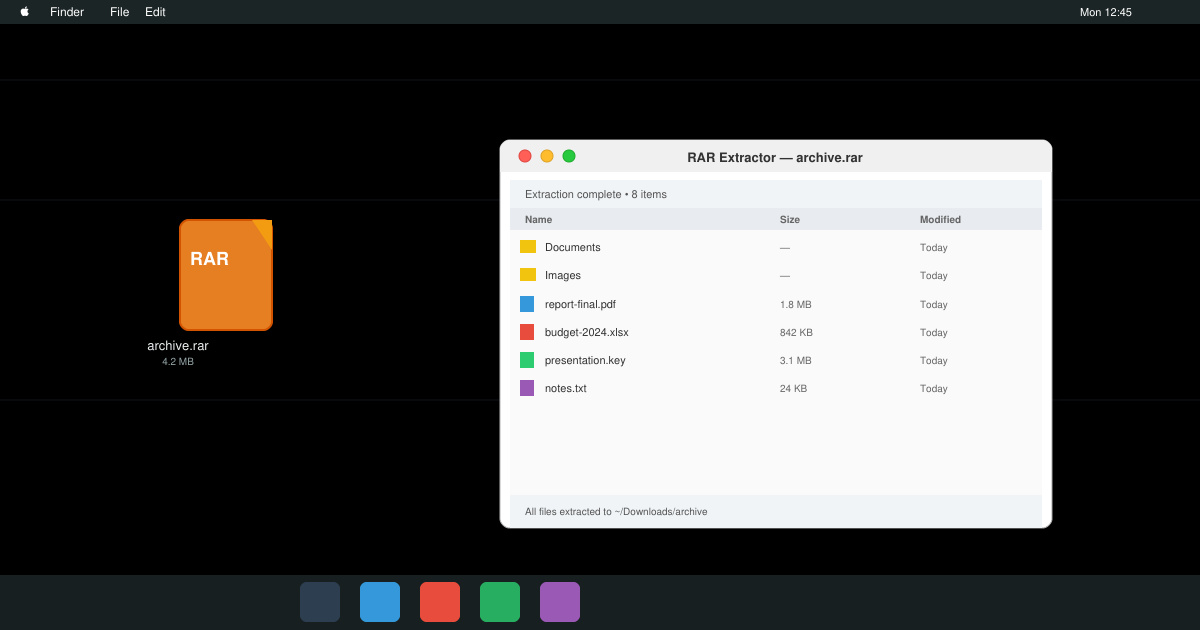
Need a rar program for mac to open RAR files? Learn the fastest way to install and use a reliable extractor on macOS in minutes.
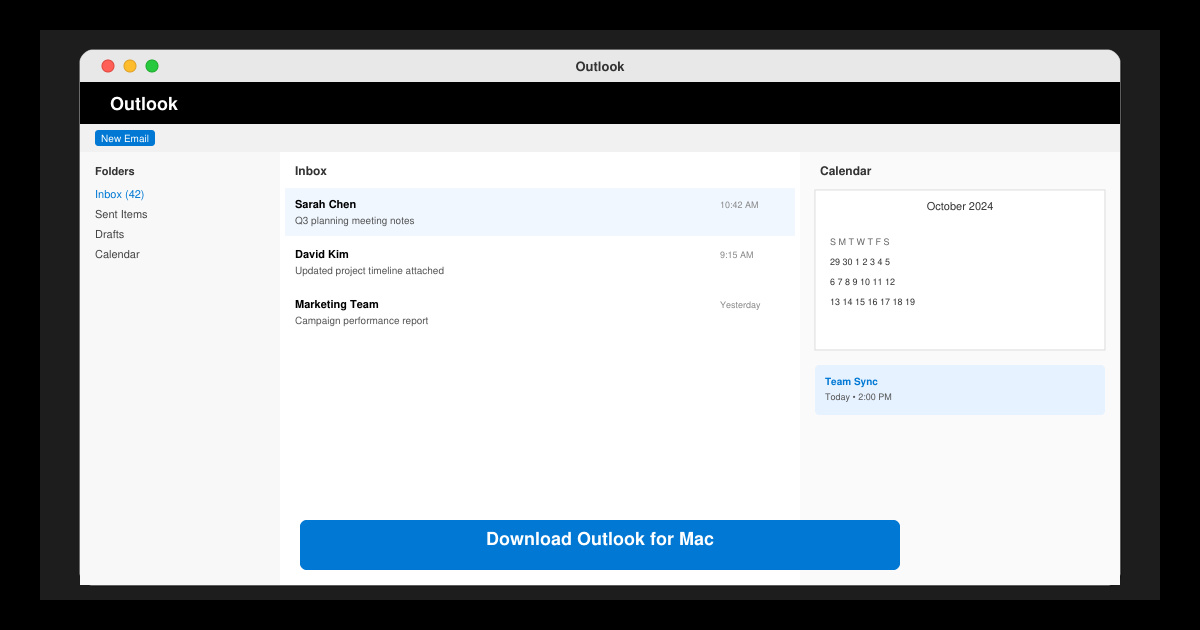
Download Outlook for Mac from the official Microsoft source and install it on your Mac in minutes. Follow this guide for the latest version compatible with macOS.
Learn exactly how to restore a deleted chat in WhatsApp on Android and iPhone using local or Google Drive backups. Follow these steps to recover conversations in minutes.
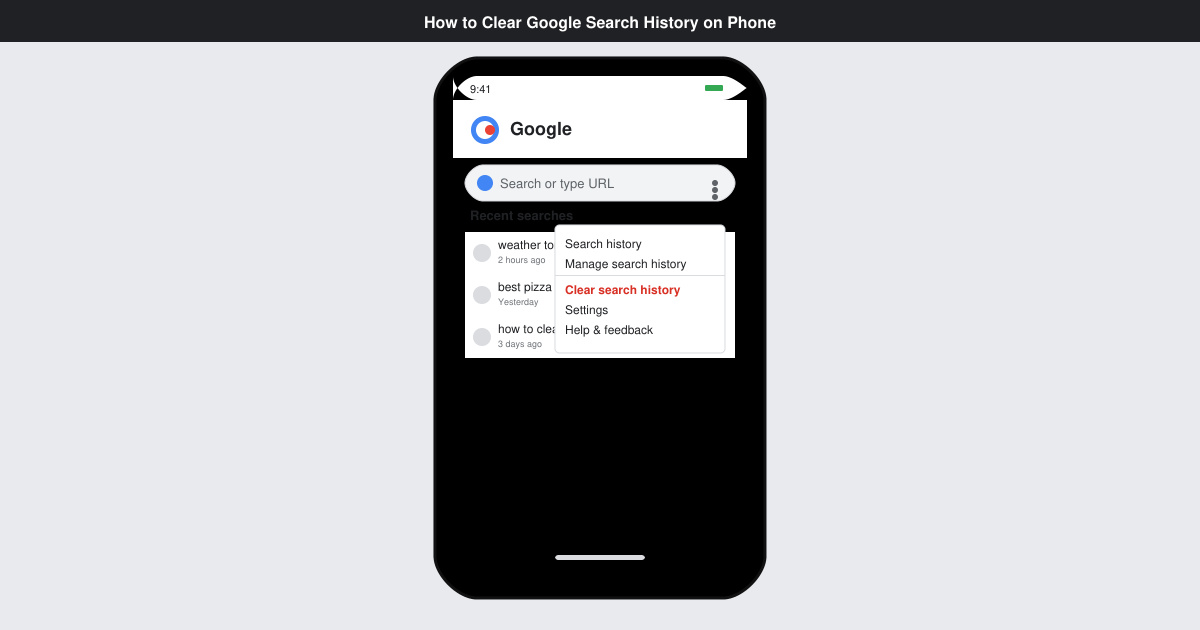
Learn how to clear Google search history on phone in just a few taps. Follow these exact steps for Android and iOS to remove search activity and improve privacy.
Complete your VLC Player Download Mac safely from the official source. This guide shows the exact steps to install VLC Media Player on macOS for reliable video and audio playback.
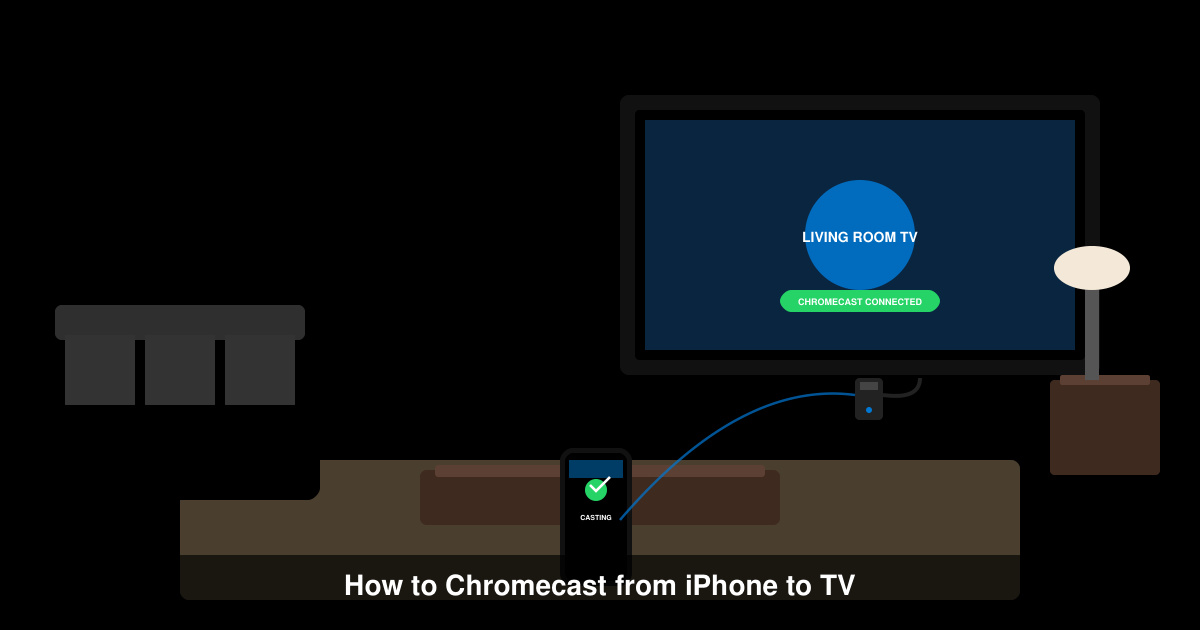
Learn how to Chromecast from iPhone to TV quickly and reliably. Follow these exact steps to stream videos, photos, and apps from your iPhone to any Chromecast device.