The Adobe Reader Offline Installer lets you set up Adobe Acrobat Reader on any computer even when internet access is unavailable during the installation process. This approach works well for IT administrators managing multiple machines, users with metered connections, or environments where downloads must be prepared in advance. The following instructions cover locating the correct file, running the installation, and handling common issues.
Why the Adobe Reader Offline Installer Matters
Standard online installers require a stable connection to pull files from Adobe servers during setup. The offline version bundles everything needed into a single executable, eliminating interruptions from network drops or firewall restrictions. Organizations often prefer this method because it allows pre-staging the installer on USB drives or internal servers for consistent deployment across devices.
Before starting, confirm your operating system version and whether you need the 32-bit or 64-bit edition. Adobe provides separate packages for Windows and macOS, so selecting the wrong file will prevent installation.
Locating and Preparing the Adobe Reader Offline Installer
-
Access the official Adobe downloads section
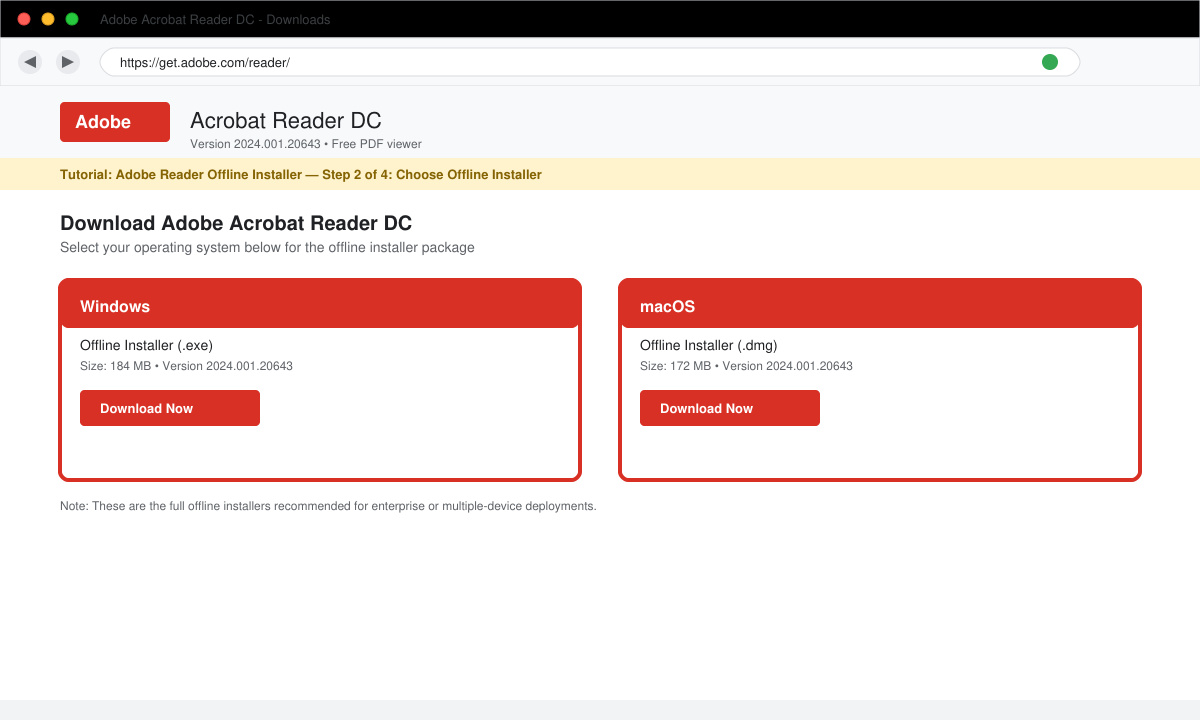
Open a web browser on a machine that has internet access. Navigate to the Adobe Acrobat Reader product page and scroll to the download options. Look for links labeled for offline or full installers rather than the quick online version. Select your operating system and language, then choose the 64-bit package if your system supports it.
-
Save the installer file locally
Once the download begins, choose a location such as your Downloads folder or a dedicated folder on an external drive. The file name typically ends with .exe for Windows or .dmg for macOS and ranges between 150 MB and 200 MB depending on the version. Verify the file size matches the displayed value on the Adobe page to confirm integrity.
-
Transfer the file if needed
Copy the saved Adobe Reader Offline Installer to the target computer using a USB drive, network share, or other offline method. Ensure the destination folder has at least 500 MB of free space to accommodate both the installer and temporary extraction files during setup.
-
Run the installation
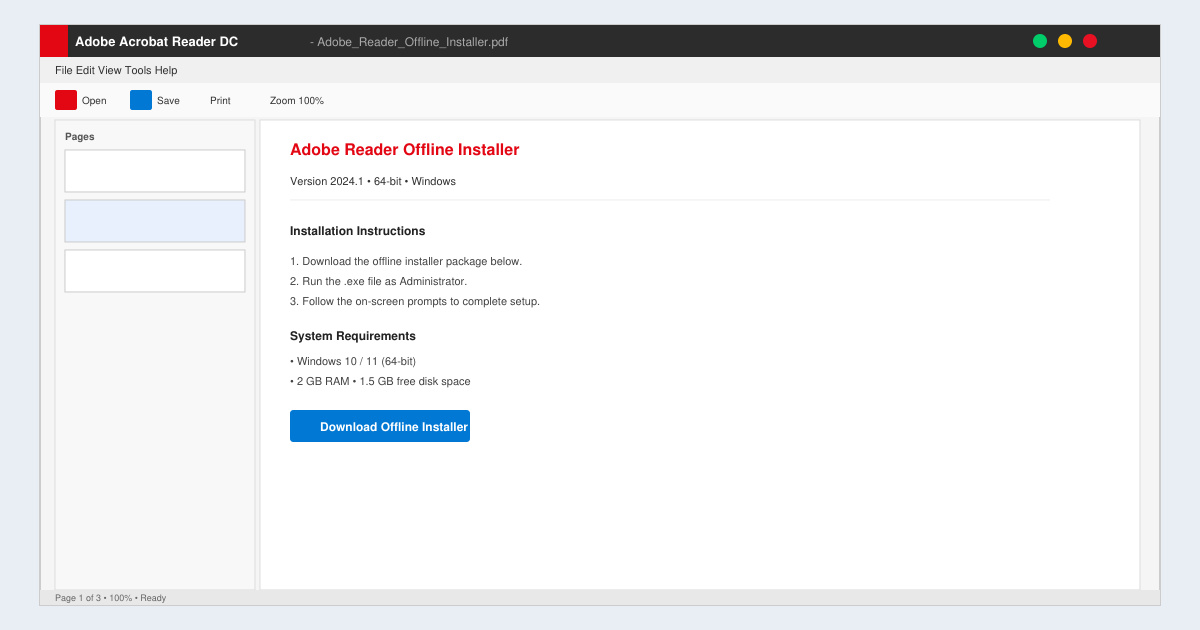
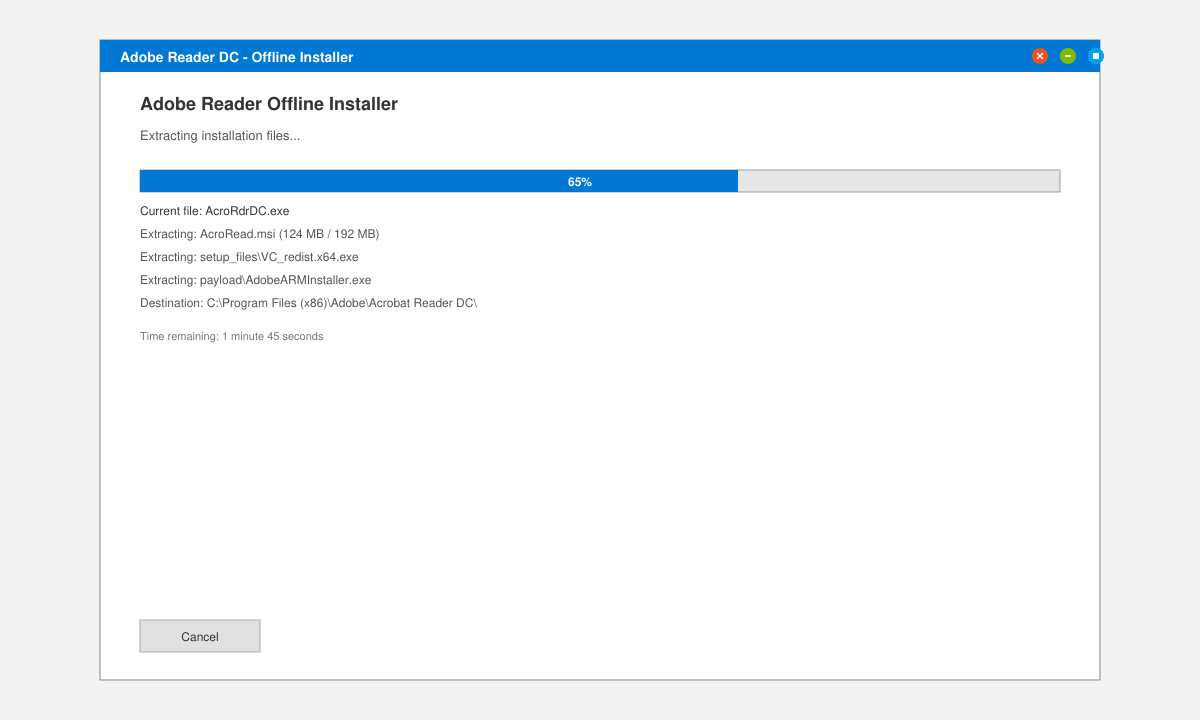
Double-click the installer file. On Windows, accept the User Account Control prompt if it appears. On macOS, open the .dmg file and drag the Adobe Acrobat Reader icon into the Applications folder. Follow the on-screen prompts to complete the setup without requiring any further downloads.
-
Launch and verify the installation
After the process finishes, open Adobe Acrobat Reader from the Start menu or Applications folder. Create or open a PDF file to confirm the program functions correctly. Check the Help menu for the installed version number to ensure it matches your expectations.
Troubleshooting the Adobe Reader Offline Installer
- If the installer reports a corrupted file, re-download it from the same official source and compare the SHA-256 hash if Adobe publishes one.
- Windows Defender or third-party antivirus software may flag the large executable. Temporarily disable real-time scanning or add an exception for the installer folder.
- macOS users may see a Gatekeeper warning. Right-click the .dmg file, select Open, then confirm the security prompt to allow the application.
- Older Windows versions sometimes require the latest Visual C++ Redistributable packages before the Adobe Reader Offline Installer will run successfully.
- Corporate environments with strict group policies should run the installer with administrative rights and consider using the Adobe Customization Wizard to pre-configure settings.
Frequently Asked Questions
Can I use the Adobe Reader Offline Installer on multiple computers?
Yes. The downloaded file can be copied and executed on any compatible machine as long as each installation respects Adobe's licensing terms for personal or volume use.
Does the offline version include the same features as the online installer?
The feature set remains identical. The only difference is that all necessary components are packaged in advance rather than downloaded during the process.
How often should I update after using the Adobe Reader Offline Installer?
Adobe releases security updates regularly. After the initial offline installation, enable automatic updates inside the application or download the latest patch installer separately when internet access becomes available.
Conclusion
Using the Adobe Reader Offline Installer removes dependency on live internet connections and provides reliable deployment for Adobe Acrobat Reader across varied network conditions.