Instructions for changing languages ​​in Microsoft Word

Changing the display language in Microsoft Word will help you become familiar with the different languages ​​when writing text. Sometimes using other people's computers andMicrosoft Word editing tools are leaving English, French, etc. to confuse you, the conversion of language into Vietnamese on Word software helps everything become easier.

Download Microsoft Word 2016/2019  

However, changing the language in Microsoft Word will be divided into many different areas including display language, input language and spell checking language. If you want to use the same language and support a single language in the most comprehensive way, we will have to make many different changes. Below Download.com.vn will guide you how to change the language on Microsoft Office and details for each case that users desire.

How to change the language in Microsoft Word

Step 1:

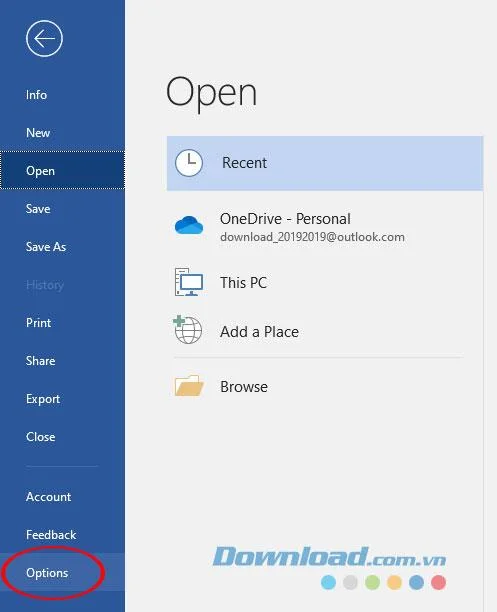
At the main interface of Microsoft Word document editing software, click FileOptions .

Instructions for changing languages ​​in Microsoft Word
Interface features of File on Word

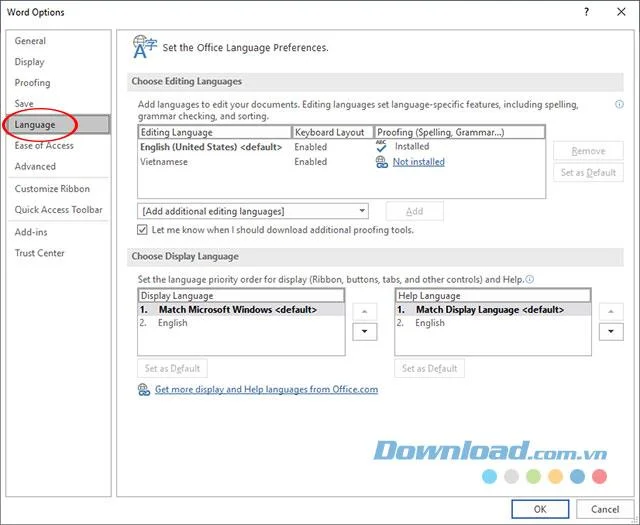
The Word Options window appears, select Language . The right pane will display Set the Office Language Preferences section .

Instructions for changing languages ​​in Microsoft Word
Set the language on Microsoft Word

Step 2:

The interface of Set the Office Language Preferences is divided into 2 major sections including editing language settings including typing, spell checking, editing language and editing language display.

Choose Editing Language - Change the input language

At the Choose Editing Language section we can change the input language - edit or check the spelling of the text in Word.

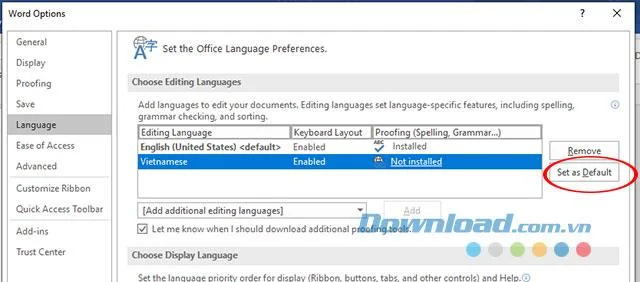
First, check if the language you want to import is in the Editing Language column , if so, click the language and select the Set as Default button .

Instructions for changing languages ​​in Microsoft Word
Install input languages ​​on Microsoft Word

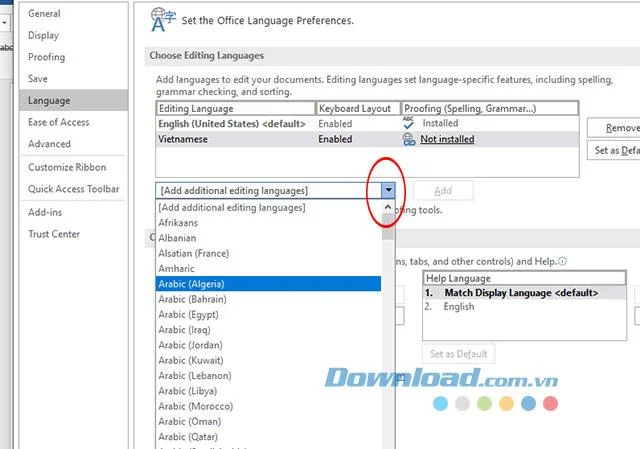
If you do not already have a language in the Editing Language column, you need to add the language by clicking on Add additional editing language and selecting the language you want to enter, then click Add to add.

Instructions for changing languages ​​in Microsoft Word
Add new input languages ​​for Microsoft Word

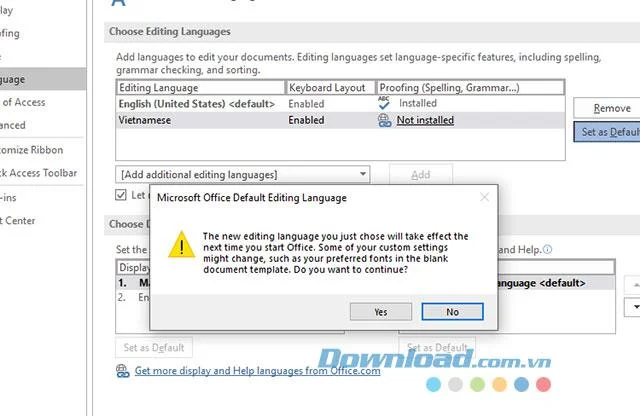
Then the newly added language will appear in the Editing Language section , we will select this language and press the Set as Default button similar to above to set to the default input language.

Instructions for changing languages ​​in Microsoft Word
Confirm the change of language Microsoft Word

Choose Display Language - Change the display language and help

At the Choose Display Language section will set the display language on Word.

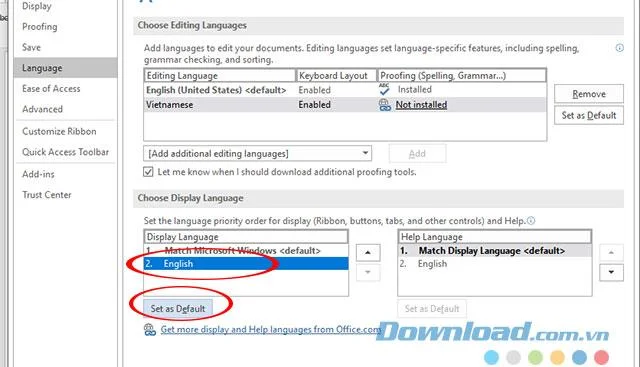
Here we can only choose the display language is English or use the default language of the Microsoft Windows operating system that you are using.

To select the display language and the help language, click English or Match Microsoft Windows then click Set as default. This applies to both display settings and help language settings on Microsoft Windows.

Finally click OK to complete the settings have been set.

Instructions for changing languages ​​in Microsoft Word
Select the display language of Microsoft Word

Above we showed you how to set - change the language on Microsoft Windows. Hopefully this article will help you easily get the desired language when using text editing software.
change the language in Microsoft Word, how to change the language of Microsoft Word, how to change the language in the word, change the language on the word, download Microsoft Word, Microsoft Word text editor, text editing software

Leave a Comment

What Young Riders Should Know About Moving Their Motorcycles Across Cities

What Young Riders Should Know About Moving Their Motorcycles Across Cities

Long-distance travel can involve heavy traffic, changing weather conditions, and rider fatigue. If you are also dealing with the responsibilities of moving home, such as packing belongings or coordinating accommodation, a long ride may add unnecessary pressure to an already busy schedule.

Solving Microsoft Teams Shortcut Error Not Opening

Solving Microsoft Teams Shortcut Error Not Opening

Tired of Microsoft Teams shortcut error preventing you from opening the app? Follow our expert, step-by-step guide with the latest fixes for instant resolution. Works on Windows, Mac & web – no tech skills needed!

Solving Microsoft Teams Task Management Sync Error

Solving Microsoft Teams Task Management Sync Error

Tired of Microsoft Teams Task Management Sync Error halting your workflow? Follow our proven, step-by-step fixes to resolve sync issues fast and restore seamless task collaboration. No tech expertise needed!

Troubleshooting Microsoft Teams Wiki Error Formatting

Troubleshooting Microsoft Teams Wiki Error Formatting

Struggling with Microsoft Teams Wiki Error Formatting? This step-by-step guide reveals proven fixes for common wiki tab issues, ensuring smooth editing and collaboration in Teams. Get back to productive wikis fast!

How to Fix Microsoft Teams Installation Error for Linux

How to Fix Microsoft Teams Installation Error for Linux

Struggling with Microsoft Teams installation error on Linux? Discover step-by-step fixes for Ubuntu, Fedora & more. Resolve dependency issues, crashes, and errors quickly with our ultimate guide. Get Teams running smoothly today!

Solving Microsoft Teams Error Page Not Loading

Solving Microsoft Teams Error Page Not Loading

Struggling with Microsoft Teams "Error Page" not loading? Get step-by-step fixes for desktop, web, and mobile. Solve Microsoft Teams Error Page issues quickly and resume seamless teamwork today.

Solving Microsoft Teams Error Screenshot Issues

Solving Microsoft Teams Error Screenshot Issues

Tired of Microsoft Teams "Error Screenshot" blocking your workflow? Get proven, step-by-step solutions to resolve screenshot errors in Teams instantly and boost productivity. No tech skills needed!

How to Fix Microsoft Teams Error U User

How to Fix Microsoft Teams Error U User

Tired of Microsoft Teams "Error U" User blocking your chats? Get proven, step-by-step fixes to clear cache, reset, and restore seamless collaboration instantly.

Where are Microsoft Teams Registry Keys Located on Windows 11?

Where are Microsoft Teams Registry Keys Located on Windows 11?

Unlock the precise locations of Microsoft Teams registry keys on Windows 11. Step-by-step guide to find, access, and safely tweak them for optimal performance and troubleshooting. Essential for IT pros and Teams enthusiasts.

How to Fix Microsoft Teams Training Error Video Lag

How to Fix Microsoft Teams Training Error Video Lag

Tired of Microsoft Teams "Training Error" Video Lag ruining your meetings? Follow our step-by-step guide with the latest fixes for smooth video calls—no more frustration!