Keep Writer Revisions Visible When Exporting to DOCX
Track edits in Writer, preserve an editable ODT source, and check the exported DOCX in Word before sharing it.
Audacity is a great audio recording and editing software. The following article will provide basic Audacity tutorial for beginners.
Audacity is one of the best free audio editing / audio editing software, easy to use and multi-platform support, including Windows, Mac, Linux. It is an ideal choice for recording interviews, dubbing, music, etc.
Although you must learn how to use Audacity before use, once you are familiar with the basic operations, you will see it as a major audio editing tool.
Read the instructions for Download and install Audacity software on your computer to start recording and proceed to edit.
You can upload existing recordings and edit them in Audacity. Import the file by selecting File -> Import -> Audio .
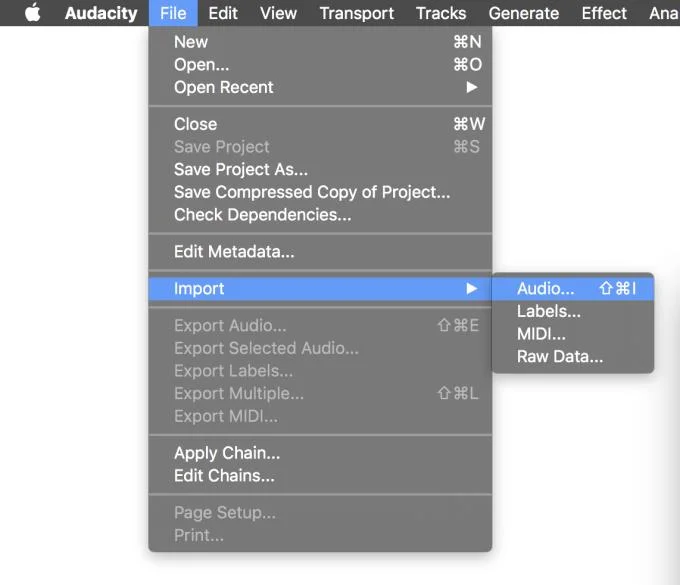
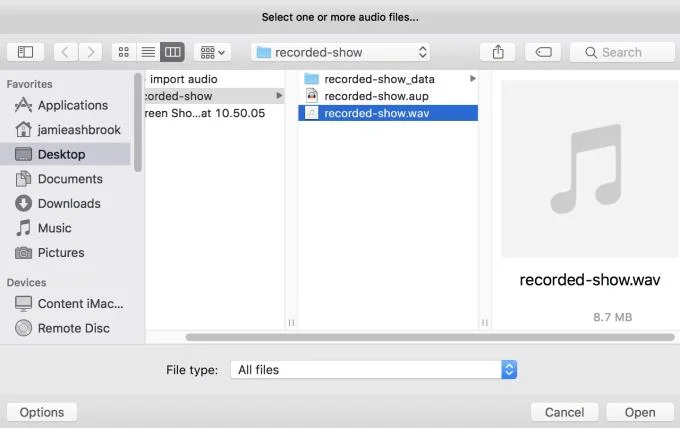
Select the audio file you want to import. The best editing format is WAV or AIFF because you easily keep the sound quality.
Then you will see a sound wave graph on the left and right channels.
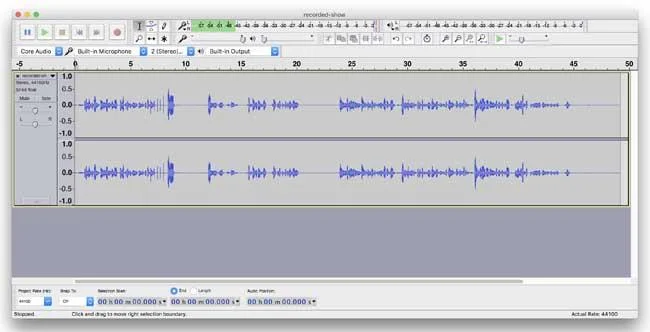
Check if the file has been imported successfully by pressing the Play button and listen for a few seconds.
Microphones often record from afar or capture so-called "environmental sounds" or low levels of noise. In sonar graphs, it is quite difficult to detect them but it is easy to recognize continuous low waves. Use the magnifying tool to enlarge them if you want to see better.
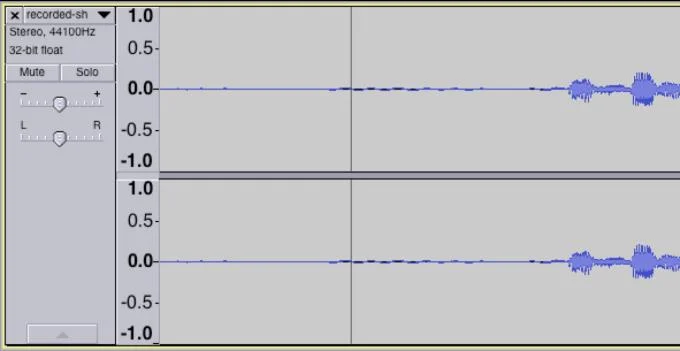
You can easily eliminate those unwanted sounds with Audacity. First, let's highlight some of the environmental noise you find. Next, go to Effects -> Noise Reduction , then click Get Noise Profile . This will determine the noise noise to be removed.
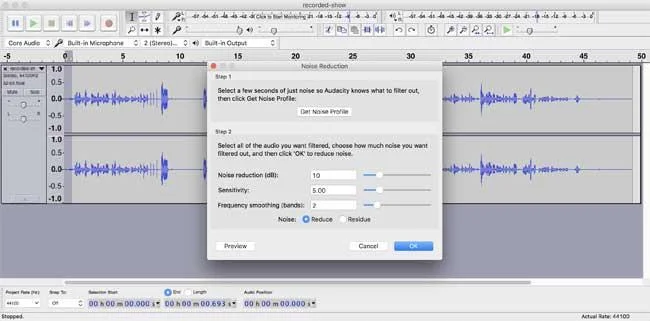
Now highlight all the audio in the sound wave, then go back to Noise Reduction . Set Noise Reduction (dB) to 5, Sensitivity to 0.50 and Frequency Smooth (Bands) to 1. F. Finally, apply all these changes.
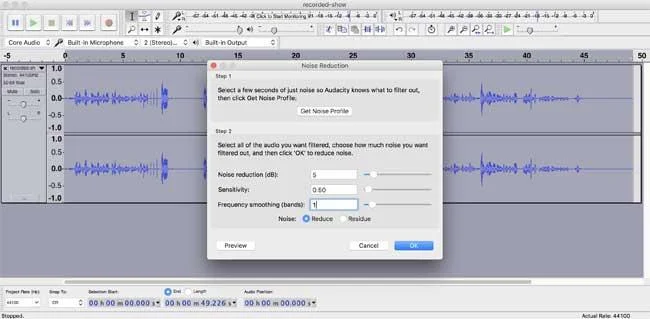
You will notice the noise has dropped on the sonogram, however, you may need to adjust the settings to remove it completely. Increase the settings mentioned above and preview the audio, doing this until the ambient sound is reduced to the level that you can no longer hear.
Sometimes the noise noise is so loud that it is hard to delete them in the above way. Instead, select and cut the section that is causing this problem.
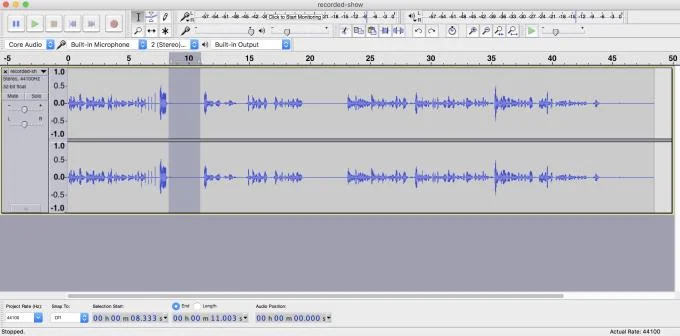
First, highlight the paragraph you want to remove, then Edit -> Cut or press Del on the keyboard.
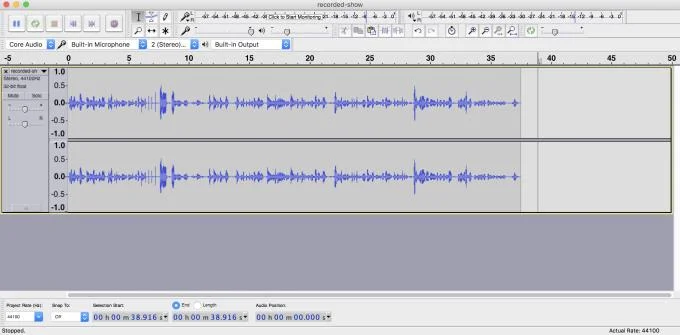
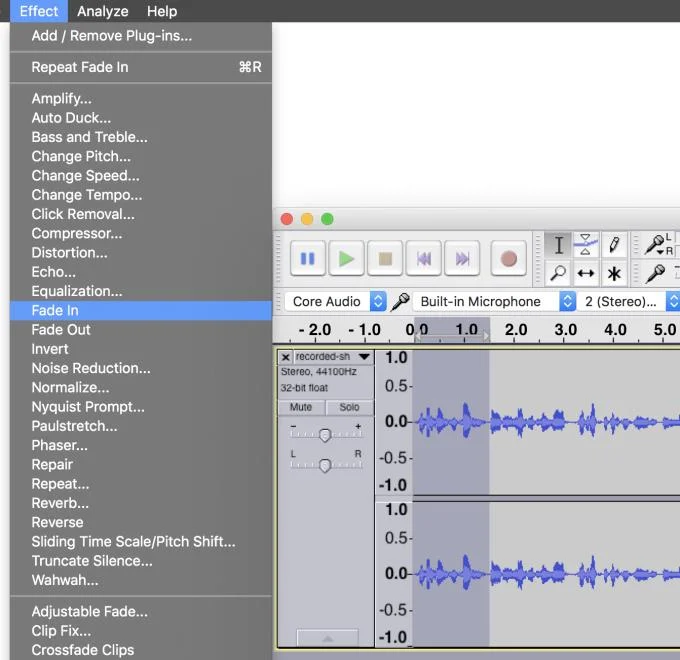
The Fade effect in Audacity is a great way to make your recording more impressive and professional. Highlight the beginning of the program, then Effects -> Fade In .
Do the same with the Fade out effect. Highlight the part you want to stop the effect, then click Effects -> Fade Out .
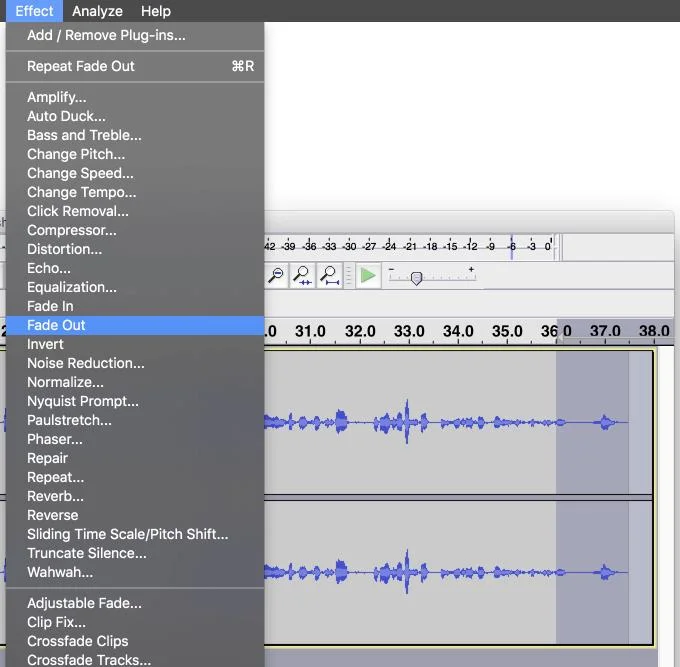
Note, you should only use Fade In & Fade Out for a few seconds because if too long to cause discomfort. Therefore, try and find the most balanced position for this effect in the audio file.
Sound gaps are a common mistake in most recordings, especially with presentations or when users pause for a few seconds to do something. However, when listening to the recording, this quiet space is not interesting at all. You can cut that "dead" part with Audacity with just one click.
Highlight the entire recording, then select Effect -> Truncate Silence . To delete silent passages, use the following settings:
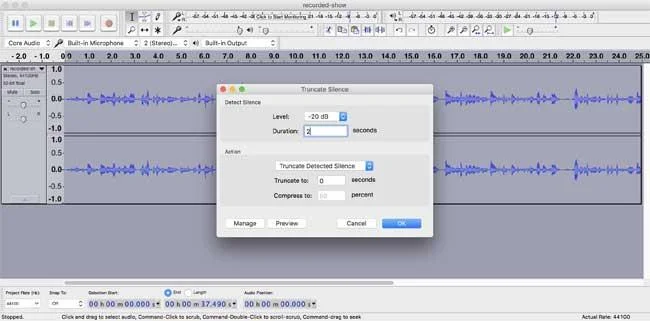
These settings completely eliminate silence less than 20dB and from 2 seconds or more. Try editing these options and previewing the audio to see how it affects your work. Be careful when cutting audio because if not careful, you can easily cause abnormal sounds, so you should have pause to listen.
Audio too small or too loud can amplify or harmonize to balance the volume. To increase the sound level, select part or all of the track. Then go to Effects -> Amplify . Adjust the slider or enter the dB number - Preview the changes, continue adjusting the dB level until you are comfortable.
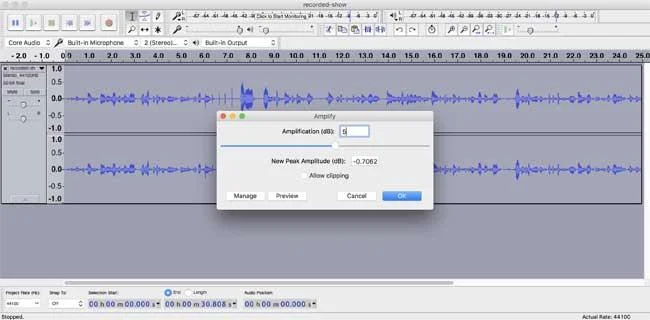
After applying the changes, you will realize that the sound wave graph becomes bigger.
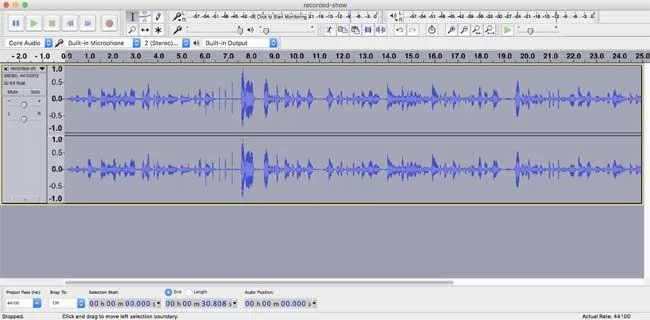
Also, you can turn down the volume if it is too loud. Select the audio file, then Effects -> Normalize . Enter the maximum dB amplitude you want to set for the noise limit and preview the changes.
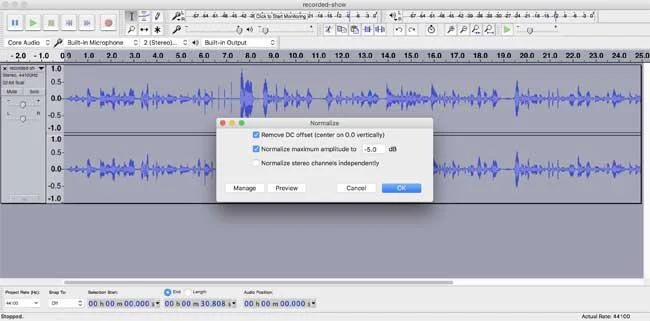
You will see the sound wave gets smaller, the volume level is reduced.
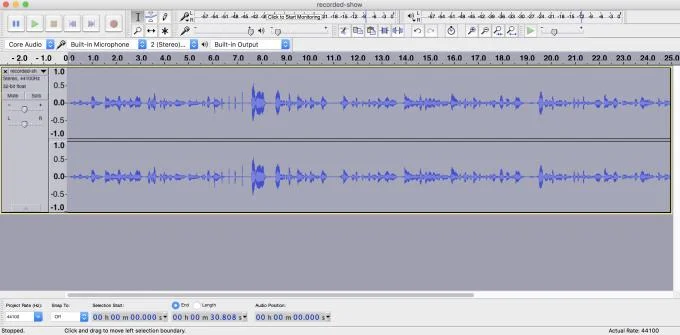
Sounds always have the highest and lowest score. They are represented by straight wave lines that rise and abruptly drop. Audio peaks often emit more jarring sound than the rest, while the lowest point is too difficult to hear. You can fix these errors by compressing them.
Adjust the volume more balance for easy editing. Go to Effects -> Compressor - Then adjust Threshold (-14dB) and Noise Floor (-40dB).
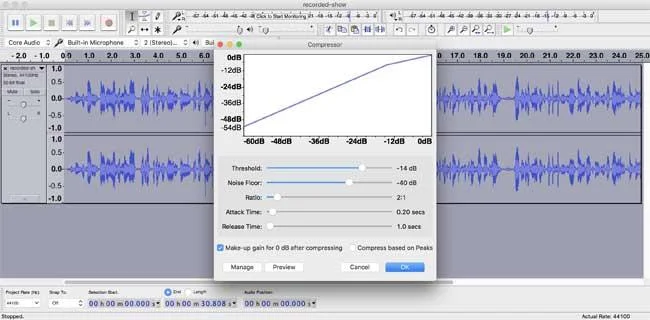
Preview audio and adjust the sliders to get the best sound. When applying changes, the sound waves must be closer to each other, at the same time, emitting at the same level with fewer highs and sudden drops.
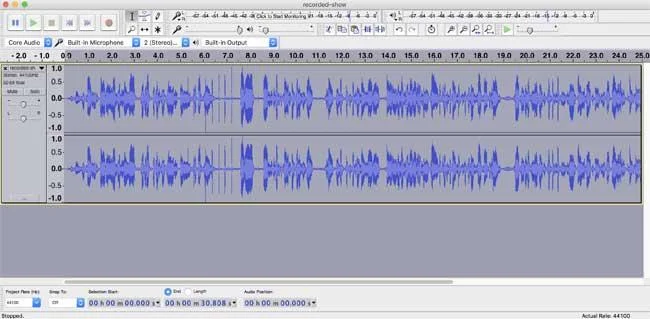
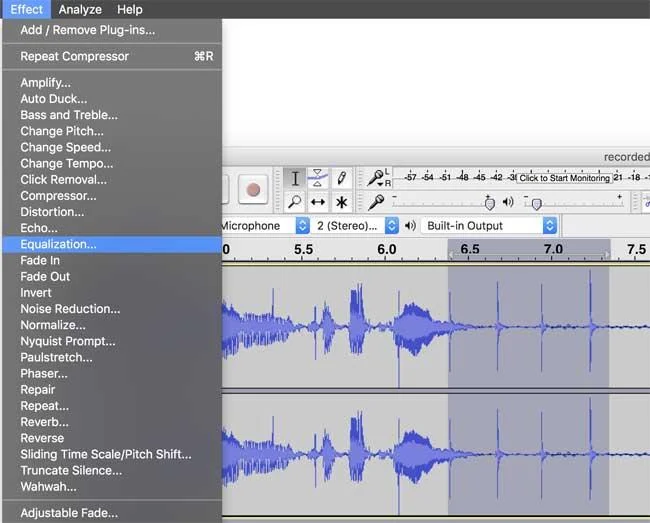
They can be vulgar words, loud noise ... that the microphone accidentally records when you record. You can easily use Audacity to remove them as follows: mark the location of these noises in the sound wave graph, then Effects -> Equalization .
You should see a line above 0dB. If not, click the Flatten button . Next, press Graphic EQ to open the slider length correction manually.
Set -20dB at the first 4 sliders, adjust the next 8 bars to -2dB until the threshold of 200Hz is passed, then remain the same.
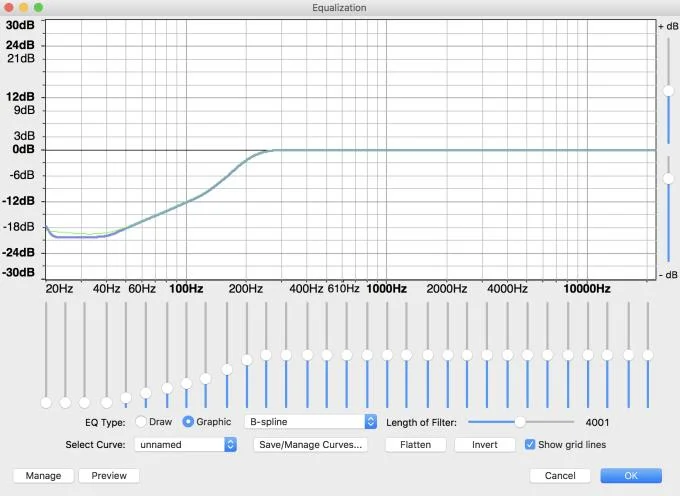
Save this configuration, giving it a memorable name, for example: Plosive Fixer or Plosive Corrector.
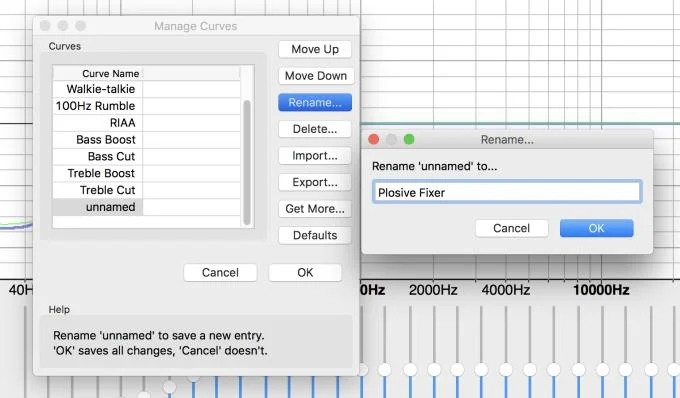
Finally click OK to finish. The selected jarring sound disappears from the recording. You can repeat this by selecting other audio clips on the sound wave and using the Equalizer to remove them.
You can use all the above tools to edit sounds as you like, but don't overdo them. These powerful features of Audacity will work best when used in moderation. If abused, your recording will be unnatural.
If you are not sure if you have edited a bit too much, ask your friends and colleagues to listen before publishing it officially.
When you're done editing, you can export your work as an MP3 file. Go to File -> Export Audio .
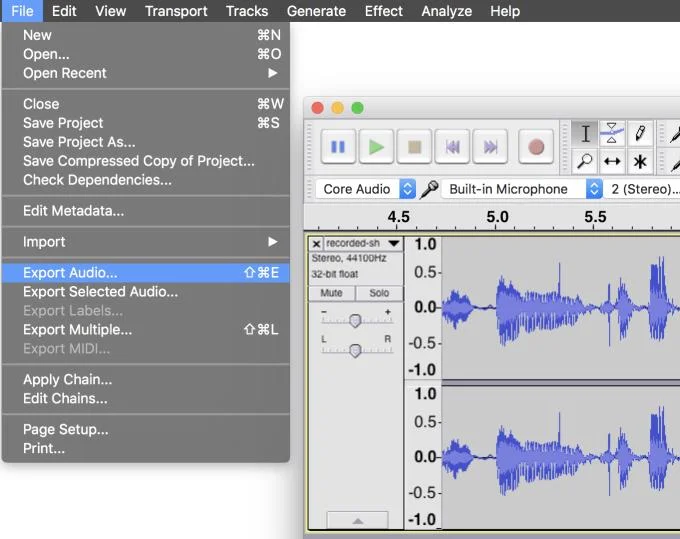
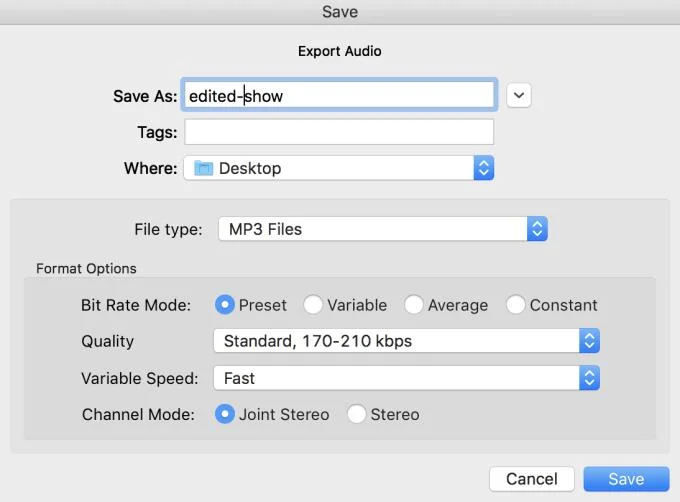
Name the file - Make sure to select the mp3 format, then skip the rest of the settings and click Save .
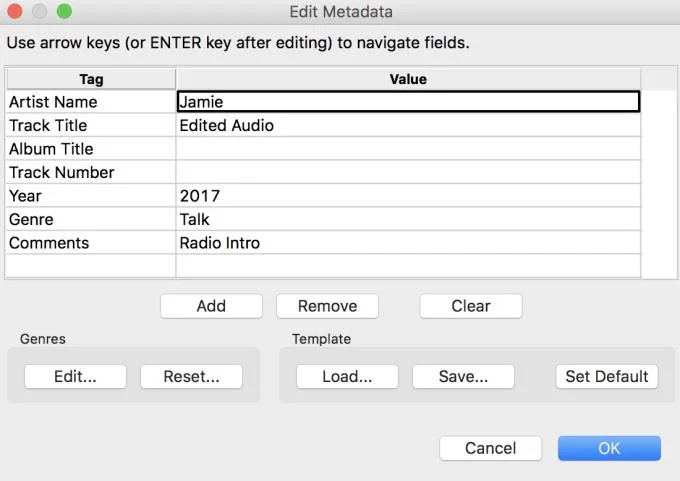
Update metadata for audio file such as name, title ... - Finally, click OK .
Your work will now be available on any music software.
Audacity is a powerful audio editing tool and is quite easy to use. Just know how to use the above tools, you can master every recording, audio file already.
Hope the article is helpful to you.
Track edits in Writer, preserve an editable ODT source, and check the exported DOCX in Word before sharing it.
Follow SUSE’s SP7 procedure to enable FIPS mode, reboot safely, verify the active policy, and check whether your compliance requirement calls for validated modules.
Compare YaST and cryptsetup for a new encrypted SLES data volume, choose LUKS1 or LUKS2, and verify unlock and mount behavior safely.
Create, refine, and verify a least-privilege AppArmor profile on SLES 15 SP7, with a clear note on SLES 16’s SELinux default.
Set up RMT on SLES 15, mirror entitled repositories, and verify HTTPS registration and package access from a test client.
Connect SLES 15 to AD with YaST’s SSSD-based logon management, then verify directory lookup, domain login, and Kerberos tickets.
Set up the right Live Patching path for SLES 16.0 or 15 SP7, apply eligible kernel fixes, and confirm what is active without confusing it with a reboot-required kernel update.
Load a custom SLES 15 kernel module without disabling Secure Boot. Match the running kernel, sign the .ko file, enroll a MOK key, and verify loading.
SLES 15 SP5 can migrate online to SP6, but each node must reboot. Use a tested rolling upgrade or blue-green cutover to keep workloads reachable.
Use SUSE’s supported STIG profile to scan SLES 15, test remediation, review remaining findings, and retain assessment evidence.








