Home
» How to
»
How to factory reset and reset from Samsung Smart TV
How to factory reset and reset from Samsung Smart TV
Video How to factory reset and reset from Samsung Smart TV
Factory reset and full system information reset for TV are one of the methods to help optimize the performance of your TV. So how to perform the above tasks for a Samsung Smart TV? Please refer to the following WebTech360 article for answers.
What is restore the factory setting?
Factory reset and initial reset for TV , also known as Reset TV is the operation where we delete all history, information stored on the machine during use from the beginning until now, right away. Even the apps you install after the reset will be deleted, bringing your Smart TV back to the configuration it was in when it was shipped. Therefore, before performing the Reset TV, we need to save all the necessary information on the TV to avoid data loss.
After a long period of use, we should restore the original settings to the TV to help improve efficiency.
In addition, resetting the TV will also help it operate smoother, smoother, save more power, and also overcome some minor errors during use.
Factory reset guide
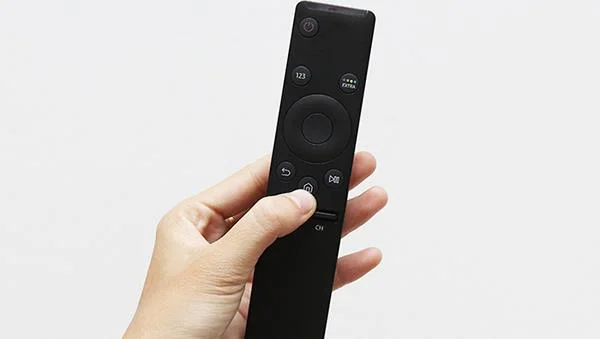
Step 1: Press the HOME button on the Remote (house picture).
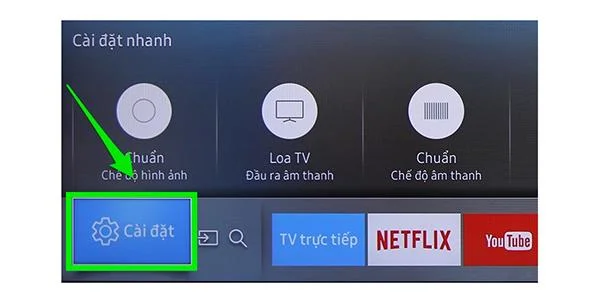
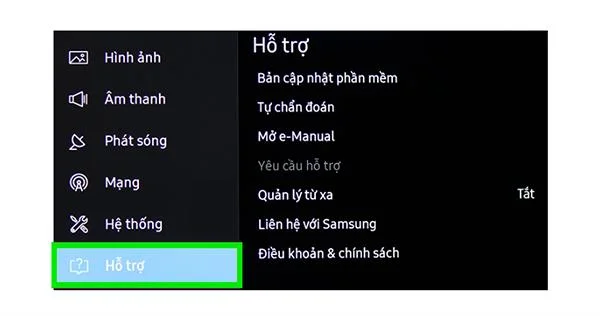
Step 2: Select Settings.
Step 3: In the Settings section select Support.
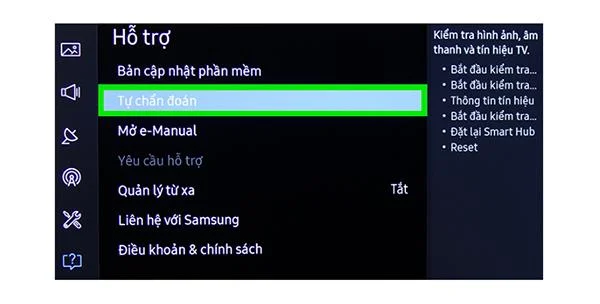
Step 4: Next, click on Self Diagnosis.
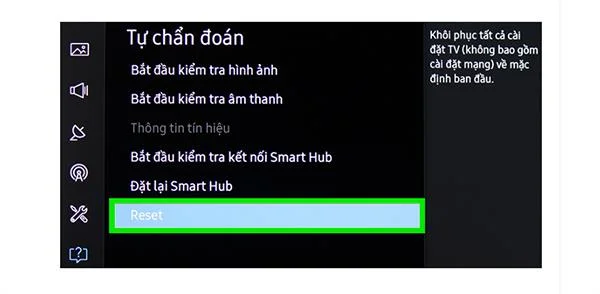
Step 5: Select RESET to return to factory configuration.
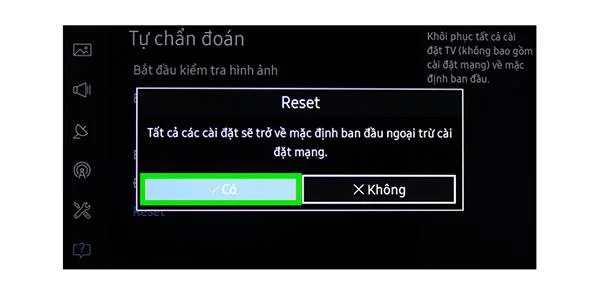
Step 6: Appears a message board asking about the operation just performed. Click Yes if you confirm the TV reset . Conversely click No .
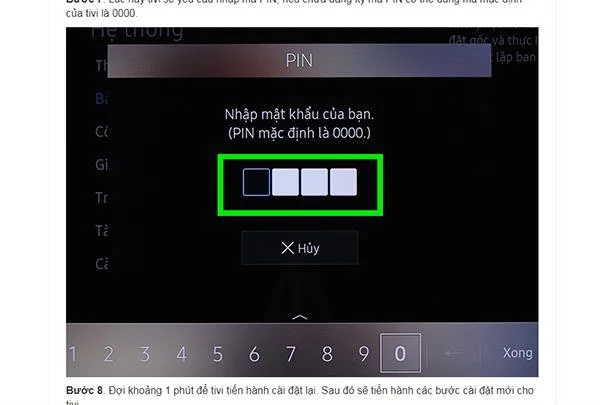
Step 7: After pressing Yes, the TV will ask you to enter a PIN. The default PIN code will be 0000.
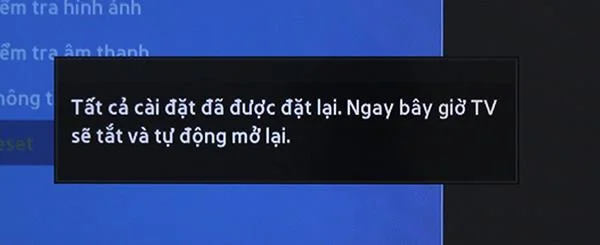
After entering the PIN code, the TV will proceed to factory reset the device. This should take about 1-2 minutes. Next, we will proceed to reset information from the beginning for the TV.
Guide to setting up information for TV
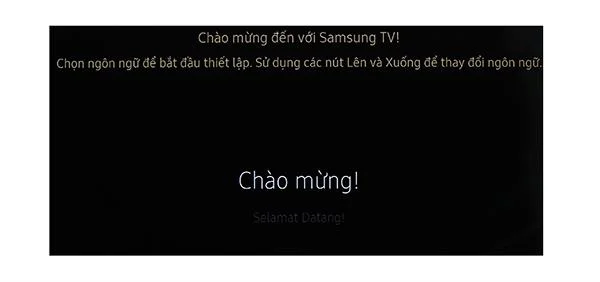
Step 1: Select the word Welcome (ie use Vietnamese language for TV).
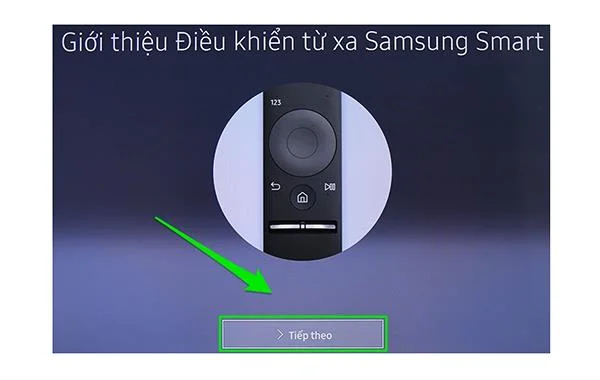
Step 2: Watch the demo of Samsung Smart controller. Click Next .
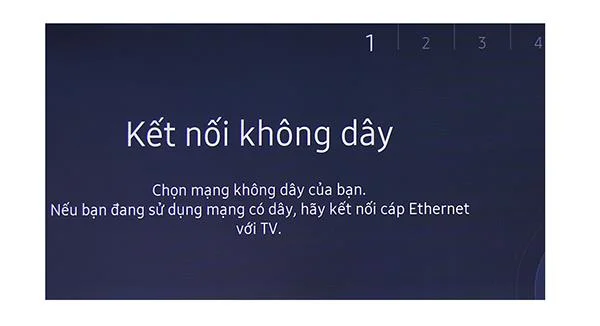
Step 3: Connect to the network. Choice of Wifi or Cable connection (depending on your needs).
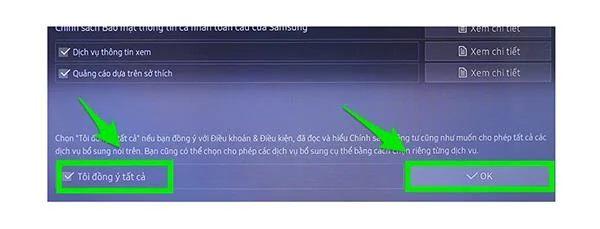
Step 4: Click on Agree to the terms . Then click OK .
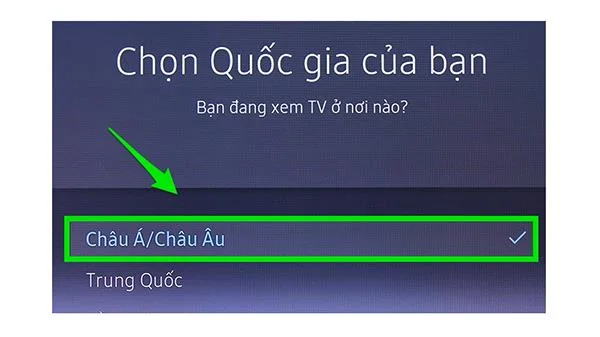
Step 5: Choose your country location.
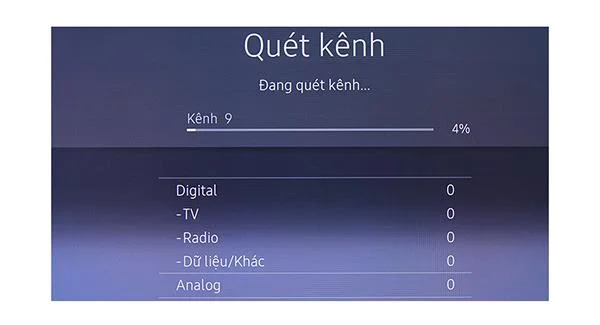
Step 6: Wait for the TV to start tuning. This may take about 5 minutes.
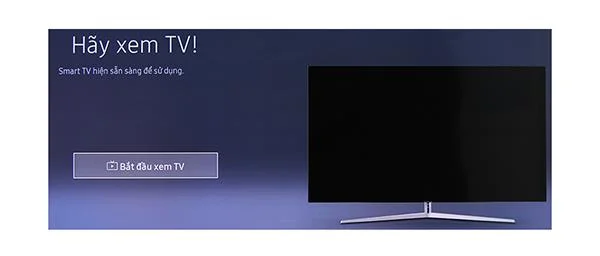
Step 7: After completing the above steps, click Start watching TV to finish.
Refer to the selling price of some new generation Samsung TVs (here) .
The above are the basic steps for you to perform a reset of your TV at home. Good luck.