Home
» Wiki
»
How to Check and Change Microsoft Edge Sleeping Tabs for a Specific Website
How to Check and Change Microsoft Edge Sleeping Tabs for a Specific Website
To keep a specific website from sleeping in Microsoft Edge, add it to Always keep these sites active in Performance settings. To let it sleep again, remove that exception. The website list controls exemptions; the inactivity timer is a separate setting shared by eligible background tabs.
Start by checking what is happening. A sleeping tab, a reloading page, and an expired sign-in session require different responses. The four steps below help you make one targeted, reversible change.
Before you change sleeping tabs
Use the desktop version of Microsoft Edge and open the browser profile where the problem occurs. Have the website's address ready, and save unfinished work before testing, updating, or restarting Edge.
Windows 10 versus Windows 11: this procedure uses Edge's own settings on both systems. Microsoft lists both operating systems as supported and says Edge will continue receiving updates on Windows 10 22H2 until at least October 2028. That browser support does not extend Windows support. See Microsoft's supported operating systems documentation.
Adding or removing an exception changes browser resource management; it does not clear cookies, browsing history, or saved passwords. Keeping a site active can increase background CPU, memory, and battery use. The illustrations show simplified documented controls; their layout may differ from your Edge build.
1. Open Performance settings and check the current configuration
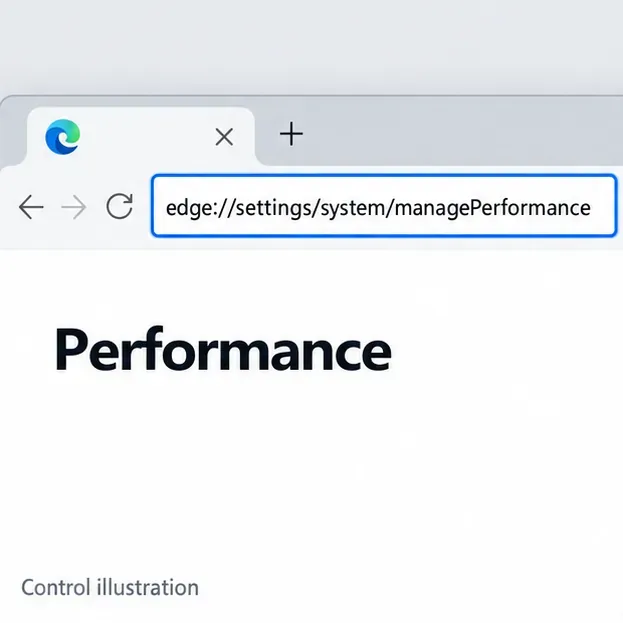
In Edge's address bar, enter edge://settings/system/managePerformance and press Enter. Microsoft documents this shortcut in its Edge performance troubleshooting guide. You can also open Settings and more (the three dots), choose Settings, then System and performance > Performance.
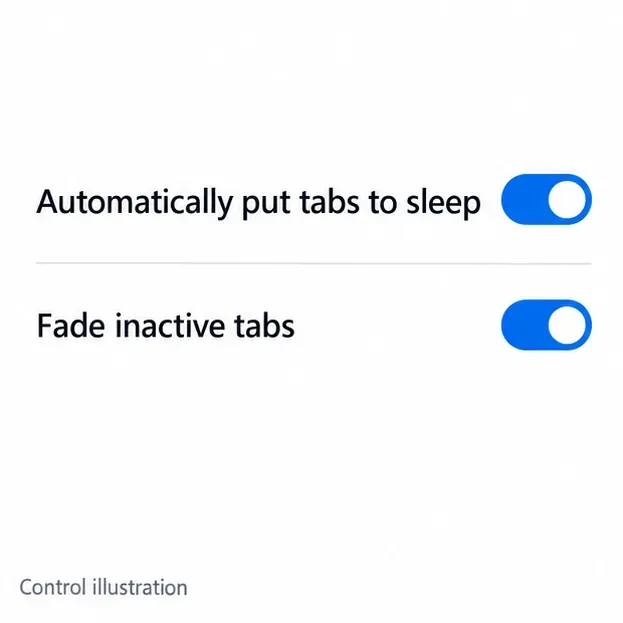
Look for the sleeping-tabs switch, the inactivity timer, and the website exception list. Microsoft's current support instructions call the switch Automatically put tabs to sleep; another Microsoft troubleshooting page uses Save resources with sleeping tabs. Follow the labels present in your build.
If the controls are missing or look substantially different, open edge://settings/help to record your version and check for updates. Save work before accepting a requested restart. Microsoft's Edge update instructions describe the available update actions.
Expected result: you can identify whether automatic sleeping is enabled, read the selected timeout, and find the site's existing exception, if any. Record these values before changing them.
Open Edge Performance settings directly from the address bar. Control illustration.
2. Check whether the website is sleeping or eligible to sleep
With Fade inactive tabs enabled, a sleeping tab appears faded. Select it to wake it. If fading is disabled, its normal appearance does not tell you whether it slept. Turning fading on temporarily can make this check easier; that switch changes the visual indicator, not the sleeping rule.
For a controlled observation, leave the website in a background tab, use another tab, and wait beyond the timeout shown in settings. Keep the computer awake. Avoid repeatedly selecting the website during the wait, because the visible tab is active.
For a more detailed, read-only check, open edge://discards/ in another tab and locate the website. Microsoft documents the Can Sleep? column as a way to identify blockers such as media activity in its browser idle and wake-lock guidance. Eligibility is different from confirmation that a tab is currently asleep. Do not use discard controls for this check.
A tab playing audio, capturing your microphone or screen, or being inspected with developer tools may stay awake automatically. Microsoft's sleeping-tabs feature documentation lists these exceptions.
Automatic sleeping and tab fading are separate controls. Control illustration.
3. Keep the website active or correct its existing exception
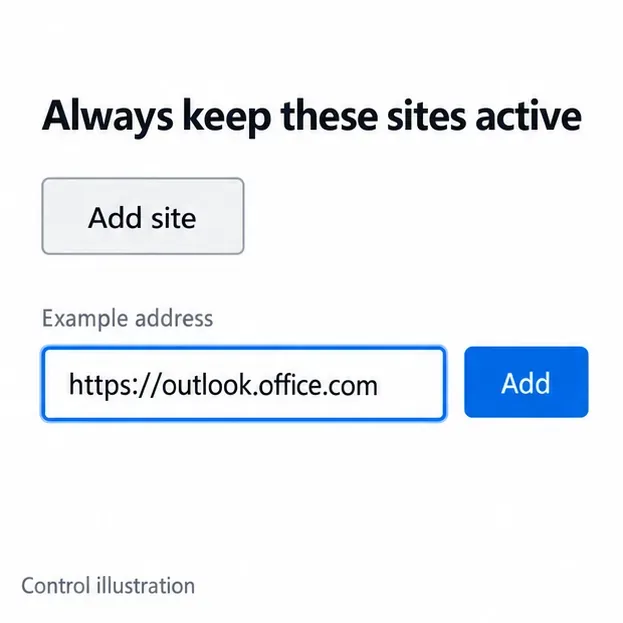
Return to Performance settings. Under Always keep these sites active, select Add site, enter the site's full URL, and select Add. For example, https://outlook.office.com illustrates a full site address; enter the address of the website you actually need.
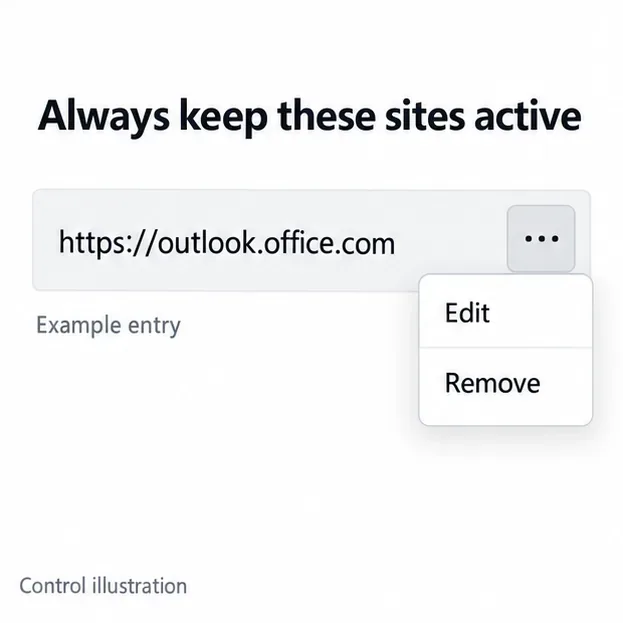
Check the hostname after signing in. A public homepage and the application you use can have different addresses. Avoid copying a temporary authentication link containing sensitive tokens. If the saved address is wrong, open the three-dot menu beside the entry and choose Edit to correct it.
Expected result: the intended website appears in the exception list. Leave automatic sleeping enabled for other sites. This lets you address one application without making every background tab stay active.
Microsoft's performance settings instructions document adding, editing, and removing these exceptions. The same list can also exclude a site from Edge's Energy saver, so keep the list focused on applications that need it.
Enter the website you need to keep active; the Outlook address is an example. Control illustration.
4. Allow the website to sleep again and verify the change
To undo the exception, open the three-dot menu next to the website and choose Remove. Confirm that the entry disappears. Keep automatic sleeping enabled, then repeat the background-tab observation from step 2.
Removal makes the website eligible for automatic sleeping; it does not force it to sleep immediately. Media activity and other protections can still keep it awake. If you adjust the inactivity timer, remember that it affects eligible background tabs generally, rather than assigning a separate timer to this website.
Use the value actually shown in your browser. Microsoft's SleepingTabsTimeout documentation also explains that an active Energy saver can apply a shorter timeout. A longer selection therefore does not always mean the tab will remain awake that long.
Use the entry menu to correct or remove a website exception. Control illustration.
If the website still behaves unexpectedly
The tab reloads or asks you to sign in again
Microsoft distinguishes sleeping, which pauses a page, from discarding, which removes its contents from memory and requires a reload. A sign-in prompt can also come from the website's session rules. An active-site exception cannot guarantee that a remote service will preserve your session or that a network connection will remain available.
Compare the same task before and after the exception under similar conditions. Record whether the problem is a full reload, a stalled update, or a sign-in prompt. If the symptom remains, report that specific behavior to the website's support team instead of assuming sleeping tabs caused it.
The setting is locked or an exception keeps returning
On a managed work or school device, ask IT to review SleepingTabsEnabled, SleepingTabsTimeout, and SleepingTabsBlockedForUrls. Microsoft supports organization-controlled sleeping-tab settings. Its site-exclusion policy documentation says listed sites are also exempt from Energy saver and tab discard. Removing a personal entry does not necessarily remove an organization's exclusion.
You are using Windows Task Manager to judge the result
Windows 11's process Efficiency mode is separate from Edge's browser energy-saving feature. A green leaf beside an Edge process does not establish whether your particular website is sleeping. Use the tab behavior and Edge settings described above.
If you need further help, collect the Edge version, the affected site's hostname, your timeout, and whether an exception is present. Redact account details from screenshots. These details make the problem reproducible without resetting the browser or changing unrelated system settings.