Home
» Wiki
»
Windows 11 Microphone Privacy Settings: Allow a Specific App
Windows 11 Microphone Privacy Settings: Allow a Specific App
Windows 11 microphone privacy settings can allow an individual app when that app has its own permission switch. Traditional desktop apps use a shared desktop-access control instead. Windows Settings cannot use that shared switch to allow one desktop program while blocking every other desktop program individually.
The practical goal is to get the intended app receiving your voice with the narrowest available permission change. First identify which kind of control Windows offers for your app, then test the actual input. An enabled switch alone does not prove that a microphone is connected, selected, or unmuted.
Know which permission you are changing
Open Start > Settings > Privacy & security > Microphone. Microsoft's microphone permission instructions describe the Windows 11 controls. Their roles differ:
Control
Purpose
Scope to consider
Microphone access
Enables microphone access at the device level.
A prerequisite, rather than a selector for one app.
Let apps access your microphone
Enables access for apps governed by the individual app permissions below it.
Review the individual switches as well.
An individual app's switch
Allows or blocks that listed app.
Useful for choosing a specific supported app.
Let desktop apps access your microphone
Controls the supported desktop-app access category.
Shared across desktop apps, with limitations described below.
Note the current switch positions before changing them. These instructions adjust permission settings; they do not require deleting recordings, resetting the app, or clearing browser data. Enabling a broader control can make access available again to apps whose individual permissions were already allowed, so review the list.
1. Identify the app and check the microphone hardware
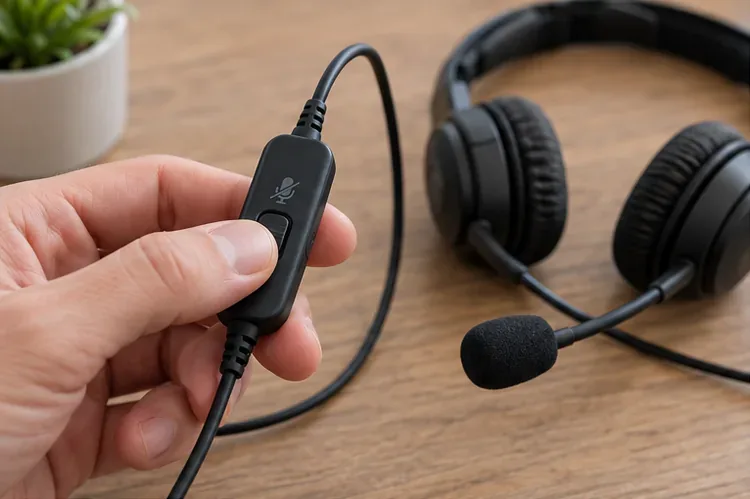
Check the physical mute control before changing Windows permissions.
Connect the microphone or headset, check its physical mute control, and close any active call before testing. Microsoft's microphone troubleshooting page recommends checking the connection, mute state, and selected input device. Permission changes cannot correct a muted headset or a disconnected USB microphone.
Next, find the app on the Microphone privacy page. If it has its own switch, use the individual-app route below. If it appears only under desktop activity, or does not have an individual switch, investigate the desktop route.
Being installed from Microsoft Store does not guarantee an individual permission switch. Microsoft explains in Windows desktop apps and privacy that desktop programs can also come from the Store. Use the controls actually shown for the installed version rather than assuming that every Store download behaves the same way.
2. Allow a specific app that has an individual switch
Built-in microphones and external microphones still need the correct app permission and input selection.
On the Windows 11 Microphone page, turn on Microphone access if it is off. Enable Let apps access your microphone, then find the target app in the individual list and turn its switch on. Leave unrelated apps off if they do not need microphone access.
Reopen the target app and use its microphone feature or audio settings. Expected result: Windows permits the listed app to request microphone input. You still need to select the right microphone inside the app and unmute the session where applicable.
If the app has no individual switch, do not keep searching for a button to add its executable. Microsoft's app permissions guidance explains that the per-app Privacy list does not cover every desktop program. Check the installed app type and continue with the appropriate route.
3. Allow a desktop app, or a website inside Edge
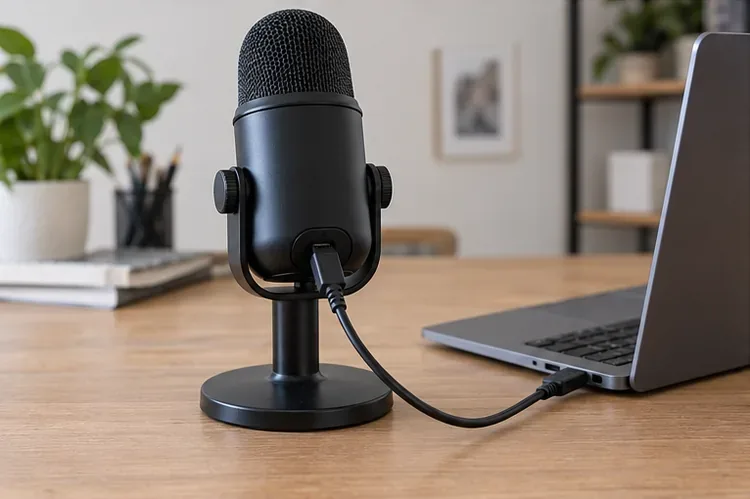
An external microphone connection is separate from the permission that allows a desktop app to use it.
For a desktop program, keep Microphone access enabled and turn on Let desktop apps access your microphone. Reopen the program, choose the intended input in its audio settings, and try its microphone feature.
This is a shared permission, not a one-app exception. Microsoft's camera, microphone, and privacy documentation states that desktop apps cannot be individually toggled here. A desktop app name or activity entry is not an individual permission switch. If you require Windows Settings to allow only one desktop executable, this page cannot provide that restriction.
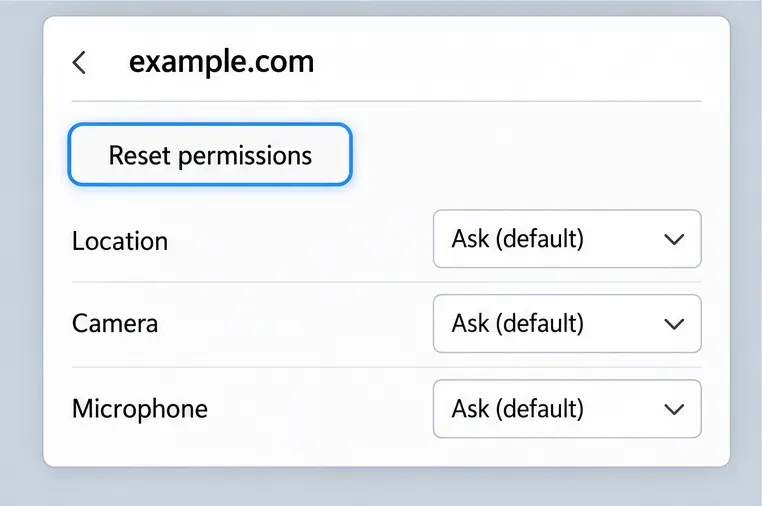
Enter edge://settings/content/microphone in Edge's address bar and review microphone permissions for the affected site. If you previously blocked it, remove that site's block, return to the trusted site, and allow its microphone request when prompted. Reload the page or rejoin its audio session if needed. Change only the affected site's permission; clearing all browsing data is unnecessary for this check.
Expected result: the website can request input after both permission layers allow it. If the Windows microphone test works but the site remains silent, check the website's selected input, session mute control, and any organization policy affecting Edge.
4. Test the result, then keep or reverse the change
Use a private sound check to confirm that the intended microphone captures your voice.
Use a private sound check rather than joining a live meeting to find out whether audio works. Microsoft's Windows microphone test instructions use Settings > System > Sound. Under Input, select the microphone and open its properties. Choose Start test, speak a short non-sensitive phrase, then select Stop test and Play to hear the sample.
Test the same device in the target app afterward. Windows successfully capturing a sample establishes that the device can supply audio to that test; it does not confirm that another app has selected it or has permission.
What you observe
What to do next
The Windows sample and target app both capture your voice.
Keep the needed permission and review unrelated allowed apps.
The Windows sample works, but one app does not.
Recheck that app's permission, input selection, and mute state; for a website, check its browser permission.
Windows cannot find the microphone or the sample is silent.
Return to connection, hardware mute, and input-device troubleshooting before changing more privacy settings.
The setting is locked or managed.
Ask the device administrator to review the applicable policy.
If enabling a permission did not help, restore the previous setting while investigating the next cause. Turning a listed app's switch off reverses its individual permission. Turning desktop access off affects the shared desktop category and can interrupt other programs that need the microphone, so consider those uses before changing it.
Important limits and Windows 10 differences
On a work or school device, organization policies can determine microphone access and prevent users from changing it. Microsoft's privacy policy documentation describes enforced allow and deny settings. If Windows reports management restrictions, give IT the app name and the affected control rather than editing the registry to bypass the policy.
Windows also warns that some desktop programs can access microphone hardware through methods that are not fully controlled by these switches. An empty activity list is therefore not proof that every program is blocked. For an app you do not trust, avoid using or installing it; an in-app mute button is not equivalent to an operating-system permission boundary.
This guide's navigation is for Windows 11. Windows 10 uses Settings > Privacy > Microphone and labels such as Allow apps to access your microphone. Do not look for Windows 10's device-access Change button as a required Windows 11 step. The individual-app versus shared-desktop distinction is the important decision in either interface.