Home
» Wiki
»
How to Reset Site Permissions in Microsoft Edge Without Deleting Browsing Data
How to Reset Site Permissions in Microsoft Edge Without Deleting Browsing Data
To reset site permissions in Microsoft Edge without deleting browsing data, open the affected website, select the site information icon beside its address, and open Permissions for this site. Change an individual permission back to its default, or use Reset permissions on that website's permissions page when available. Reload the website afterward. You do not need to clear cookies, erase history, or reset the entire browser.
This is useful when you accidentally blocked a meeting site's microphone, allowed unwanted notifications, or changed several permissions and want to start over for one website. It will not repair a disconnected webcam or a website outage.
Applies to desktop Microsoft Edge on Windows 11 and Windows 10. Microsoft documentation checked November 1, 2026. Settings labels can vary by Edge version; the illustrations simplify the relevant controls.
What changes when you reset a website's permissions?
A permission controls what a website may access or do, such as request your location, use your camera, or send notifications. Resetting the selected site's permissions removes its customized decisions so the applicable defaults take over. It does not automatically grant every request, and not every permission defaults to Ask.
Action
What it affects
Best use here
Change one site permission
One setting, such as Camera, for the selected website
First choice when you know what was blocked
Reset permissions for one site
Customized permission choices for that website
Useful when several choices need to return to their defaults
Delete cookies or other site data
Stored website information, potentially including sign-in state and preferences
A separate operation; unnecessary for a permissions-only reset
Your history, favorites, saved passwords, cached files, and cookies are not the target of the per-site permission reset described here. Microsoft lists permissions separately from other stored information in its browsing-data reference. Avoid any control that also says it will delete site data if your goal is to preserve that data.
1. Open the correct website and check the current setting
Save unfinished forms and leave any active call before changing permissions or reloading. Use the Edge profile in which the problem occurs, and check the actual address after the page finishes loading. A service may redirect you to a different hostname; select the entry that matches the affected page.
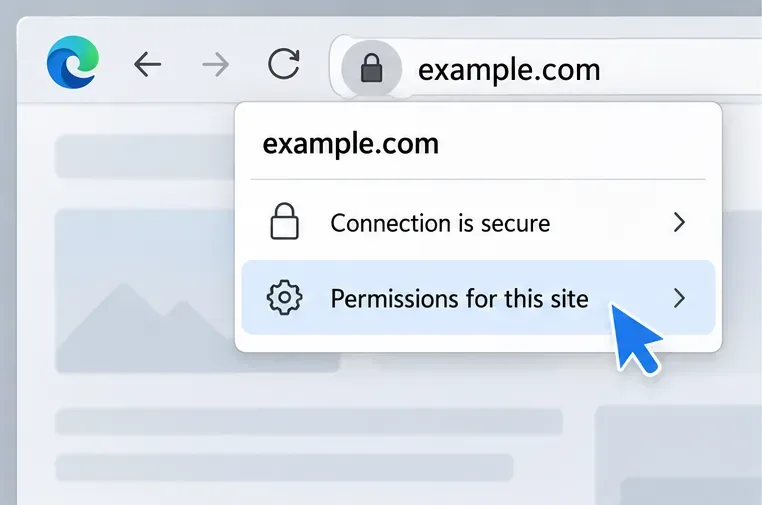
Select the site information icon immediately to the left of the website's address. Depending on the page and Edge version, it can appear as a lock or another site information indicator. Open Permissions for this site. Microsoft's location-permissions instructions document this address-bar route.
Before changing anything, note the existing values. This gives you a way to restore a deliberate choice later. For example, if Camera is blocked but Microphone is already allowed, you may only need to change Camera.
Open the affected website’s permission controls from its address bar.
2. Restore only the permission causing the problem
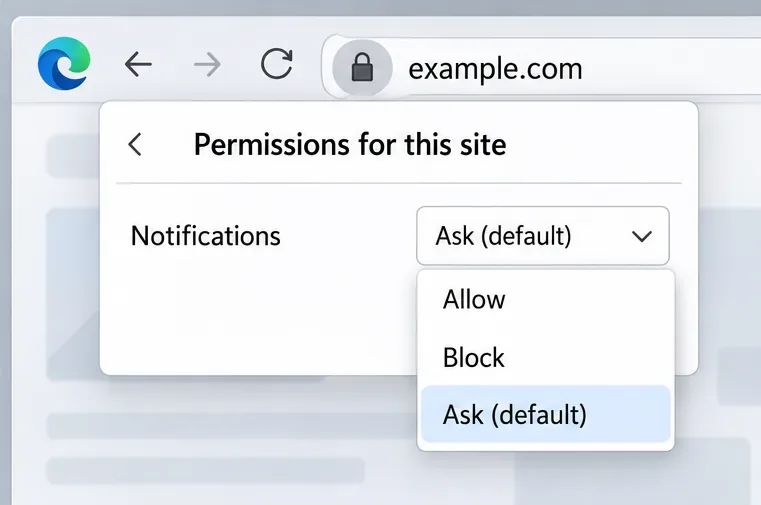
Find the relevant permission and open its dropdown. To undo a previous decision, select the default option shown for that permission, such as Ask (default). Where a trusted site's required feature needs explicit access, you can select Allow for that feature alone. Select Block when your goal is to stop that access.
Example: You clicked Block on a trusted meeting site's camera prompt. Return Camera to its default asking behavior, reload the meeting page, and select its camera or preview control. If Edge then asks for access, approve it only after checking that the request belongs to the intended site.
For unwanted notifications, Block is usually a clearer choice than returning to Ask, which may let the site request permission again. Microsoft explains how to block an individual site's alerts in its website notifications guide. Notifications and pop-up windows are different features, so choose the setting that matches the symptom.
Reload and test the affected feature. If it works, you can stop here; resetting the site's unrelated choices provides no additional benefit.
Restore one permission first, or use Block to stop unwanted notifications.
3. Reset all permissions for that website if needed
If multiple permission changes are involved, open the website's full permissions page. The settings route in Microsoft's current documentation is:
Settings and more (...) > Settings > Privacy, search, and services > Site permissions > All sites.
Select the affected website. Some older Edge layouts place these controls under Cookies and site permissions. If your sidebar differs, search Edge's Settings for site permissions instead of looking in Windows Settings. Microsoft's current camera and microphone guidance also documents the All sites route.
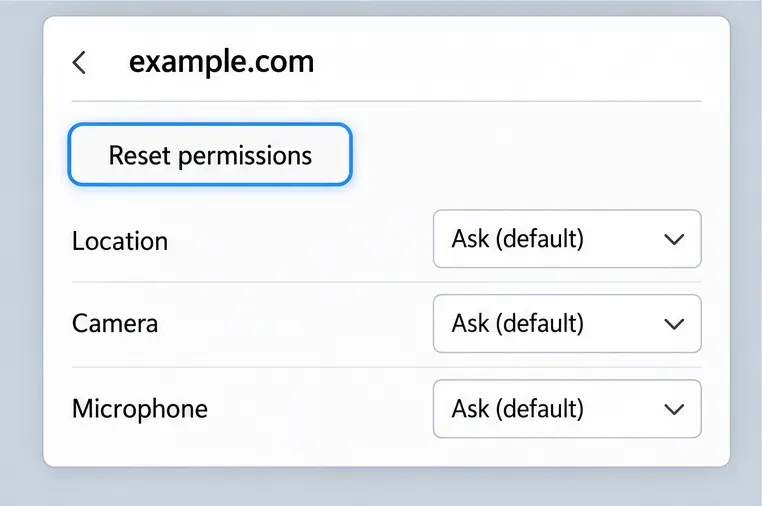
On the selected website's permissions page, choose Reset permissions if it is available. Read any confirmation and proceed only when it describes resetting permissions for that site. Microsoft staff documented this per-site control in a 2023 support response; its placement can differ across builds.
If the reset control is absent, restore the affected permission dropdowns to their displayed defaults individually. Do not substitute a website-data deletion button or the browser-wide Restore settings option.
Expected result: Previously customized permissions use their applicable defaults. A default may still block a feature, especially when a broader setting or organization policy governs it. The reset does not mean every dropdown will display Ask.
Use the selected website’s reset control when several permission choices need attention; defaults can vary.
4. Reload the site and verify the specific feature
Return to the original tab and reload it. Trigger the action that requires access: open the camera preview, turn on the microphone, or select the site's location feature. A permission prompt may appear when the website requests access rather than immediately after the reset.
Check the result at two levels: the website's permission now reflects your intended choice, and the feature itself works. For a camera, use the site's preview before joining a call. For a microphone, use its input check if provided. Do not assume that a successful reset proves the device is working.
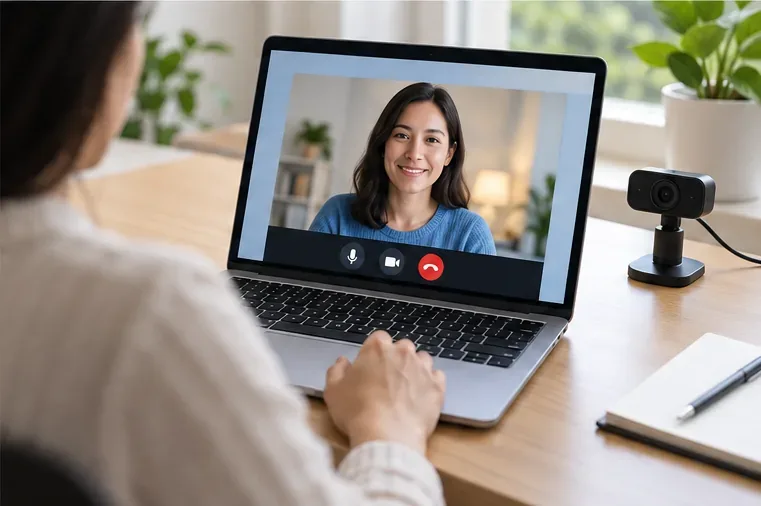
Retest the feature that originally failed, such as the website’s camera preview.
If the permission prompt still does not appear
Open Site permissions > All permissions and inspect the relevant category's default behavior. For example, Microsoft's Teams device-permissions guidance explains that turning off Edge's camera asking option blocks camera access. Change only the relevant category if you want websites to be able to request that access; this affects requesting behavior beyond the single site.
If camera or microphone access remains blocked in Windows
Windows device permissions form another layer. A site-level reset cannot override an operating-system restriction.
Windows version
Where to inspect camera or microphone access
Windows 11
Settings > Privacy & security > Camera or Microphone
Windows 10
Settings > Privacy > Camera or Microphone
Edge is a desktop app. The relevant desktop-app access switch can affect multiple desktop applications, rather than just one website. Enable it only if you intend to permit that device access; the website still needs permission in Edge. See Microsoft's camera access explanation and the Windows privacy guide linked above.
If controls are locked or changes do not stick
On a work or school computer, ask IT whether a site-specific or default permission policy applies. Microsoft documents these rules in per-site configuration by policy. Repeated resets cannot override an enforced policy.
If the controls appear incomplete or behave unexpectedly, record your Edge version and check edge://settings/help for updates. Save your work before any requested restart. Microsoft's Edge update instructions describe the available update states. If permissions look correct afterward, investigate the site's own device selection or support guidance rather than expanding the reset to all browsing data.