How to Download Chrome on Macbook
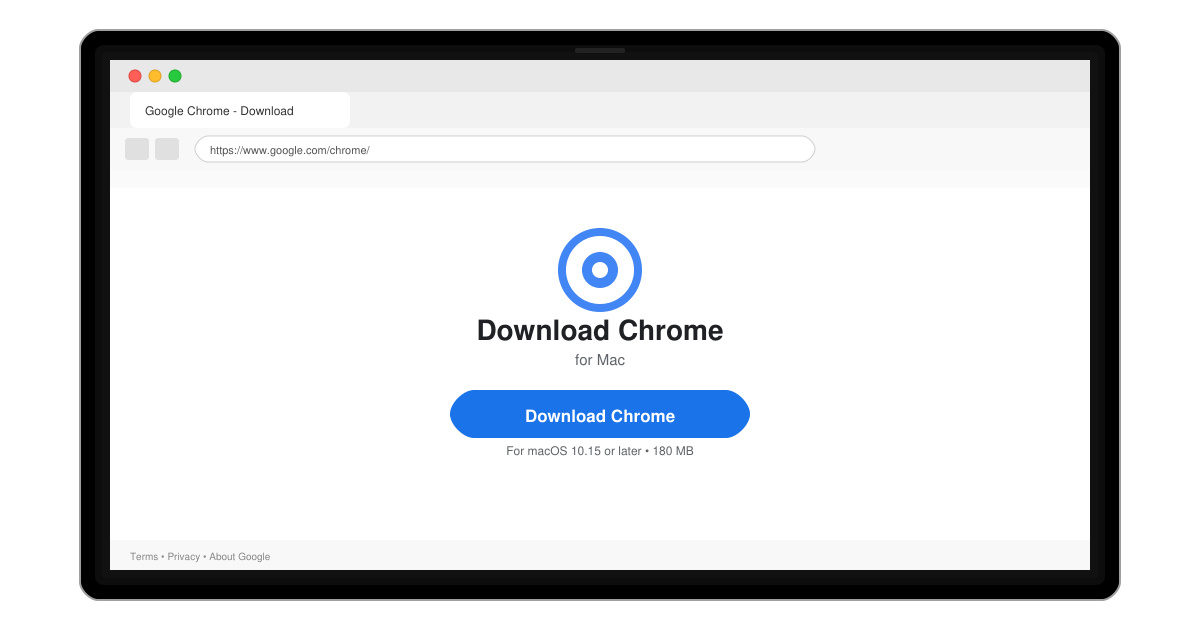
Follow this guide on how to download Chrome on Macbook to get Google Chrome running quickly and safely on your device.
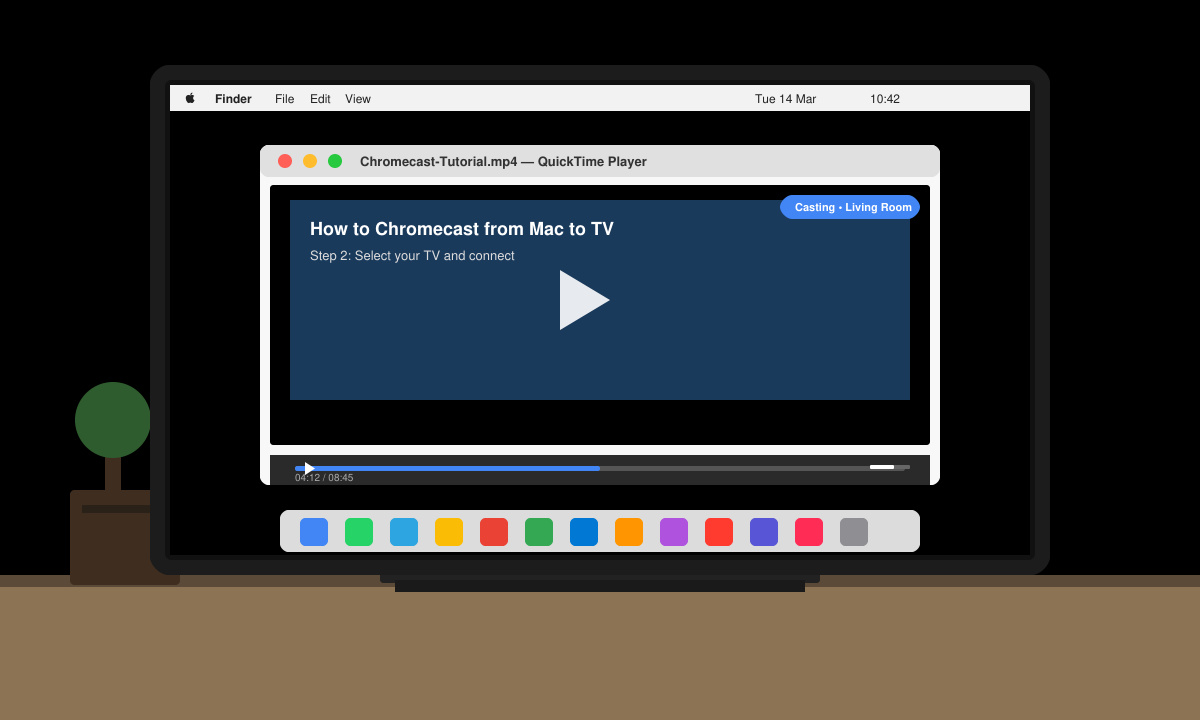
If you want to display content from your Mac on a larger screen, knowing how to Chromecast from Mac to TV gives you a reliable wireless option without extra cables. The process relies on the Google Chrome browser and a Chromecast device connected to your TV. This article provides the precise steps required to complete the setup and start casting.
Your Mac must run macOS 10.12 or later and connect to the same Wi-Fi network as the Chromecast device. You also need the latest version of Google Chrome installed, because casting features are built directly into the browser. Make sure your Chromecast is powered on and linked to your television HDMI port before beginning.
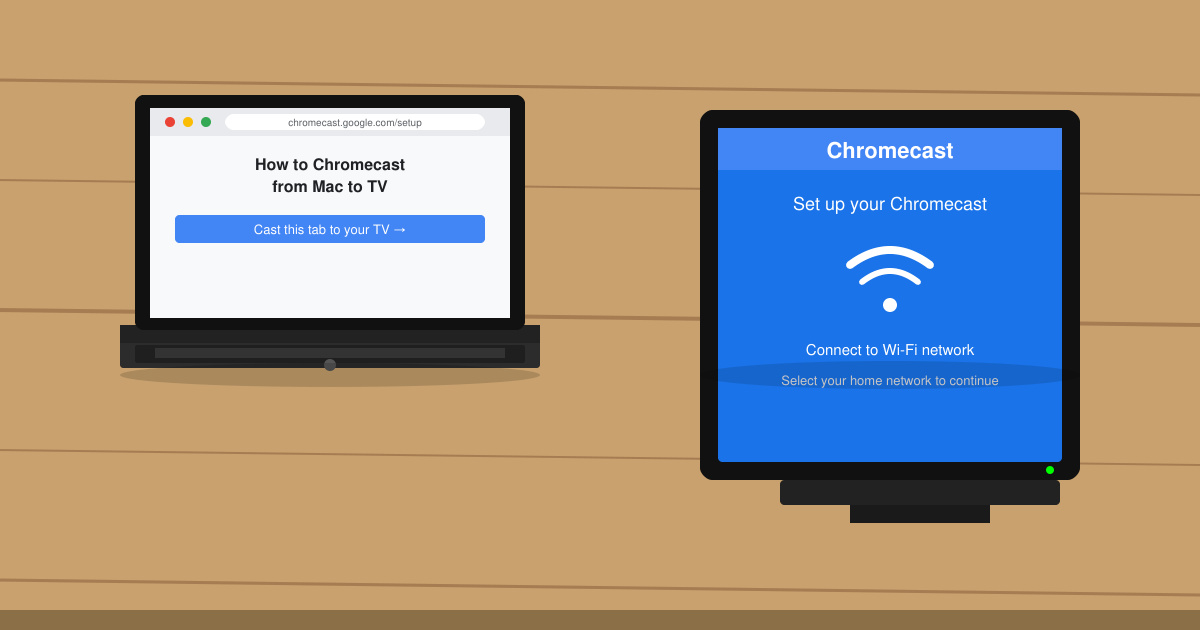
Plug the Chromecast into an HDMI port on your television and connect its power cable to a wall outlet or USB port on the TV. Use the Google Home app on a phone or tablet to complete the initial Wi-Fi setup if the device is new.
Download Chrome from google.com/chrome if it is not already installed. Launch the browser and sign in with the same Google account you used during Chromecast setup.
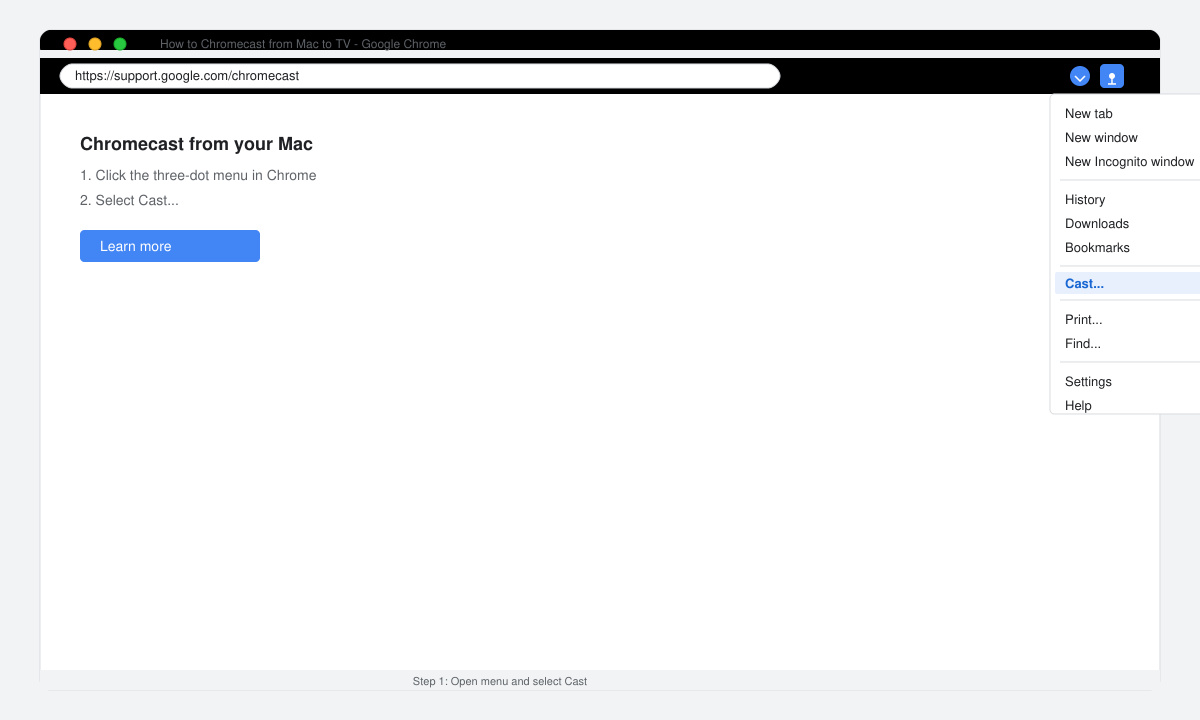
Click the three-dot menu icon in the top-right corner of Chrome, then select Cast. The browser will scan for available devices on your network.
Select the name of your Chromecast from the list of detected devices. Choose whether to cast the current tab, the entire desktop, or a specific file depending on your needs.
Click the Sources dropdown to switch between casting a tab or your full desktop. Begin playback of the video or presentation on your Mac and confirm the content appears on the TV screen.
No. The built-in casting tools require Google Chrome. Third-party apps exist but are less reliable and often require additional subscriptions.
Yes, provided you own a Chromecast Ultra or Chromecast with Google TV and your Mac file or streaming service delivers 4K content.
Return to the Chrome Cast menu and click Stop casting, or simply close the browser tab that initiated the session.
Following these instructions lets you reliably Chromecast from Mac to TV using only the Chrome browser and your existing network connection.
Follow this guide on how to download Chrome on Macbook to get Google Chrome running quickly and safely on your device.
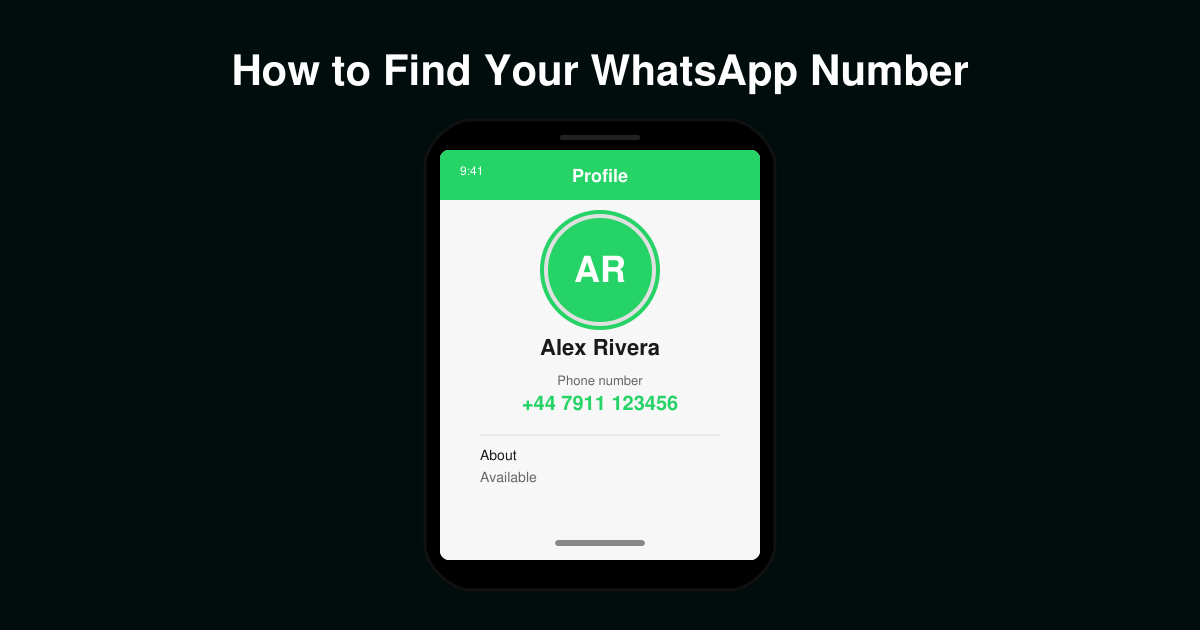
Discover exactly how to find your WhatsApp number on Android, iPhone, and desktop in under a minute. Follow these clear steps to view the number linked to your account.
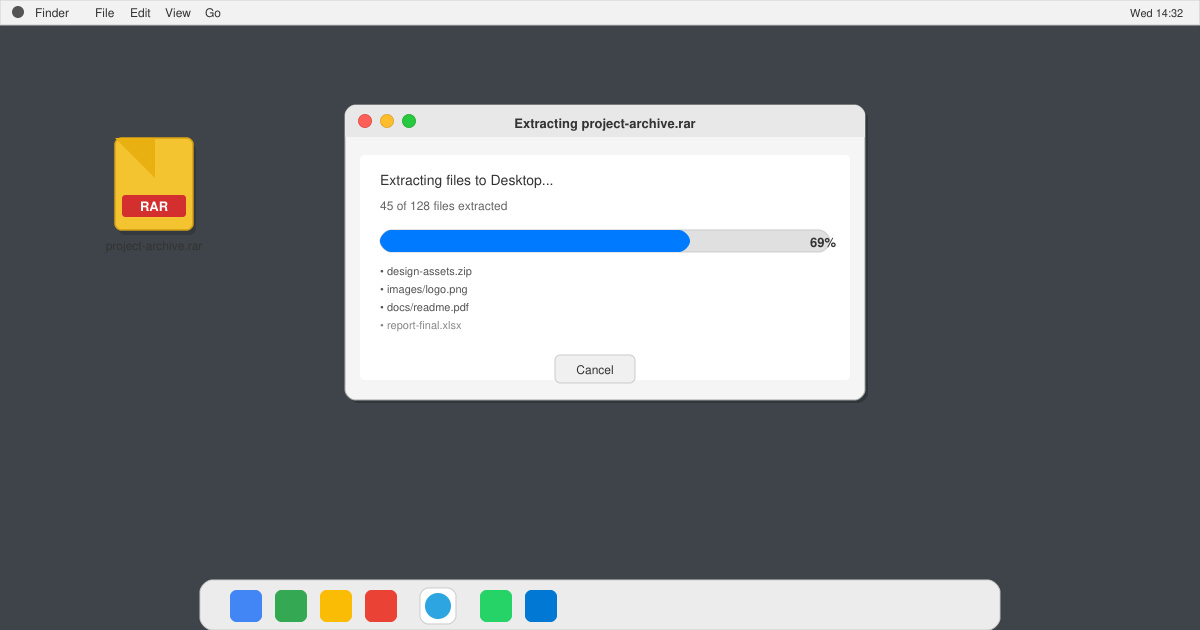
Learn how to open RAR file in Mac OS using free tools. This guide shows the fastest ways to extract RAR archives on your Mac in minutes.
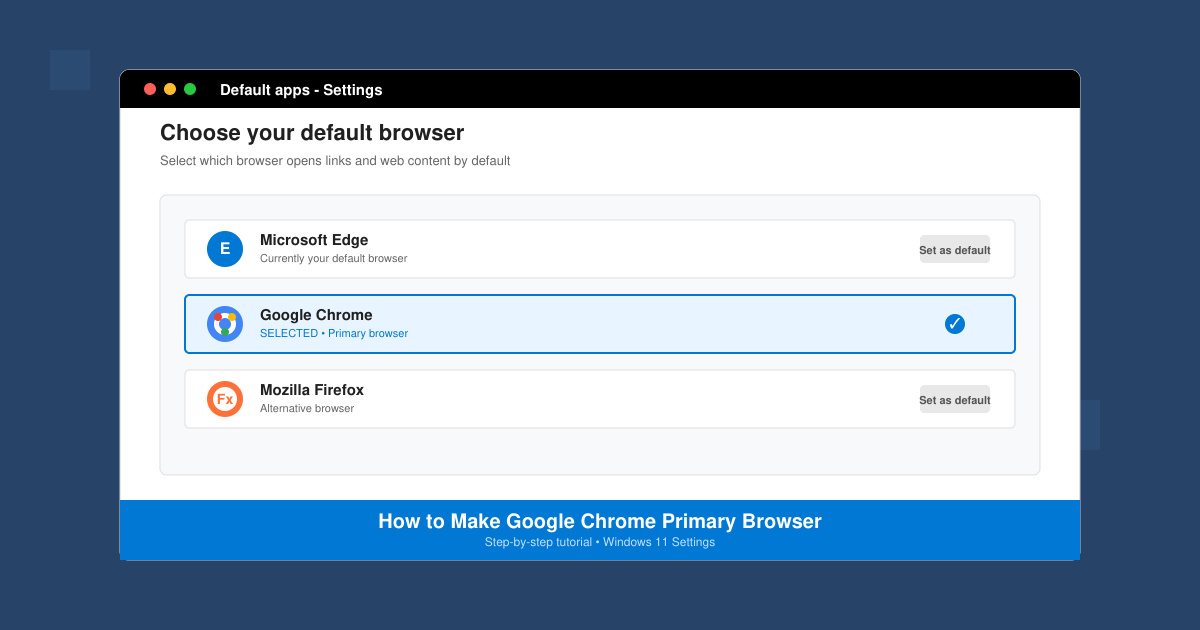
How to make Google Chrome primary browser on Windows, macOS, Android, and iOS with clear step-by-step instructions. Set Chrome as your default browser in minutes for better speed and sync.
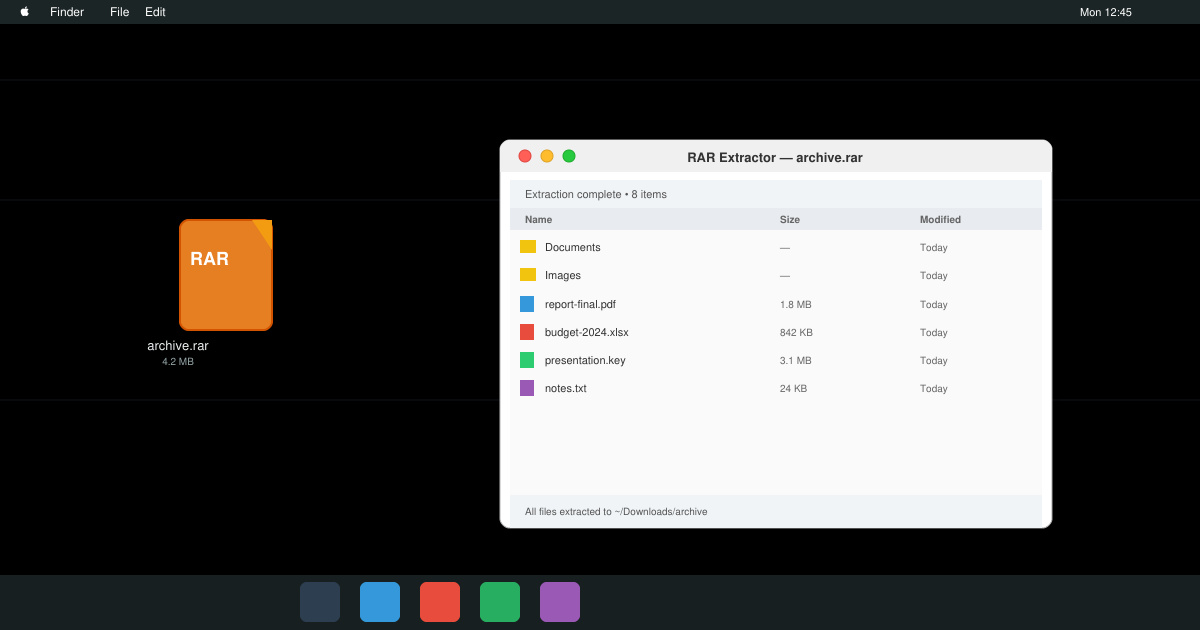
Need a rar program for mac to open RAR files? Learn the fastest way to install and use a reliable extractor on macOS in minutes.
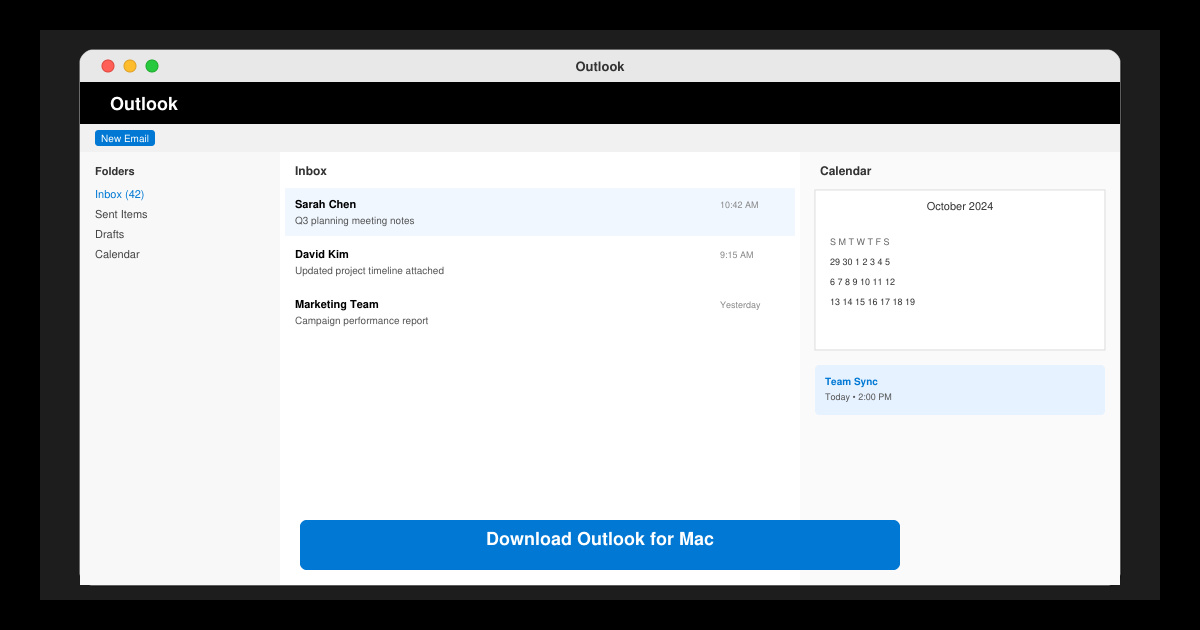
Download Outlook for Mac from the official Microsoft source and install it on your Mac in minutes. Follow this guide for the latest version compatible with macOS.
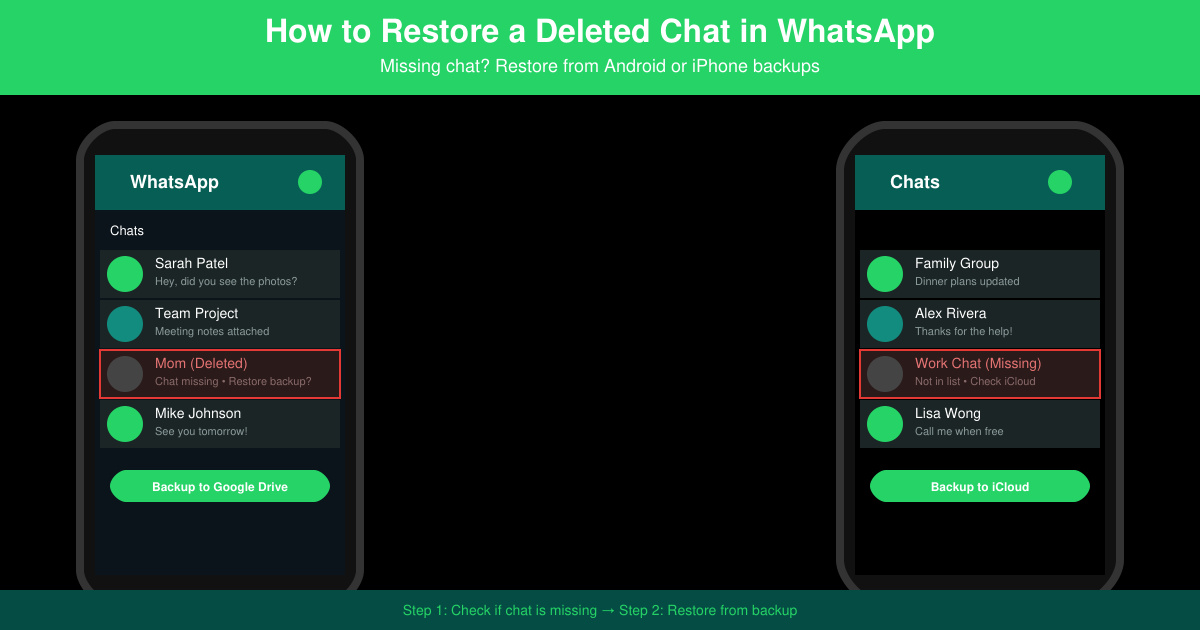
Learn exactly how to restore a deleted chat in WhatsApp on Android and iPhone using local or Google Drive backups. Follow these steps to recover conversations in minutes.
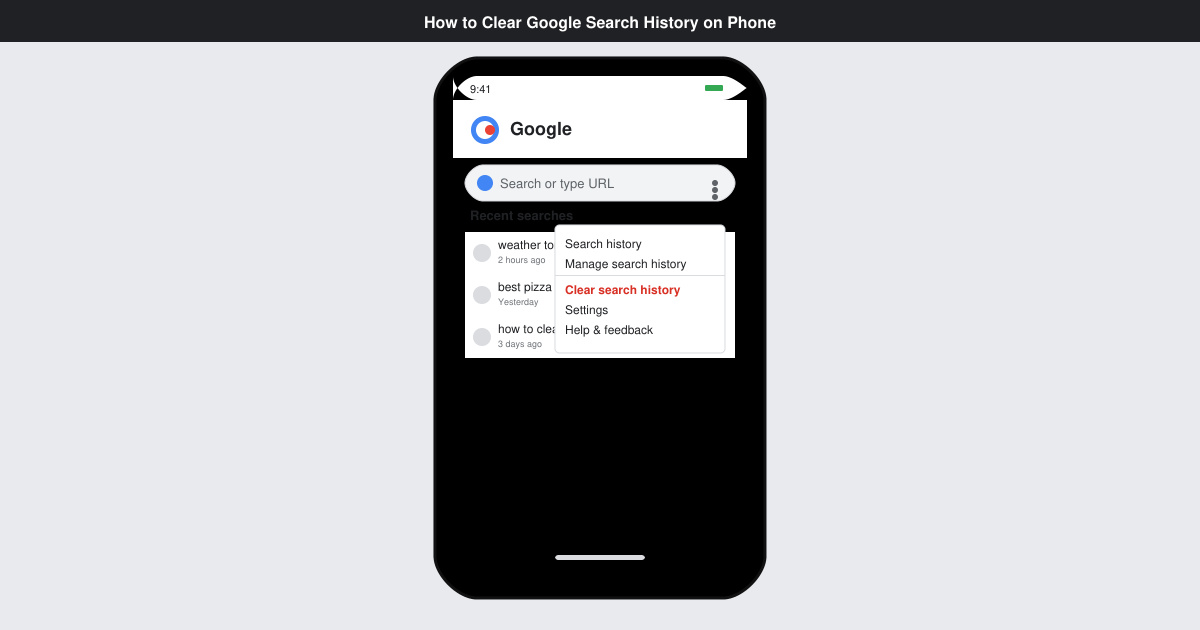
Learn how to clear Google search history on phone in just a few taps. Follow these exact steps for Android and iOS to remove search activity and improve privacy.
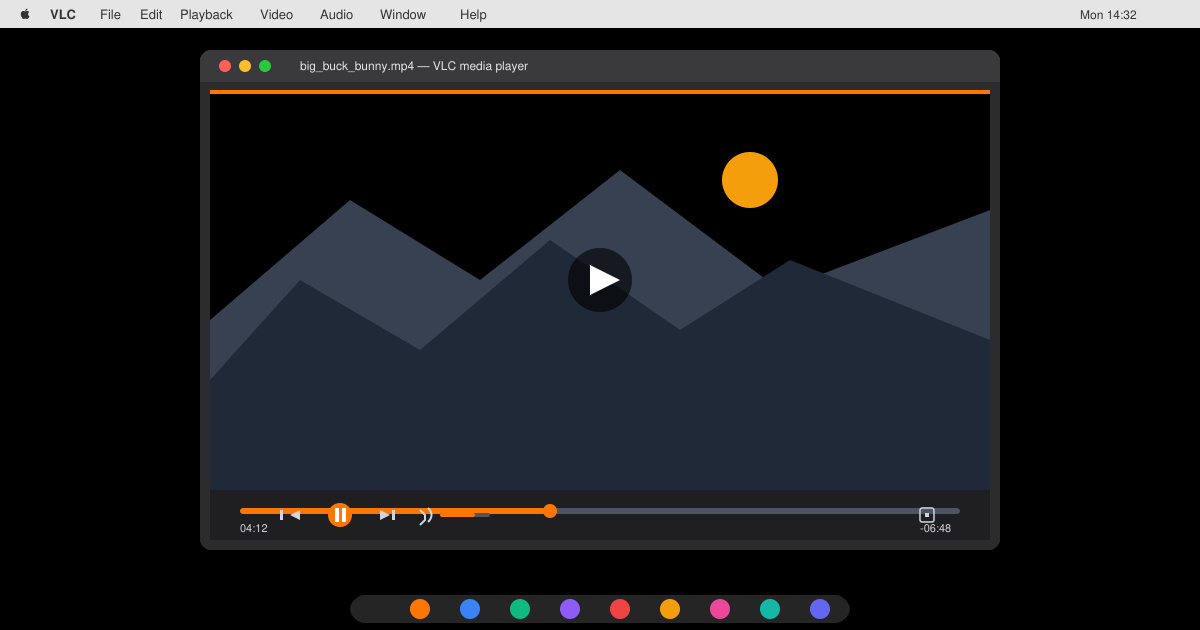
Complete your VLC Player Download Mac safely from the official source. This guide shows the exact steps to install VLC Media Player on macOS for reliable video and audio playback.
Learn how to Chromecast from iPhone to TV quickly and reliably. Follow these exact steps to stream videos, photos, and apps from your iPhone to any Chromecast device.