How to Download Chrome on Macbook
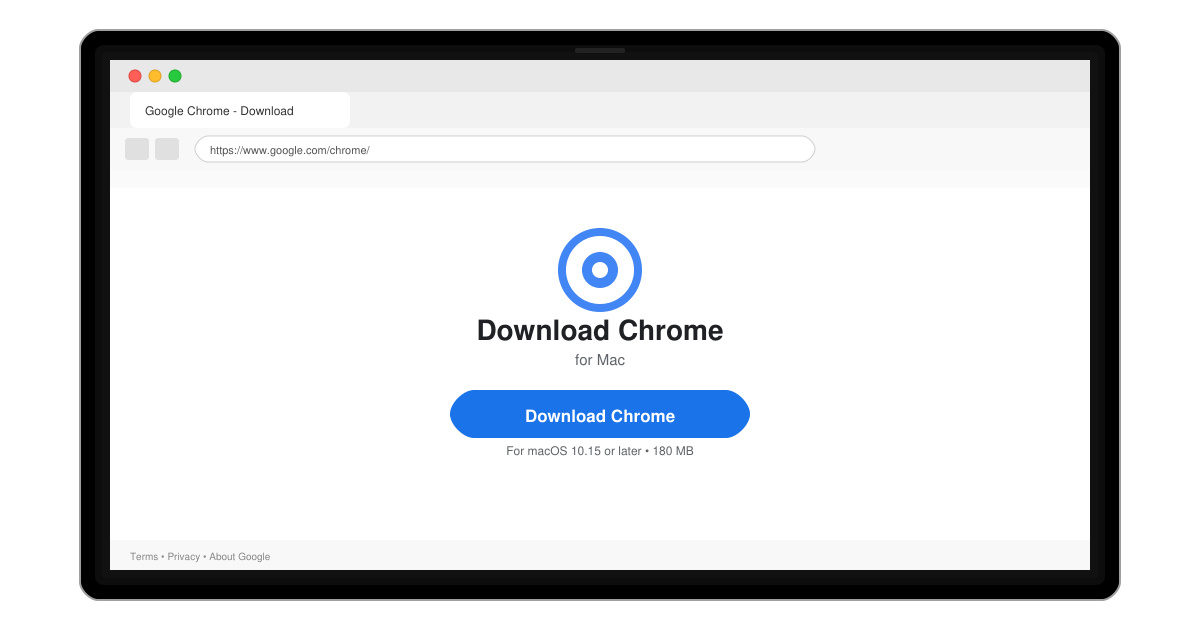
Follow this guide on how to download Chrome on Macbook to get Google Chrome running quickly and safely on your device.
How to Download Google Chrome on Mac Computer takes only a few minutes when you follow the official process. This ensures you receive the genuine, up-to-date version optimized for macOS without third-party risks. The steps below cover every action from locating the installer to launching the browser for the first time.
Your Mac must run macOS 10.15 or later for the current Chrome version. Check your system by clicking the Apple menu, selecting About This Mac, and noting the macOS version listed. Close any open browsers before starting to avoid conflicts during installation. You also need a stable internet connection and at least 200 MB of free disk space.
Administrator access on your user account is required so the installer can place files in protected folders. If you use a managed Mac at work or school, confirm with your IT department that Chrome installation is permitted.
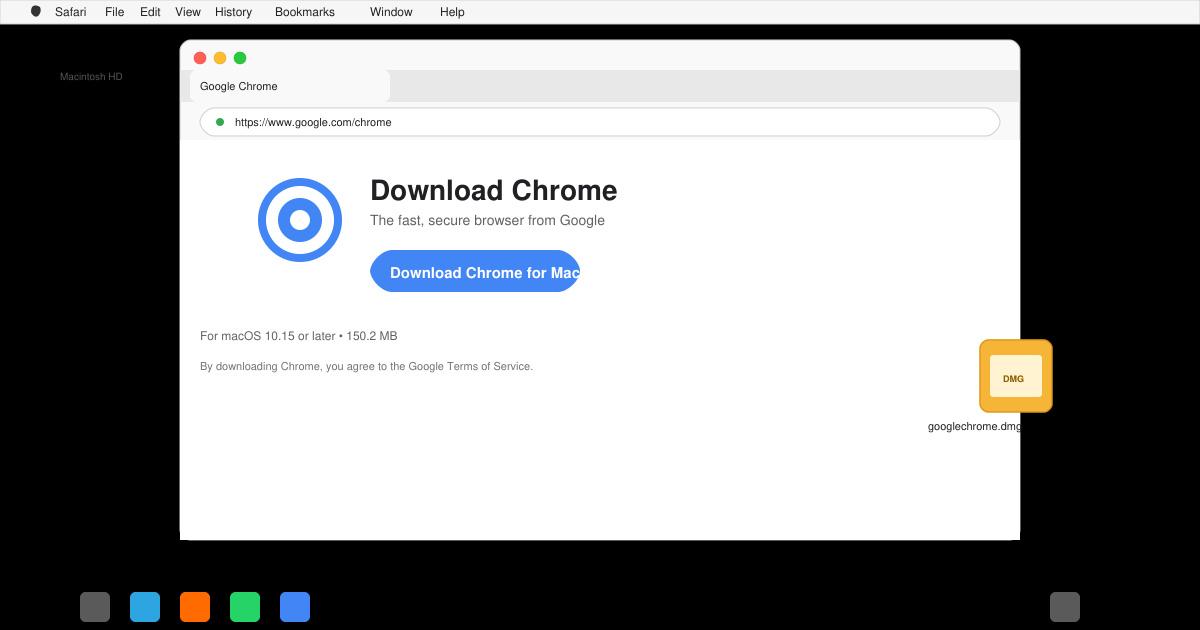
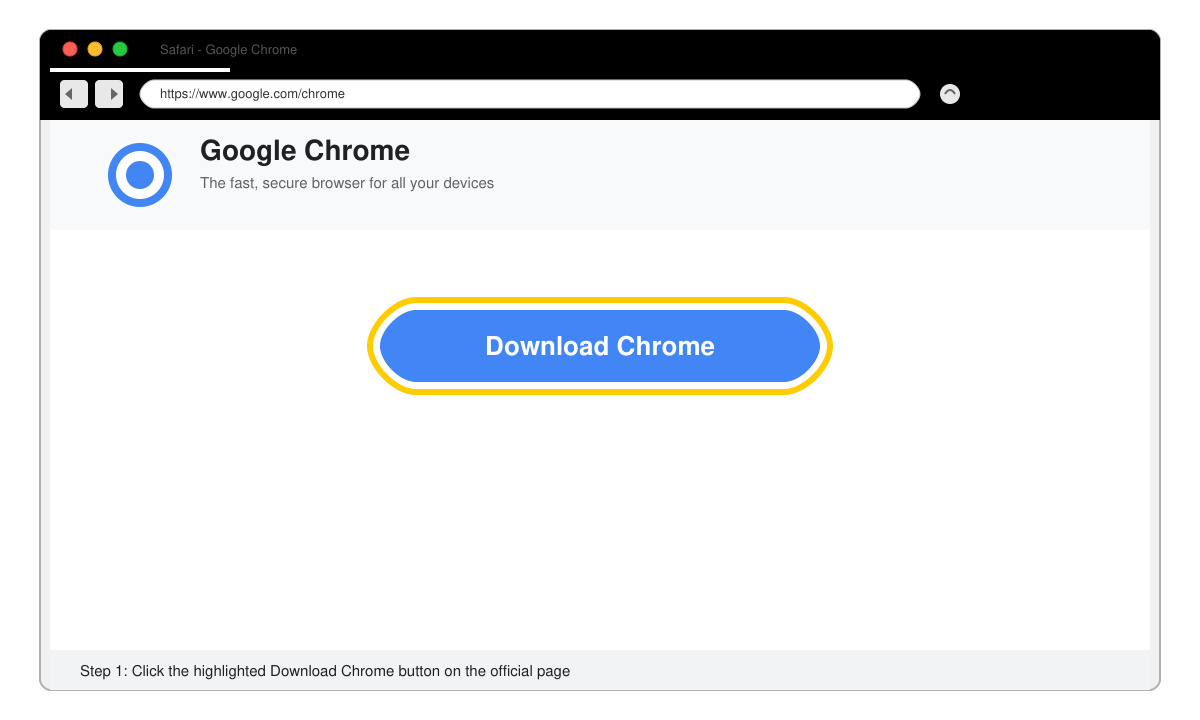
Open Safari or any browser and go directly to the Google Chrome download site. Click the blue Download Chrome button. The page automatically detects your macOS and offers the correct Intel or Apple Silicon version.
When prompted, choose to save the file rather than open it immediately. The file named googlechrome.dmg will appear in your Downloads folder. Wait for the download to reach 100 percent before proceeding.
Double-click the DMG file. A new window appears showing the Chrome icon and the Applications folder. Drag the Chrome icon onto the Applications folder icon. This copies the browser to your Mac.
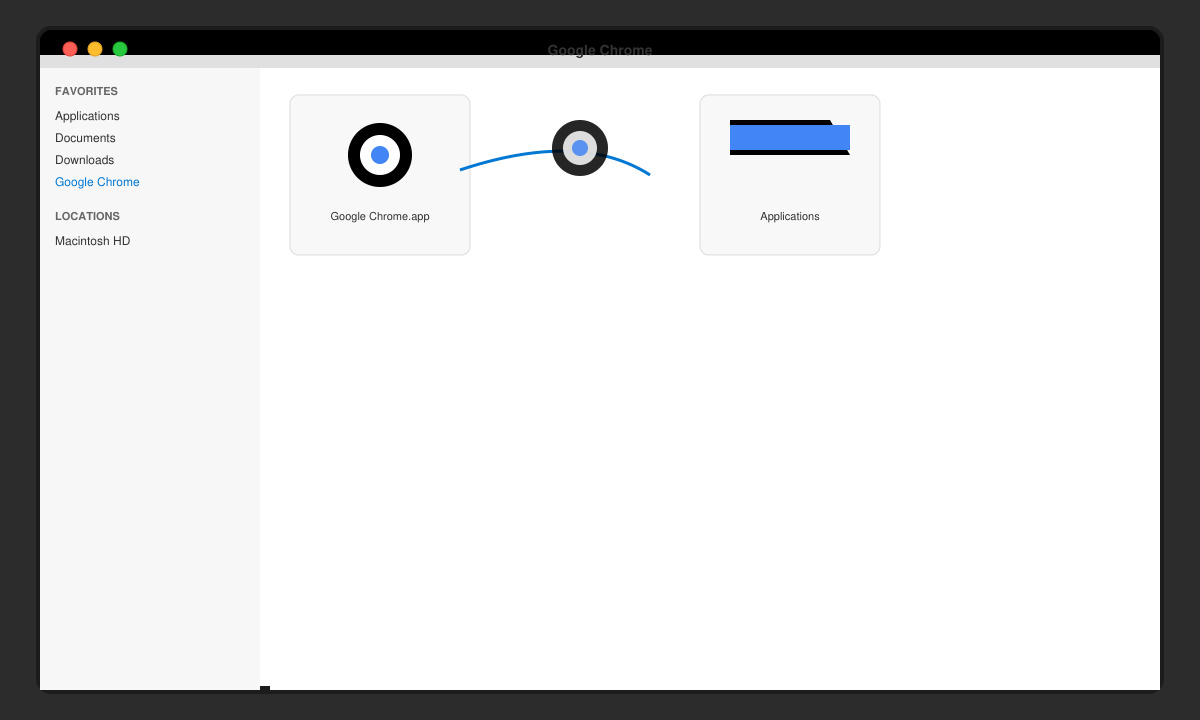
Go to your Applications folder and double-click Google Chrome. Confirm any macOS security prompts by clicking Open. On first launch, choose whether to import bookmarks and settings from another browser, then sign in with a Google account if desired.
If the DMG file will not open, right-click it and select Open from the context menu to bypass Gatekeeper. Should the download fail partway through, restart your router and try again. Users on older macOS versions may see a compatibility notice; in that case, download the last supported Chrome version from Google's archive instead. After installation, if Chrome does not appear in Launchpad, log out and back in to refresh the app list.
Yes. The installation process does not require an Apple ID or App Store account at any point.
No. Always use the official Google site to avoid modified or outdated installers that may contain malware.
No. Safari remains installed and you can continue using both browsers side by side.
Following these steps gives you a clean installation of Google Chrome on your Mac computer ready for daily use.
Follow this guide on how to download Chrome on Macbook to get Google Chrome running quickly and safely on your device.
Discover exactly how to find your WhatsApp number on Android, iPhone, and desktop in under a minute. Follow these clear steps to view the number linked to your account.
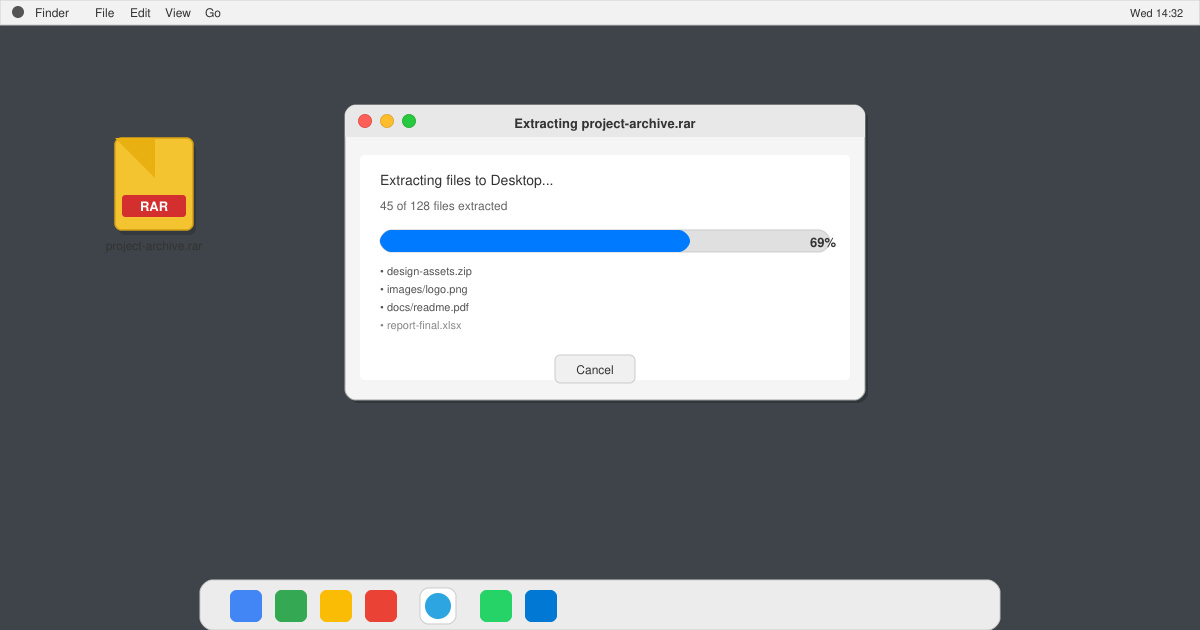
Learn how to open RAR file in Mac OS using free tools. This guide shows the fastest ways to extract RAR archives on your Mac in minutes.
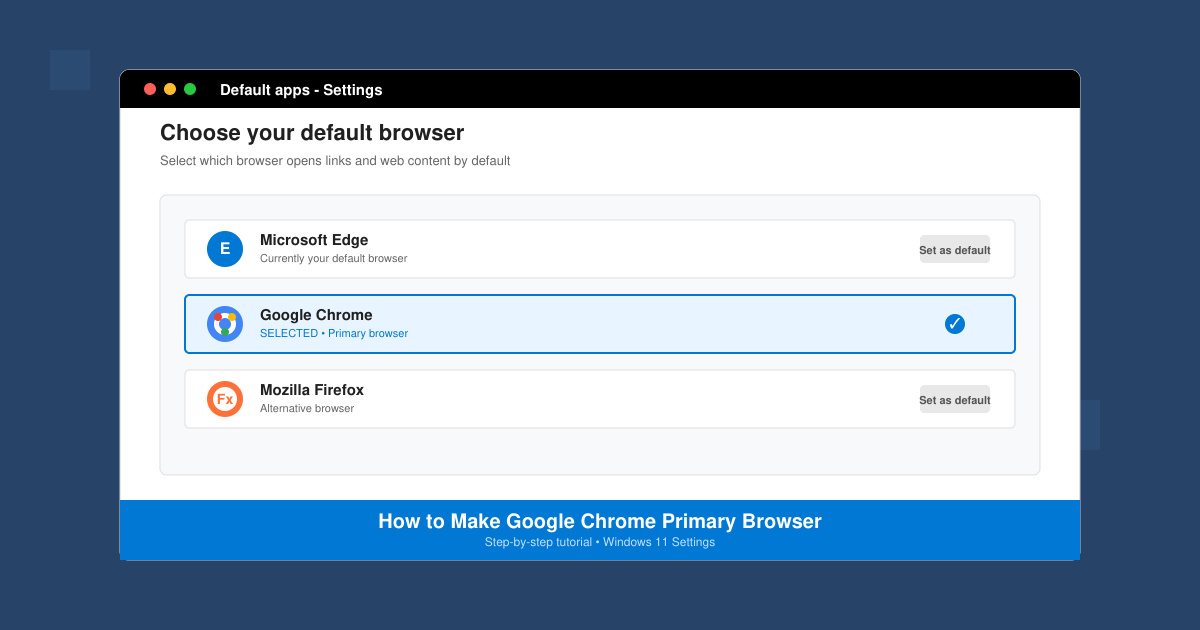
How to make Google Chrome primary browser on Windows, macOS, Android, and iOS with clear step-by-step instructions. Set Chrome as your default browser in minutes for better speed and sync.
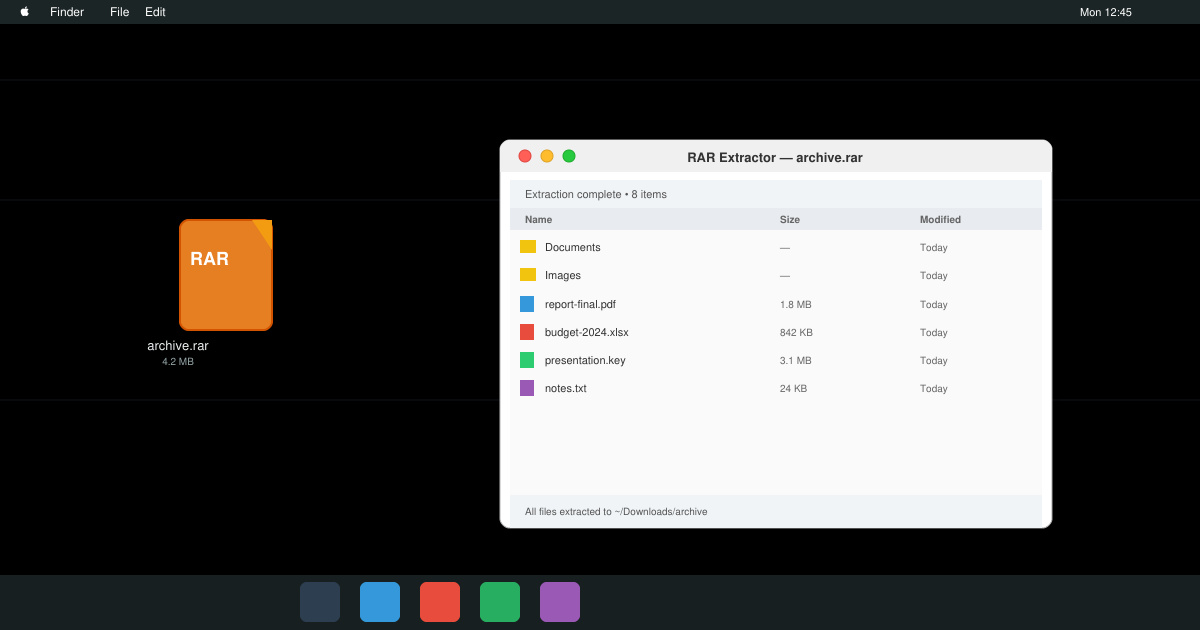
Need a rar program for mac to open RAR files? Learn the fastest way to install and use a reliable extractor on macOS in minutes.
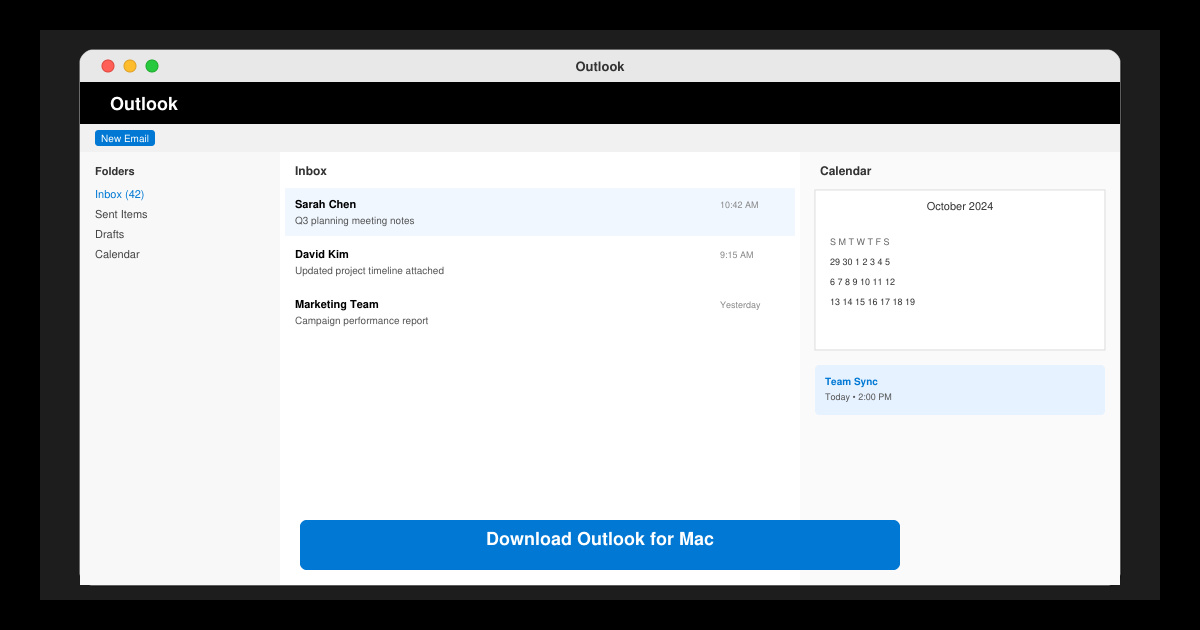
Download Outlook for Mac from the official Microsoft source and install it on your Mac in minutes. Follow this guide for the latest version compatible with macOS.
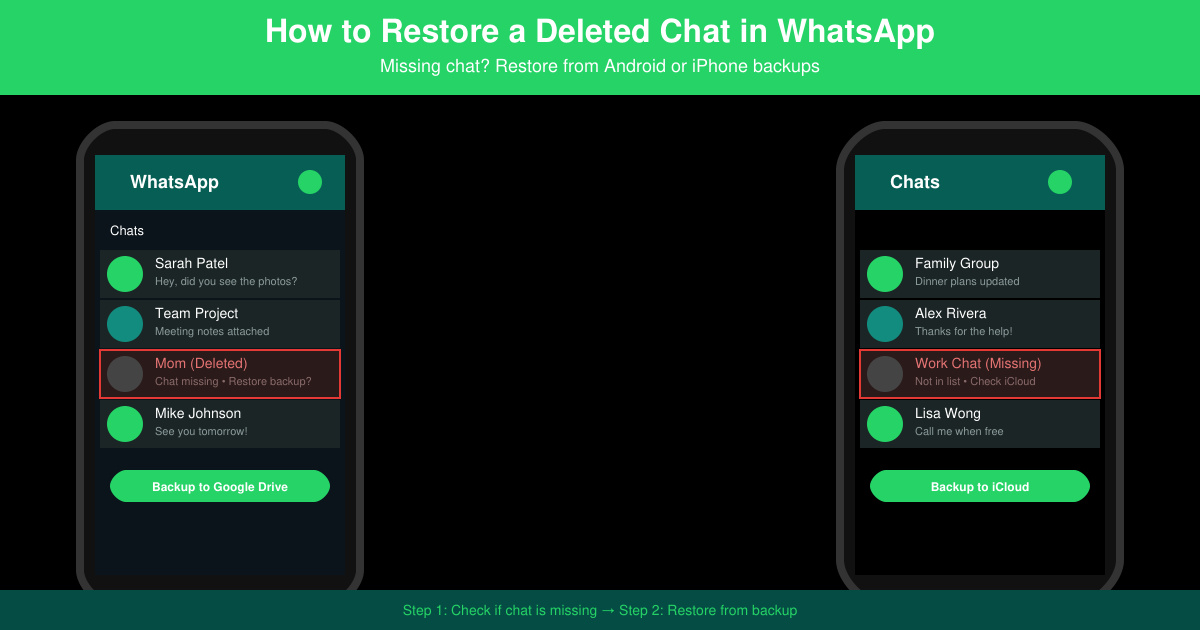
Learn exactly how to restore a deleted chat in WhatsApp on Android and iPhone using local or Google Drive backups. Follow these steps to recover conversations in minutes.
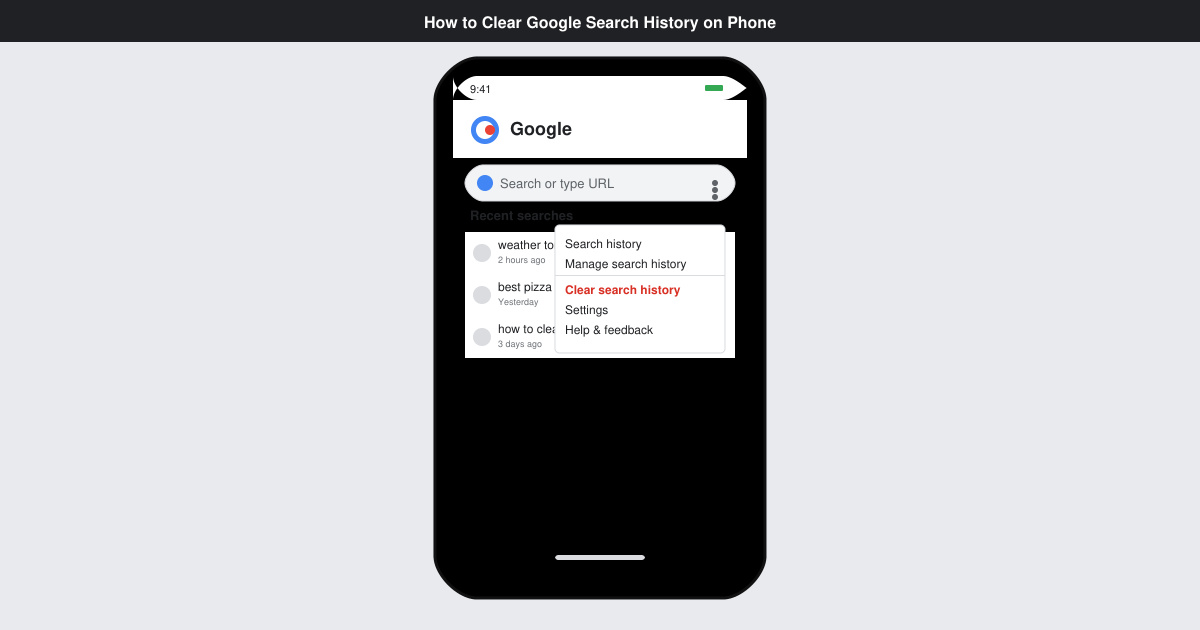
Learn how to clear Google search history on phone in just a few taps. Follow these exact steps for Android and iOS to remove search activity and improve privacy.
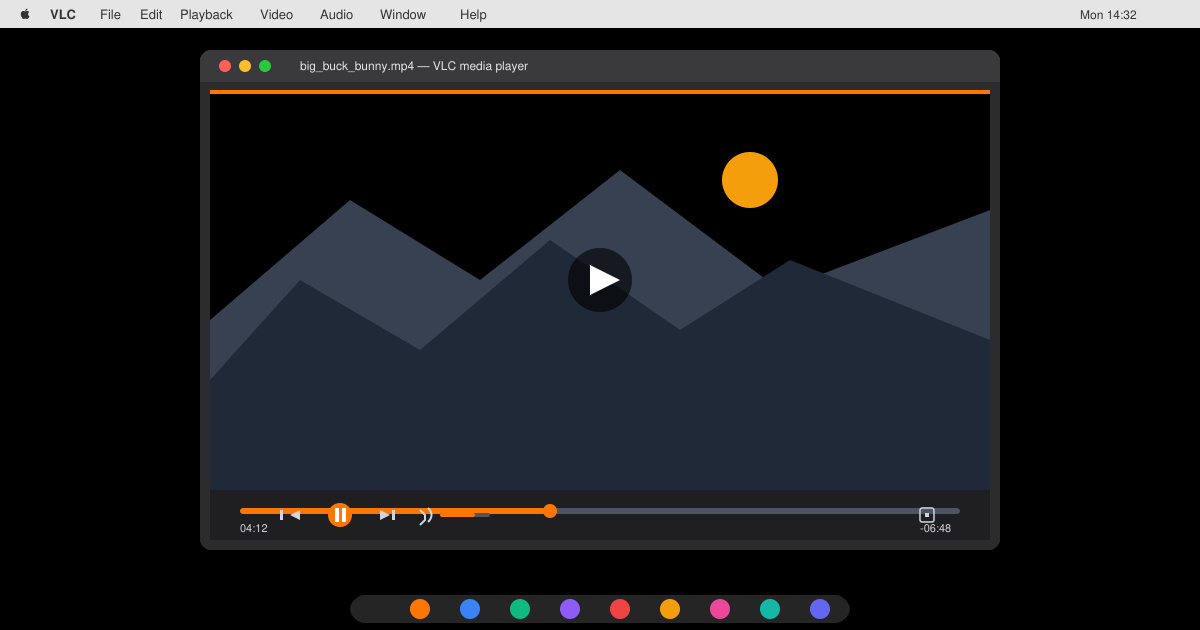
Complete your VLC Player Download Mac safely from the official source. This guide shows the exact steps to install VLC Media Player on macOS for reliable video and audio playback.
Learn how to Chromecast from iPhone to TV quickly and reliably. Follow these exact steps to stream videos, photos, and apps from your iPhone to any Chromecast device.