How to Download Chrome on Macbook
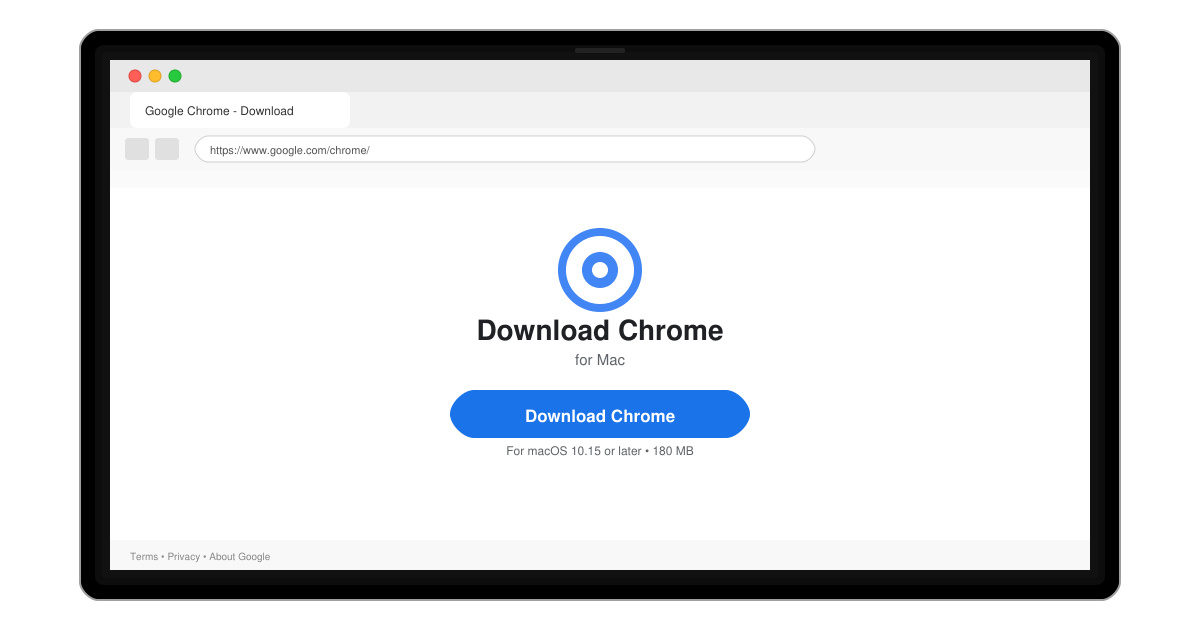
Follow this guide on how to download Chrome on Macbook to get Google Chrome running quickly and safely on your device.
Google Chrome offers strong performance on macOS with automatic updates, built-in malware protection, and seamless account syncing. Many users prefer it over Safari for better compatibility with web apps and developer tools. Before starting the download, make sure your Macbook runs macOS 10.15 or later and has at least 2 GB of free storage space.
Using the official route avoids bundled software or outdated builds that sometimes appear on other sites. Once installed, Chrome will check for updates automatically each time it launches.
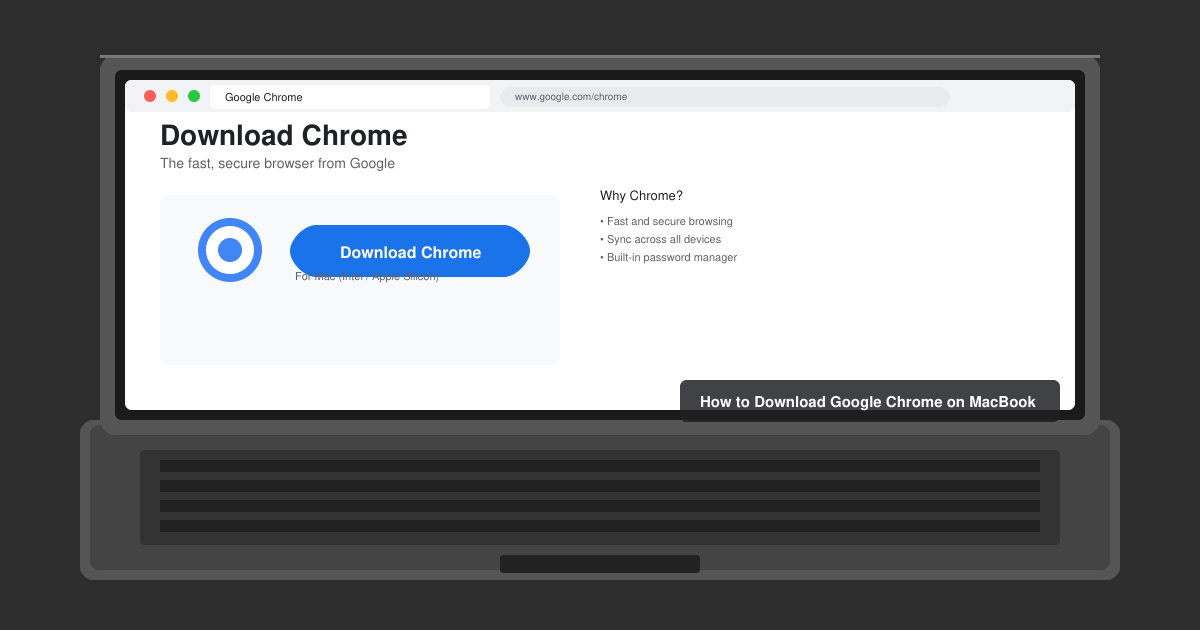
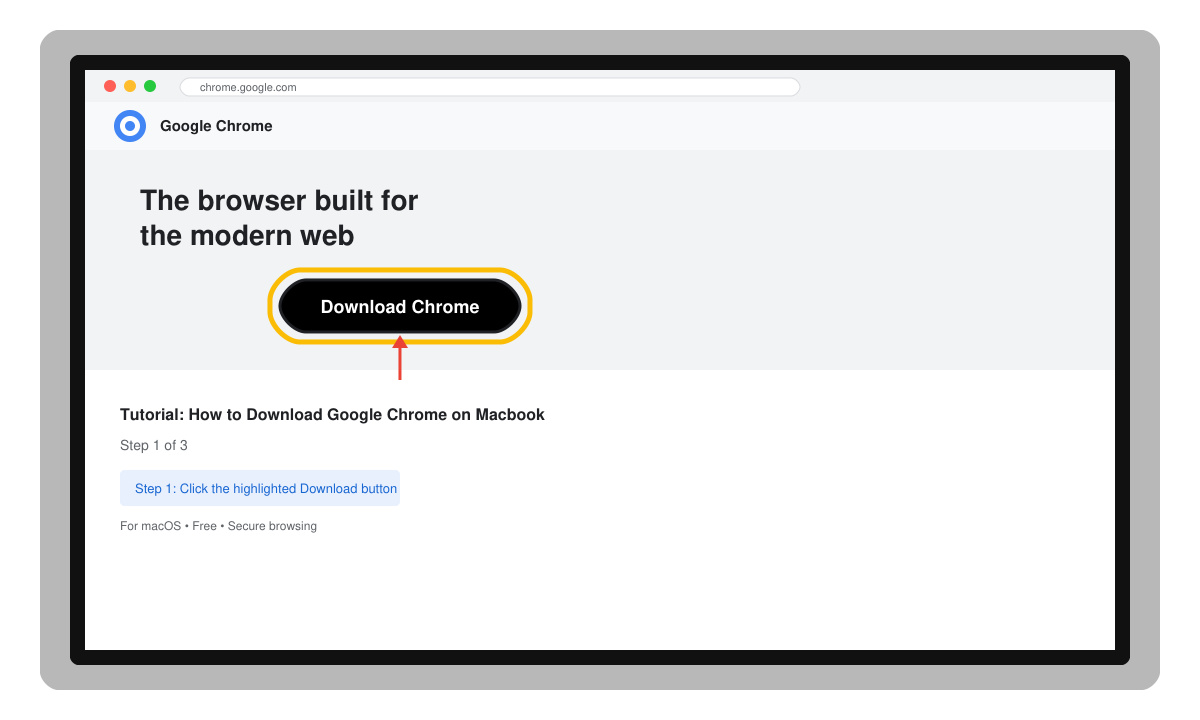
Open Safari or any current browser and go directly to chrome.google.com. Click the blue "Download Chrome" button located in the center of the page. The site automatically detects your macOS version and offers the correct Intel or Apple Silicon build.
Once the DMG file finishes downloading, locate it in your Downloads folder. Double-click the file named "googlechrome.dmg". A new Finder window appears showing the Chrome icon and the Applications folder shortcut.
Drag the Chrome icon onto the Applications folder icon inside the DMG window. This copies the browser to your Macbook. You can then eject the DMG by right-clicking it in the sidebar and choosing Eject.
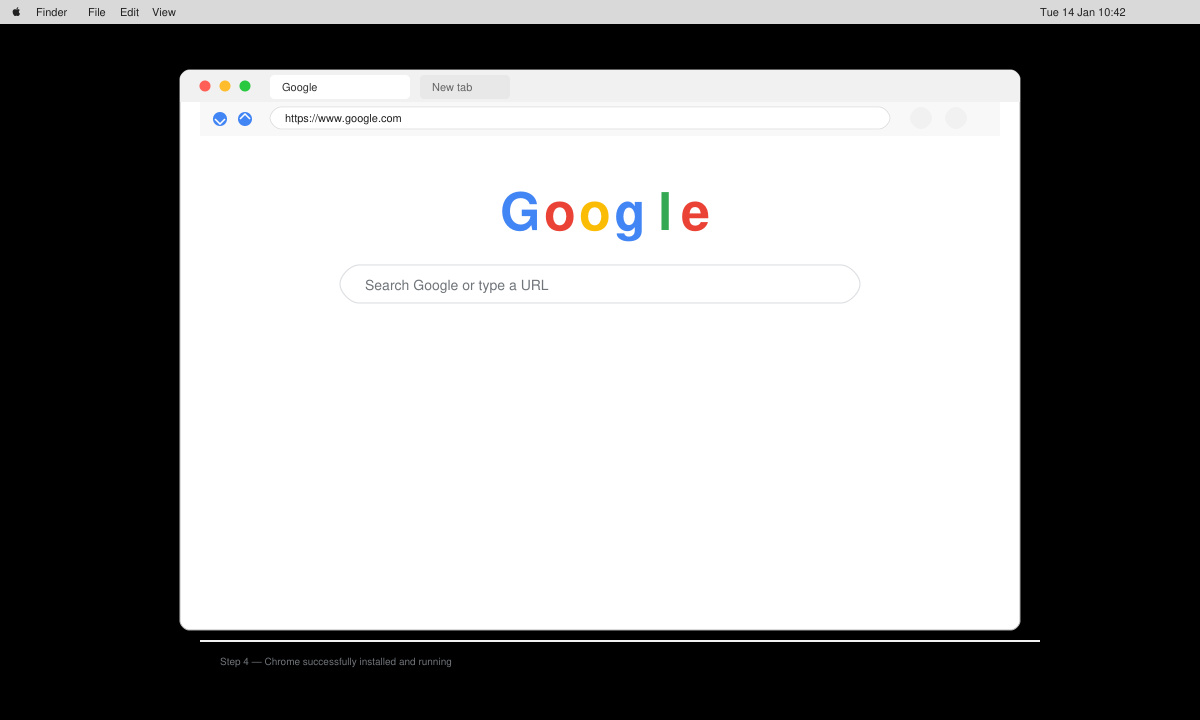
Open the Applications folder and double-click Google Chrome. On first launch, macOS may ask you to confirm the app came from the internet; click Open. Sign in with your Google account if you want bookmarks and passwords to sync immediately.
If the download fails, check your internet connection and temporarily disable any VPN. Some users see a warning that the app is from an unidentified developer; open System Settings, go to Privacy & Security, and click Open Anyway next to the Chrome message. If Chrome does not appear in Launchpad after installation, restart your Macbook or search for it using Spotlight.
Keep the browser updated by going to the Chrome menu in the top bar, selecting Help, then About Google Chrome. Updates install automatically in the background on most systems.
No. Installing applications on macOS normally requires administrator credentials to write files into the Applications folder.
Google Chrome supports macOS 10.15 Catalina and newer. Older systems will need to use an archived older release from Google's support archives if available.
No. Chrome installs alongside Safari and does not delete or disable any other browser already on your Macbook.
Following these steps gives you a clean installation of Google Chrome on Macbook from the official source. The browser is now ready for daily use with automatic updates keeping it secure.
Follow this guide on how to download Chrome on Macbook to get Google Chrome running quickly and safely on your device.
Discover exactly how to find your WhatsApp number on Android, iPhone, and desktop in under a minute. Follow these clear steps to view the number linked to your account.
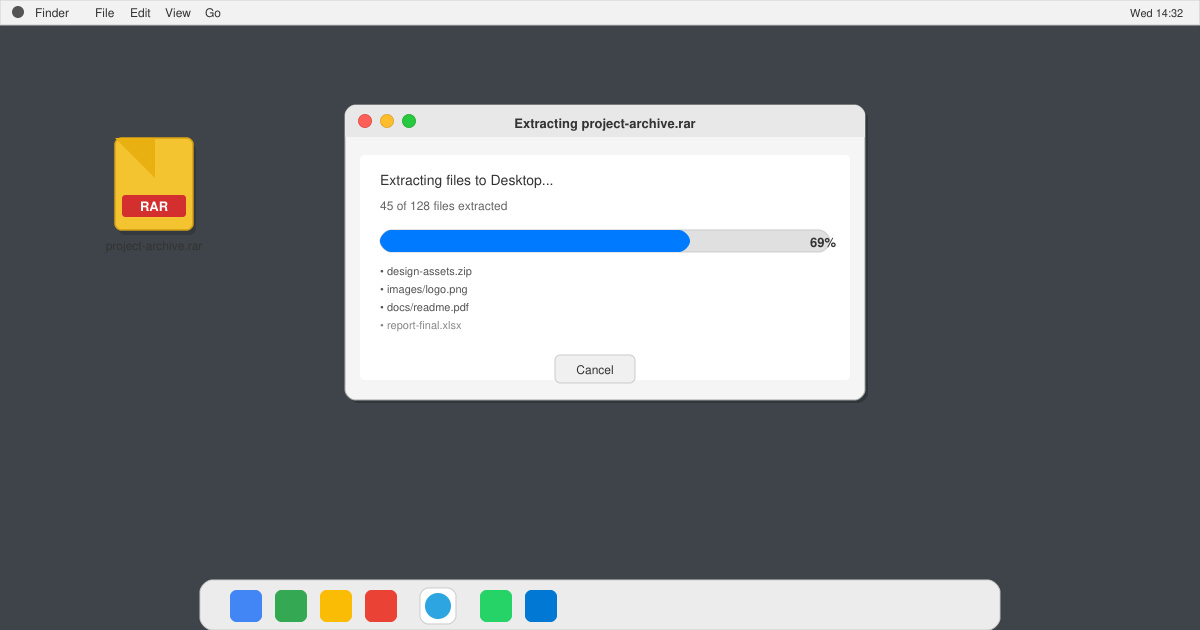
Learn how to open RAR file in Mac OS using free tools. This guide shows the fastest ways to extract RAR archives on your Mac in minutes.
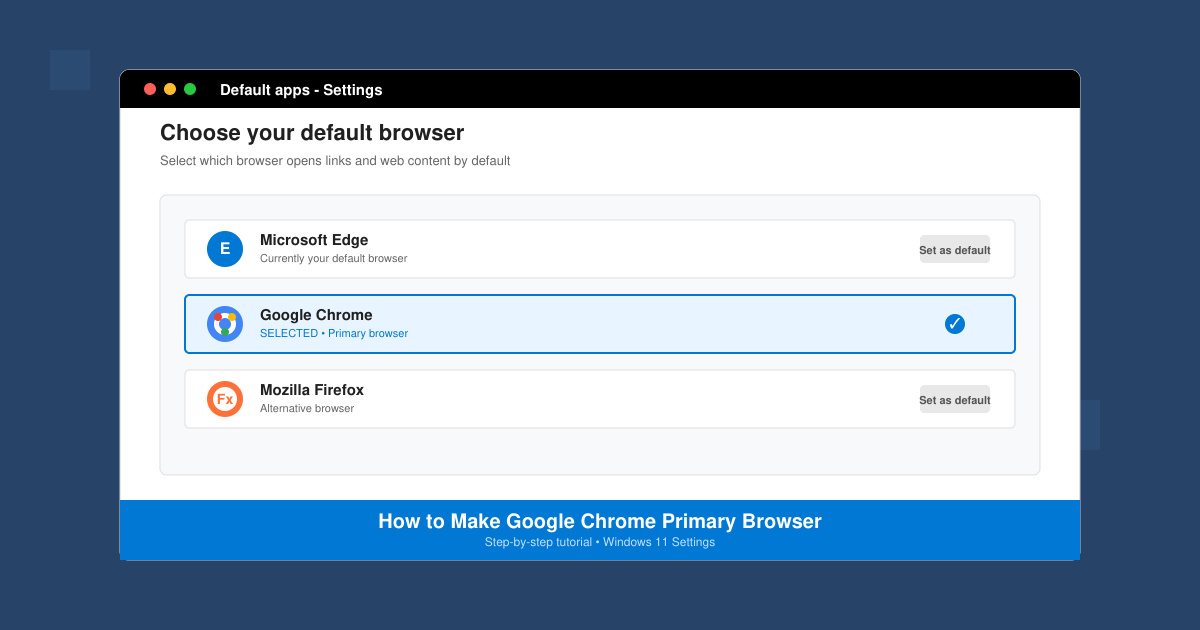
How to make Google Chrome primary browser on Windows, macOS, Android, and iOS with clear step-by-step instructions. Set Chrome as your default browser in minutes for better speed and sync.
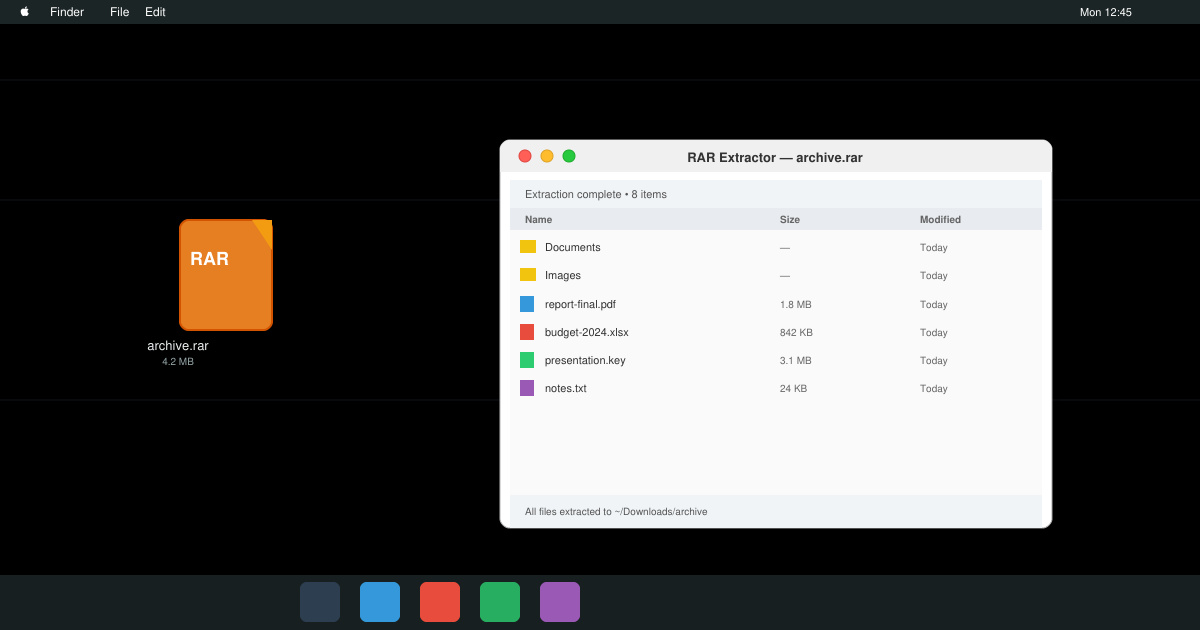
Need a rar program for mac to open RAR files? Learn the fastest way to install and use a reliable extractor on macOS in minutes.
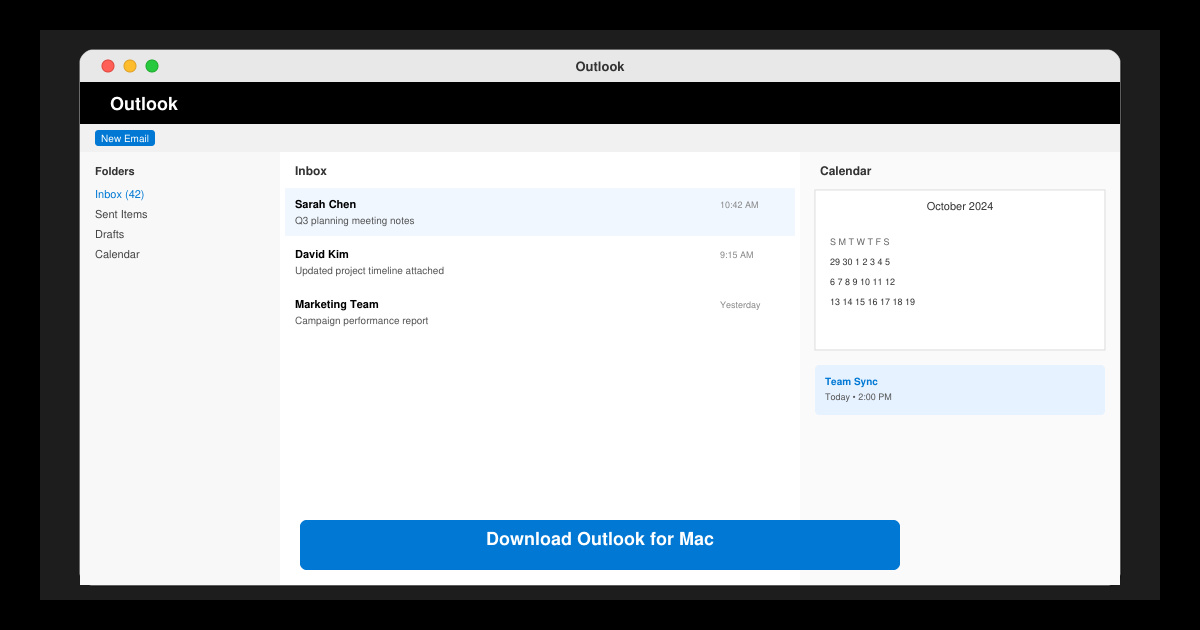
Download Outlook for Mac from the official Microsoft source and install it on your Mac in minutes. Follow this guide for the latest version compatible with macOS.
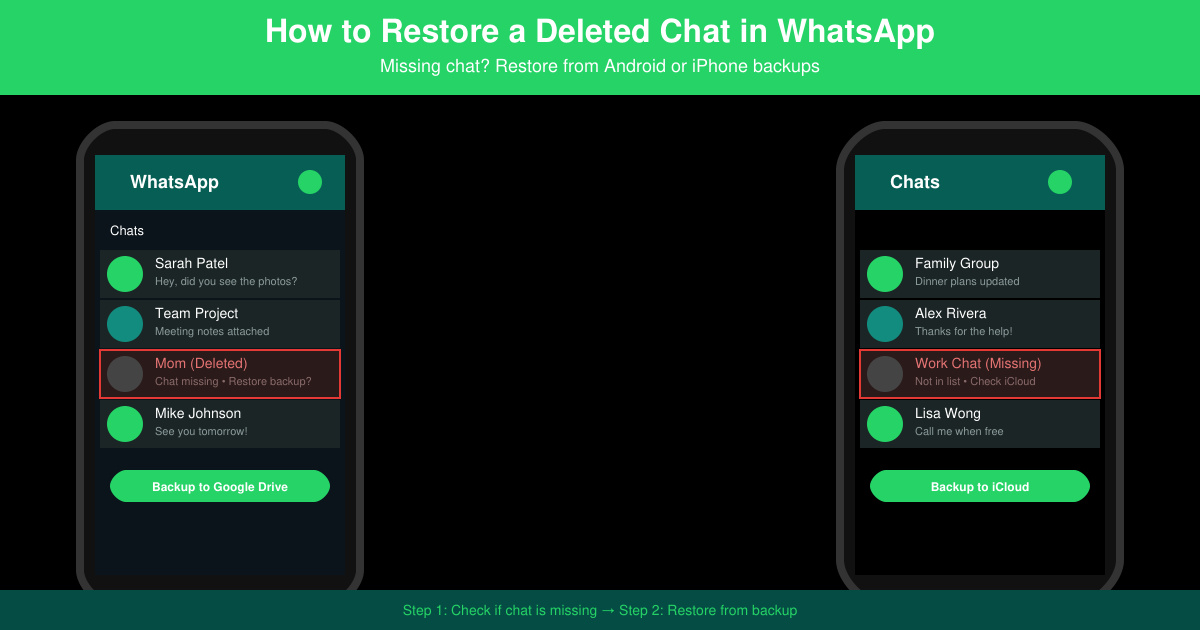
Learn exactly how to restore a deleted chat in WhatsApp on Android and iPhone using local or Google Drive backups. Follow these steps to recover conversations in minutes.
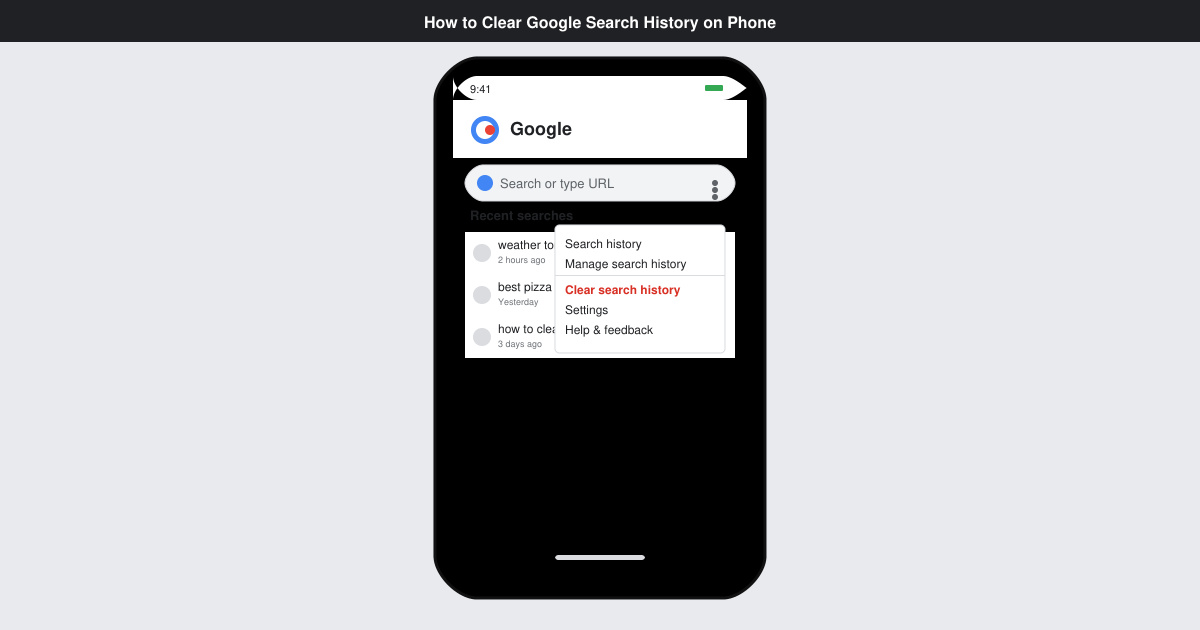
Learn how to clear Google search history on phone in just a few taps. Follow these exact steps for Android and iOS to remove search activity and improve privacy.
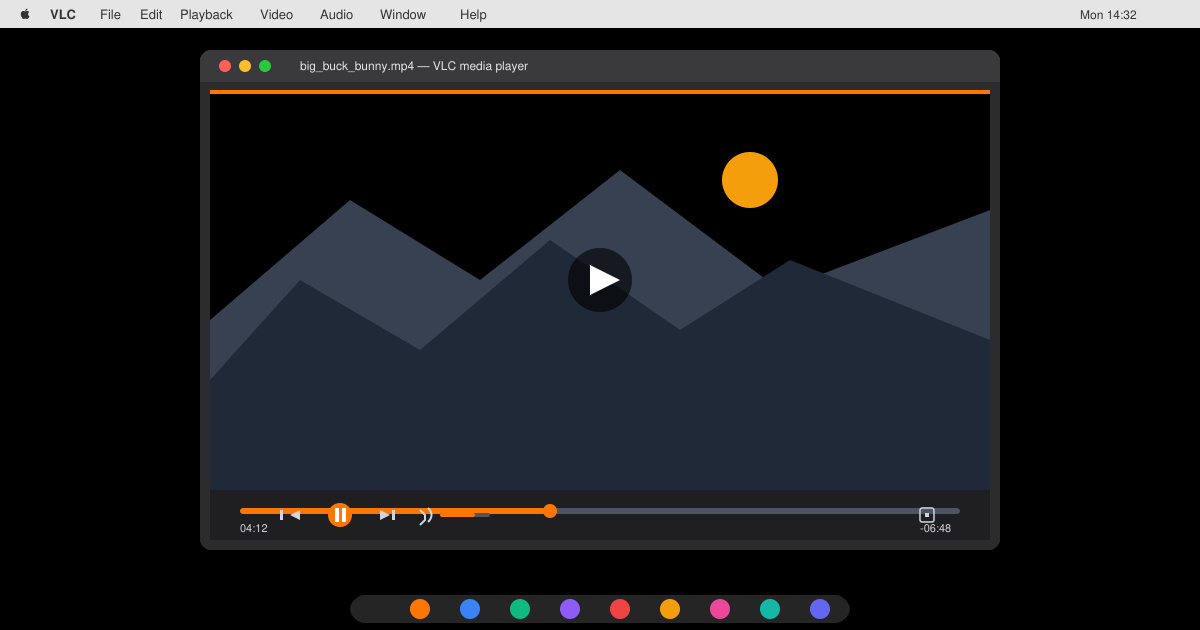
Complete your VLC Player Download Mac safely from the official source. This guide shows the exact steps to install VLC Media Player on macOS for reliable video and audio playback.
Learn how to Chromecast from iPhone to TV quickly and reliably. Follow these exact steps to stream videos, photos, and apps from your iPhone to any Chromecast device.