How to factory reset Toshiba TV

Video How to factory reset Toshiba TV

Factory reset on TV helps to return the TV to its original state, it is very normal and harmless to the TV . The following article will guide you how to factory reset Toshiba TV running Android operating system.

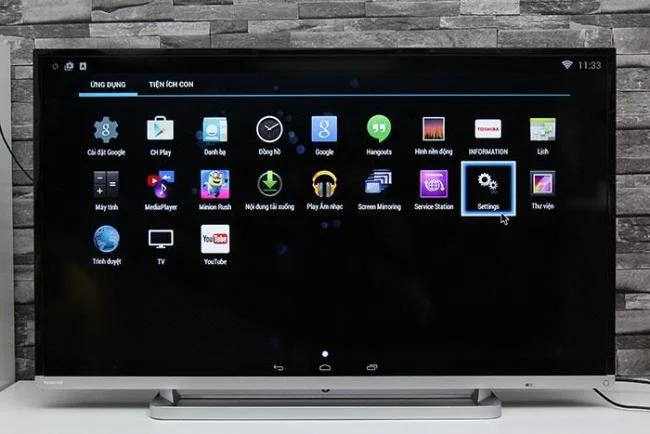
Step 1: Select Settings in the main interface screen of the TV

How to factory reset Toshiba TV
Click on Settings on TV

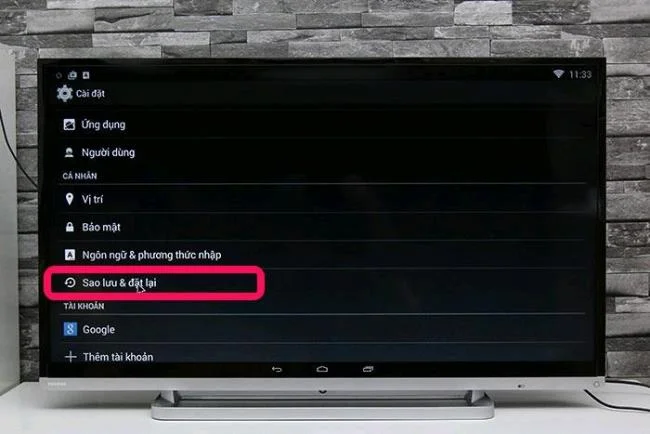
Step 2: Select the backup and reset

How to factory reset Toshiba TV
Choose on backup & reset

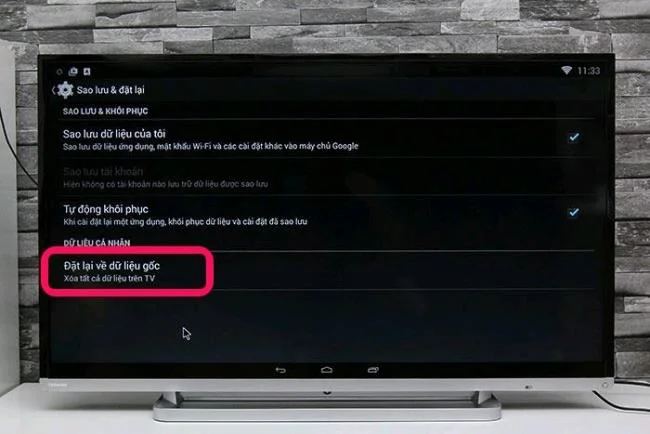
Step 3: In the backup and reset section select on Reset to original data

How to factory reset Toshiba TV
Select reset to original data

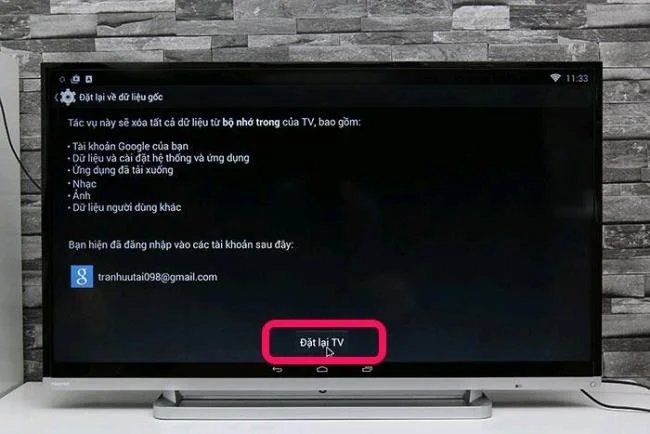
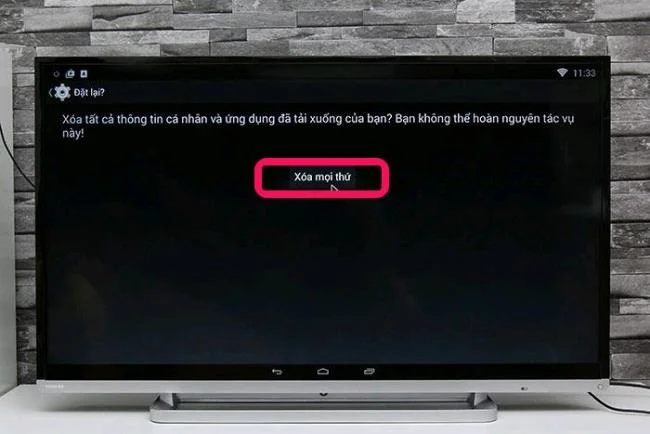
Step 4: Select Reset TV then confirm Erase Everything to delete the TV setting data

How to factory reset Toshiba TV
Select to reset TV
How to factory reset Toshiba TV
Confirm deletion of everything

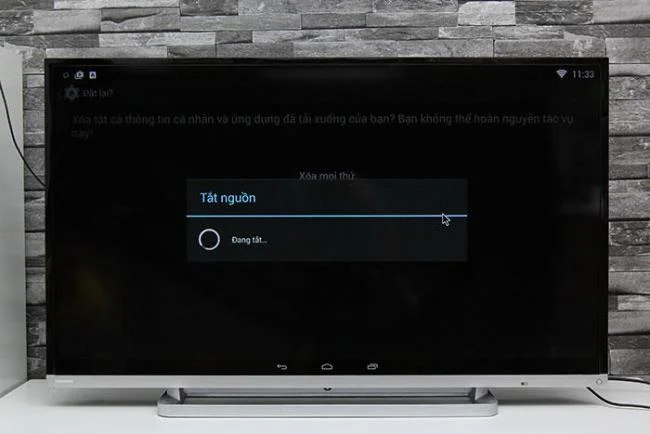
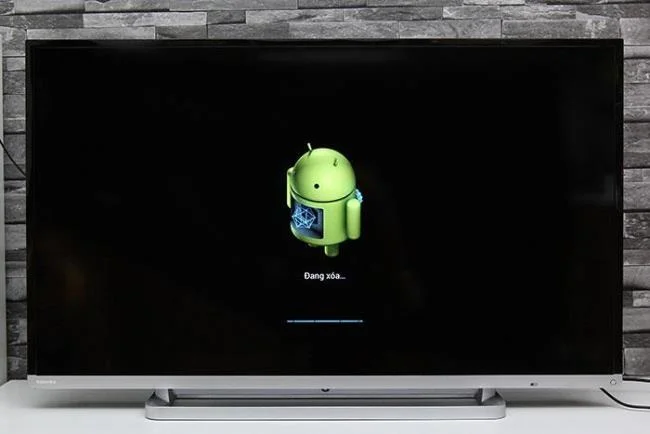
Step 5: At this time, the TV will turn off the power and the Android icon appears, wait a while (2 to 5 minutes) then can use the TV again as normal.

How to factory reset Toshiba TV
The TV shows power off when data is reset
How to factory reset Toshiba TV
Android icon appears when resetting the TV

Note:

+ When you clear the setting, all accounts saved on the TV will be lost
+ When reset TV, all apps will be lost

WebTech360

Leave a Comment

Enable FIPS Mode on SLES 15 and Verify the Boot State

Enable FIPS Mode on SLES 15 and Verify the Boot State

Follow SUSE’s SP7 procedure to enable FIPS mode, reboot safely, verify the active policy, and check whether your compliance requirement calls for validated modules.

Set Up a LUKS-Encrypted Data Volume on SLES

Set Up a LUKS-Encrypted Data Volume on SLES

Compare YaST and cryptsetup for a new encrypted SLES data volume, choose LUKS1 or LUKS2, and verify unlock and mount behavior safely.

Build a Custom AppArmor Profile on SUSE Linux

Build a Custom AppArmor Profile on SUSE Linux

Create, refine, and verify a least-privilege AppArmor profile on SLES 15 SP7, with a clear note on SLES 16’s SELinux default.

Build a Local SUSE Update Server with RMT on SLES 15

Build a Local SUSE Update Server with RMT on SLES 15

Set up RMT on SLES 15, mirror entitled repositories, and verify HTTPS registration and package access from a test client.

Join SLES 15 to Active Directory with SSSD in YaST

Join SLES 15 to Active Directory with SSSD in YaST

Connect SLES 15 to AD with YaST’s SSSD-based logon management, then verify directory lookup, domain login, and Kerberos tickets.

Enable SLES Live Patching and Verify a Kernel Fix

Enable SLES Live Patching and Verify a Kernel Fix

Set up the right Live Patching path for SLES 16.0 or 15 SP7, apply eligible kernel fixes, and confirm what is active without confusing it with a reboot-required kernel update.

Install and Sign Custom Kernel Modules on SLES 15 Secure Boot

Install and Sign Custom Kernel Modules on SLES 15 Secure Boot

Load a custom SLES 15 kernel module without disabling Secure Boot. Match the running kernel, sign the .ko file, enroll a MOK key, and verify loading.

Keep Services Available During a SLES 15 SP5 to SP6 Upgrade

Keep Services Available During a SLES 15 SP5 to SP6 Upgrade

SLES 15 SP5 can migrate online to SP6, but each node must reboot. Use a tested rolling upgrade or blue-green cutover to keep workloads reachable.

Apply the SLES 15 STIG Safely with OpenSCAP

Apply the SLES 15 STIG Safely with OpenSCAP

Use SUSE’s supported STIG profile to scan SLES 15, test remediation, review remaining findings, and retain assessment evidence.

Restore Cockpit Access to SUSE Linux Enterprise Server

Restore Cockpit Access to SUSE Linux Enterprise Server

Trace a failed Cockpit connection through DNS, port 9090, the systemd socket, firewalld, TLS, and login settings using current SUSE guidance.