How to fix error code 0x80004005

Error code 0x80004005 is an unknown Windows error that can be caused by a number of different issues. It is often associated with Windows Update, but it can also be caused by moving or renaming files and folders, Windows notifications from specific programs, and even when working with compressed files and folders.

Learn about error code 0x80004005 in Windows

How does error code 0x80004005 appear?
How to fix error code 0x80004005

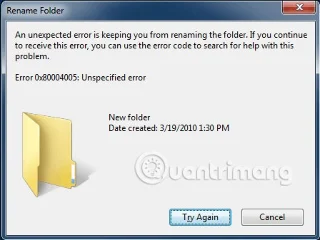
Error code 0x80004005 is an unknown error that can appear in a variety of places. Sometimes it appears alone. Other times, code 0x80004005 will appear along with a longer error message.

When error code 0x80004005 occurs, you will usually see a message like this:

Error Code 0x80004005
Unspecified error

Tip : If your error message contains more than just an error code, that extra text can be helpful in narrowing down the cause of the problem. Try searching Google for that text, instead of just using error code 0x80004005.

What causes error code 0x80004005?

How to fix error code 0x80004005

Error code 0x80004005 is an unknown Windows error that usually occurs when you try to access shared folders or drives, when you use a particular program, or when you have problems installing Windows updates.

Here are the most common causes of error code 0x80004005:

  • Problems with Windows Update
  • Problems with shared files or folders
  • Windows notification issues
  • Problems opening or unzipping compressed files and folders

How to fix error code 0x80004005

Since this is an unknown error, there are many different possible causes. If you notice it happening whenever you use a specific program, like Microsoft Outlook or a file extraction application, that may help you narrow down the specific fixes that can be applied. Otherwise, you’ll have to go through the following steps in order.

1. Run Windows Update troubleshooter : This error can be caused when Windows Update automatically fails or when the files downloaded by Windows Update are corrupted. The simplest fix and the first thing you should try is to run the automatic troubleshooter.

To access this troubleshooter, type "troubleshoot" in the search field on the taskbar, then select Windows Update > Run the troubleshooter . While the troubleshooter is running, follow the on-screen prompts.

2. Delete everything in the Windows Update download folder: If the automatic troubleshooter doesn't fix your problem, open File Explorer and navigate to C:\Windows\SoftwareDistribution\Download. Once that folder opens, select the contents to delete.

3. Run Windows Update : If your problem is related to Windows Update, you may need to finish downloading and installing updates to complete the fix. After running the troubleshooter and manually deleting files from your Windows Update folder, try running Windows Update again.

4. Delete Potentially Corrupted Temporary Files : In some cases, a corrupted temporary file will cause this error code. When that happens, the simplest fix is ​​to simply delete your temporary files. This can be done through the Windows Disk Cleanup tool, or you can do it manually, by typing “%temp%” into the search box on the taskbar. With the temporary folder open in File Explorer, select everything and delete it.

5. Disable Outlook's new mail notification feature : Microsoft Outlook is a program that is often associated with this error code. Specifically, the error code is usually generated when you receive new mail and Outlook notifies you of it. If you are using Outlook, you should try disabling this feature. If that fixes your problem, you will have to choose between disabling the feature or switching to another free email program.

6. Disable Antivirus Software : If you encounter error code 0x80004005 while using Microsoft Outlook and disabling notifications doesn't help, temporarily disabling your antivirus software will sometimes fix the problem. This is because the antivirus software incorrectly detects a problem related to the Microsoft Outlook application.

Quantrimang.com has instructions for disabling Windows Defender and removing Norton Antivirus . If you use another antivirus software and you can't figure out how to disable it, contact the developer.

Tip : Check out our list of free antivirus software that Quantrimang.com has suggested for an alternative, if disabling your antivirus seems to fix your problem. Note that disabling your antivirus can leave your system vulnerable to attack, and you may find another free option that works without causing error 0x80004005.

7. Try a different decompression program : Error code 0x80004005 sometimes originates from file decompression software. When this happens, you will see the error code appear, when trying to decompress or open compressed files, such as .zip and .rar files.

This fix is ​​simple, but it only works if you see this error when interacting with compressed files. If that’s the case, download and install an alternative decompression program and try using that.

8. Re-register jdscript.dll and vbscript.dll : If you still see the 0x80004005 error when trying to unzip the files, after trying some alternative programs, trying to re-register the two Dynamic Link Libraries (DLLs) may help. To do this, you will need to open a Command Prompt with admin rights.

Press the Windows+ key Rto open the Run box, type "cmd", press Ctrl+ Shift+ Enterand select Yes if prompted. When the Command Prompt opens, type the following command, then press Enter:

regsvr32 jscript.dll

Then enter the following command and press Enter:

regsvr32 vbscript.dll

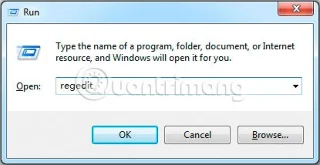
9. Add a key to the Windows Registry : If you suspect you are getting error 0x80004005 when copying or moving files, open regedit and navigate to HKLM\SOFTWARE\Microsoft\Windows\CurrentVersion\Policies\System.

How to fix error code 0x80004005

  • If you have a 32-bit system: Create a new DWORD value named LocalAccountTokenFilterPolicy
  • If you have a 64-bit system: Create a QWORD (64-bit) value called LocalAccountTokenFilterPolicy

In both cases, set the value to 1 (on), then select OK . You will then need to restart your computer to see if the problem is fixed.

Warning : Be careful when working with the Windows Registry. Don't delete or change anything unless you know what you're doing.

Good luck!
Tags: #System
Sign up and earn $1000 a day ⋙

Leave a Comment

Fix Windows Error Code 0xc0000098: Backup ACPI.sys to Prevent Boot Failure

Fix Windows Error Code 0xc0000098: Backup ACPI.sys to Prevent Boot Failure

Error code 0xc0000098 in Windows causes a blue screen error on startup. The ACPI.sys driver is often to blame, especially on unsupported versions of Windows 11 like 23H2 or 22H2 or Windows 10.

Quickly fix Windows 10/8/7 computer error that freezes and cannot exit Safe Mode

Quickly fix Windows 10/8/7 computer error that freezes and cannot exit Safe Mode

In some cases, sometimes you start your computer in Safe Mode and the computer freezes. So how to fix the error in this case, please refer to the article below of WebTech360.

How to fix Snipping Tool keeps showing error

How to fix Snipping Tool keeps showing error

Snipping Tool is a powerful photo and video capture tool on Windows. However, this tool sometimes has some errors, such as constantly displaying on the screen.

How to get the fastest internet connection from your router

How to get the fastest internet connection from your router

Every network has a router to access the Internet, but not everyone knows how to make the router work better. In this article, we will introduce some router tips to help speed up the wireless connection in the network.

Common Mistakes When Performing Internet Speed ​​Tests

Common Mistakes When Performing Internet Speed ​​Tests

If the results seem slower than expected, don't be too quick to blame your ISP - mistakes when performing the test can skew your numbers.

What is QoS? How to use QoS for faster Internet speeds when you need it most

What is QoS? How to use QoS for faster Internet speeds when you need it most

In the article below, we will introduce and guide you to learn about the concept of QoS - Quality of Service on router devices.

Why cant this built-in Credential Manager feature in Windows replace a password manager?

Why cant this built-in Credential Manager feature in Windows replace a password manager?

Windows has a built-in Credential Manager, but it's not what you think it is—and certainly not a replacement for a password manager.

How to install free HEVC codecs on Windows 10 (for H.265 video)

How to install free HEVC codecs on Windows 10 (for H.265 video)

Microsoft charges for its official codecs and doesn't include them in Windows 10. However, you can get them for free without pulling out your credit card and spending $0.99.

Instructions to fix Access Denied error when accessing files or folders on Windows

Instructions to fix Access Denied error when accessing files or folders on Windows

While having trouble accessing files and folders can be frustrating, don't panic—with a few simple tweaks, you can regain access to your system.

How to check if USB Boot has been created successfully?

How to check if USB Boot has been created successfully?

After creating a USB boot to install Windows, users should check the USB boot's performance to see if it was created successfully or not.

4 Types of Windows Data That Are Growing in Size: How to Control Them?

4 Types of Windows Data That Are Growing in Size: How to Control Them?

Although Windows Storage Sense efficiently deletes temporary files, some types of data are permanent and continue to accumulate.

How to turn off background apps in Windows 11, reduce RAM consumption on Win 11

How to turn off background apps in Windows 11, reduce RAM consumption on Win 11

You can turn off Windows 11 background apps to optimize performance, save battery and reduce RAM consumption.

Instructions to fix the error “Network path was not found” in Windows

Instructions to fix the error “Network path was not found” in Windows

When a computer, mobile device, or printer tries to connect to a Microsoft Windows computer over a network, for example, the error message network path was not found — Error 0x80070035 may appear.

How to block Internet connection of Windows 10 software and applications

How to block Internet connection of Windows 10 software and applications

We can block Internet access for any application or software on the computer, while other programs can still access the network. The following article will guide readers on how to disable Internet access for software and applications on Windows.

How to Stay Safe on Windows 10 Until 2030

How to Stay Safe on Windows 10 Until 2030

Instead of paying $30 for a year of security updates, keep Windows 10 safe until 2030 with this simple solution.

Fix Windows Error Code 0xc0000098: Backup ACPI.sys to Prevent Boot Failure

Fix Windows Error Code 0xc0000098: Backup ACPI.sys to Prevent Boot Failure

Error code 0xc0000098 in Windows causes a blue screen error on startup. The ACPI.sys driver is often to blame, especially on unsupported versions of Windows 11 like 23H2 or 22H2 or Windows 10.

Quickly fix Windows 10/8/7 computer error that freezes and cannot exit Safe Mode

Quickly fix Windows 10/8/7 computer error that freezes and cannot exit Safe Mode

In some cases, sometimes you start your computer in Safe Mode and the computer freezes. So how to fix the error in this case, please refer to the article below of WebTech360.

How to fix Snipping Tool keeps showing error

How to fix Snipping Tool keeps showing error

Snipping Tool is a powerful photo and video capture tool on Windows. However, this tool sometimes has some errors, such as constantly displaying on the screen.

How to get the fastest internet connection from your router

How to get the fastest internet connection from your router

Every network has a router to access the Internet, but not everyone knows how to make the router work better. In this article, we will introduce some router tips to help speed up the wireless connection in the network.

Common Mistakes When Performing Internet Speed ​​Tests

Common Mistakes When Performing Internet Speed ​​Tests

If the results seem slower than expected, don't be too quick to blame your ISP - mistakes when performing the test can skew your numbers.

What is QoS? How to use QoS for faster Internet speeds when you need it most

What is QoS? How to use QoS for faster Internet speeds when you need it most

In the article below, we will introduce and guide you to learn about the concept of QoS - Quality of Service on router devices.

Why cant this built-in Credential Manager feature in Windows replace a password manager?

Why cant this built-in Credential Manager feature in Windows replace a password manager?

Windows has a built-in Credential Manager, but it's not what you think it is—and certainly not a replacement for a password manager.

How to install free HEVC codecs on Windows 10 (for H.265 video)

How to install free HEVC codecs on Windows 10 (for H.265 video)

Microsoft charges for its official codecs and doesn't include them in Windows 10. However, you can get them for free without pulling out your credit card and spending $0.99.

Instructions to fix Access Denied error when accessing files or folders on Windows

Instructions to fix Access Denied error when accessing files or folders on Windows

While having trouble accessing files and folders can be frustrating, don't panic—with a few simple tweaks, you can regain access to your system.

How to check if USB Boot has been created successfully?

How to check if USB Boot has been created successfully?

After creating a USB boot to install Windows, users should check the USB boot's performance to see if it was created successfully or not.

4 Types of Windows Data That Are Growing in Size: How to Control Them?

4 Types of Windows Data That Are Growing in Size: How to Control Them?

Although Windows Storage Sense efficiently deletes temporary files, some types of data are permanent and continue to accumulate.

How to turn off background apps in Windows 11, reduce RAM consumption on Win 11

How to turn off background apps in Windows 11, reduce RAM consumption on Win 11

You can turn off Windows 11 background apps to optimize performance, save battery and reduce RAM consumption.

Instructions to fix the error “Network path was not found” in Windows

Instructions to fix the error “Network path was not found” in Windows

When a computer, mobile device, or printer tries to connect to a Microsoft Windows computer over a network, for example, the error message network path was not found — Error 0x80070035 may appear.

How to block Internet connection of Windows 10 software and applications

How to block Internet connection of Windows 10 software and applications

We can block Internet access for any application or software on the computer, while other programs can still access the network. The following article will guide readers on how to disable Internet access for software and applications on Windows.

How to Stay Safe on Windows 10 Until 2030

How to Stay Safe on Windows 10 Until 2030

Instead of paying $30 for a year of security updates, keep Windows 10 safe until 2030 with this simple solution.