Home
» PC Tips
»
How to increase C drive capacity in Windows 11/10/8/7
How to increase C drive capacity in Windows 11/10/8/7
Are you running out of space in your C drive (system partition) where your operating system is located? Do you know how to increase C drive space without losing data?
In this article, Quantrimang will introduce some solutions to safely increase system partition capacity without formatting or reinstalling the operating system in Windows 11/10/8/7.
Method 1: Increase C drive capacity in Disk Management
Windows Disk Management provides Extend Volume feature, which can increase partition size by adding unallocated disk space and this process does not cause data loss. But not all partitions can be extended in Disk Management, such as unallocated space can only be added to adjacent partitions.
Increase C drive capacity with adjacent unallocated space
Step 1 : Right-click on This PC/My Computer > Manage button and select Disk Management under Storage .
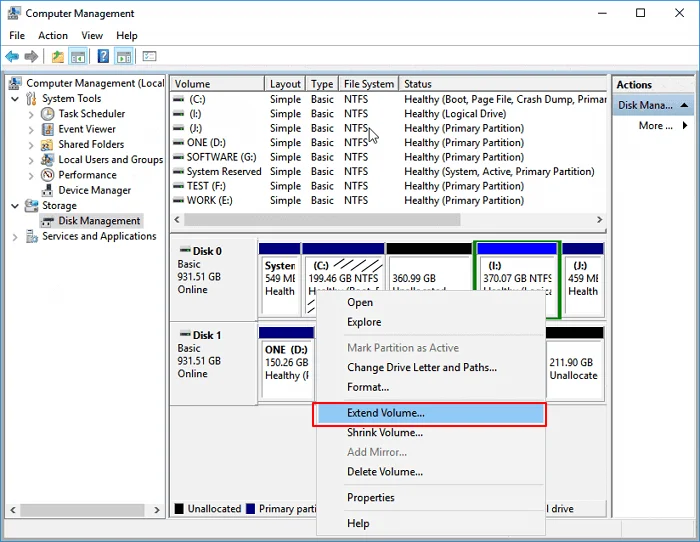
Step 2 : Right-click on drive C in Disk Management and select the Extend Volume option .
Extend Volume
Step 3 : Set and add more space to your system C drive, then click Next to continue.
Step 4 : Click the Finish button when the process is complete.
Limitations of Disk Management in increasing C drive capacity
- Extend Volume option is available for NTFS partition and FAT32 partition. exFAT partition is not supported.
- There must be unallocated disk space adjacent to the partition you want to extend and the unallocated space is on the right side in order.
Therefore, if there is no free disk space next to C drive (usually on the right side), the Extend Volume option will be grayed out. In that case, you can delete the adjacent partition to get the unallocated space and then add it to C drive, or you can move disk space from another partition to C drive using third-party software.
Extend C drive without unallocated space or no persistent unallocated space
To add unallocated space to drive C:
Step 1 . Right-click on This PC/My Computer and select Manage > Disk Management .
Step 2. Right-click on the adjacent partition next to drive C (default is drive D) and select Shrink Volume .
Step 3. Enter the desired capacity and click Shrink to confirm.
Click Shrink
Step 4 . Right click on local C drive and select Extend Volume .
Step 5. Follow the on-screen instructions to add space to your system's C drive.
Method 2: Extend C drive with EaseUS Partition Master software
EaseUS Partition Master is an easy-to-use disk partition tool for your PC. Partitioning and cloning drives can be a complicated task, especially if you are not computer savvy. EaseUS Partition Master can be a helpful solution in this case.
EaseUS partition manager software is designed for all levels of Windows users with a simple and intuitive interface. It supports free partition management, including increasing C drive space, shrinking or extending partition, merging non-adjacent partitions, etc.
The latest version of this tool is as easy to use and functional as its predecessors. For basic partition management, this is the perfect program. This tool is also available for the newly released Windows operating system, Windows 11.
To be fair, EaseUS Partition Master isn’t the prettiest tool out there. Its interface is basic and downright bland. However, for a partition manager, that’s probably something most users will be willing to forgive. If you’re new to partitioning or have fairly basic partitioning needs, EaseUS Partition Master is really the only tool you need to get the job done.
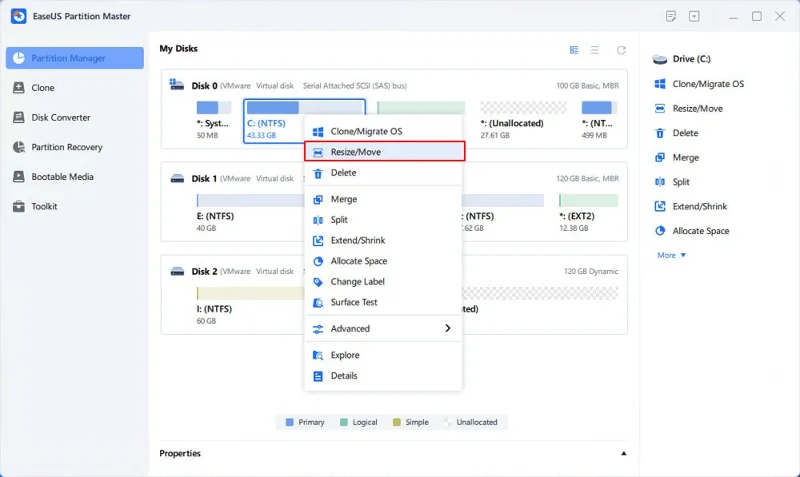
If there is unallocated space on the system drive, you can move to step 2 and start by right-clicking on the C drive and selecting Resize/Move.
Step 1 : Free up unallocated space for drive C.
If there is no unallocated space on the system drive, go to Partition Manager and right-click the partition next to C: drive and select Resize/Move.
Drag the left panel of the partition to shrink and leave unallocated space behind the system C: drive and click OK.
Step 2 : Increase C drive capacity.
1. Right-click on drive C: and select Resize/Move.
Extend system partition
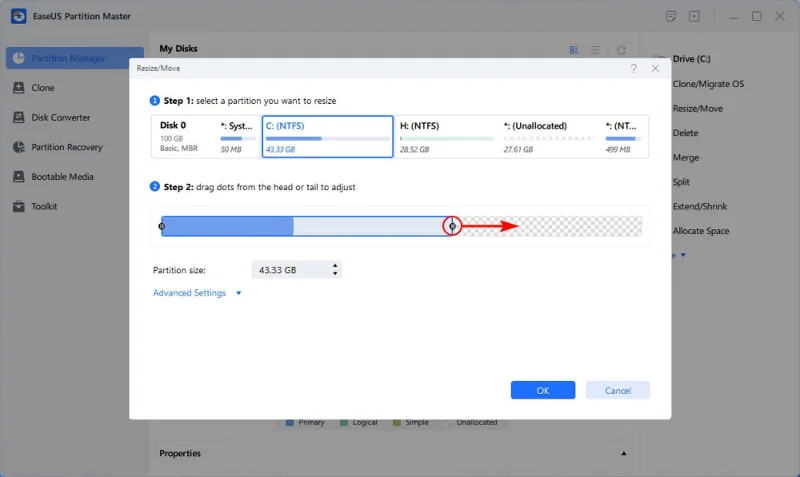
2. Drag the end of system partition to the unallocated space to add space to C: drive and click OK.
Add space to C drive
Step 3 : Keep all changes to extend C: drive.
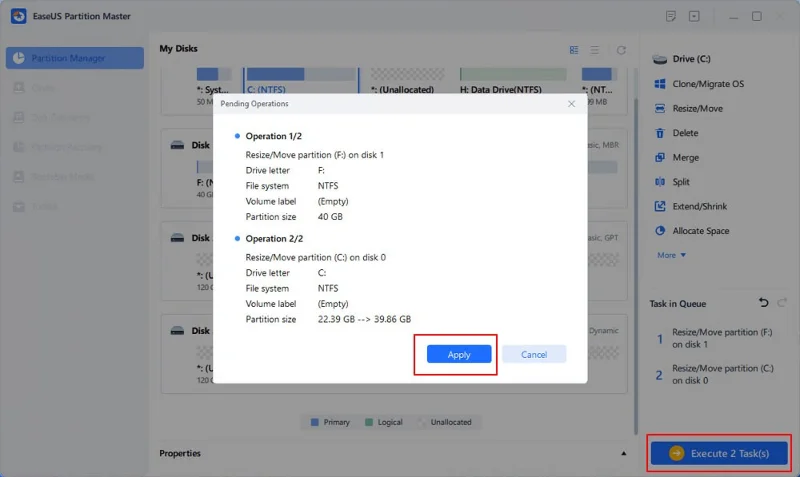
Click Execute Task > Apply to keep all changes and expand the system C: drive.
Confirm extending system C drive
Method 3: Expand C drive with DiskGenius Free software
If you find the Extend Volume option grayed out in Windows Disk Management, you will need to delete drive D which is the partition to the right of drive C so that you can create unallocated space and add it to drive C. You will need to transfer the data of drive D to another partition or external hard drive before deleting. However, there is an ideal alternative to increase C drive space without deleting any partitions.
DiskGenius Free provides the function of extending partition and it can move free disk space from other partitions to C drive directly. In addition to extending partition, it can resize volume, create partition, delete partition, hide partition, clone partition image, check bad sectors, recover lost data, etc. The following steps will show you how to extend C drive in Windows 10.
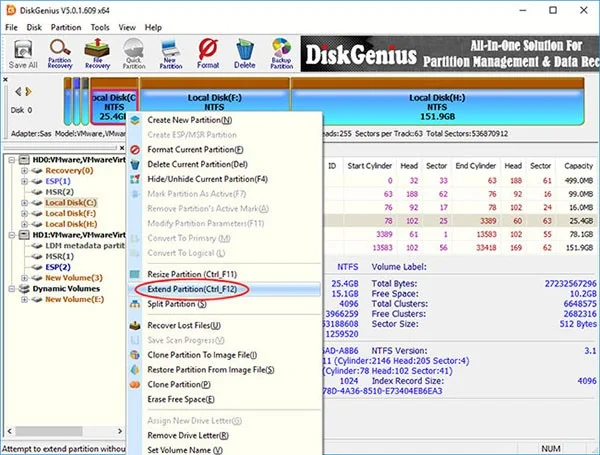
Step 1 : Download and launch DiskGenius Free Edition . Right-click on the C drive you want to increase the capacity of and select Extend Partition .
Select Extend Partition
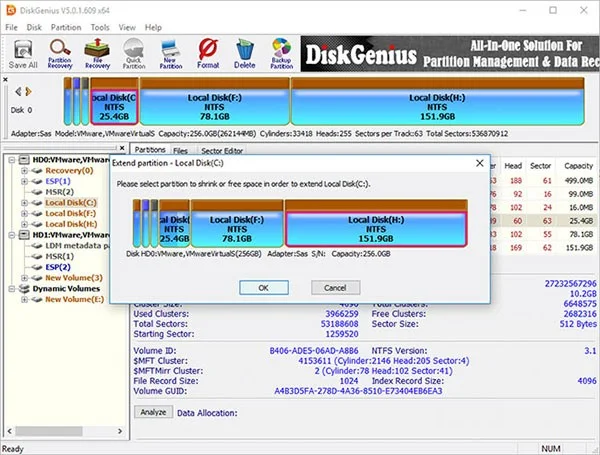
Step 2 : The Extend Partition window will appear. You need to select a partition with large free space and click the OK button.
The partition selected in this step must contain enough free space, because the software will transfer free space from this partition to C drive.
Select a partition with large free space
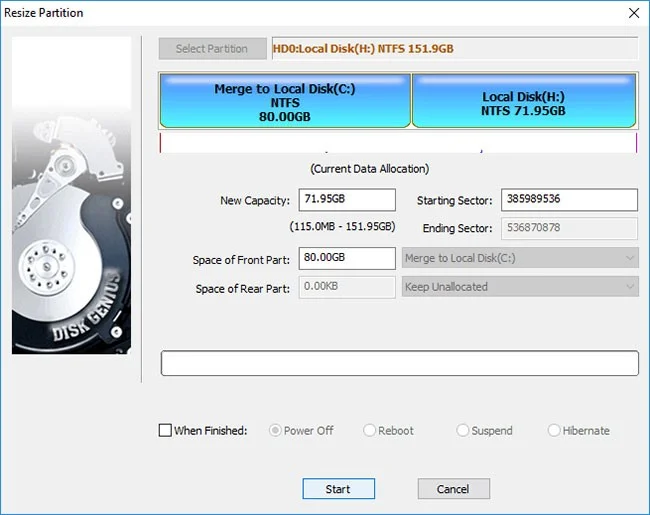
Step 3 : Set the disk space to be transferred to C drive and click the Start button. You can drag the partition bar to set the partition capacity or enter the exact capacity in the column.
Click the Start button
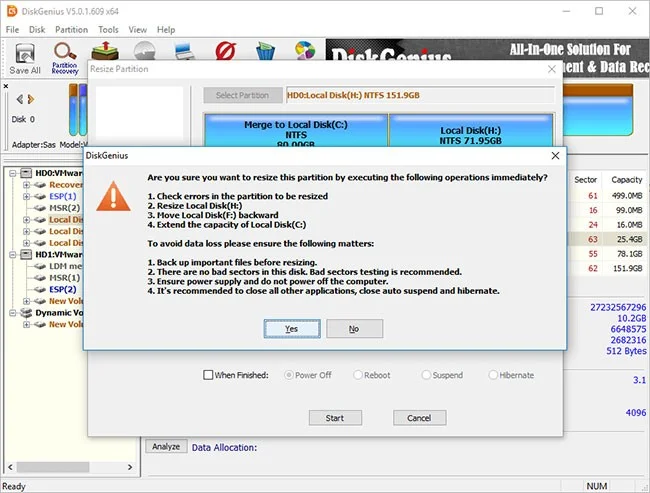
DiskGenius lists the steps to be followed during the resizing process and the things you need to keep in mind. Click Yes to continue.
Click Yes to continue
Note:
Resizing a partition involves too many operations, such as modifying the partition start and end locations, changing parameters in MBR and DBR, moving data, etc., so the process is not without risks even if the partition management software works stably. Therefore, the following issues should be ensured to make the extension process complete successfully:
There are no bad sectors on the drive, especially the relevant partitions.
Make sure the power supply is working properly and do not turn off the computer before the partition resizing process is finished.
Close all other programs that are accessing the partitions being moved space.
Turn off system hibernation so that the computer does not go into hibernation during the process of expanding C drive.
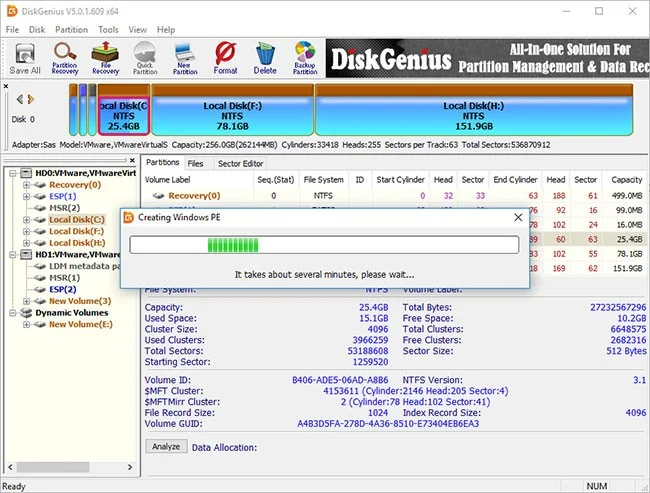
Since the extended partition is a system partition, DiskGenius will boot into its WinPE version to complete the remaining operations. Now, the WinPE environment will be prepared for the DiskGenius WinPE version, and then the computer will automatically reboot into the WinPE version.
The computer will automatically reboot to the WinPE version.
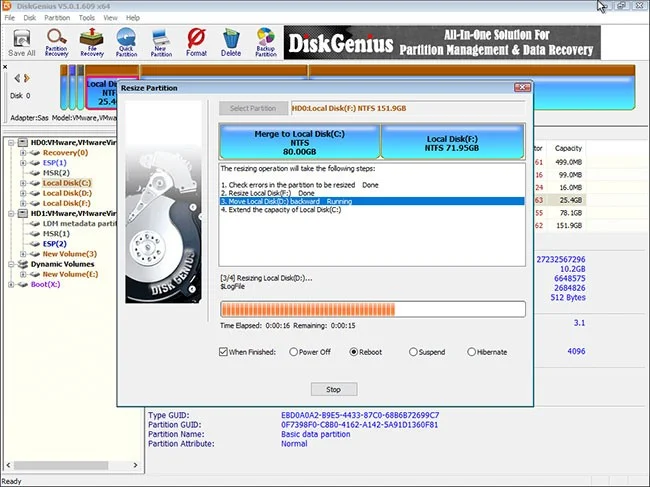
Now, DiskGenius WinPE version is launched automatically and continues to expand C drive, as below. When the resizing process is complete, the computer will automatically restart Windows.
Method 4: Increase system partition size using diskpart command
The DiskPart command-line utility is part of the Microsoft Windows family (Windows 8, 8.1, 7, Vista, XP, and Server 2003). DiskPart is a text-mode command interpreter. It allows you to manage objects (drives, partitions, or volumes) using scripts or by typing them directly at the command prompt. Diskpart is a built-in Windows utility that includes the functionality to manage drives and partitions through commands.
It allows you to create, delete, and format partitions on your hard drive. Diskpart is capable of creating primary and extended partitions as well as logical drives within an extended partition. You can also use diskpart to set the active partition on a drive. Additionally, diskpart can be used to assign drive letters and mount drives. Diskpart commands can be executed from the Windows command prompt or in a batch file.
To use diskpart, you must first open the Command Prompt. When the Command Prompt window opens, type "diskpart" and press Enter. This will launch the Diskpart utility. You can enter various commands to manage your disk partitions. For a full list of available commands, type "help" at the diskpart prompt.