How to Download Chrome on Macbook
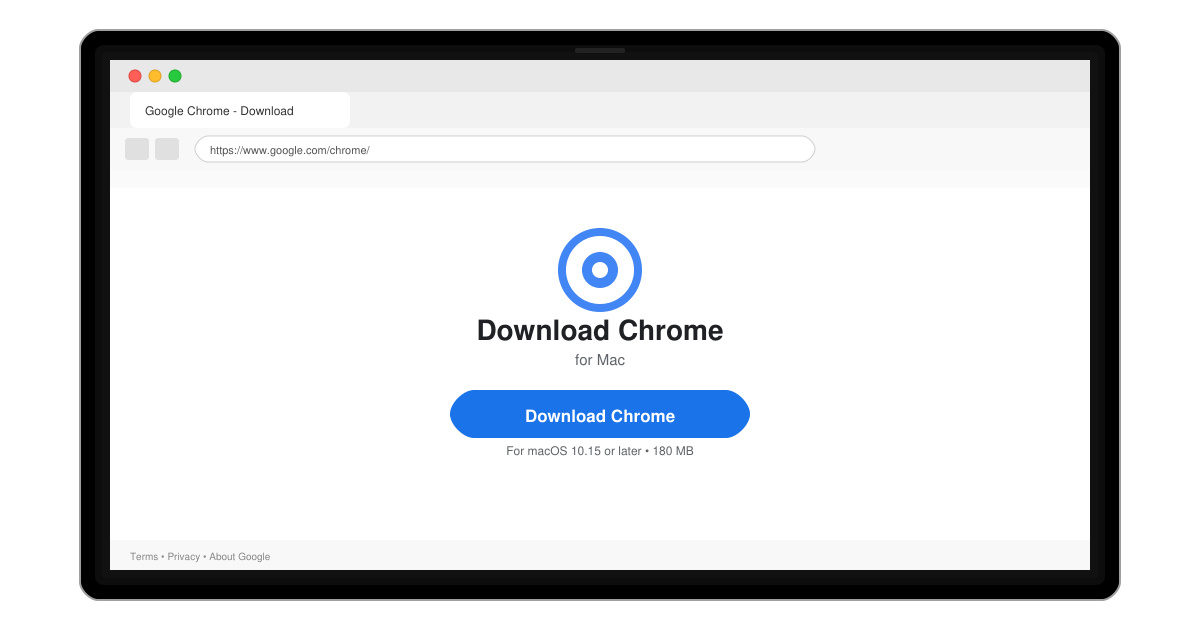
Follow this guide on how to download Chrome on Macbook to get Google Chrome running quickly and safely on your device.
Google Maps is a map viewing application that many people use today. With this application, we can find directions to any location we need to go to. In particular, for iPhone users, we can easily find directions on the phone's main screen without having to access the Google Maps application.
With this feature, the Google Maps utility on iPhone will bring you many utilities such as your location, regular positioning, and shortcuts for quick directions to familiar locations right on the screen. The following are the steps to install the Google Maps widget with many navigation utilities on the iPhone . Please follow the article.
Instructions for adding Google Maps widget on iPhone home screen
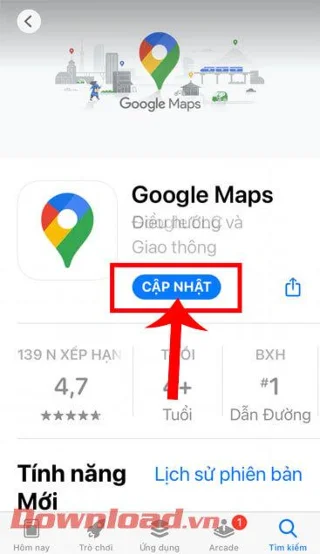
Step 1: To use this exciting feature, we need to update the latest version of the Google Maps application on our phone.
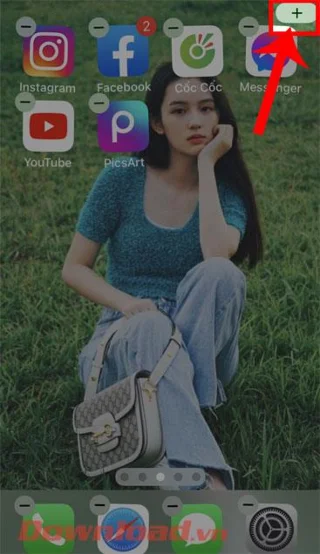
Step 2: At the main interface of the iPhone, press and hold the screen, then press the "+" icon .
Step 3: Now, in the Utility Search window , touch the Google Maps application .
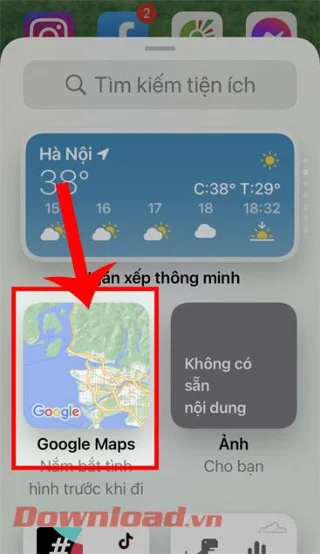
Step 4: Choose the size of the widget when displayed on the screen, then click the Add widget button.
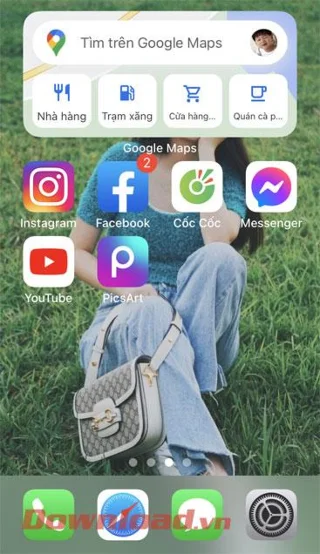
Step 5: Finally, returning to the iPhone's home screen, we will see the Google Maps widget displayed on the screen and we can start viewing the map and finding directions using this widget.

In addition, you can refer to some other tips articles about iPhone such as:
Wishing you success!
Follow this guide on how to download Chrome on Macbook to get Google Chrome running quickly and safely on your device.
Discover exactly how to find your WhatsApp number on Android, iPhone, and desktop in under a minute. Follow these clear steps to view the number linked to your account.
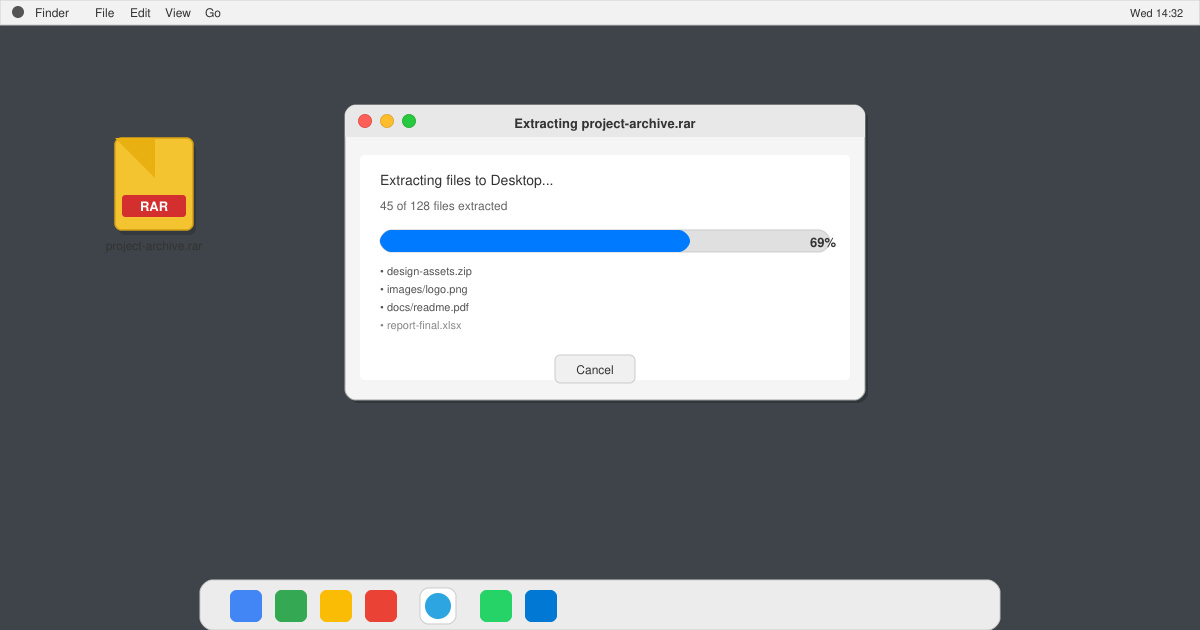
Learn how to open RAR file in Mac OS using free tools. This guide shows the fastest ways to extract RAR archives on your Mac in minutes.
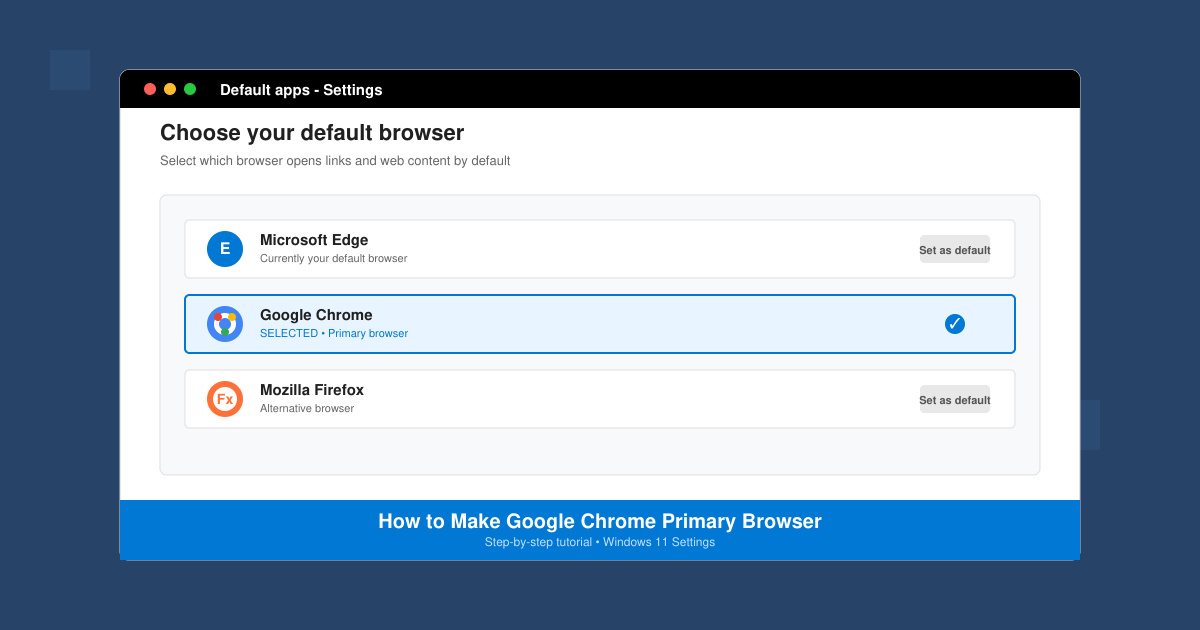
How to make Google Chrome primary browser on Windows, macOS, Android, and iOS with clear step-by-step instructions. Set Chrome as your default browser in minutes for better speed and sync.
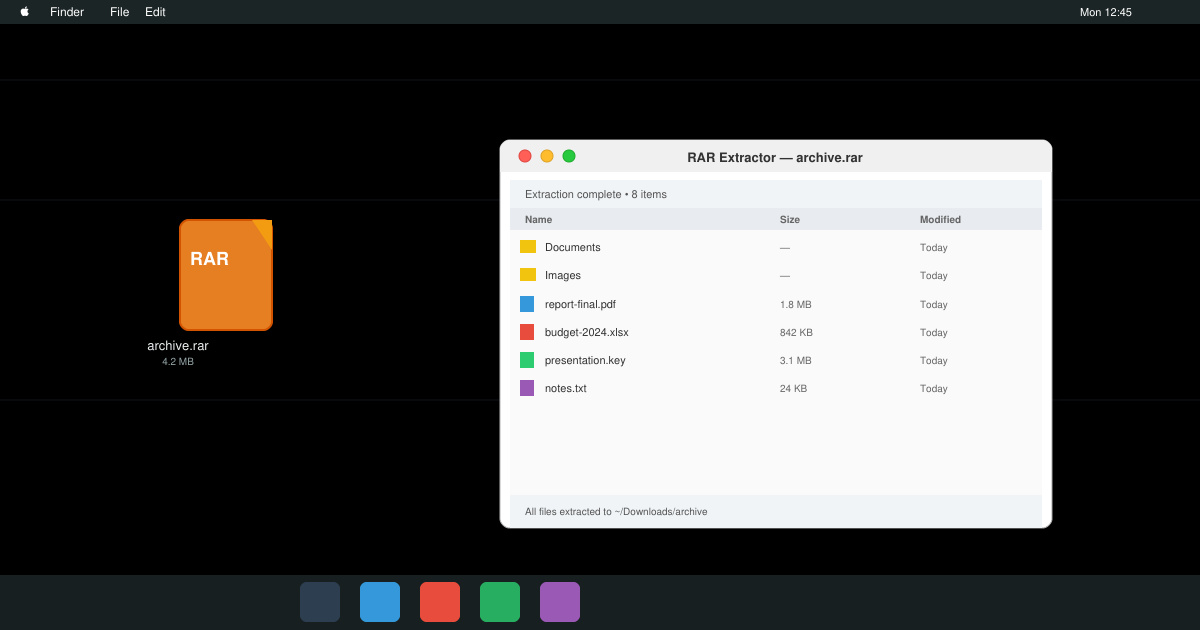
Need a rar program for mac to open RAR files? Learn the fastest way to install and use a reliable extractor on macOS in minutes.
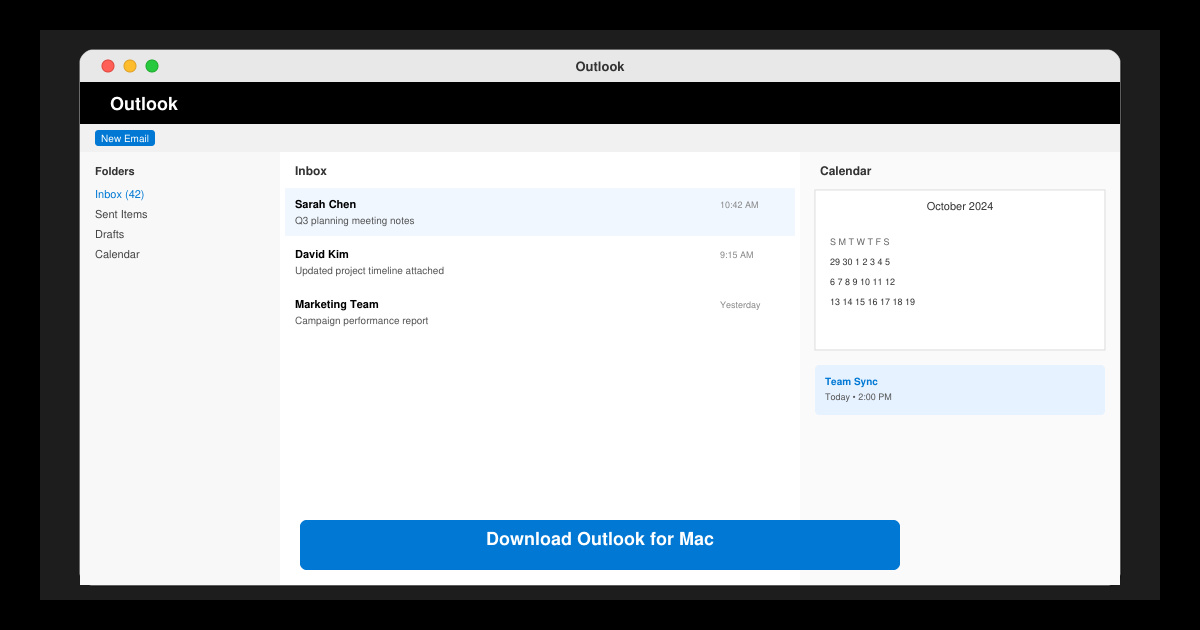
Download Outlook for Mac from the official Microsoft source and install it on your Mac in minutes. Follow this guide for the latest version compatible with macOS.
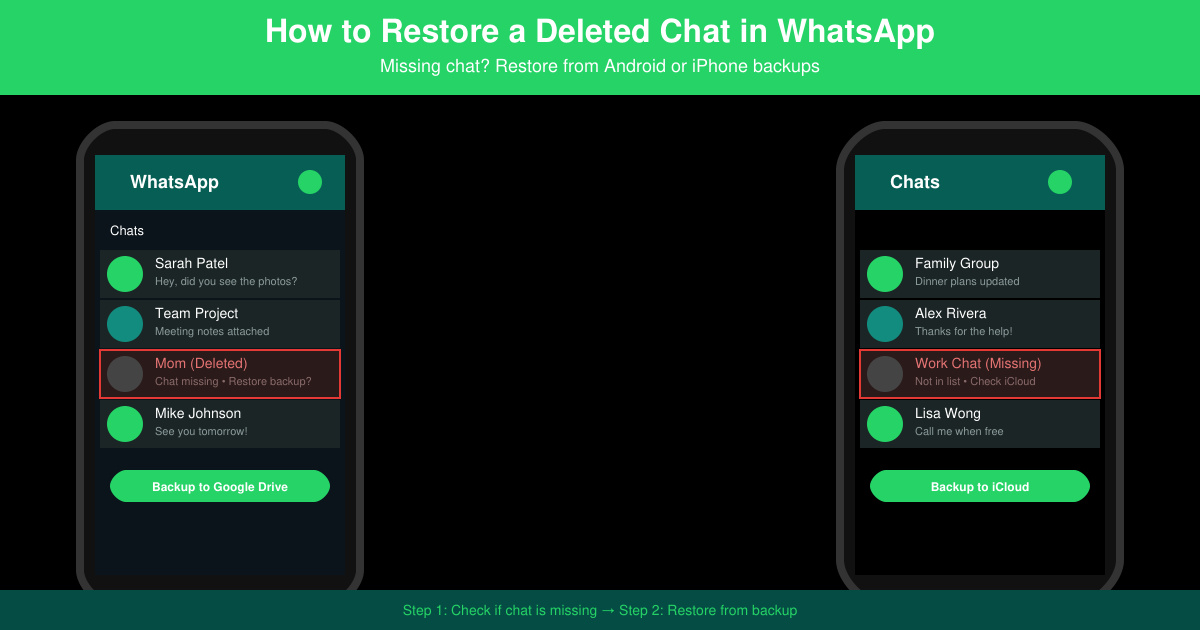
Learn exactly how to restore a deleted chat in WhatsApp on Android and iPhone using local or Google Drive backups. Follow these steps to recover conversations in minutes.
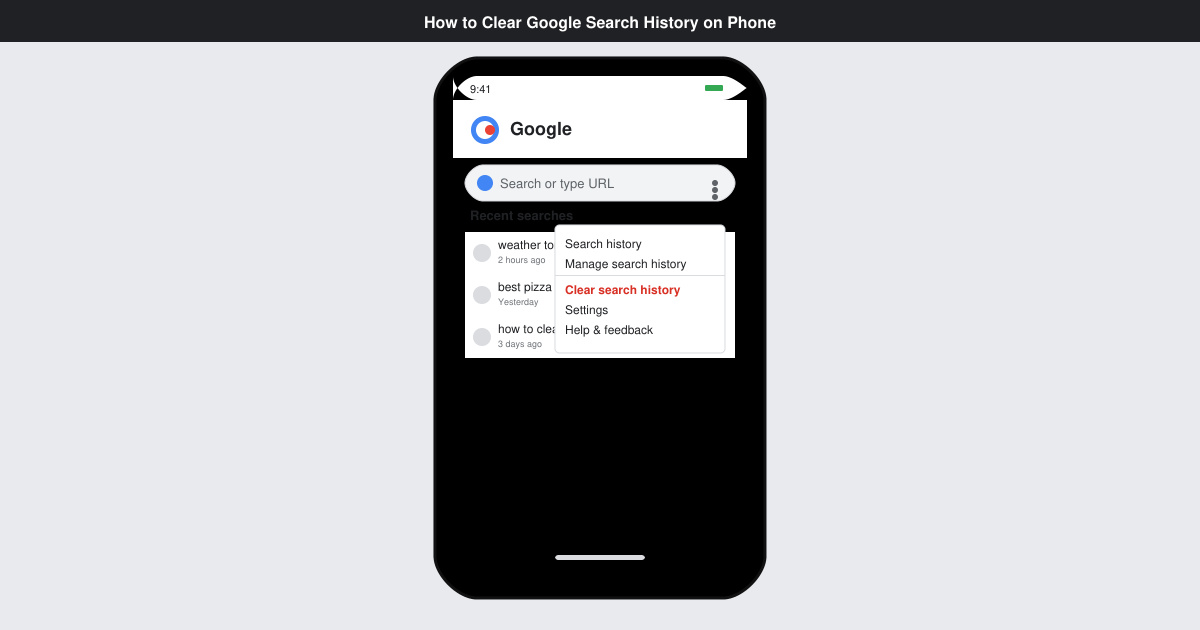
Learn how to clear Google search history on phone in just a few taps. Follow these exact steps for Android and iOS to remove search activity and improve privacy.
Complete your VLC Player Download Mac safely from the official source. This guide shows the exact steps to install VLC Media Player on macOS for reliable video and audio playback.
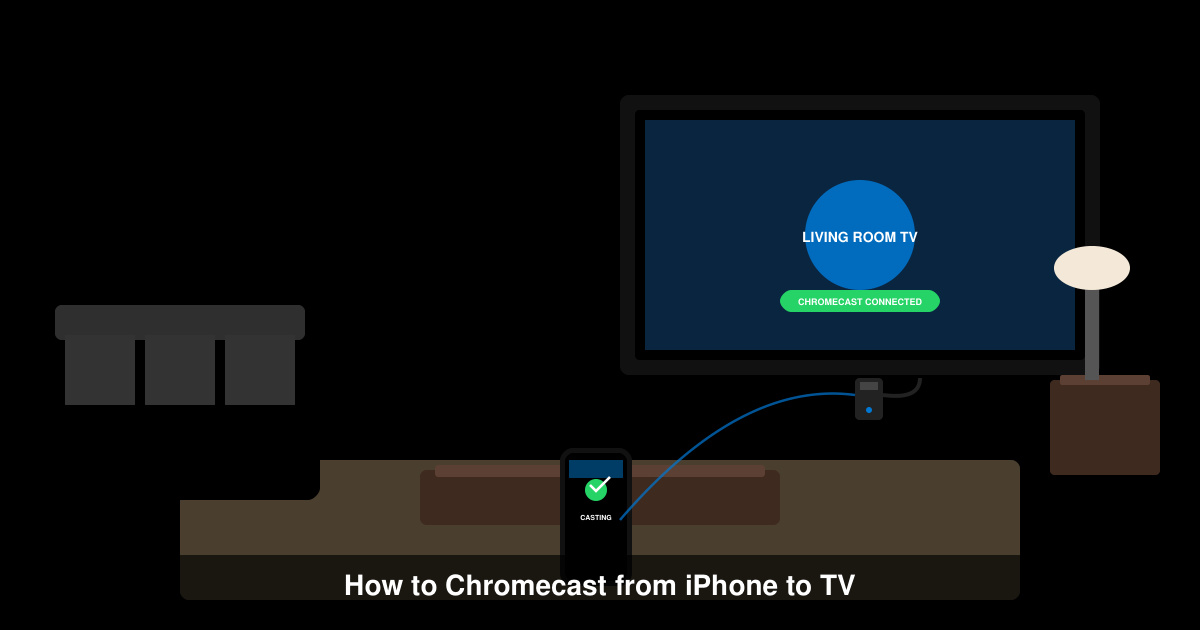
Learn how to Chromecast from iPhone to TV quickly and reliably. Follow these exact steps to stream videos, photos, and apps from your iPhone to any Chromecast device.