If you're tired of links opening in a browser you don't prefer, learning How to Make Google Chrome Main Browser puts all your web activity in one fast, secure place. The process differs slightly by operating system but stays simple once you know the exact menus. This guide covers the most common platforms so you can finish the switch quickly and start using Chrome as your main browser right away.
Why switch to Google Chrome as your main browser
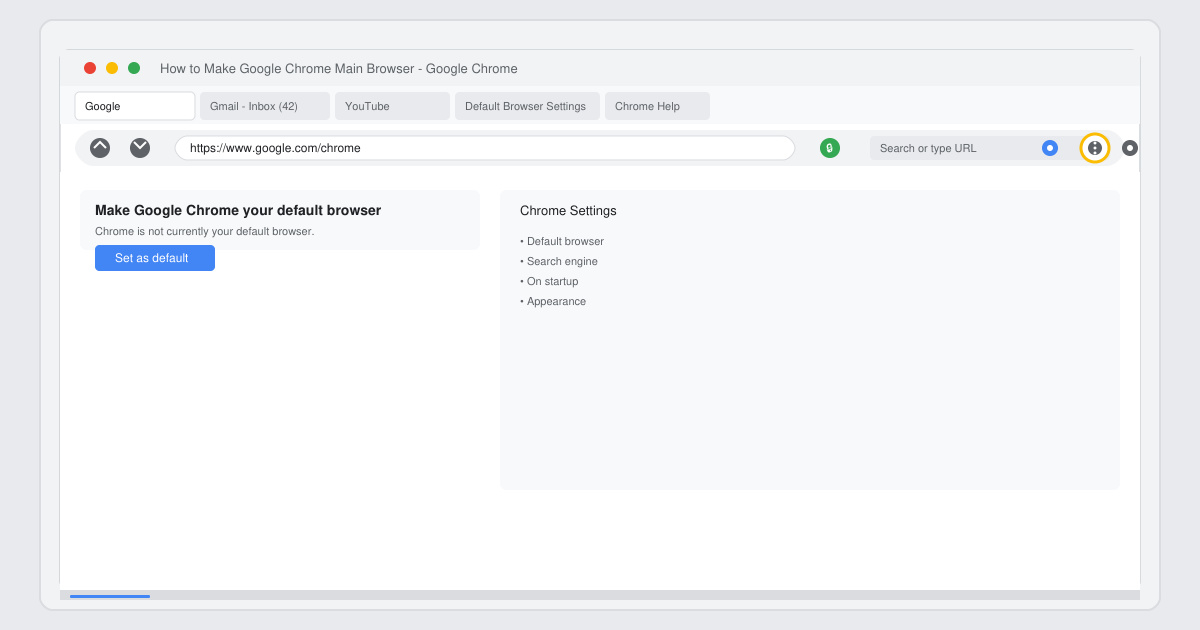
Google Chrome offers strong speed, automatic updates, and seamless sync across devices when it handles all your links and web tasks. Before changing anything, confirm Chrome is already installed on your computer or phone. If not, download it from the official Google site first.
How to Make Google Chrome Main Browser on Windows
-
Open Windows Settings and locate default apps
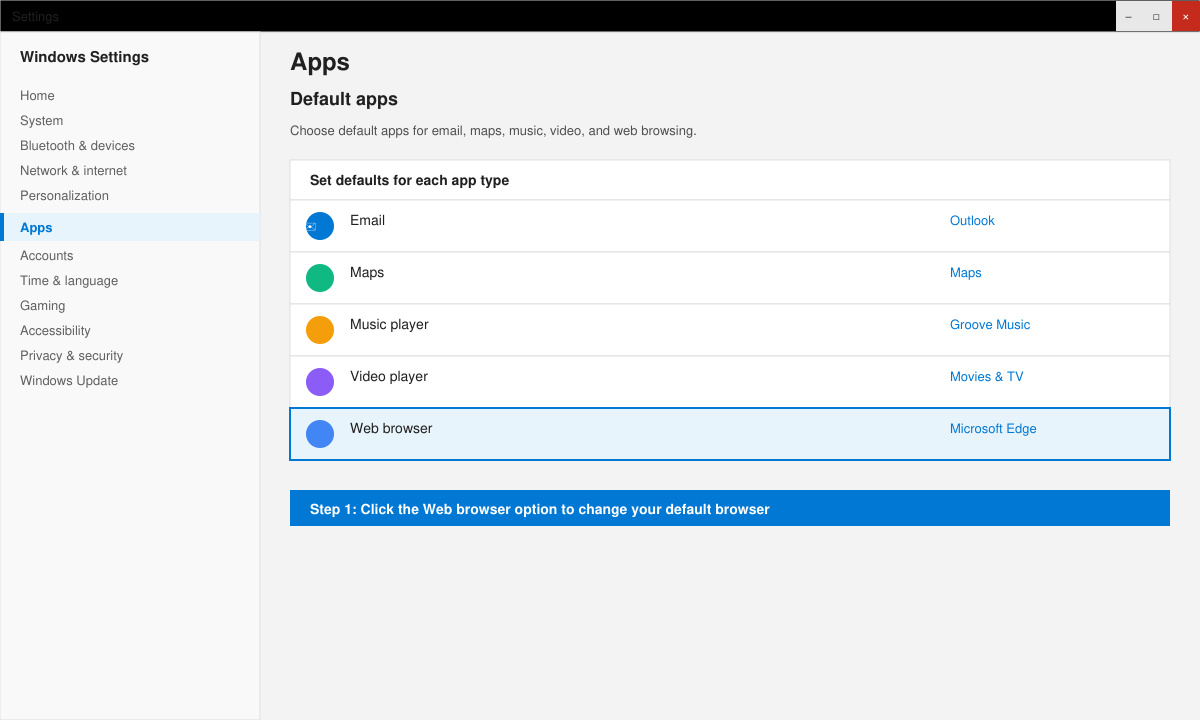
Click the Start button, then select the gear icon labeled Settings. In the left sidebar click Apps, followed by Default apps on the right side.
-
Choose Google Chrome as the web browser
Scroll to the Web browser heading and click the current browser name. Select Google Chrome from the list that appears. Close the Settings window to save the change.
-
Test the new default setting
Open any link from an email or document. The page should now load directly in Google Chrome instead of the previous browser.
How to Make Google Chrome Main Browser on macOS
-
Open System Settings and find the browser option
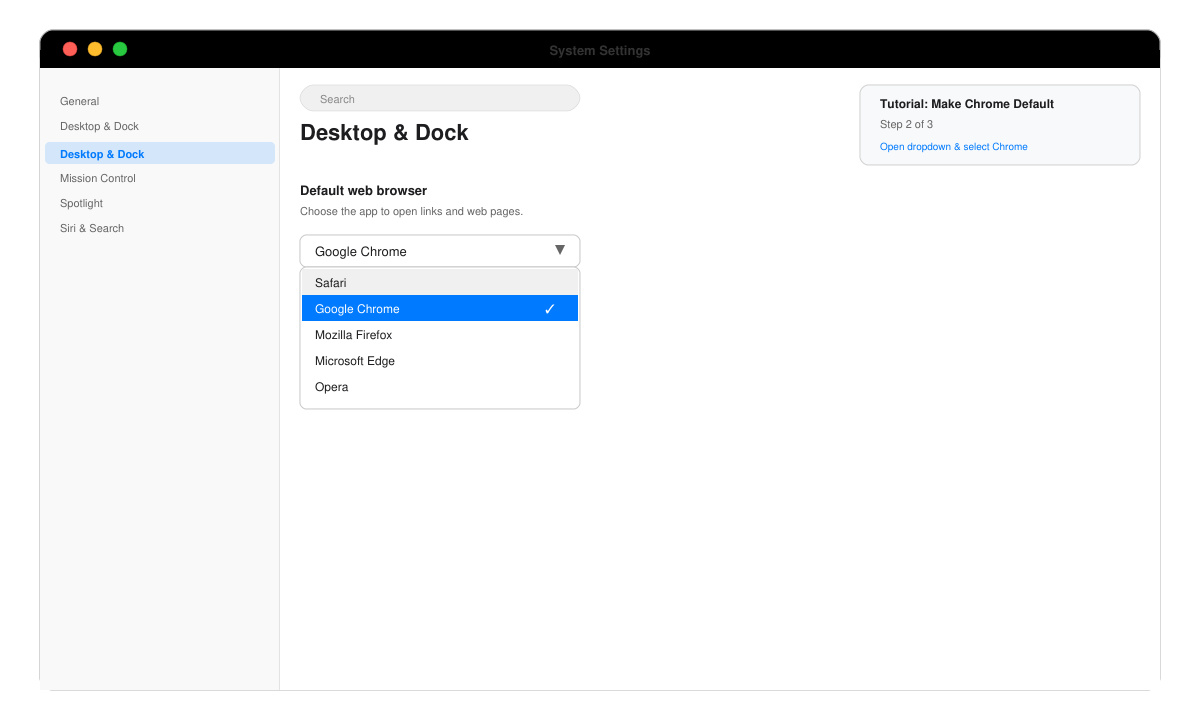
Click the Apple menu, choose System Settings, then scroll down and click Desktop & Dock in the sidebar.
-
Select Google Chrome in the default web browser menu
Locate the Default web browser dropdown near the top and choose Google Chrome. The change applies immediately.
-
Verify on a test link
Click a hyperlink in Mail or Notes. The content opens in Chrome, confirming it is now your main browser.
Common issues and quick fixes when setting Chrome as default
On Windows, if the option does not appear, restart your computer after installing Chrome so the system recognizes it. On macOS, make sure you have granted Chrome permission to open links by launching it once before changing the setting. Mobile users on Android can go to Settings > Apps > Default apps > Browser app and tap Chrome; iOS users must open Chrome, go to Settings inside the app, and enable the default browser toggle.
Frequently asked questions
Does making Chrome the main browser affect bookmarks?
No. Your existing bookmarks stay in the previous browser, but you can import them into Chrome during the first launch or later via the three-dot menu under Bookmarks.
Can I keep another browser installed after switching?
Yes. You can leave other browsers on your device; only links and file associations change to Chrome.
Will this process work on Chromebooks?
Chromebooks already use Chrome as the main browser, so no change is needed.
Conclusion
Following the steps above completes How to Make Google Chrome Main Browser on any major platform in under five minutes and gives you consistent access to Chrome features everywhere.