How to Download Chrome on Macbook
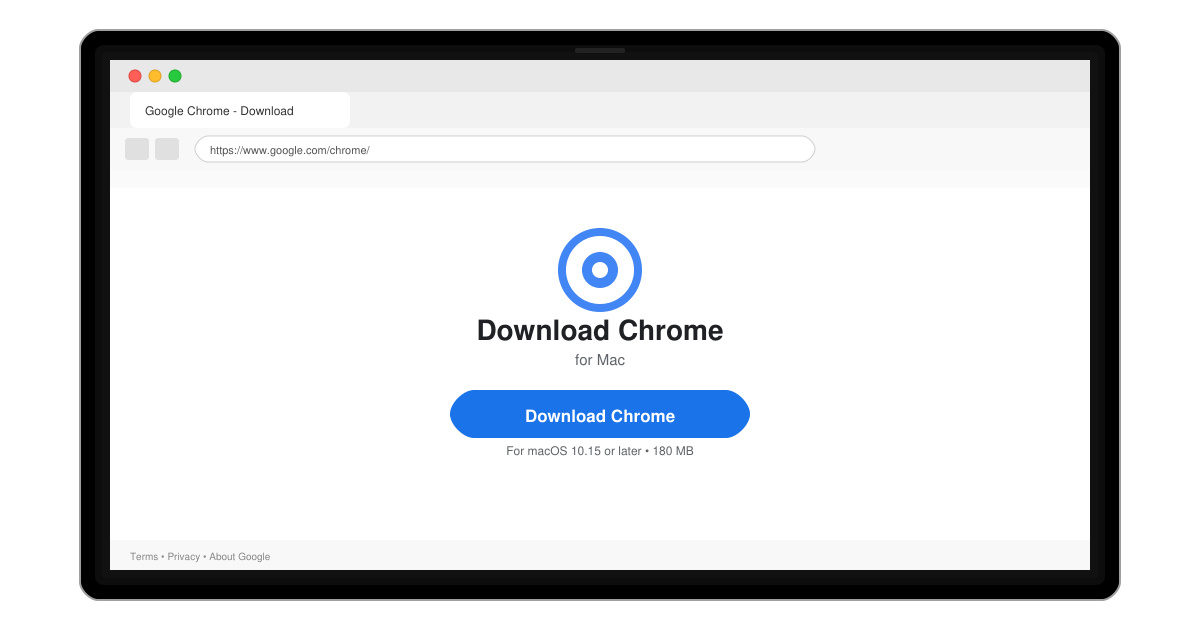
Follow this guide on how to download Chrome on Macbook to get Google Chrome running quickly and safely on your device.
If you want every link you click to open in Google Chrome instead of another browser, you need to make Google Chrome your default web browser. The process takes under two minutes on any device and works the same whether you use Windows, macOS, Android, or iOS. Follow the exact steps below for your operating system.
Make sure Google Chrome is already installed on your device. If it is not, download it directly from google.com/chrome. Close any other browsers that might be running so the change registers immediately. You will also need administrator access on a computer or the ability to change settings on a phone.
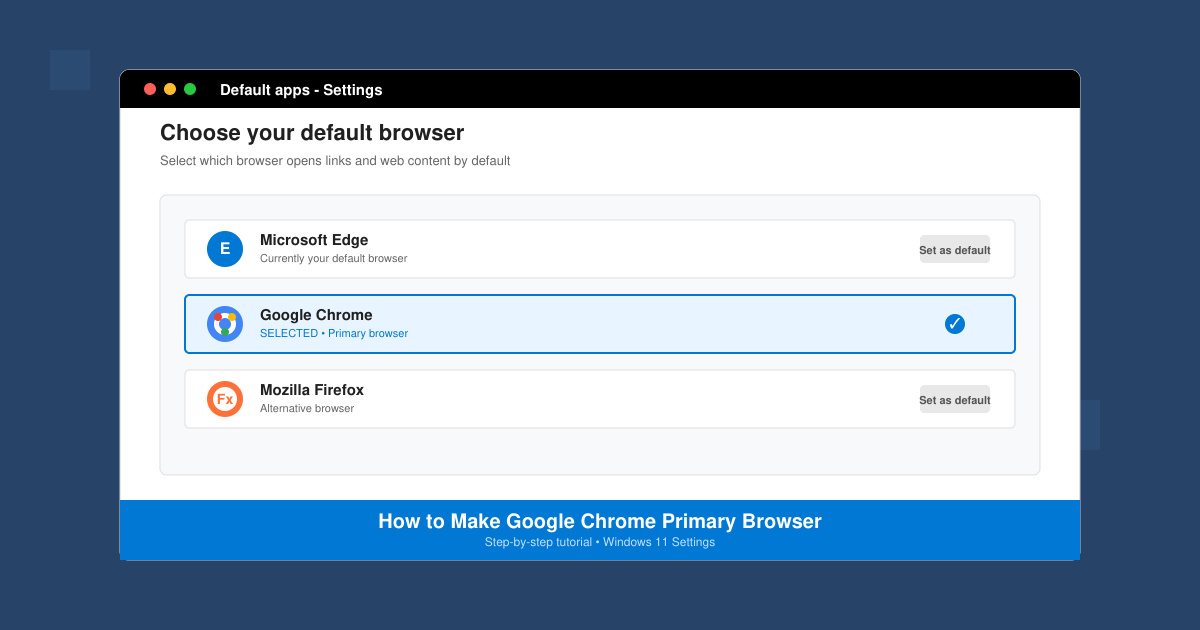
Click the Start button, then select the gear-shaped Settings icon. In the left sidebar, click Apps, then choose Default apps from the list that appears.
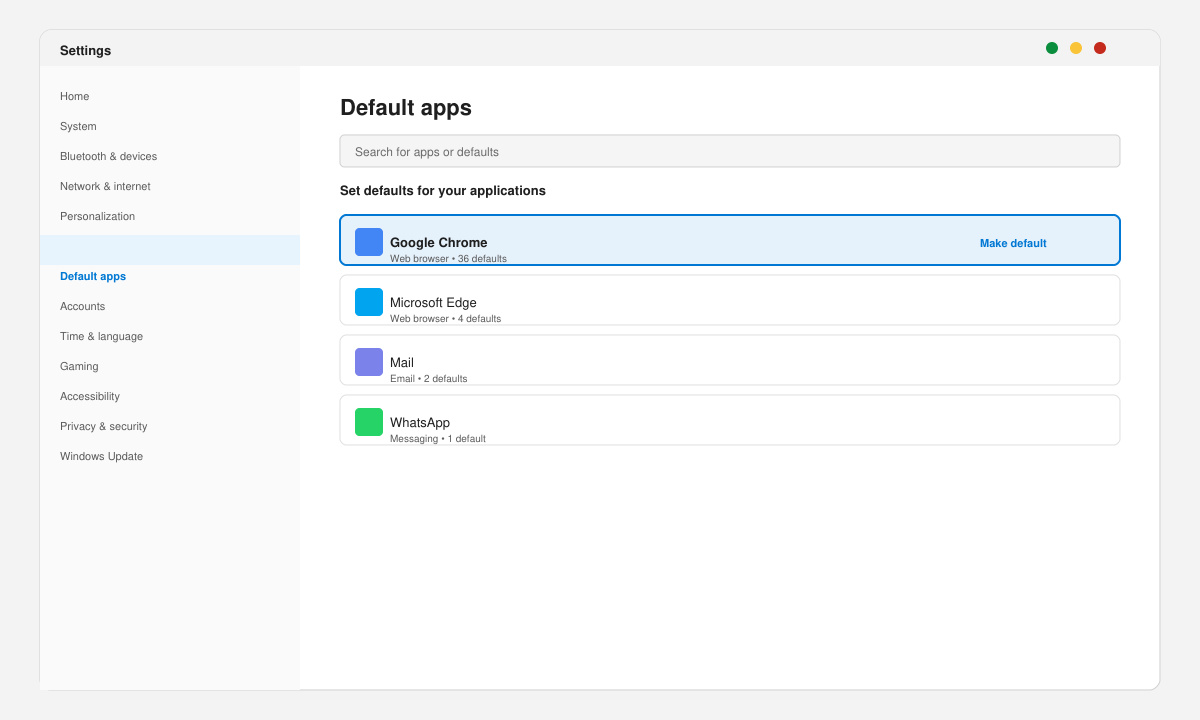
Scroll down to the list of apps. Click Google Chrome. Under each file type such as .htm, .html, and HTTP, select Google Chrome from the dropdown menu. Repeat for all web-related file types until every entry shows Google Chrome.
Close Settings, then click any link in an email or document. The link should now open in Google Chrome instead of Edge or another browser.
Click the Apple menu in the top-left corner and select System Settings. Scroll down and click Desktop & Dock in the sidebar.
Locate the Default web browser dropdown near the top. Click it and select Google Chrome from the list of installed browsers.
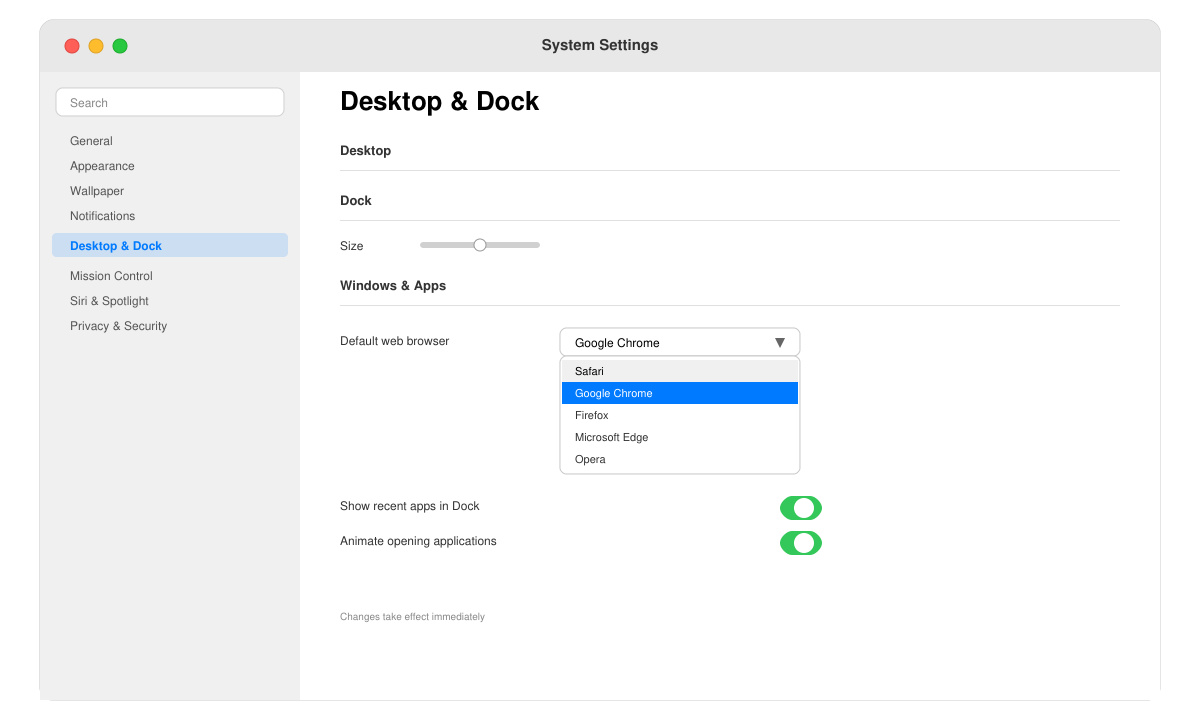
Open Safari or another browser and click a link. It should now launch directly in Google Chrome.
On Android, open Settings, tap Apps, then tap Default apps. Select Browser app and choose Google Chrome. On iOS, go to Settings, scroll to Chrome, tap Default Browser App, and select Chrome. Both changes take effect immediately for new links.
No. Your existing bookmarks, passwords, and extensions stay inside Chrome regardless of the default browser setting.
Yes. Simply repeat the same steps and select the other browser instead of Google Chrome.
ChromeOS uses Google Chrome automatically, so no change is needed.
Once you complete these steps, Google Chrome becomes your default web browser on the chosen device and all future links open there automatically.
Follow this guide on how to download Chrome on Macbook to get Google Chrome running quickly and safely on your device.
Discover exactly how to find your WhatsApp number on Android, iPhone, and desktop in under a minute. Follow these clear steps to view the number linked to your account.
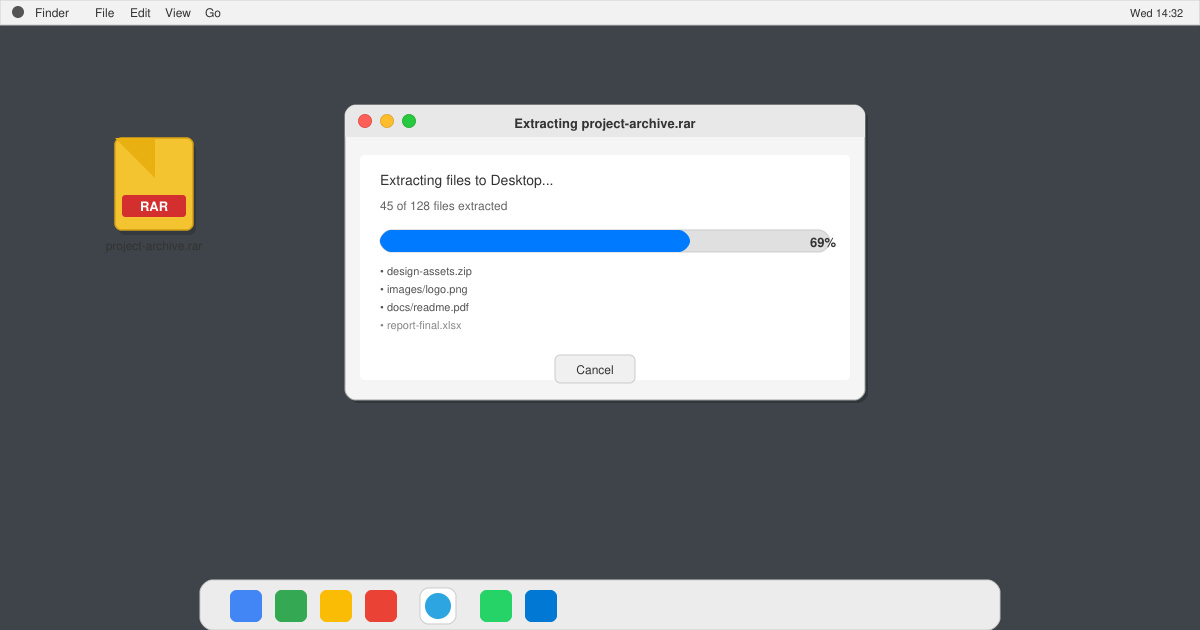
Learn how to open RAR file in Mac OS using free tools. This guide shows the fastest ways to extract RAR archives on your Mac in minutes.
How to make Google Chrome primary browser on Windows, macOS, Android, and iOS with clear step-by-step instructions. Set Chrome as your default browser in minutes for better speed and sync.
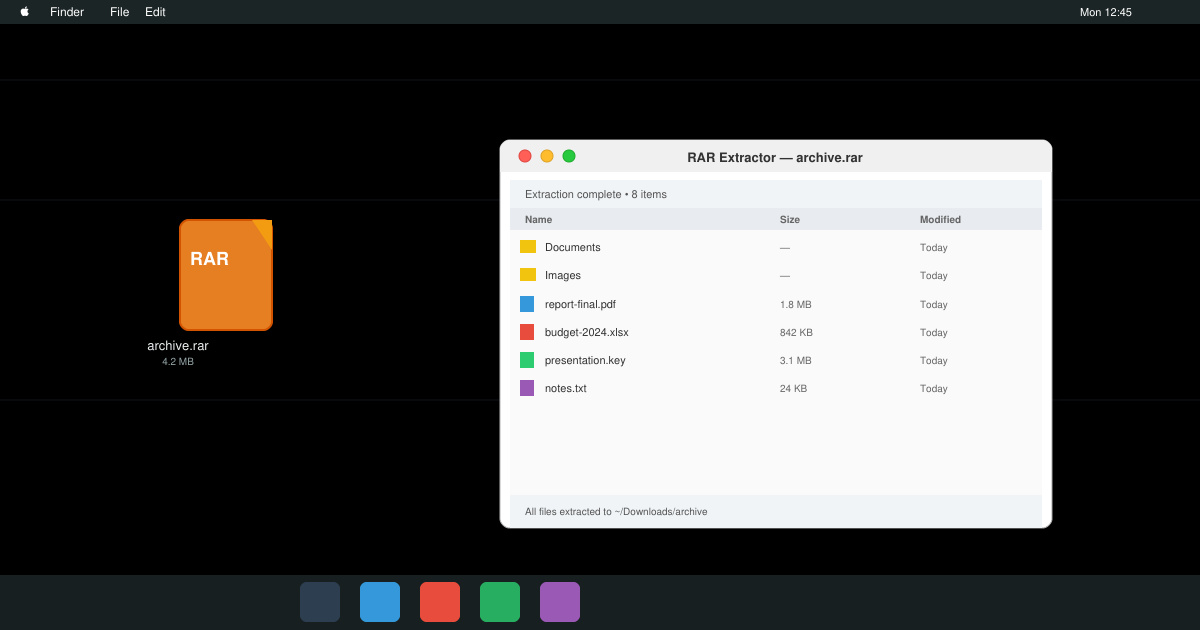
Need a rar program for mac to open RAR files? Learn the fastest way to install and use a reliable extractor on macOS in minutes.
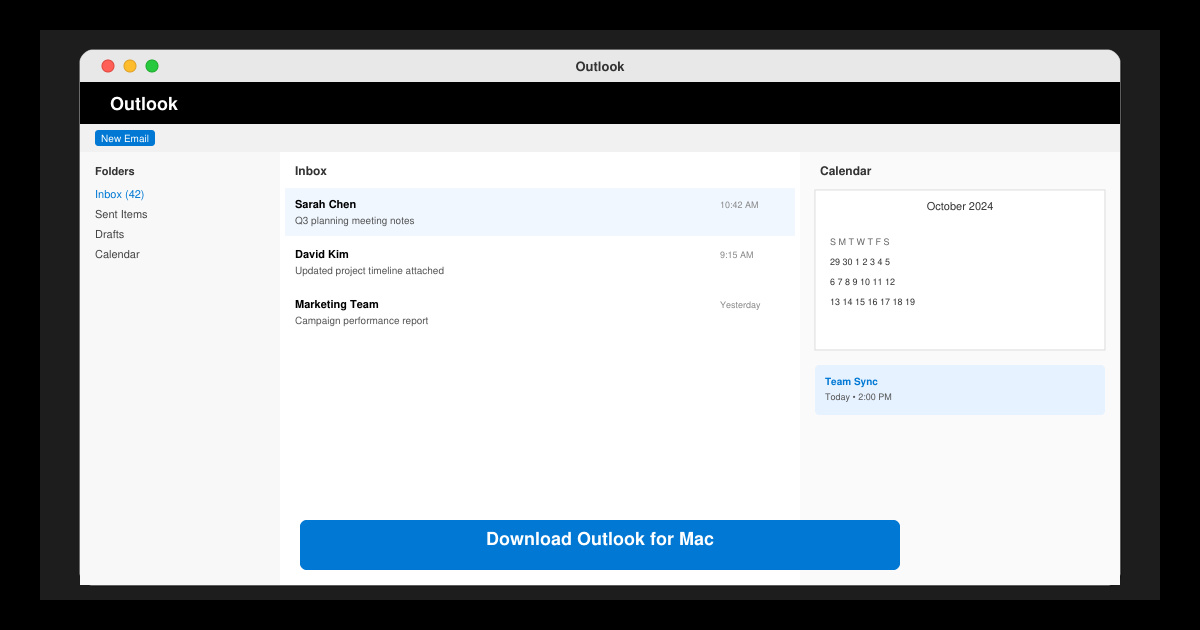
Download Outlook for Mac from the official Microsoft source and install it on your Mac in minutes. Follow this guide for the latest version compatible with macOS.
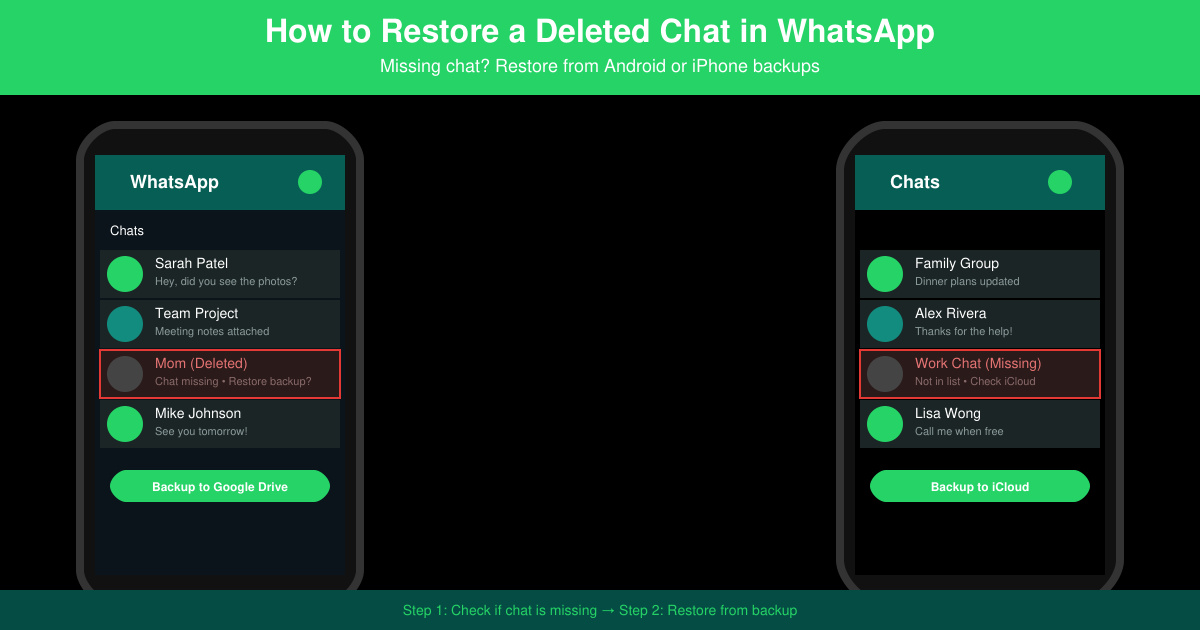
Learn exactly how to restore a deleted chat in WhatsApp on Android and iPhone using local or Google Drive backups. Follow these steps to recover conversations in minutes.
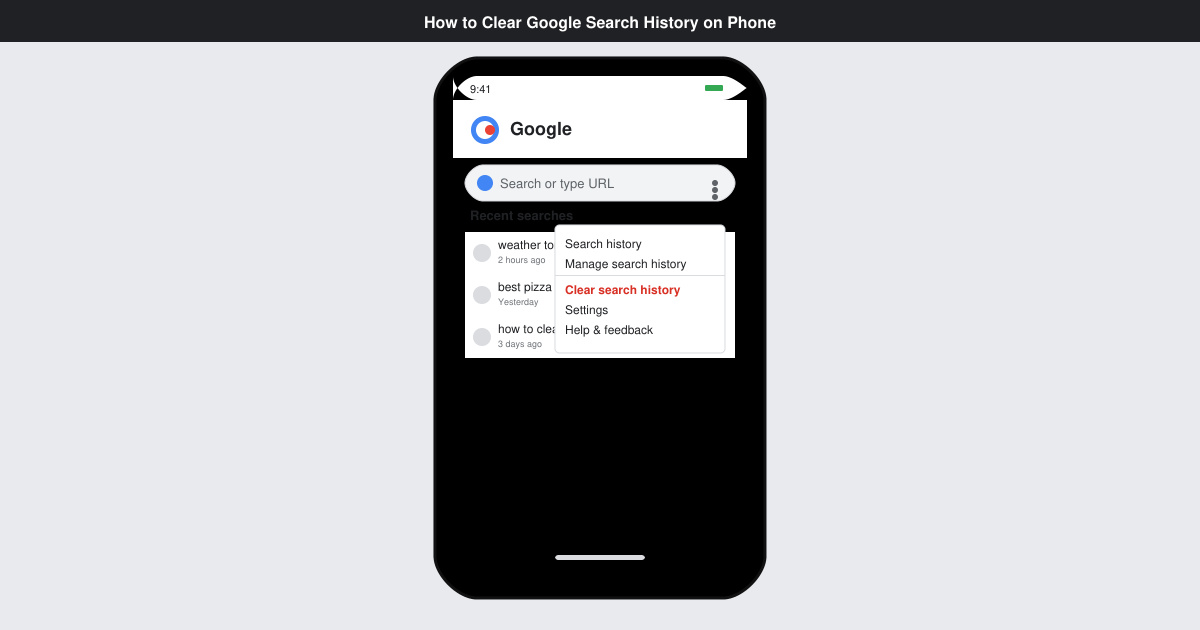
Learn how to clear Google search history on phone in just a few taps. Follow these exact steps for Android and iOS to remove search activity and improve privacy.
Complete your VLC Player Download Mac safely from the official source. This guide shows the exact steps to install VLC Media Player on macOS for reliable video and audio playback.
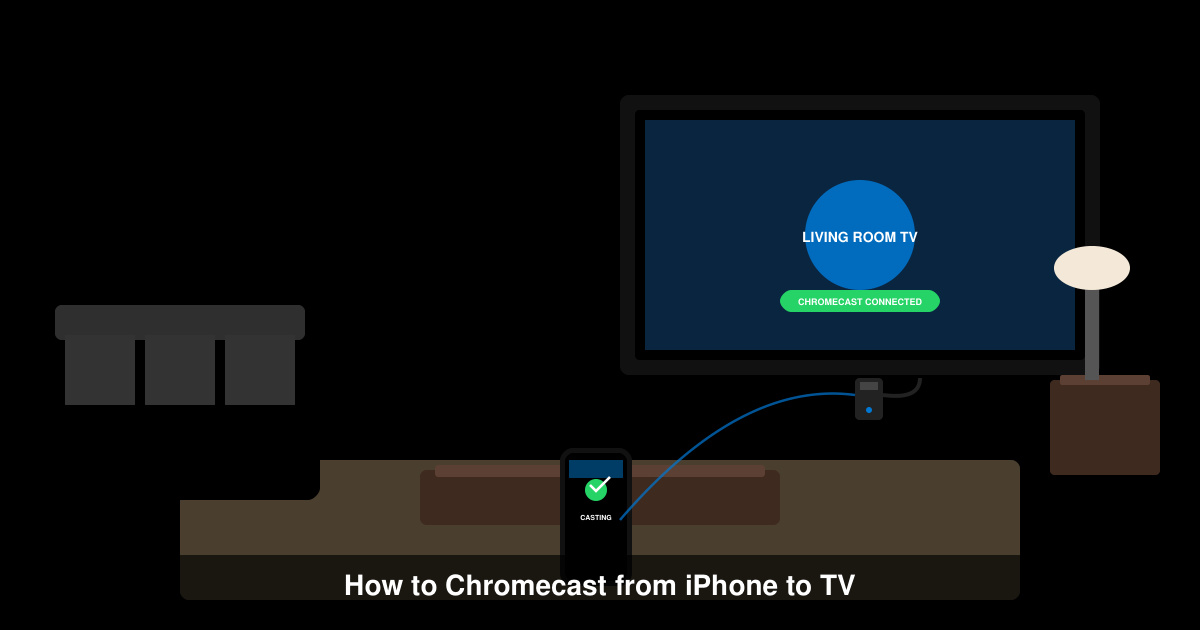
Learn how to Chromecast from iPhone to TV quickly and reliably. Follow these exact steps to stream videos, photos, and apps from your iPhone to any Chromecast device.