Sent an email with a mistake or to the wrong person? How to Recall a Message in Outlook works only when both you and the recipient use the same Microsoft Exchange or Microsoft 365 organization and the message remains unread. This guide shows the precise clicks required in the desktop app.
Requirements Before You Recall a Message in Outlook
Message recall is unavailable in Outlook on the web or the new Outlook for Windows. You must use the classic Outlook desktop application connected to an Exchange or Microsoft 365 mailbox. The recipient must also be inside the same organization, and the message must not have been opened or moved to another folder.
Confirm these conditions first by checking your account type in File > Office Account and verifying the recipient’s address ends with your company domain.
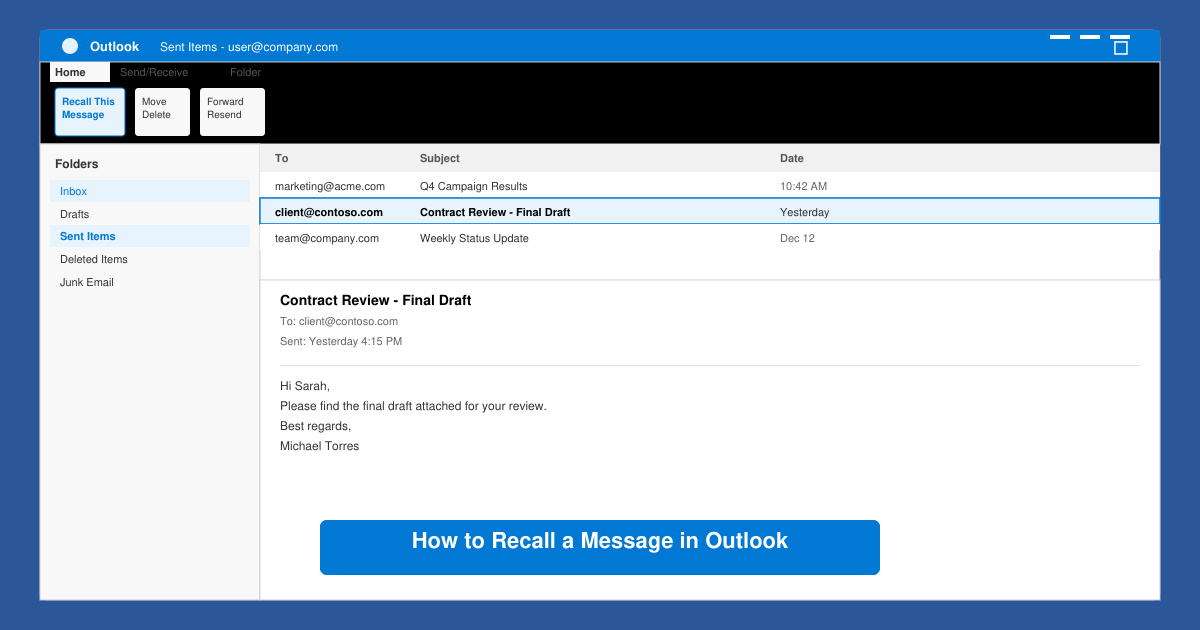
How to Recall a Message in Outlook Step by Step
-
Open the Sent Items folder
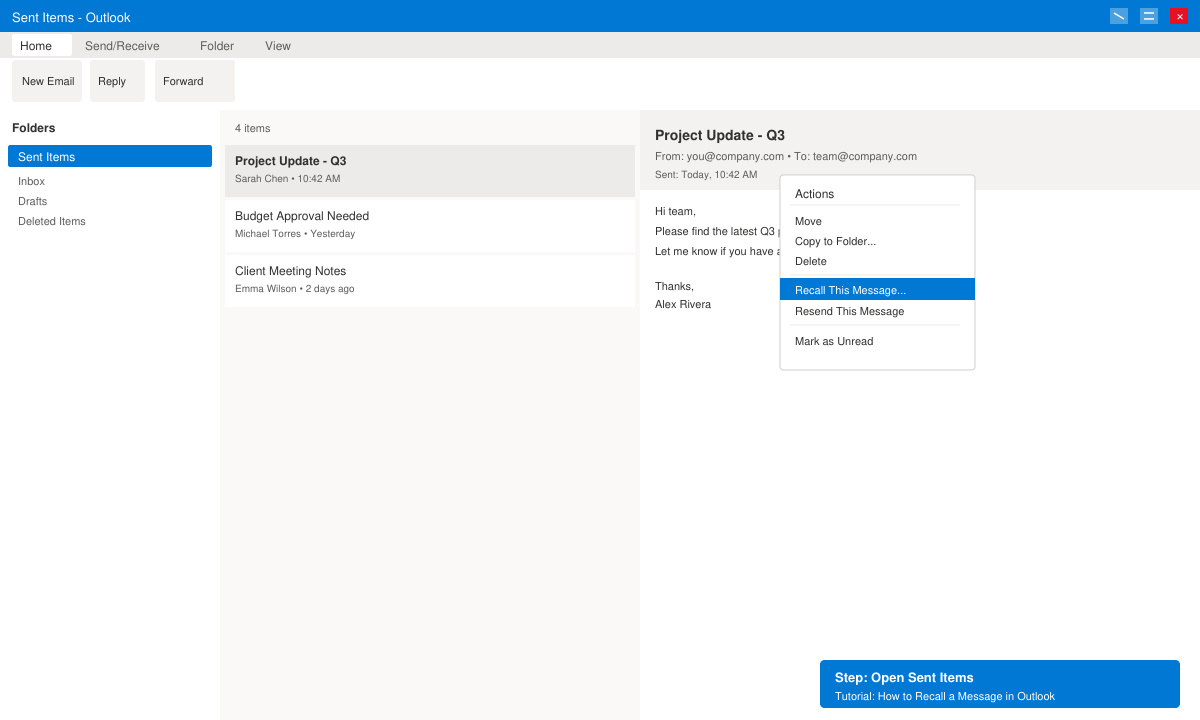
In the Outlook desktop app, click Sent Items in the left navigation pane. Locate the message you want to recall and double-click it so it opens in its own window rather than the reading pane.
-
Access the Recall command
With the message open, switch to the Message tab on the ribbon. In the Move group, click the three dots labeled Actions, then select Recall This Message from the dropdown menu.
-
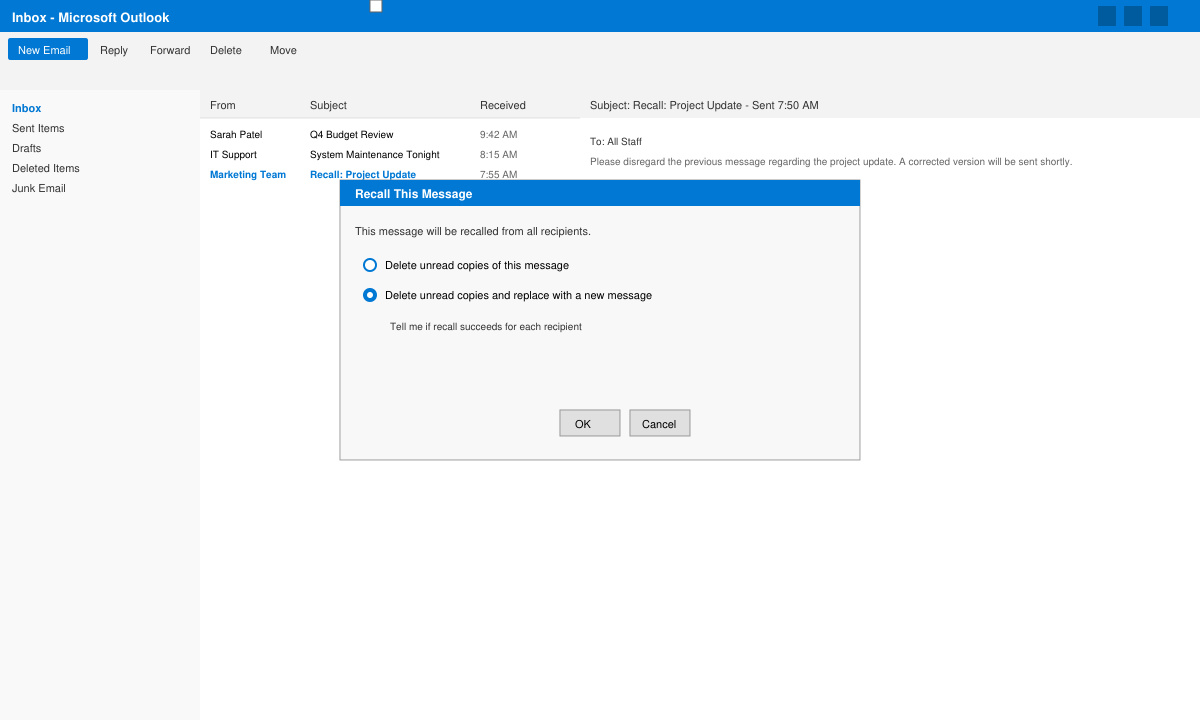
Choose delete or replace options
In the Recall This Message dialog, select either “Delete unread copies of this message” or “Delete unread copies and replace with a new message.” Click OK to continue.
-
Send the replacement if chosen
If you selected the replace option, compose the corrected message and click Send. Outlook will attempt to remove the original from the recipient’s mailbox and deliver the new version.
Tips and Common Issues When Recalling a Message in Outlook
- If the Recall button is missing, the account is not Exchange or Microsoft 365, or you are using Outlook on the web.
- Recipients outside your organization will never see the recall attempt; the original message remains in their inbox.
- Read receipts or automatic rules that move mail can prevent successful recall even inside the organization.
- Check the tracking status by opening the original message again and viewing the delivery receipt information in the header.
Frequently Asked Questions About Recalling Messages in Outlook
Can I recall a message in Outlook on Mac?
No. The recall feature exists only in the Windows desktop version of Outlook connected to Exchange or Microsoft 365.
What happens if the recipient has already read the message?
Recall fails and you receive a notification that the message could not be recalled because it was already opened.
Is there an Undo Send option instead of recall?
Yes. Go to File > Options > Mail and enable “Undo Send” with a delay of up to 30 seconds for a simpler way to stop outgoing messages before they leave the server.
Conclusion
Following the exact steps above lets you successfully recall a message in Outlook when the conditions are met. Always double-check the account type and recipient status before attempting the process.