Sent an email to the wrong recipient or noticed a mistake seconds after hitting Send? How to Recall an Email in Outlook is possible in the desktop app when both sender and recipient use Microsoft Exchange or Microsoft 365 and the message remains unread. This guide explains the exact requirements and walks through the process so you can fix the error quickly.
Prerequisites Before You Recall an Email in Outlook
Recall only functions in the full Outlook desktop application on Windows, not in Outlook on the web or the new Outlook app. Your mailbox must connect to an Exchange server or Microsoft 365 account. The recipient must also use the same environment and the message must still sit unopened in their inbox. If any of these conditions are missing, the recall attempt fails silently and the original message stays visible.
Make sure you have the classic Outlook desktop client installed and that you are signed in with the correct work or school account. Personal @outlook.com or @hotmail.com accounts do not support this feature.
How to Recall an Email in Outlook Step by Step
-
Open the Sent Items folder and locate the message
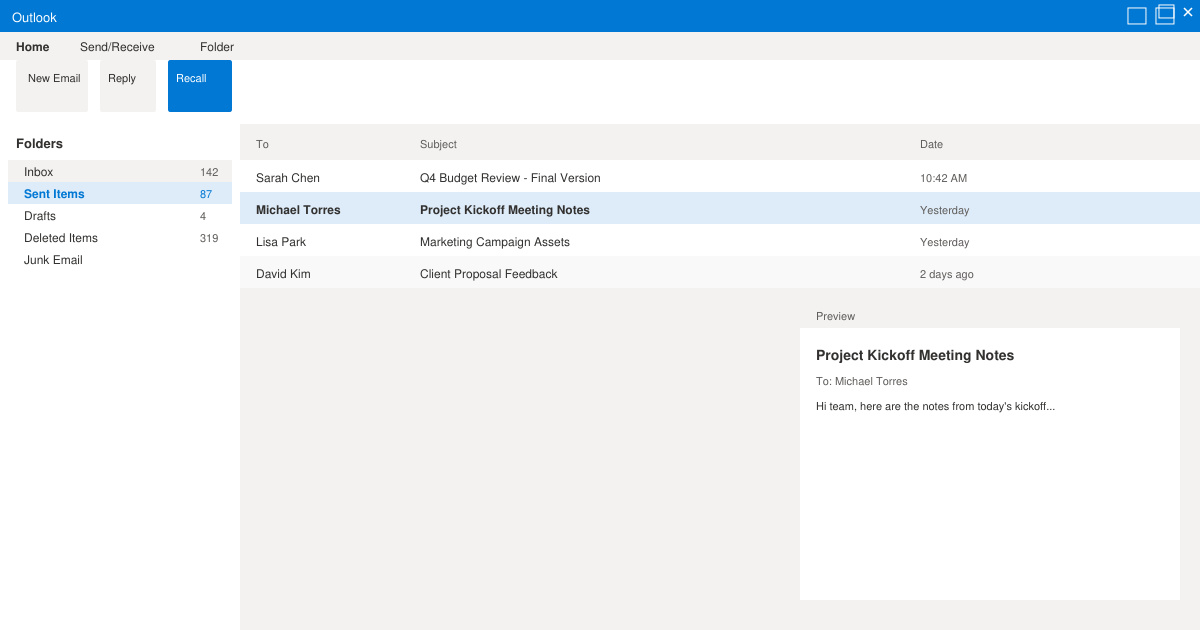
In the left navigation pane of Outlook, click Sent Items. Scroll or use the search bar at the top to find the email you want to recall. Double-click the message to open it in its own window instead of using the reading pane.

-
Access the Recall This Message command
With the message open, switch to the Message tab in the ribbon. In the Move group, click the three dots labeled Actions, then select Recall This Message from the dropdown menu.
-
Choose delete or replace options
In the Recall This Message dialog box, select either Delete unread copies of this message or Delete unread copies and replace with a new message. Click OK to proceed.
-
Send the replacement if needed
If you chose the replace option, Outlook opens a new compose window containing the original message. Edit the content, then click Send. The recalled message is removed from the recipient’s inbox and replaced by the corrected version.

Common Issues When Trying to Recall an Email in Outlook
If the recall button is missing, confirm you are using the classic desktop app and an Exchange account. Recipients who have already opened the message will still see the original. You can check results by enabling the option to receive a notification: in the same dialog, tick the box labeled Tell me if recall succeeds or fails for each recipient. When the feature fails, the safest workaround is to send a follow-up email explaining the correction.
Always test the feature with a colleague first if you plan to use it regularly. Note that mobile versions of Outlook and the web app do not offer recall at all.
Frequently Asked Questions About Recalling Emails in Outlook
Can I recall an email in Outlook on the web?
No. The recall feature exists only in the classic Windows desktop application. Outlook on the web offers an Undo Send delay instead; you can set this to a maximum of 30 seconds under Settings > Mail > Compose and reply.
Does recall work with Gmail or other providers?
Recall requires both parties to use Microsoft Exchange or Microsoft 365. Messages sent to Gmail addresses cannot be recalled.
What happens if the recipient has already read the email?
The recall fails. The original message remains in their inbox and you receive a failure notification if you enabled that option.
Conclusion
Mastering how to recall an email in Outlook saves time and prevents embarrassment when small mistakes slip through. Keep the desktop app and Exchange requirements in mind, then follow the four steps above to remove or replace the message before it is read.