How to Configure a WireGuard Point-to-Site VPN on Debian 12
Set up a Debian 12 WireGuard VPN server for one remote client. Configure keys, IPv4 forwarding, nftables NAT, firewall access, and connection checks.
Frustrated with unwanted Microsoft Edge search history popping up or irrelevant search suggestions slowing you down? You're not alone! Whether it's for privacy, a fresh start, or better performance, learning how to reset Microsoft Edge search history and suggestions is a game-changer. This concise guide delivers exact steps for the latest Edge browser, ensuring you reclaim control effortlessly. Let's dive in and make your browsing sparkling clean! ⭐
Edge's search history tracks your queries via Bing integration, while suggestions personalize results based on past activity. Resetting them:
Ready to act? Follow these proven methods—no restarts required!
The quickest way to clear Edge search history is through built-in tools. Here's how:
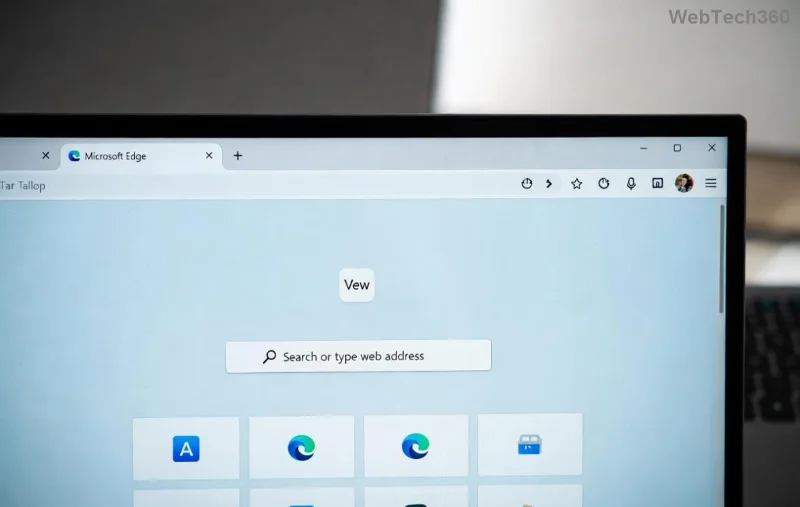
Pro tip: For synced devices, sign out of your Microsoft account first under Profiles to avoid re-syncing old data.
Search suggestions are powered by Bing and your habits. To reset Microsoft Edge search suggestions:
Compare options for your needs:
| Method | Best For | Steps Summary | Time |
|---|---|---|---|
| Clear Browsing Data | Quick history wipe | Settings > Privacy > Clear data | 30 seconds |
| Toggle Suggestions Off | Prevent future tracking | Privacy > Search suggestions (off) | 1 minute |
| Bing Account Reset | Synced devices | Bing.com > Privacy > Clear all | 2 minutes |
| Edge Reset (Nuclear Option) | Total refresh | Settings > Reset settings | 5 minutes |
Choose wisely—most users stick to the first two for instant results.
Still seeing old suggestions? Try these fixes:
For official guidance, check Microsoft's support: Clear browsing data.
Mastering these keeps your browser lean and mean. Feeling empowered? Share your success in the comments! 😊
Q: Does resetting affect bookmarks? A: No, only history and suggestions.
Q: What about mobile Edge? A: Same steps in Android/iOS app under Settings > Privacy.
Q: Can I recover deleted history? A: Not easily—back up first if needed.
That's your complete toolkit! Your Edge is now optimized. Bookmark this for quick access and browse freely. 🚀
Set up a Debian 12 WireGuard VPN server for one remote client. Configure keys, IPv4 forwarding, nftables NAT, firewall access, and connection checks.
Harden a Debian 12 workstation with a careful CIS Benchmark workflow: select the right profile, patch safely, review services and access, configure nftables, and document evidence.
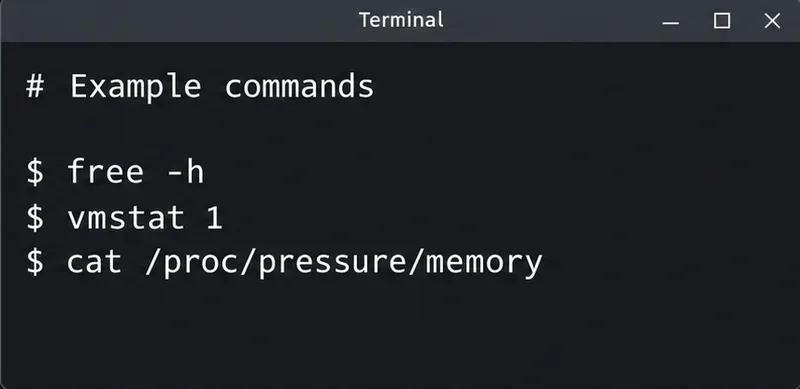
Diagnose MySQL OOM kills on Debian 12, check VPS memory limits, configure swap, and tune database memory and concurrency without promising a universal fix.
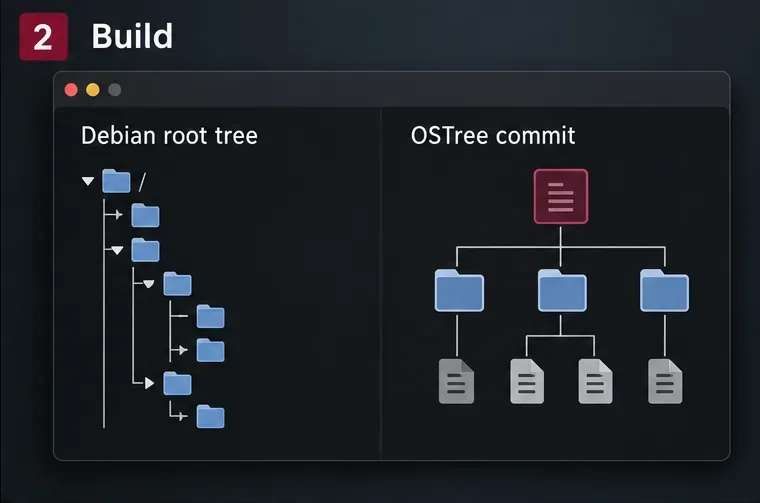
Learn how to create and test a Debian-derived OSTree desktop in a VM, including system-tree preparation, boot integration, deployment checks, and rollback.
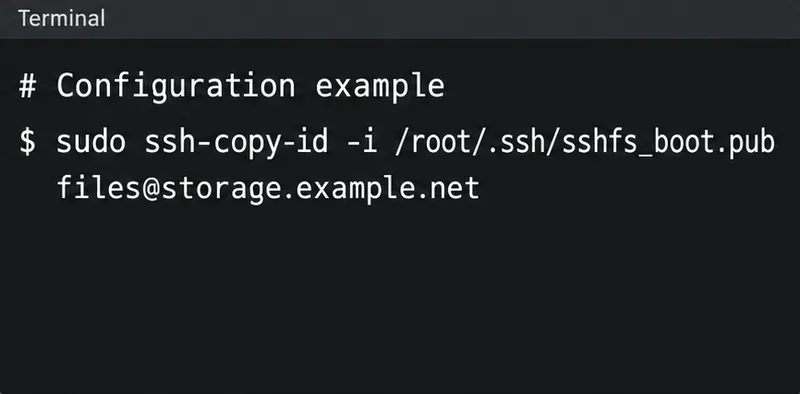
Configure an SSHFS boot mount in Debian with SSH keys, fstab, and systemd automount. Includes reboot checks, permissions, timeouts, and troubleshooting.
A practical October 2026 Chicago and Illinois home-maintenance checklist covering first frost, heating safety, gutters, leaves, pipes, renters, and winter-storm preparation.
Plan Chicago’s October garden with Illinois Extension advice on garlic, bulbs, indoor herbs, microgreens, frost protection, and a week-by-week checklist—using climate normals separately from the live forecast.
National Voter Registration Day is September 15, 2026. Learn how to register online, by mail, or in person and verify your voter status.
New to podcasting? Learn the 2026 trends shaping video, discovery, transcripts, AI, analytics, monetization, and a practical launch plan.
A practical UGC masterclass for sourcing, permissioning, briefing, publishing, and measuring customer and creator content without losing authenticity.