How to Download Chrome on Macbook
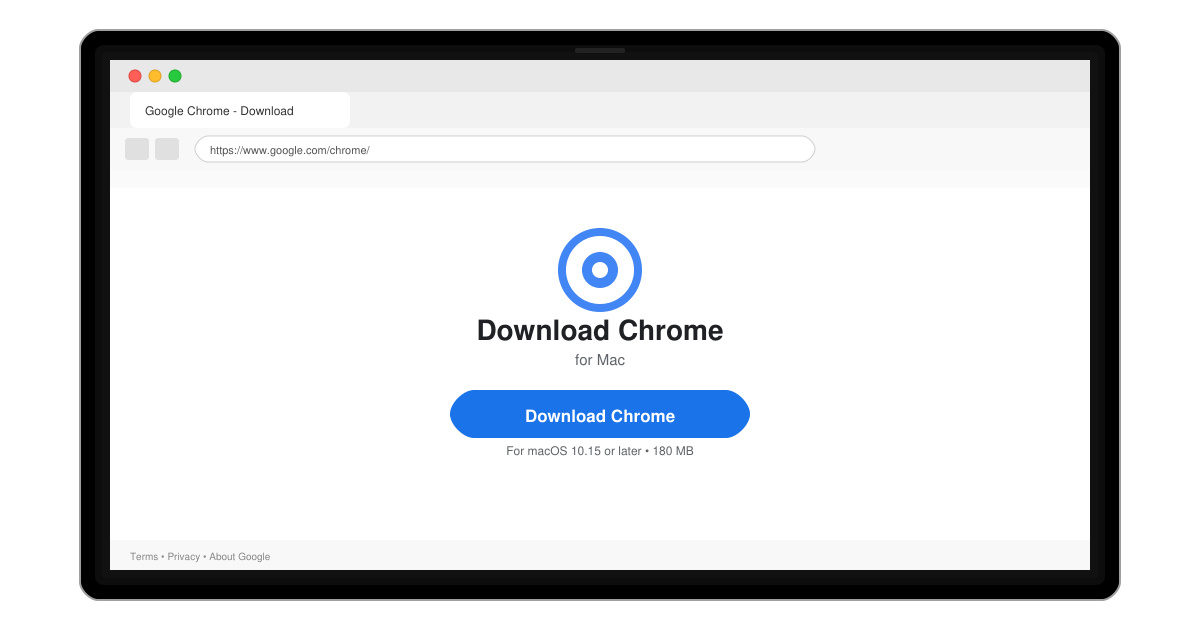
Follow this guide on how to download Chrome on Macbook to get Google Chrome running quickly and safely on your device.
Want every web search to deliver Google's fast, relevant results directly from your browser's address bar? Knowing how to set Google as your search engine takes just a minute and works across Chrome, Firefox, Edge, and Safari. This guide gives exact menu paths and clicks for each browser.
Most browsers let you choose the default search provider that powers the address bar and any built-in search box. Changing this setting routes all searches through Google instead of the browser's original provider such as Bing or Yahoo. No extra software or extensions are required.
Before you begin, confirm you are using the latest version of your browser. Updates sometimes reset search settings, so keeping the browser current prevents the change from reverting later.
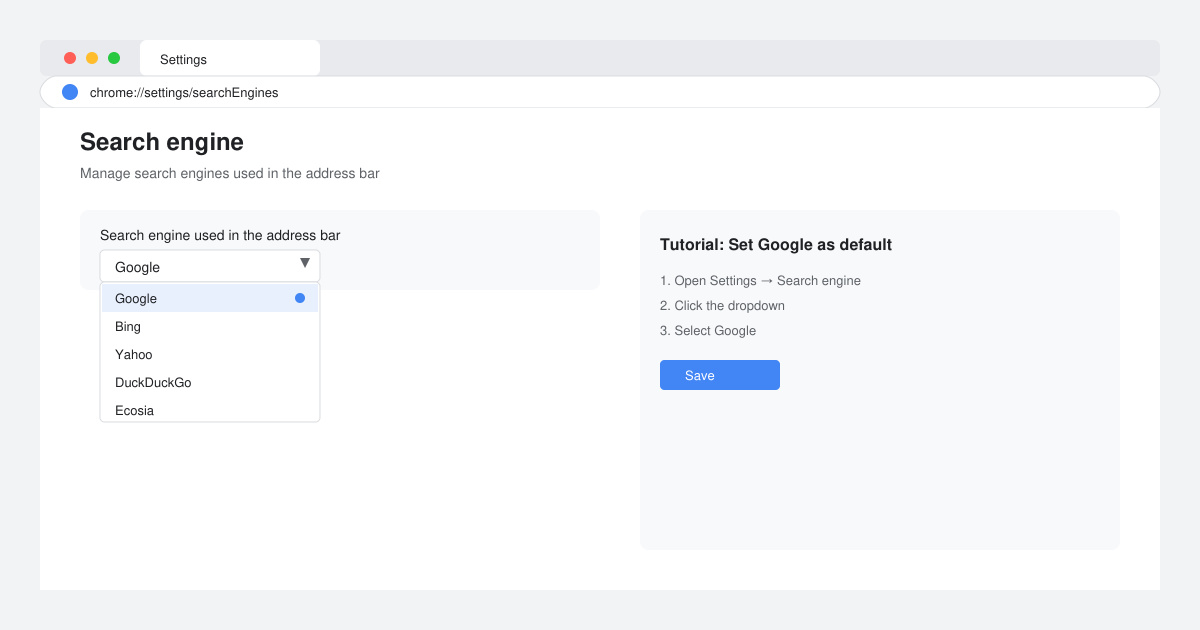
Open Chrome and click the three-dot menu in the top right. Select Settings, then click Search engine on the left sidebar. Open the dropdown labeled "Search engine used in the address bar" and choose Google. The change applies immediately to new tabs and the address bar.
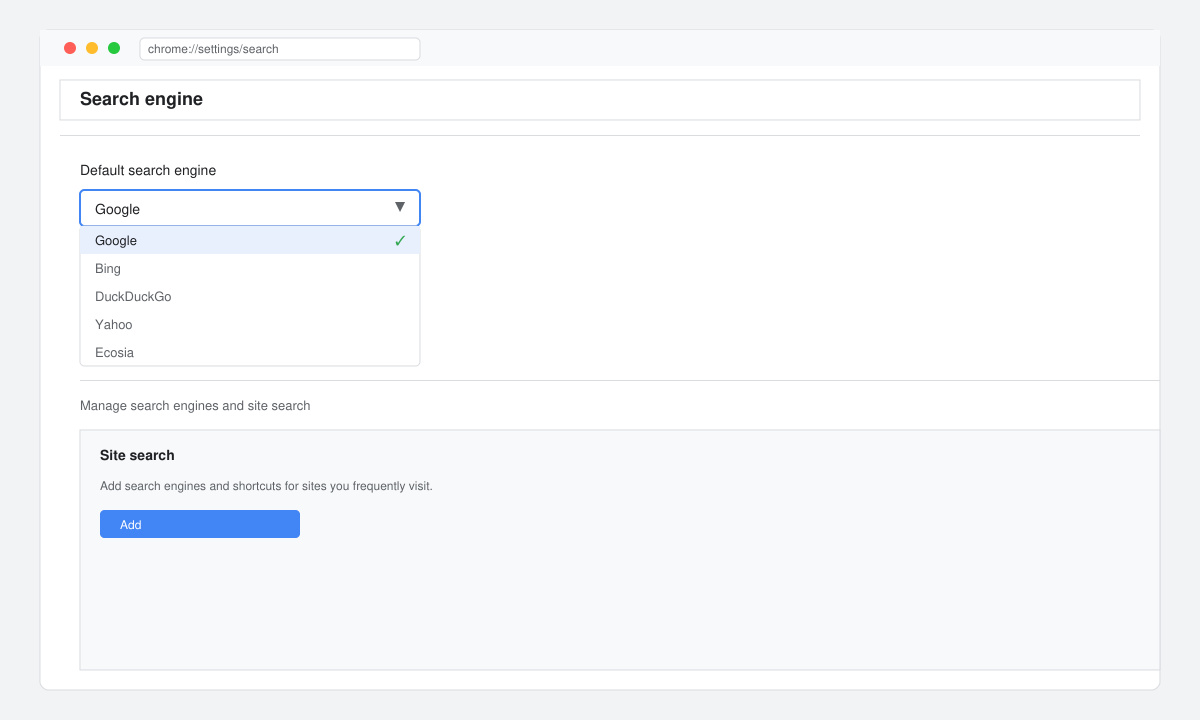
Click the three-dot menu in Edge, choose Settings, then select Privacy, search, and services. Scroll to the Services section and click Address bar and search. Under "Search engine used in the address bar," pick Google from the list. Close the settings window to save.
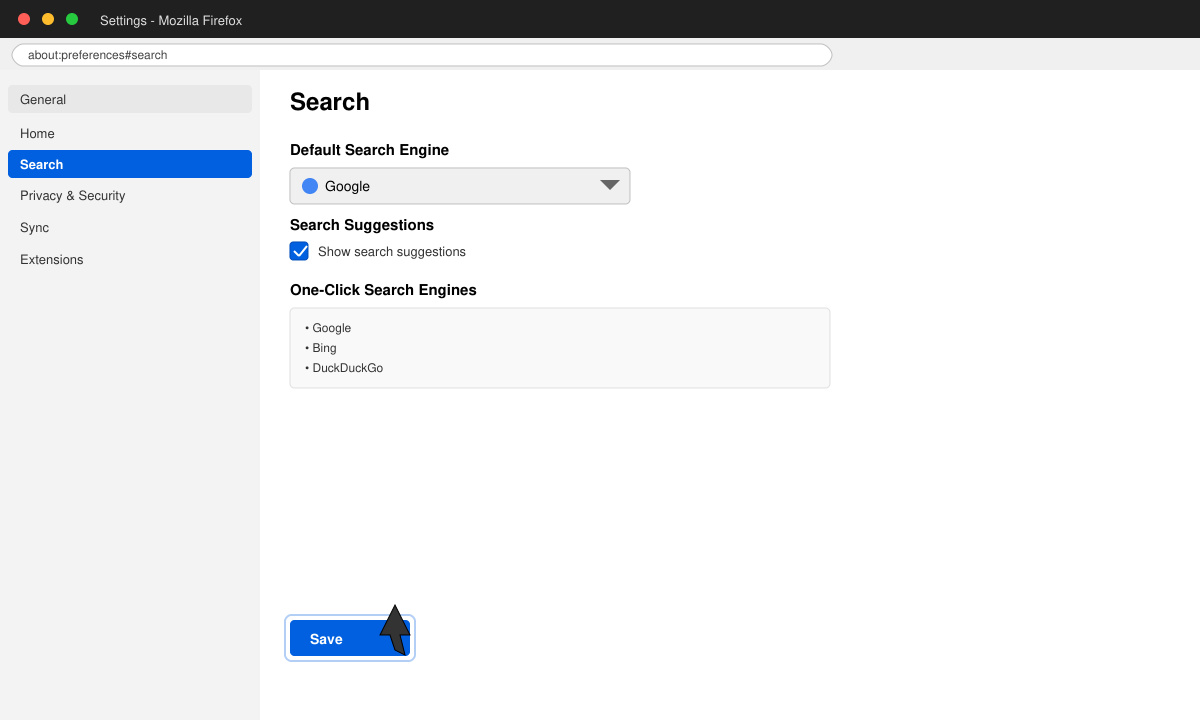
Click the three-line menu, choose Settings, and select Search in the left column. Under Default Search Engine, use the dropdown to select Google. If Google does not appear, click Find more search engines and install the official Google option from the add-on list.
On macOS, open Safari, click Safari in the menu bar, then Preferences. Go to the Search tab and choose Google from the Search engine dropdown. On iOS, open the Settings app, scroll to Safari, tap Search Engine, and tap Google.
No. The homepage setting is separate from the search engine setting. You can keep any homepage while routing searches through Google.
Yes. The same menu paths exist in Chrome, Firefox, and Edge on Android and iOS. On iOS you must use the system Settings app for Safari.
Absolutely. Return to the same search settings screen and select any other provider from the dropdown at any time.
Following the steps above lets you complete how to set Google as your search engine in under two minutes on any major browser. The new default stays active until you change it again.
Follow this guide on how to download Chrome on Macbook to get Google Chrome running quickly and safely on your device.
Discover exactly how to find your WhatsApp number on Android, iPhone, and desktop in under a minute. Follow these clear steps to view the number linked to your account.
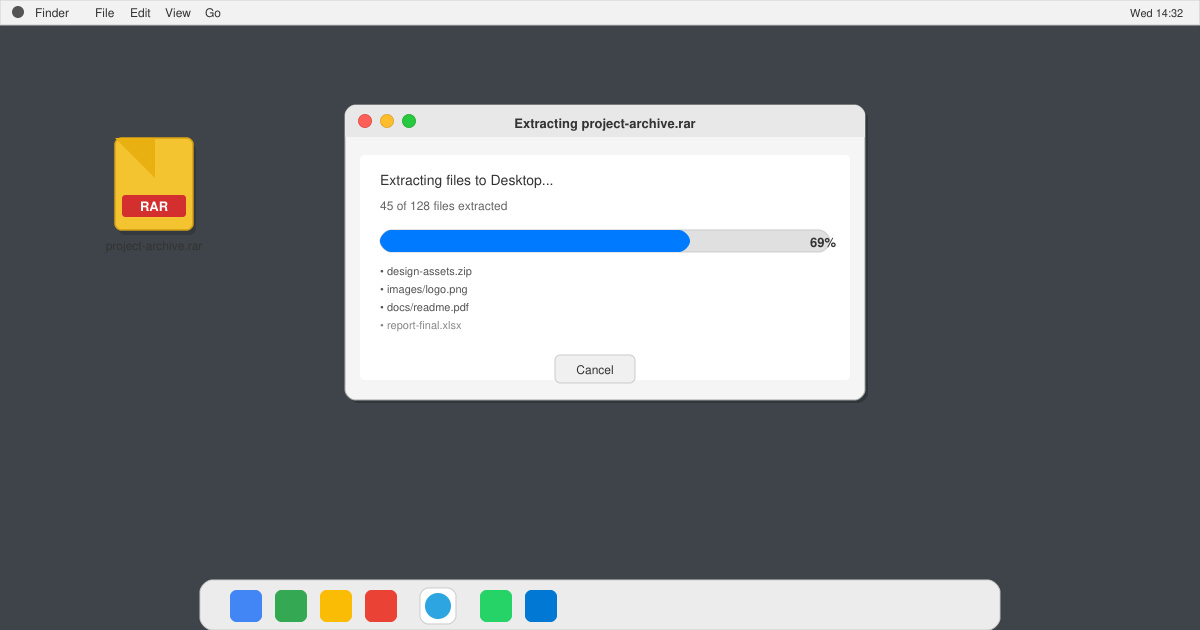
Learn how to open RAR file in Mac OS using free tools. This guide shows the fastest ways to extract RAR archives on your Mac in minutes.
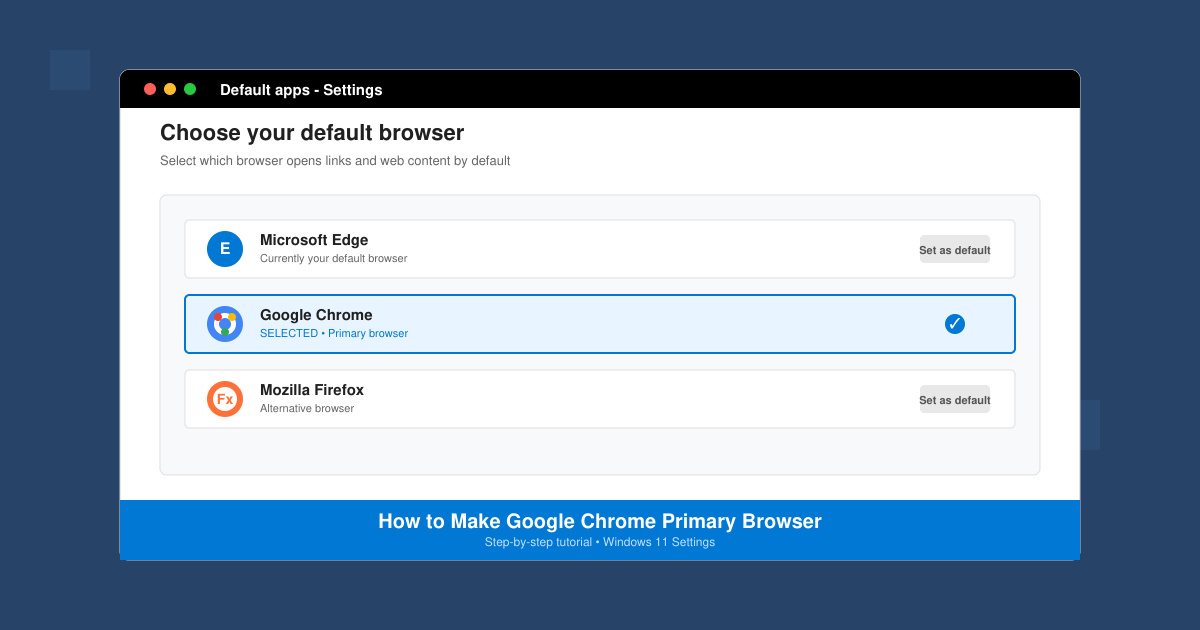
How to make Google Chrome primary browser on Windows, macOS, Android, and iOS with clear step-by-step instructions. Set Chrome as your default browser in minutes for better speed and sync.
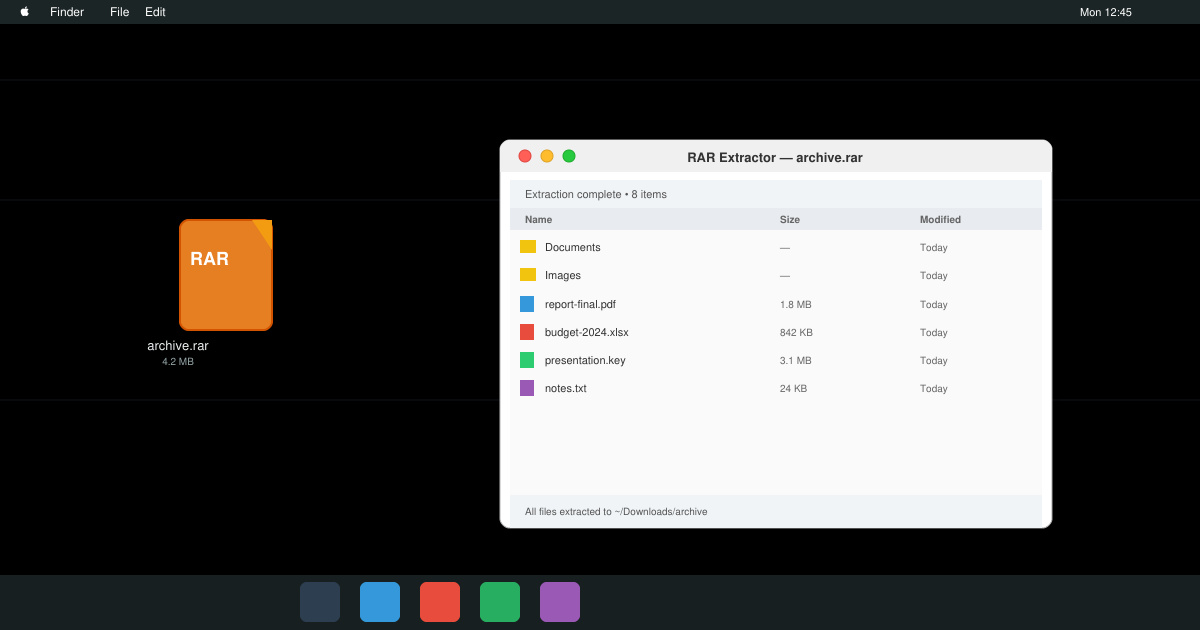
Need a rar program for mac to open RAR files? Learn the fastest way to install and use a reliable extractor on macOS in minutes.
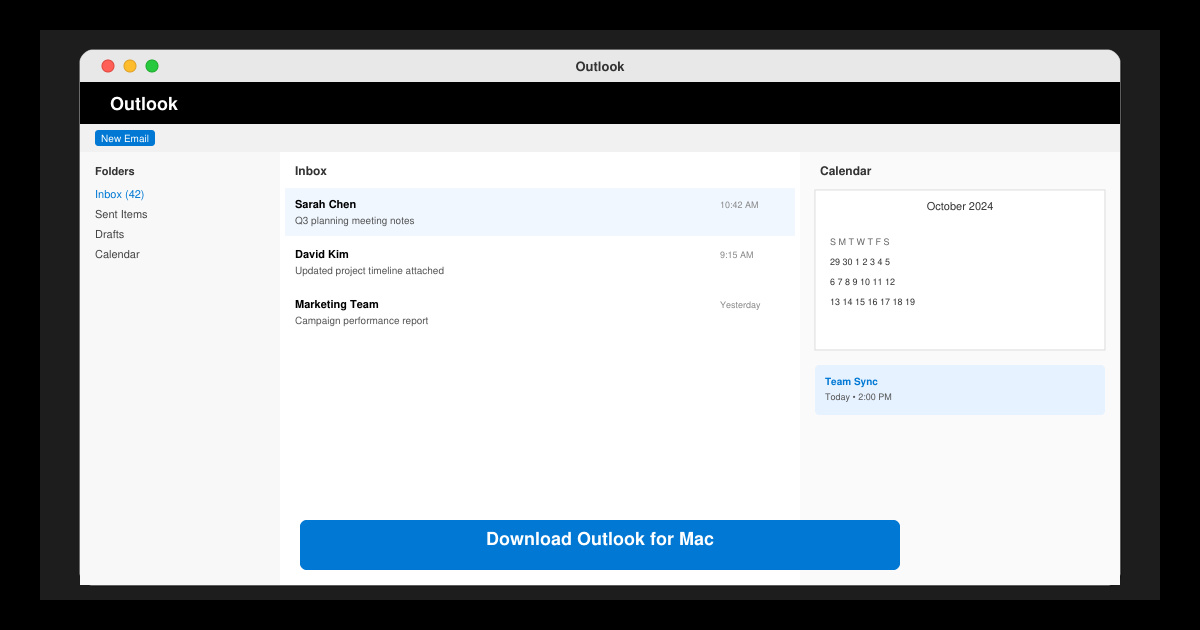
Download Outlook for Mac from the official Microsoft source and install it on your Mac in minutes. Follow this guide for the latest version compatible with macOS.
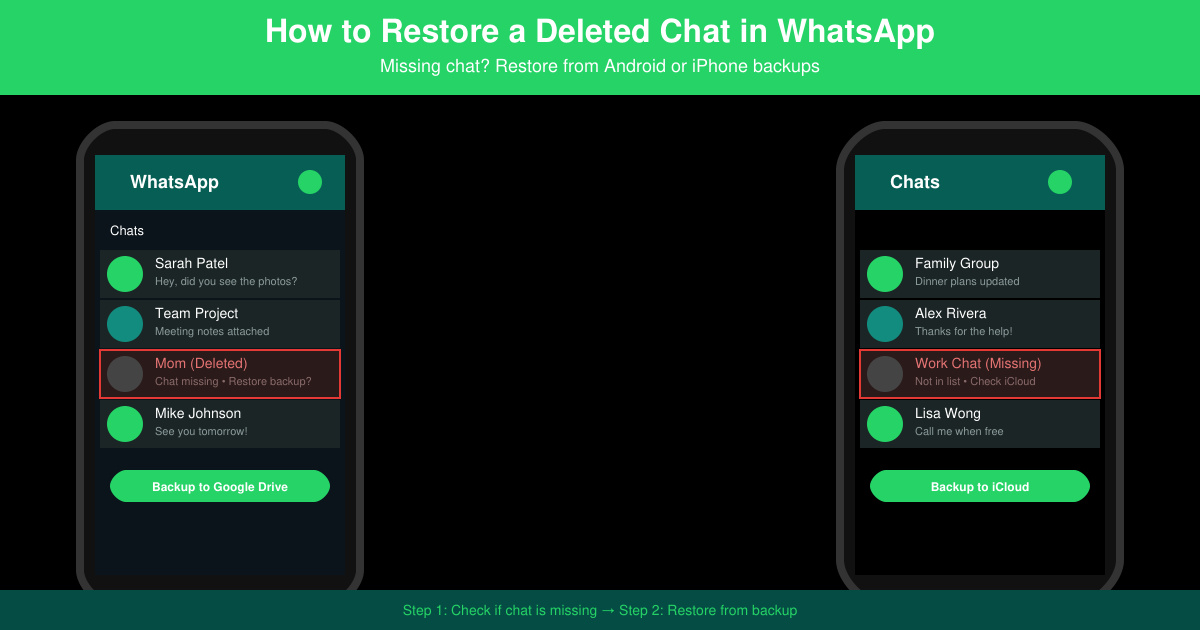
Learn exactly how to restore a deleted chat in WhatsApp on Android and iPhone using local or Google Drive backups. Follow these steps to recover conversations in minutes.
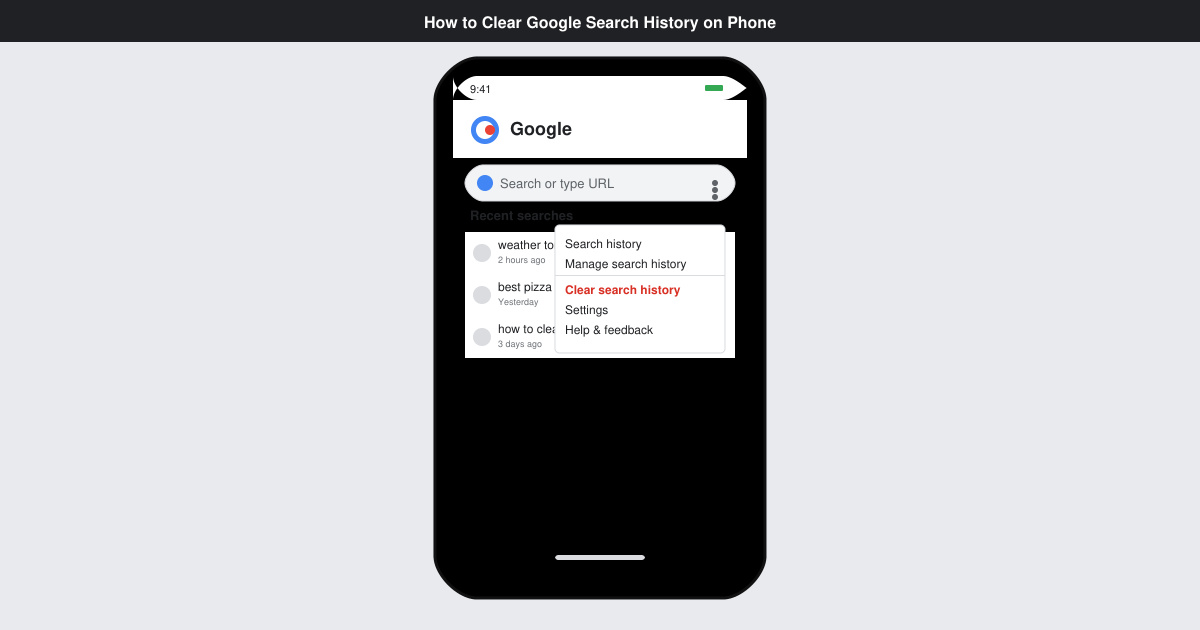
Learn how to clear Google search history on phone in just a few taps. Follow these exact steps for Android and iOS to remove search activity and improve privacy.
Complete your VLC Player Download Mac safely from the official source. This guide shows the exact steps to install VLC Media Player on macOS for reliable video and audio playback.
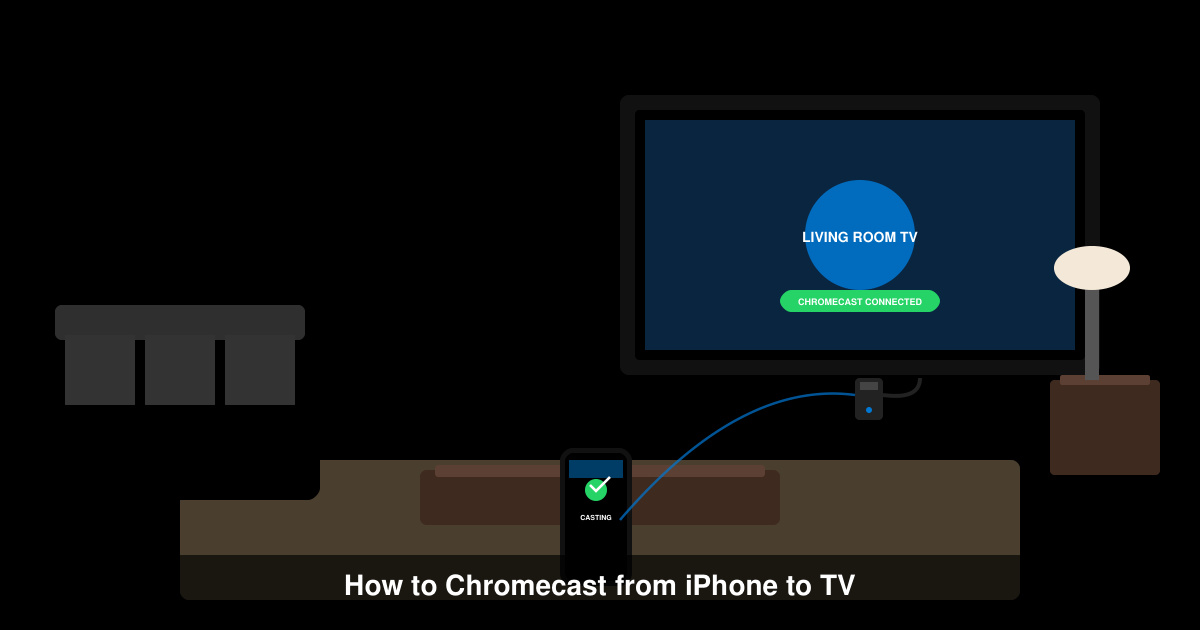
Learn how to Chromecast from iPhone to TV quickly and reliably. Follow these exact steps to stream videos, photos, and apps from your iPhone to any Chromecast device.