How to Download Chrome on Macbook
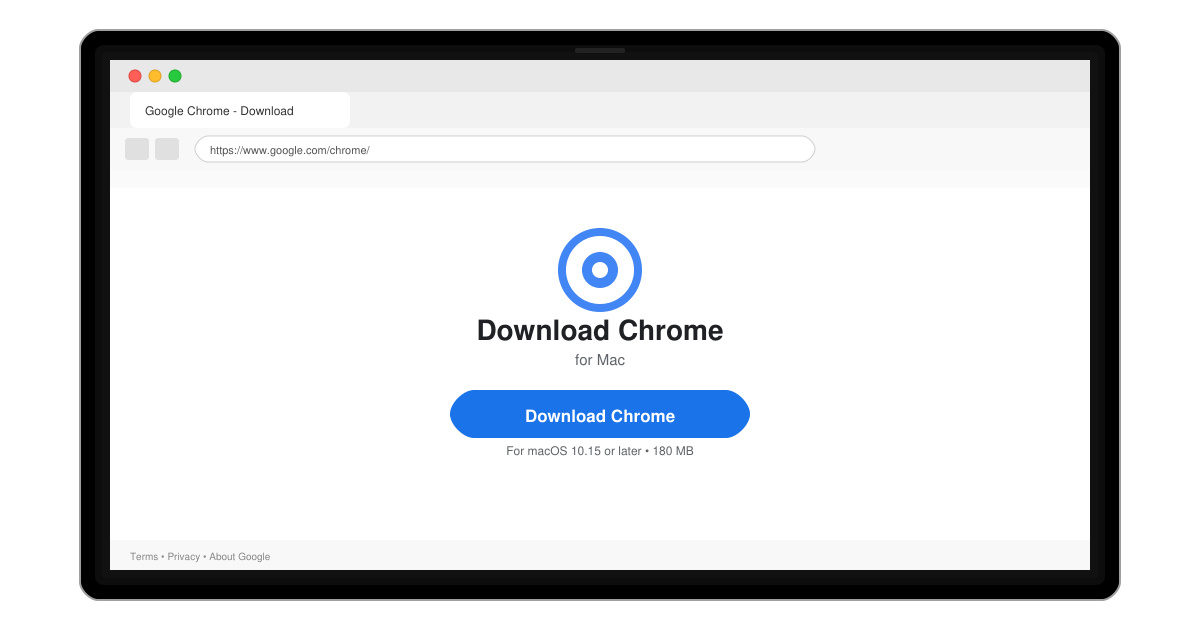
Follow this guide on how to download Chrome on Macbook to get Google Chrome running quickly and safely on your device.
Sent an email to the wrong person or spotted a typo right after hitting Send? Outlook lets you recall a sent email — but only if both you and the recipient use Microsoft Exchange or Microsoft 365, and the message hasn't been read yet. Here's how to do it in under two minutes. This guide shows exactly how to use Chrome Cast with iPhone so you can mirror photos, videos, and apps onto your TV without cables.
Your iPhone and Chromecast device must connect to the same Wi-Fi network. You also need the latest version of the Google Home app installed from the App Store. Make sure your Chromecast is already plugged into your TV and powered on before beginning the process.
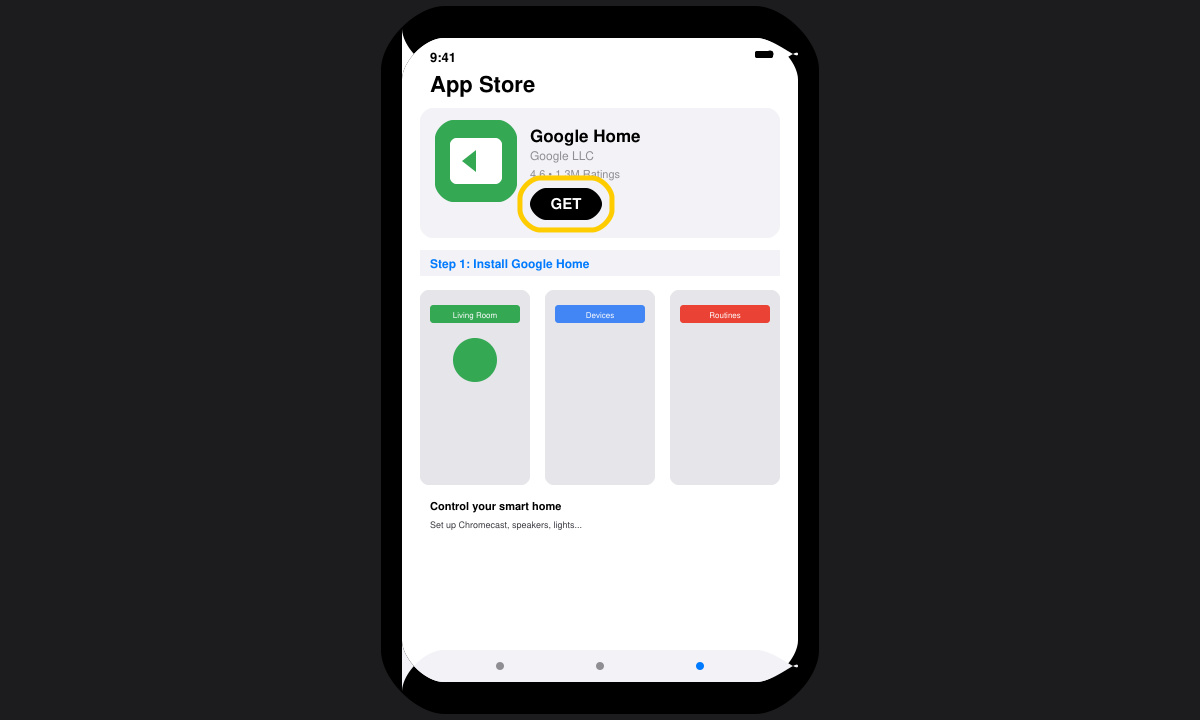
Search for Google Home in the App Store on your iPhone, tap Get, then open the app after installation completes. Sign in with the same Google account you will use for casting.
Open Settings on your iPhone, tap Wi-Fi, and join the network your Chromecast uses. The Google Home app will automatically detect nearby Chromecast devices once both are on the same network.
In the Google Home app, tap the + icon, select Set up device, then choose New devices. Follow the on-screen prompts to name your Chromecast and link it to a room in your home.
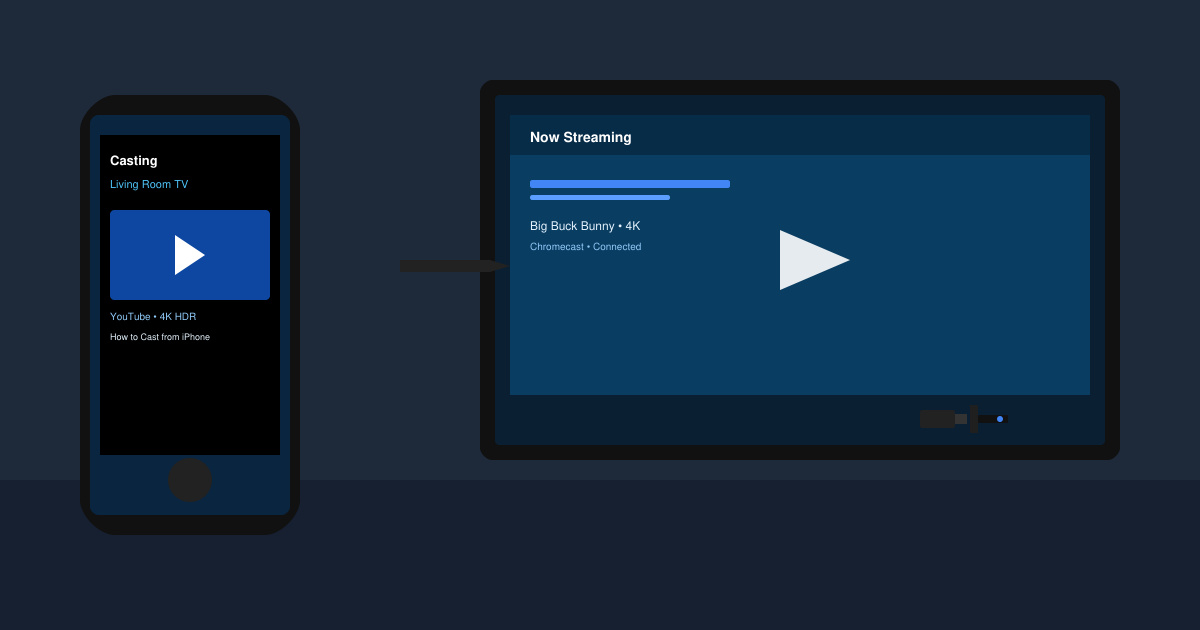
Open an app such as YouTube, Netflix, or Photos. Tap the Cast icon (rectangle with Wi-Fi symbol) and select your Chromecast from the list. The content will appear on your TV within seconds.
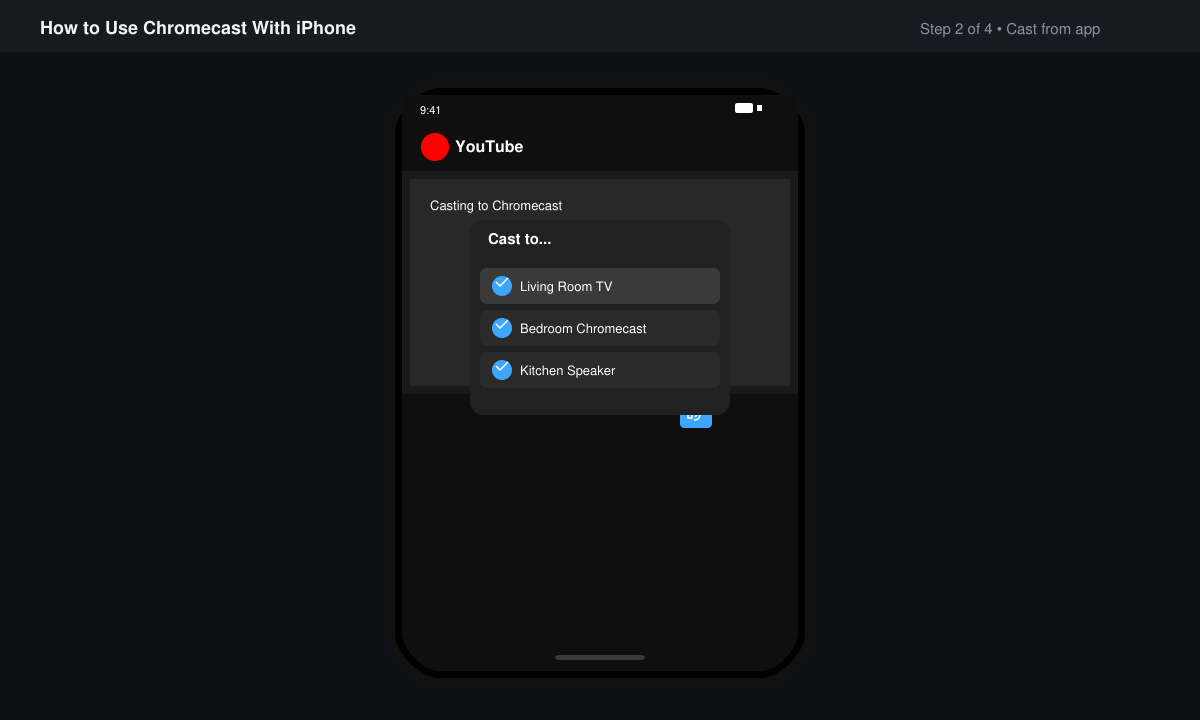
Use the playback controls inside the app or the Google Home app to pause, skip, or adjust volume. To stop, tap the Cast icon again and choose Stop casting.
If your Chromecast does not appear, restart both your iPhone and the Chromecast device, then reopen the Google Home app. Make sure no VPN is active on your iPhone, as it can block discovery. Update the Google Home app and your iOS version if casting keeps dropping after a few minutes.
Most apps require the Google Home app for initial setup, though some built-in casting works once the device is configured.
Screen mirroring shows your entire iPhone screen but often has lower quality and higher lag compared to casting from individual apps.
This usually happens when your iPhone screen locks or the device switches Wi-Fi networks. Keep the screen awake or use the app's background playback option.
Once set up, how to use Chrome Cast with iPhone becomes a simple tap-and-play process that works reliably across most popular streaming apps.
Follow this guide on how to download Chrome on Macbook to get Google Chrome running quickly and safely on your device.
Discover exactly how to find your WhatsApp number on Android, iPhone, and desktop in under a minute. Follow these clear steps to view the number linked to your account.
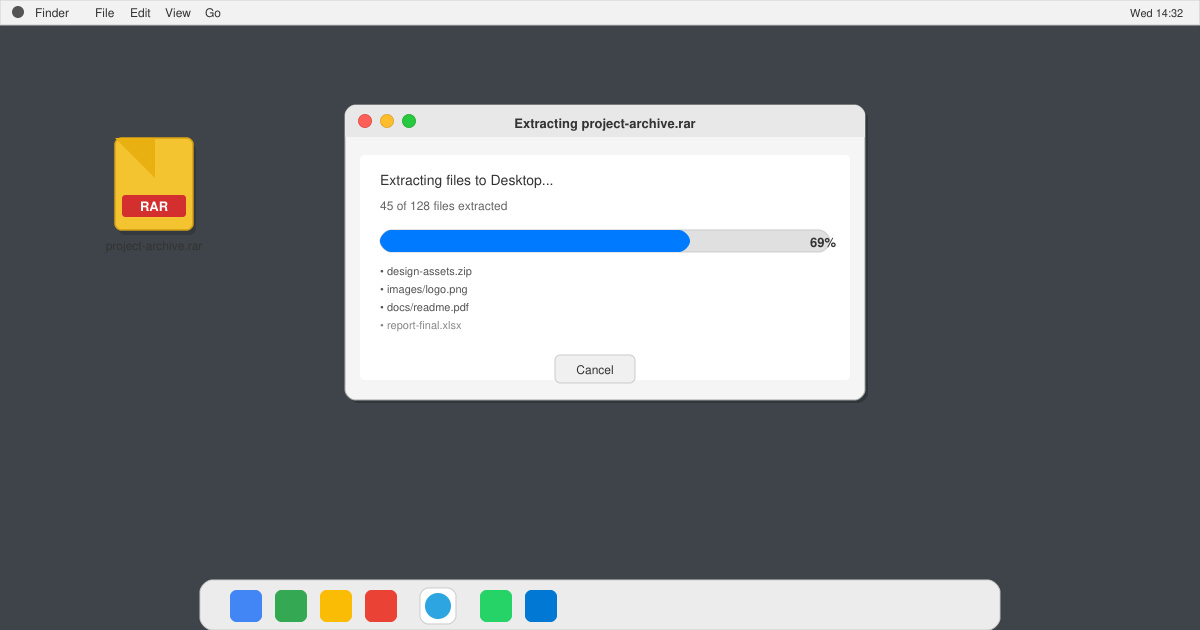
Learn how to open RAR file in Mac OS using free tools. This guide shows the fastest ways to extract RAR archives on your Mac in minutes.
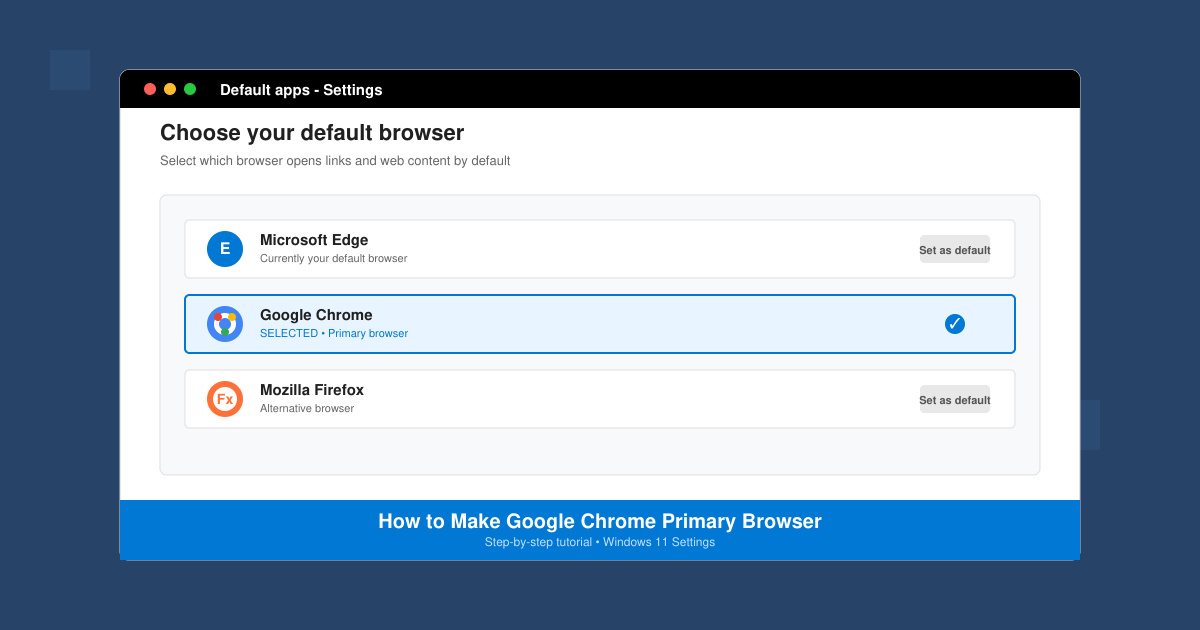
How to make Google Chrome primary browser on Windows, macOS, Android, and iOS with clear step-by-step instructions. Set Chrome as your default browser in minutes for better speed and sync.
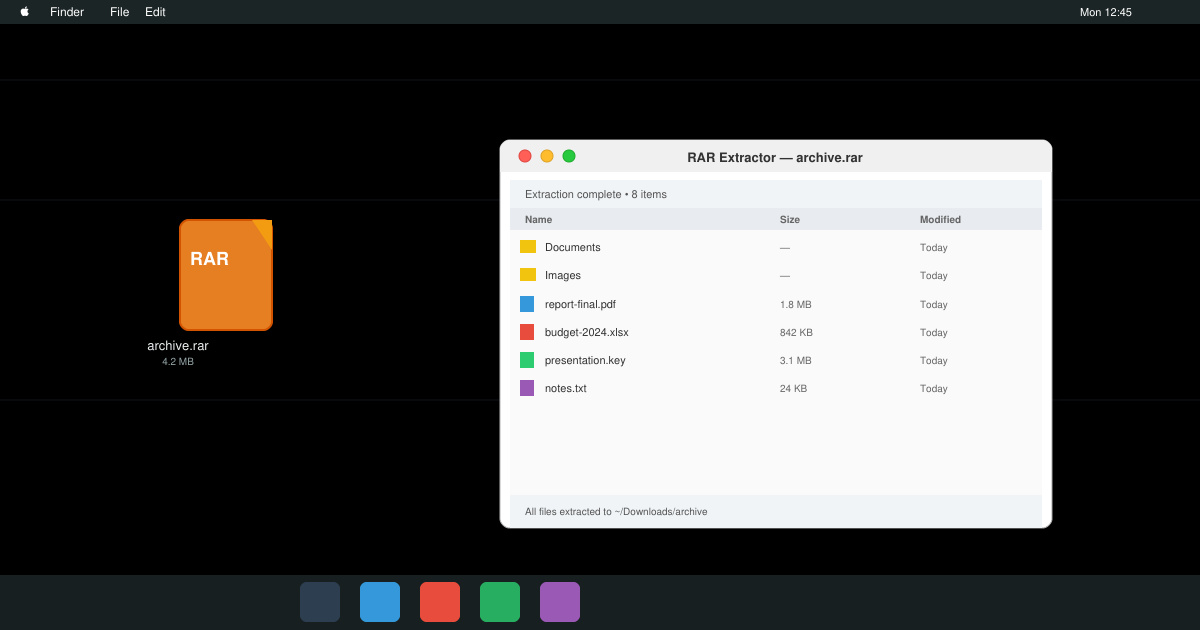
Need a rar program for mac to open RAR files? Learn the fastest way to install and use a reliable extractor on macOS in minutes.
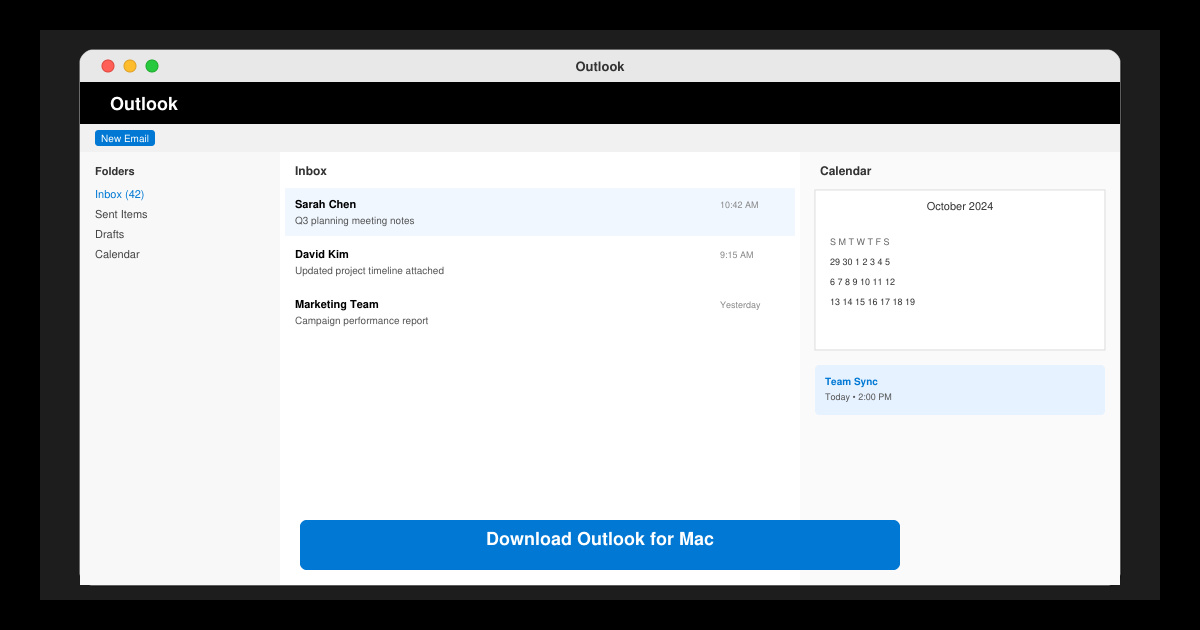
Download Outlook for Mac from the official Microsoft source and install it on your Mac in minutes. Follow this guide for the latest version compatible with macOS.
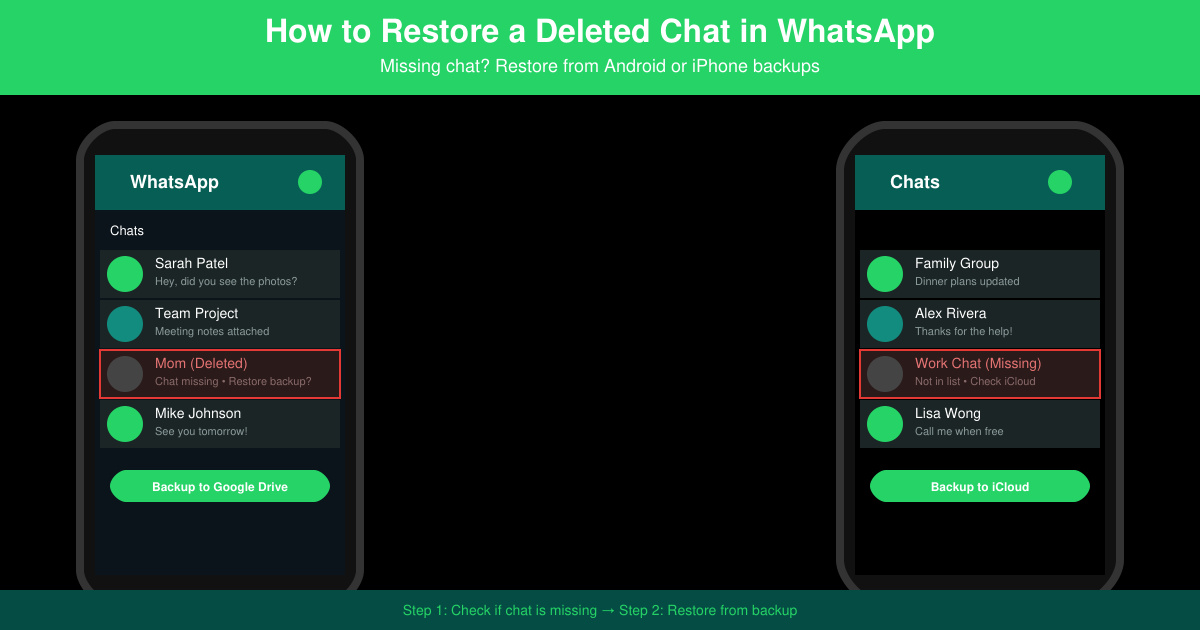
Learn exactly how to restore a deleted chat in WhatsApp on Android and iPhone using local or Google Drive backups. Follow these steps to recover conversations in minutes.
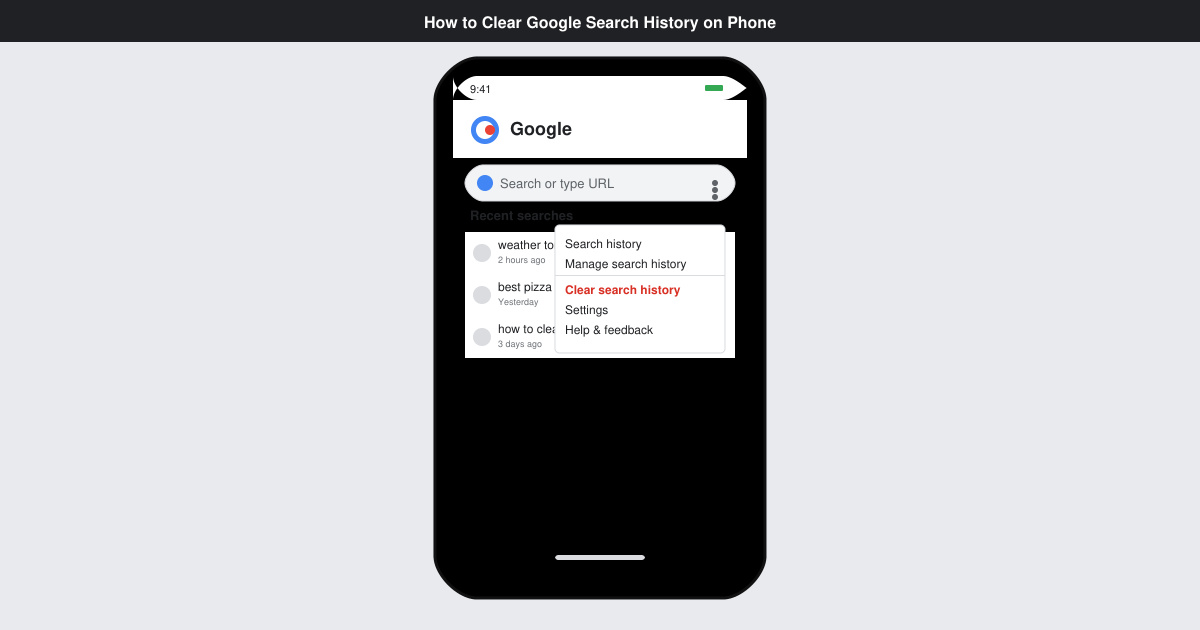
Learn how to clear Google search history on phone in just a few taps. Follow these exact steps for Android and iOS to remove search activity and improve privacy.
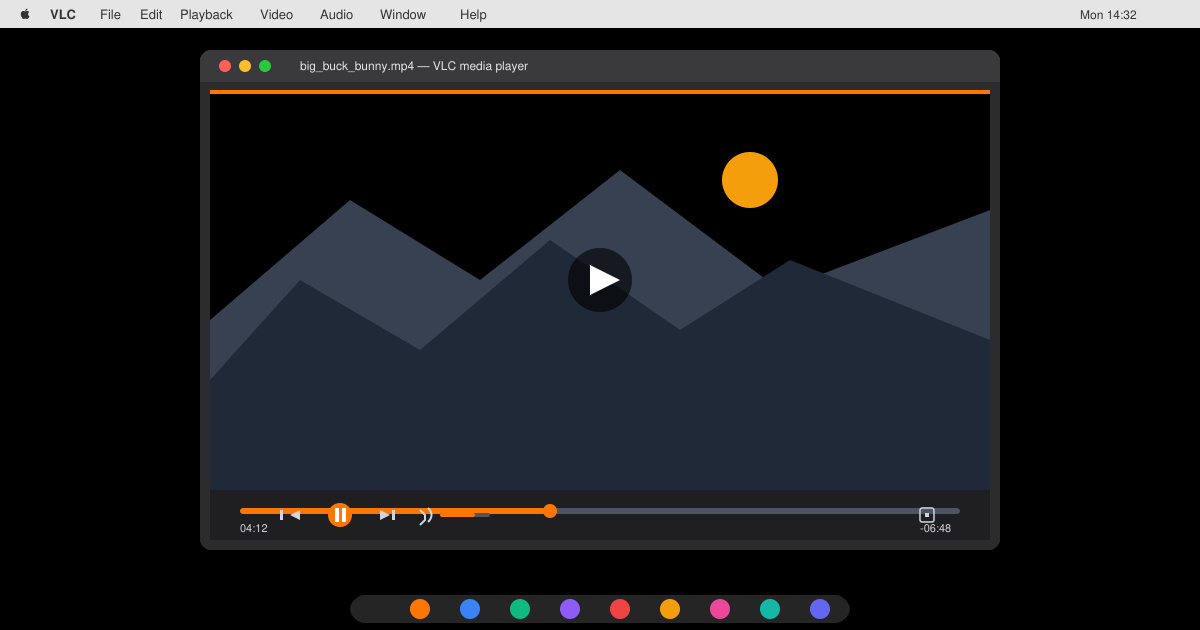
Complete your VLC Player Download Mac safely from the official source. This guide shows the exact steps to install VLC Media Player on macOS for reliable video and audio playback.
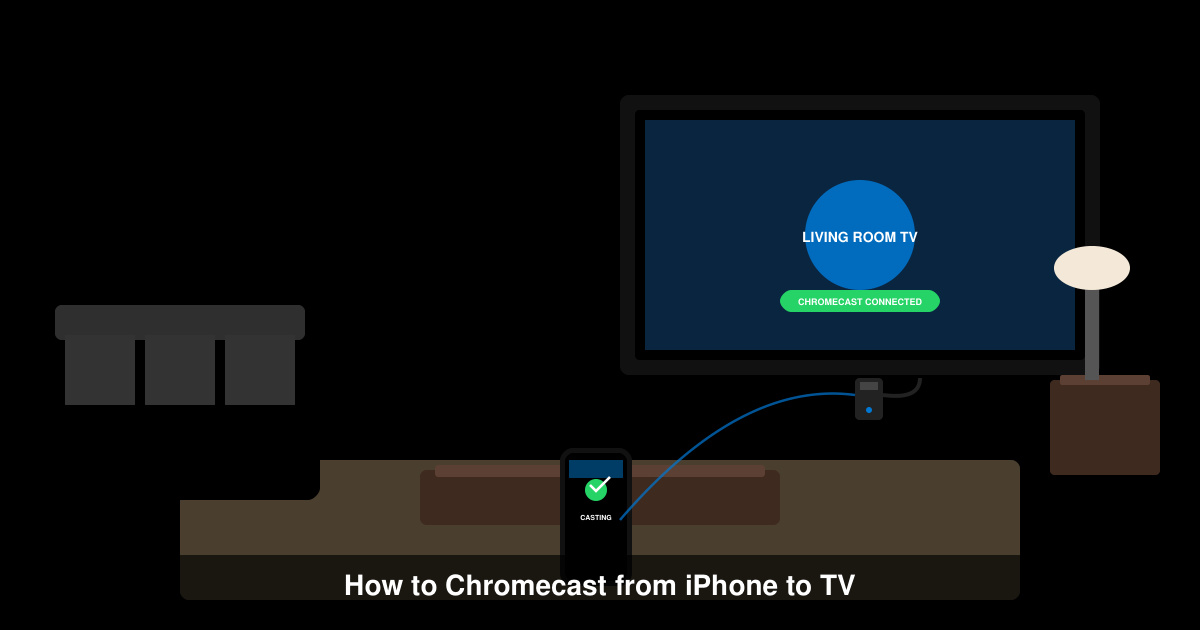
Learn how to Chromecast from iPhone to TV quickly and reliably. Follow these exact steps to stream videos, photos, and apps from your iPhone to any Chromecast device.