Use Regex in LibreOffice Writer to Edit Text in Batches
Clean spacing, find structured text, and rearrange names with Writer regex patterns you can preview before replacing.
Virtual Machine on Windows 11 will support users to run an operating system other than Windows right on your computer. Then we can install and use software and applications on the virtual machine without affecting the main system in use. Below are instructions for activating the virtual machine on Windows 11.
How to enable Windows 11 virtual machine via Settings
Step 1:
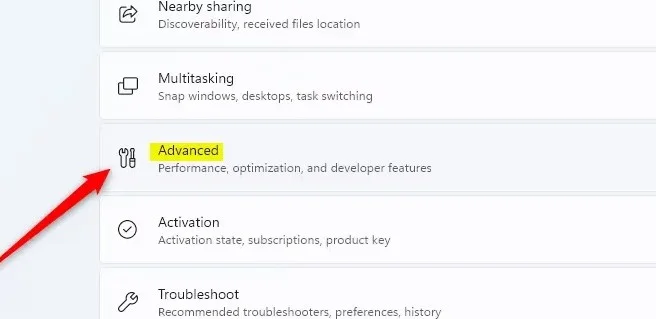
You open the Settings interface on your computer, then click on System and look to the side, select Advanced to open advanced settings on your computer.
Step 2:
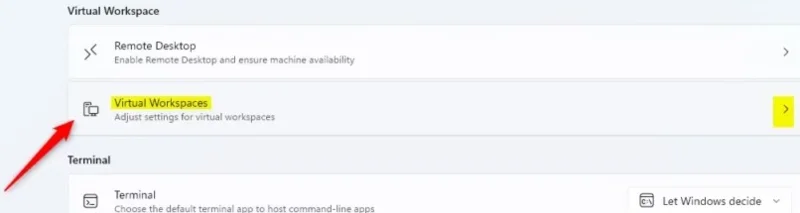
Next, click on Virtual Workspaces to launch the virtual machine on Windows 11.
Step 3:
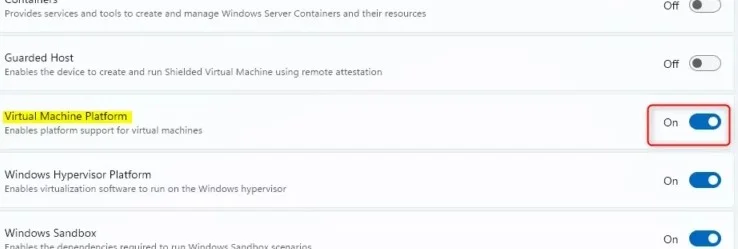
Next, you need to activate Virtual Machine Platform to turn on the virtual machine on Windows 11.
How to turn on Windows 11 virtual machine via Control Panel
Step 1:
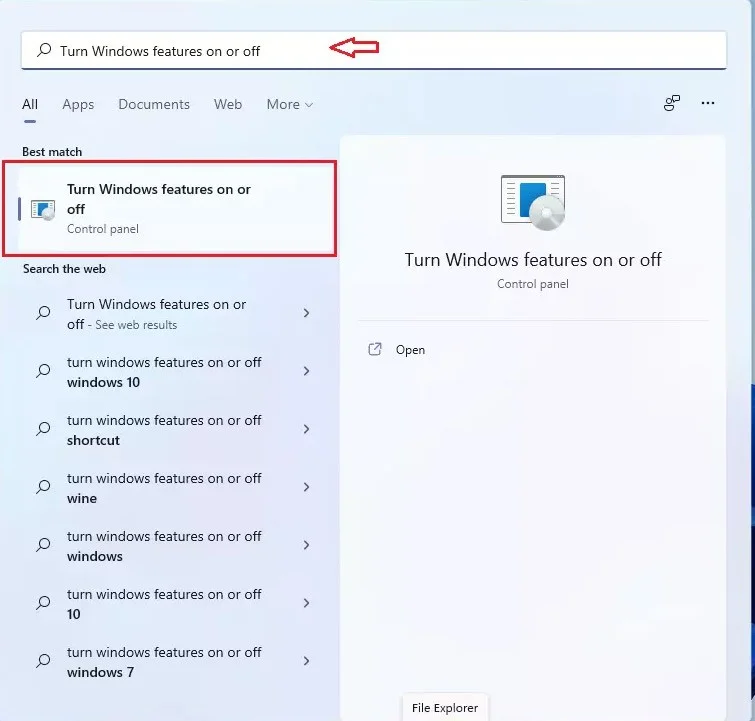
Type Turn Windows features on or off into the search bar and then click on the result.
Step 2:
Switch to the new interface, click on Virtual Machine Platform to turn on the virtual machine on Windows 11.

After rebooting, Hyper-V will be enabled, allowing you to create virtual machines and run multiple operating systems.
Activate virtual machine from Command Prompt Windows 11
We need to open Command Prompt with Admin rights, then you enter the command below to launch the virtual machine.
DISM /Online /Enable-Feature /FeatureName:"VirtualMachinePlatform"If you want to turn off the virtual machine enter the command below.
DISM /Online /Disable-Feature /FeatureName:"VirtualMachinePlatform"Power on virtual machine via Windows PowerShell
We also need to open PowerShell with Admin rights and then enter the command below.
Enable-WindowsOptionalFeature -Online -FeatureName "VirtualMachinePlatform"To cancel virtual machine mode, enter the command:
Disable-WindowsOptionalFeature -Online -FeatureName "VirtualMachinePlatform"Clean spacing, find structured text, and rearrange names with Writer regex patterns you can preview before replacing.
Enable Writer’s bidirectional controls, set RTL paragraph flow, and check mixed Arabic or Hebrew text without disrupting English words and numbers.
Install metric-compatible Linux fonts or map LibreOffice fallbacks, while keeping Microsoft font licensing and layout differences in view.
Add usable text fields, check boxes, and drop-downs in Writer, then export a PDF recipients can complete and save.
Fix missing or substituted fonts in LibreOffice Writer PDFs, choose the right export profile, and verify which fonts are embedded before sharing.
Convert a folder of Word documents to PDF with LibreOffice commands, handle nested folders safely, and verify the output before sharing.
Set a custom LibreOffice Writer template as the default so new documents open with your preferred styles and page layout.
Install a compatible Java runtime, enable it in LibreOffice, and troubleshoot an empty JRE list without changing unrelated settings.
Build a small LibreOffice container, convert office documents without a GUI, and verify PDF output while limiting host-file access.
Reduce oversized LibreOffice presentation files by compressing embedded photos, choosing sensible image settings, and checking slide quality before sharing.








