Enable NVIDIA on Pardus 23 with Its Driver Installer

Use Pardus’s hardware-aware installer to enable the right NVIDIA driver, reboot safely, and verify the active kernel module.
Imagine diving into your favorite movie or jamming to a playlist, only to be interrupted by that annoying audio popping noise in Windows 11. It's frustrating, right? 😩 But don't worry—you're not alone, and it's fixable. This guide cuts straight to the chase with practical, up-to-date solutions to eliminate audio popping and crackling sounds. We'll walk you through easy steps, so you can enjoy seamless audio without the hassle. Let's get your sound back on track!
Before we jump into fixes, understanding the root of Windows 11 audio popping helps you tackle it effectively. Common culprits include outdated audio drivers, power management settings that throttle your sound card, high system loads causing buffer underruns, or even hardware conflicts. Recent Windows 11 updates have refined audio handling, but glitches persist if settings aren't optimized. The good news? Most issues resolve with simple tweaks—no tech wizardry required. Ready to silence the pops? Let's start with the quickest wins.

Outdated drivers are a top reason for audio popping noise. Windows 11 relies on them for smooth playback, and a quick update often does the trick. Here's how:
Pro tip: For the latest drivers, visit your PC manufacturer's site (e.g., Dell, HP) or the hardware maker like Realtek. If automatic updates fail, download manually—it's a game-changer for persistent audio crackling in Windows 11. 🎯
Sometimes, apps fight over audio control, leading to pops. Disabling exclusive mode in Windows 11 sound settings prevents this.
This tweak ensures even audio flow, reducing audio popping during multitasking. Users report immediate relief—your ears will thank you! 👂
Power-saving features in Windows 11 can cause your sound card to "sleep," resulting in pops when it wakes up. Let's fix that:
For laptops, also check Power & battery settings in the Start menu—set your plan to High performance to keep audio stable. This is especially useful if audio popping worsens on battery. Smooth sailing ahead!
Windows 11 has a built-in hero: the audio troubleshooter. It scans and repairs common sound issues automatically.
Run this first if you're short on time. It's like having a tech support buddy right in your OS. ⭐
For stubborn audio crackling in Windows 11, adjusting audio latency can help. This involves the Registry, so back up first (search "Create a restore point" in Start).
HKEY_LOCAL_MACHINE\SOFTWARE\Microsoft\Windows NT\CurrentVersion\Multimedia\SystemProfile.This reduces buffer issues causing pops. If you're uncomfortable, skip to professional help—better safe than sorry!
If pops persist, it might be hardware. Test with external speakers or headphones to isolate. Clean your audio jack, update BIOS via your manufacturer's site, or check for loose connections. For deeper diagnostics, use tools like LatencyMon (free download) to spot driver conflicts.
Remember, recent Windows 11 patches improve audio stability, so ensure you're on the latest build via Settings > Windows Update. If all else fails, a clean install can reset everything— but try that as a last resort.
To keep Windows 11 audio popping at bay:
These habits ensure long-term bliss. If you're dealing with specific setups like Bluetooth devices, check for interference—move away from Wi-Fi routers.
There you have it—a straightforward path to fixing audio popping noise in Windows 11. Start with driver updates and the troubleshooter for quick wins, then dive deeper if needed. Your audio should be crystal clear now, letting you focus on what matters: the music, movies, or calls without distraction. If issues linger, consider community forums like Microsoft Support for tailored advice. You've got this—happy listening! 🎶
For official guidance, check Microsoft's troubleshooter docs: Microsoft Audio Troubleshooting.
Use Pardus’s hardware-aware installer to enable the right NVIDIA driver, reboot safely, and verify the active kernel module.
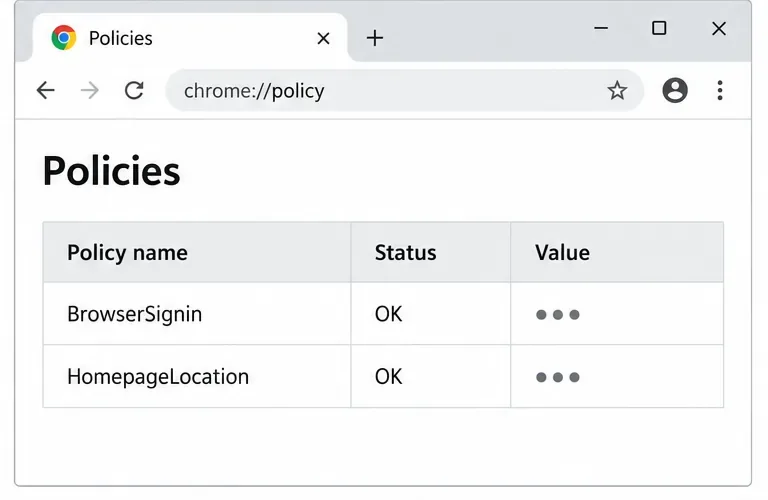
Install the official Chrome package safely on Gooroom OS, check compatibility, preserve device controls, and verify browser policies before use.
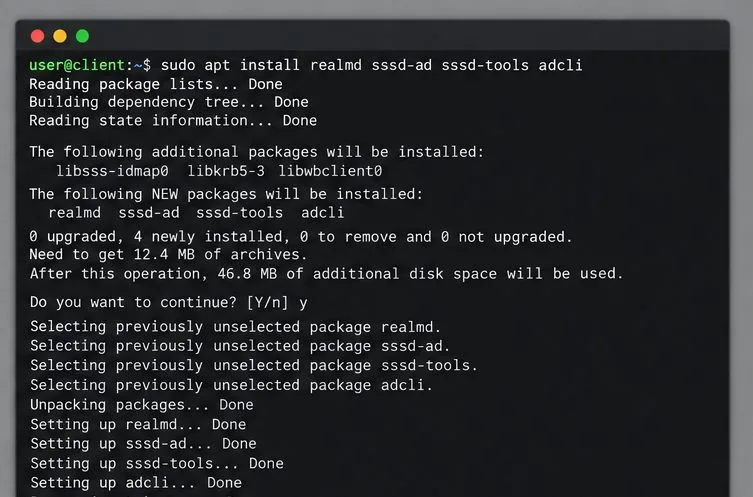
Prepare DNS and time, enroll Pardus with realmd and SSSD, and verify domain membership and user lookup before relying on AD sign-in.
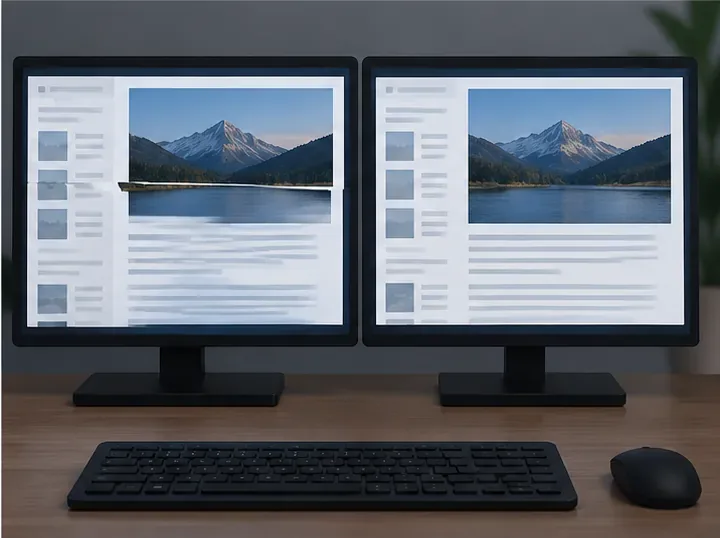
Reduce horizontal tearing in Pardus XFCE by checking your display session, enabling compositor synchronization, and applying Intel’s Xorg TearFree option only when the active driver supports it.
Add an OpenVPN profile to NetworkManager on Pardus, install the right plugin, protect credentials, and verify the VPN is active.
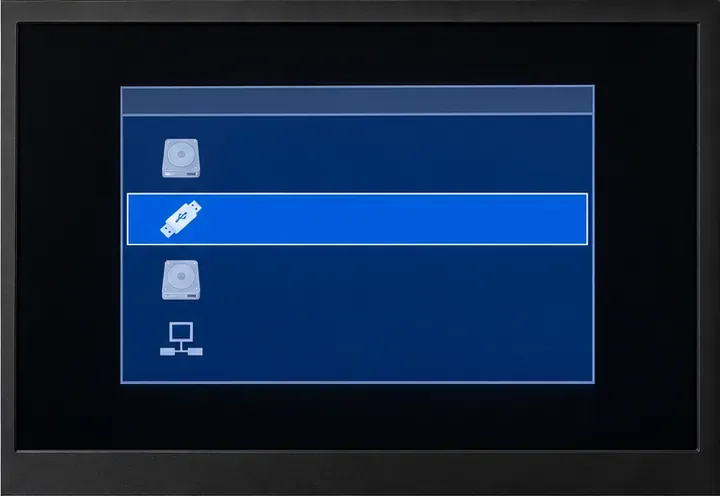
Prepare a bootable USB, check 64-bit hardware compatibility, and install Pardus 23 XFCE while protecting existing files and avoiding common legacy BIOS pitfalls.
Distribute a custom wallpaper to Pardus clients, configure Xfce or GNOME desktops, and apply Lider Ahenk user policies with safe pilot checks.
Fix a 1024 × 768 ceiling by checking SPICE, virtual video, the guest channel, and spice-vdagent—with safe checks when Pardus lacks a package candidate.
Set up the Lider server, configure its installer safely, register Ahenk endpoints, and verify a pilot before expanding central management.
Download the official Pardus 23 desktop ISO, write it safely with Rufus, and boot a Windows PC into a temporary Live session.