How to Download Chrome on Macbook
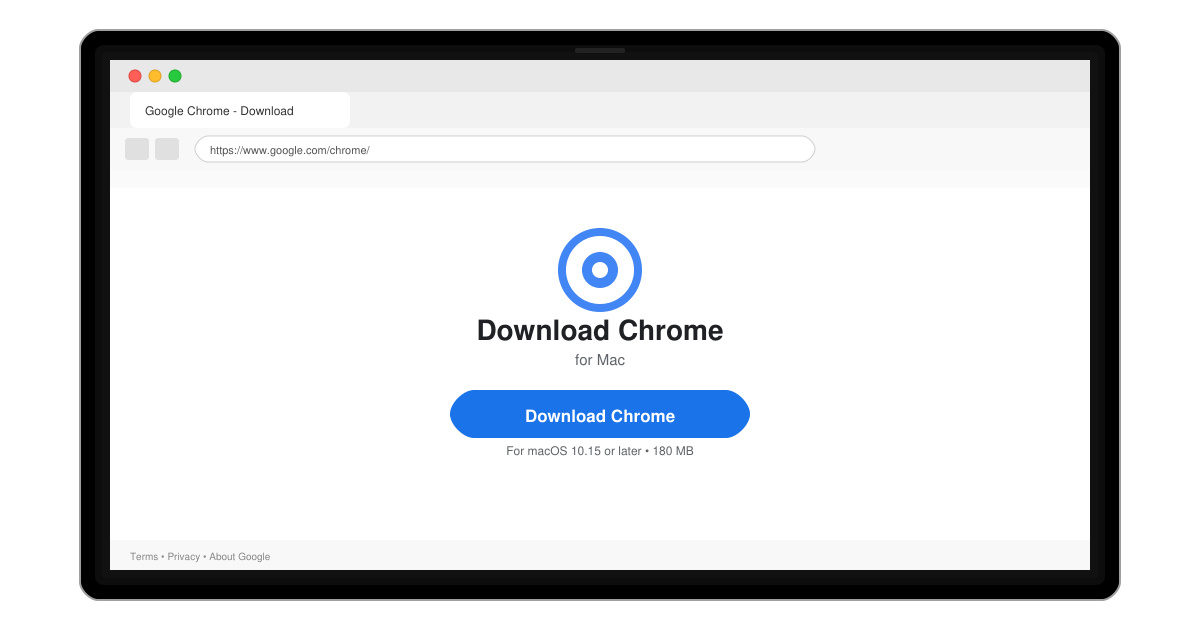
Follow this guide on how to download Chrome on Macbook to get Google Chrome running quickly and safely on your device.
Currently, to help iPhone users quickly compose messages, Apple has introduced the QuickPath feature (Slide to type) . This feature allows the iPhone to receive text or characters by swiping without having to enter each key, thus making composing your message much faster than typing each word by hand.
If you want to use this useful feature on iPhone to compose messages faster but don't know how to do it? Therefore, today Download.vn will introduce an article on how to draw on the iPhone keyboard with the QuickPath feature , inviting you to refer to it.
Instructions for installing and using the QuickPath feature on iPhone
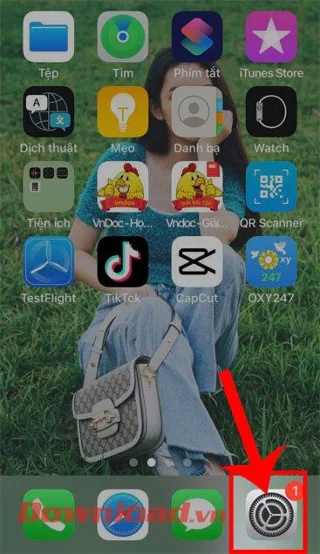
Step 1: To install and use this extremely useful feature, we will first open the Settings application on our phone.
Step 2: At iPhone Settings , scroll down the screen and tap General Settings.

Step 3: In the phone's General Settings section, continue to swipe the screen down, then tap Keyboard.
Step 4: Now, scroll down the screen to the Telex and English section , then flip the switch in the Slide to enter section to turn on the QuickPath feature.


Step 5: Once this feature is turned on, we will open the Messages application on our phone.
Step 6: Finally, at the iPhone keyboard, we will swipe the words you intend to type to get a complete word.
For example: If you want to type the word Ok, just swipe from O to K.


Video tutorial on drawing on the iPhone keyboard with the QuickPath feature
In addition, you can refer to some other articles about iPhone tips such as:
Wishing you success!
Follow this guide on how to download Chrome on Macbook to get Google Chrome running quickly and safely on your device.
Discover exactly how to find your WhatsApp number on Android, iPhone, and desktop in under a minute. Follow these clear steps to view the number linked to your account.
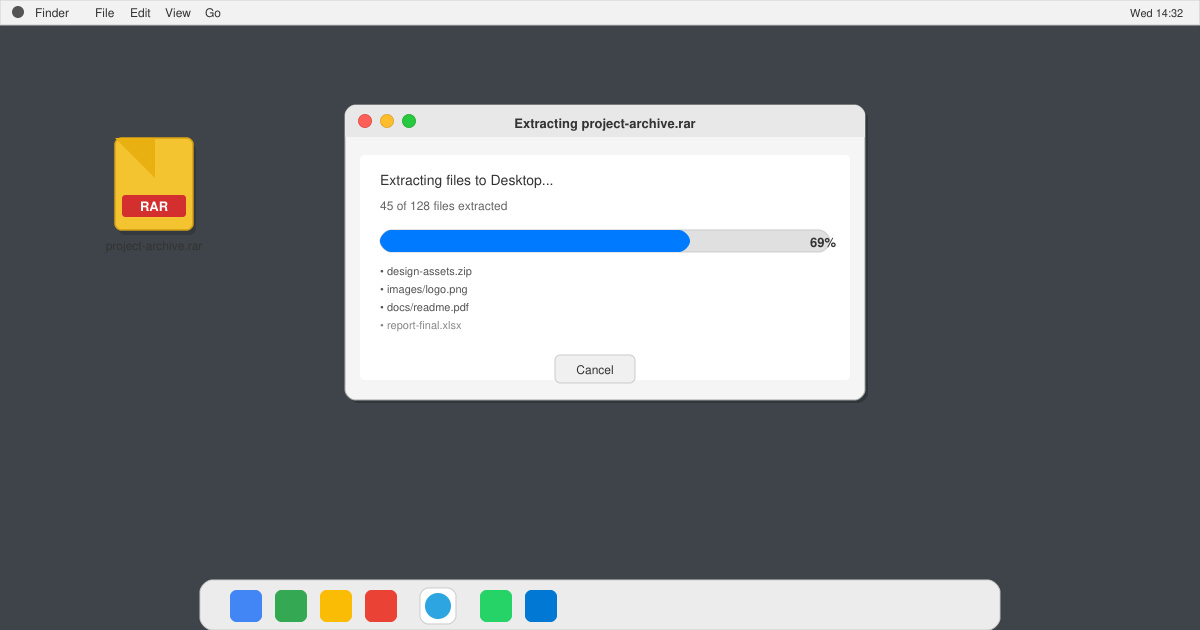
Learn how to open RAR file in Mac OS using free tools. This guide shows the fastest ways to extract RAR archives on your Mac in minutes.
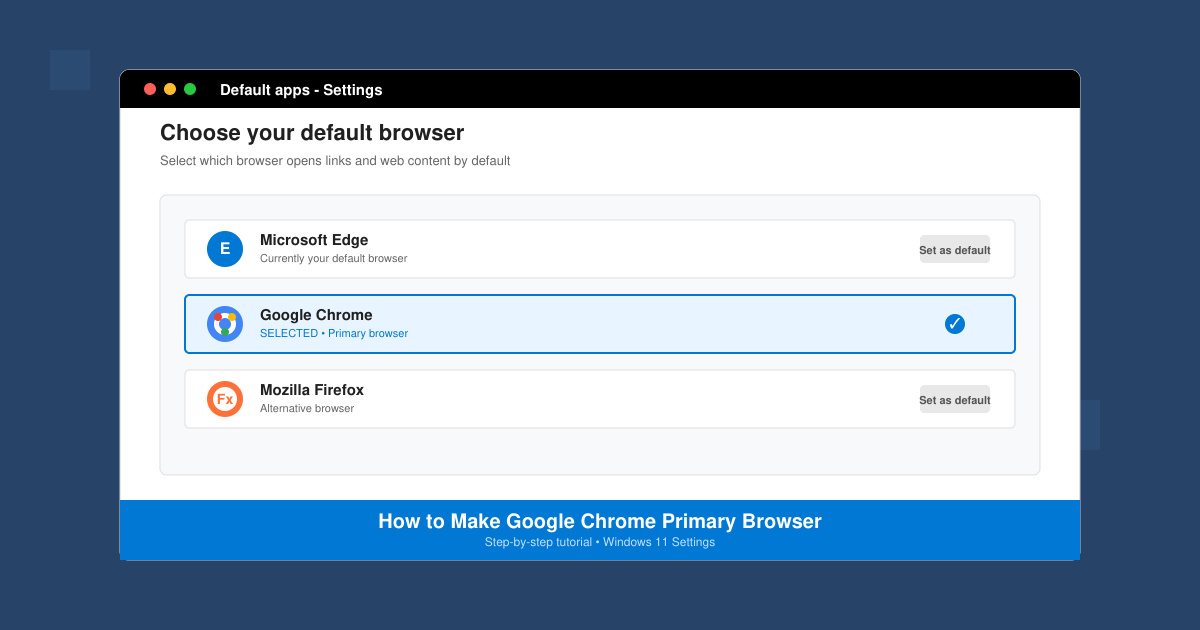
How to make Google Chrome primary browser on Windows, macOS, Android, and iOS with clear step-by-step instructions. Set Chrome as your default browser in minutes for better speed and sync.
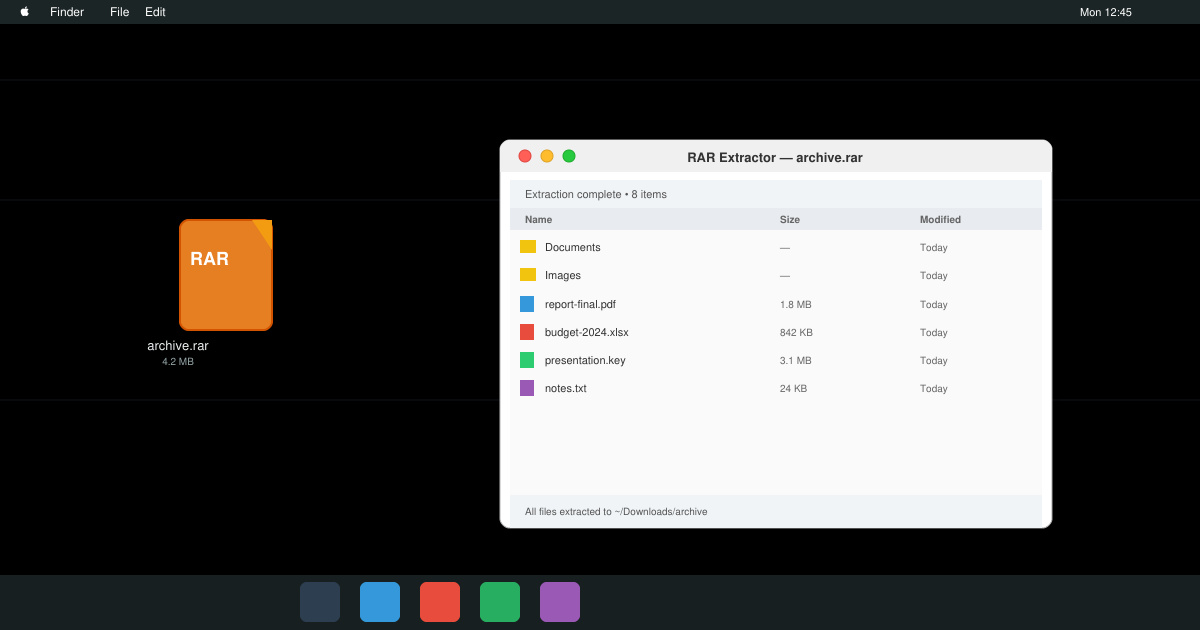
Need a rar program for mac to open RAR files? Learn the fastest way to install and use a reliable extractor on macOS in minutes.
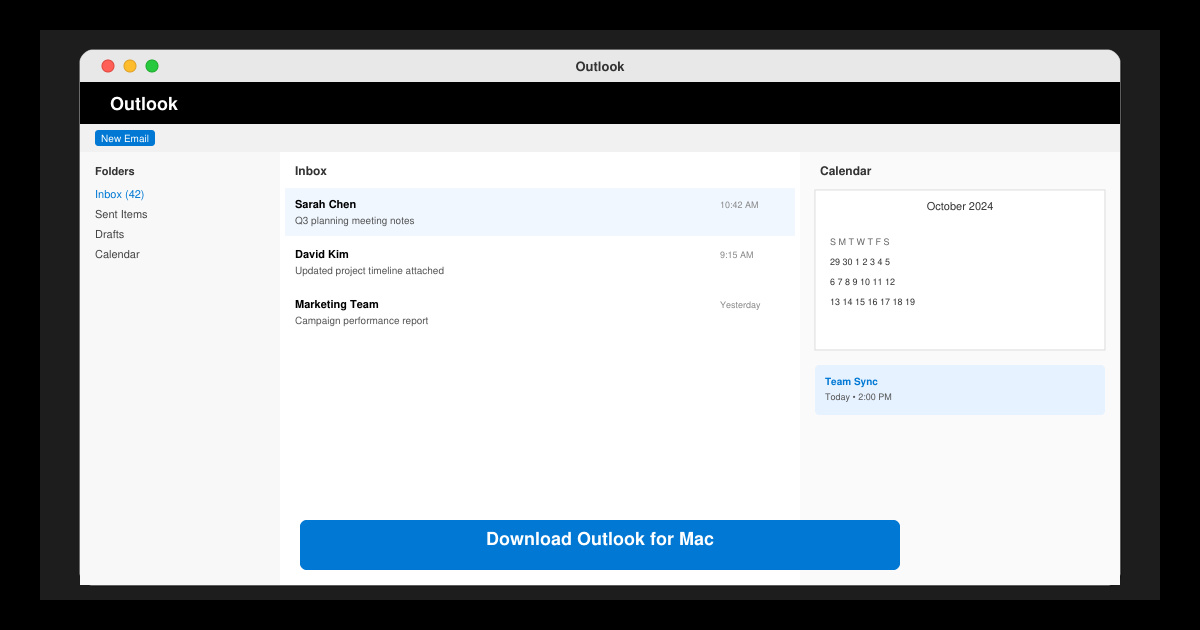
Download Outlook for Mac from the official Microsoft source and install it on your Mac in minutes. Follow this guide for the latest version compatible with macOS.
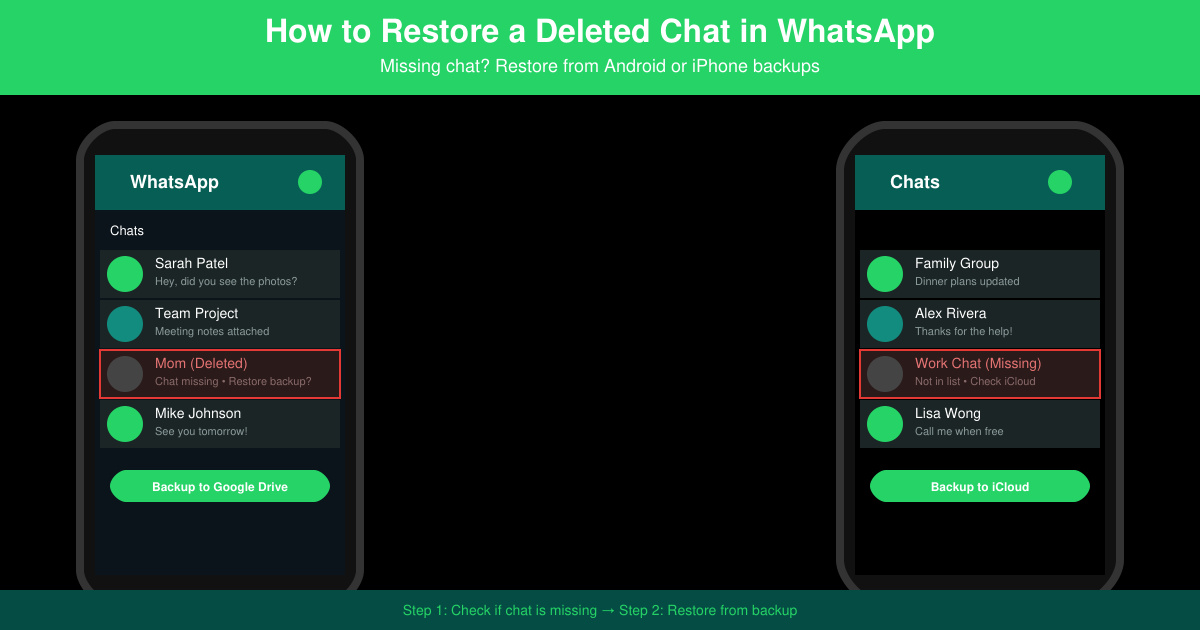
Learn exactly how to restore a deleted chat in WhatsApp on Android and iPhone using local or Google Drive backups. Follow these steps to recover conversations in minutes.
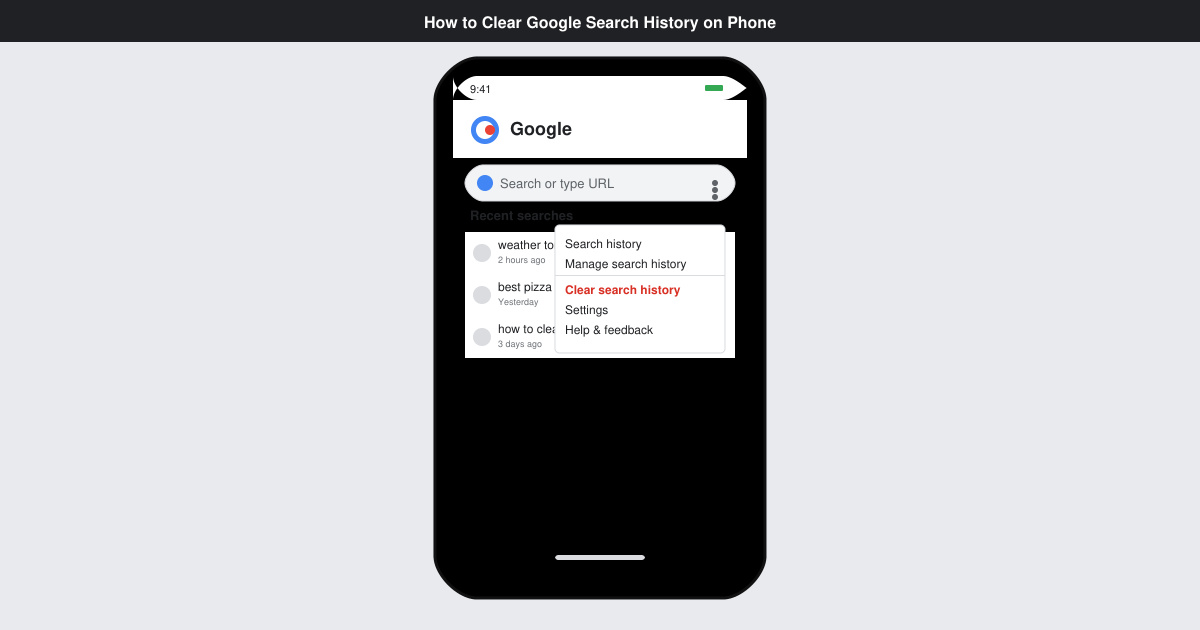
Learn how to clear Google search history on phone in just a few taps. Follow these exact steps for Android and iOS to remove search activity and improve privacy.
Complete your VLC Player Download Mac safely from the official source. This guide shows the exact steps to install VLC Media Player on macOS for reliable video and audio playback.
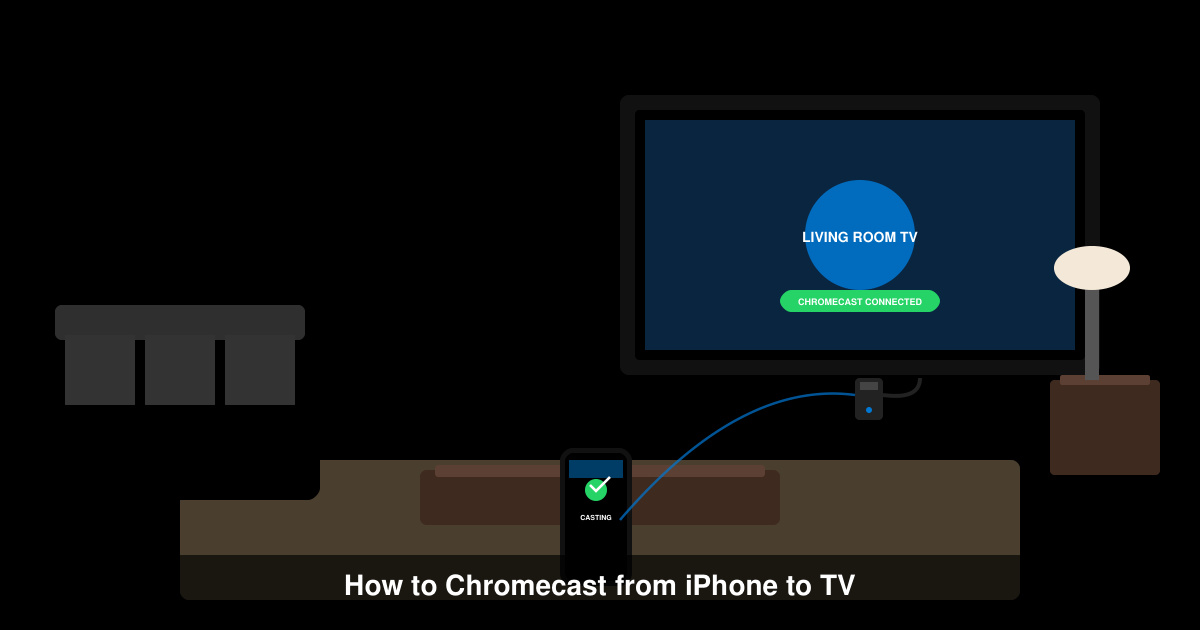
Learn how to Chromecast from iPhone to TV quickly and reliably. Follow these exact steps to stream videos, photos, and apps from your iPhone to any Chromecast device.