Home
» Technology
»
Is Salesforce Down Right Now? Real-Time Status Updates and What to Check
Is Salesforce Down Right Now? Real-Time Status Updates and What to Check
Status checked September 16, 2026: I did not find a crawlable official Salesforce notice confirming a single platform-wide outage affecting every customer at the time of research. That is not the same as saying every Salesforce org is fully operational. Salesforce status is instance- and service-specific, and the company directs customers to its live Trust Status site to check the exact domain or instance they use.
If Salesforce will not load, login is failing, pages are unusually slow, or APIs are timing out, the fastest way to get a useful answer is to check your own instance rather than rely on a generic “Salesforce is up” message.
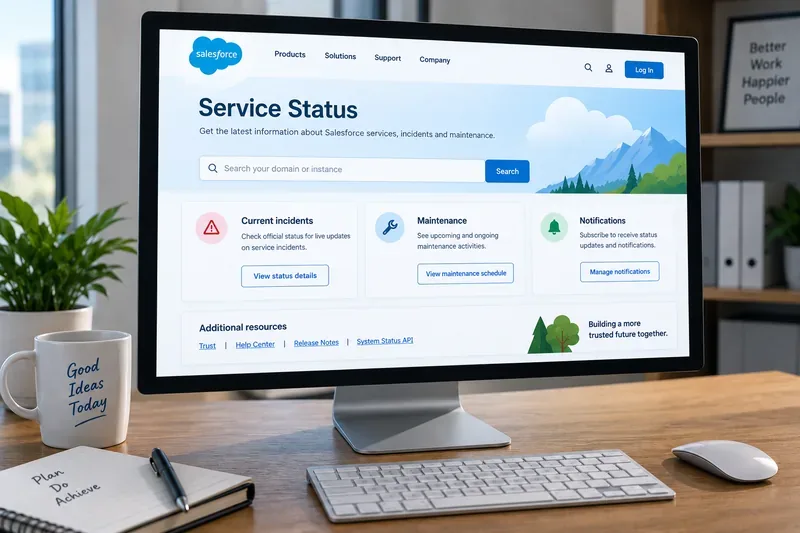
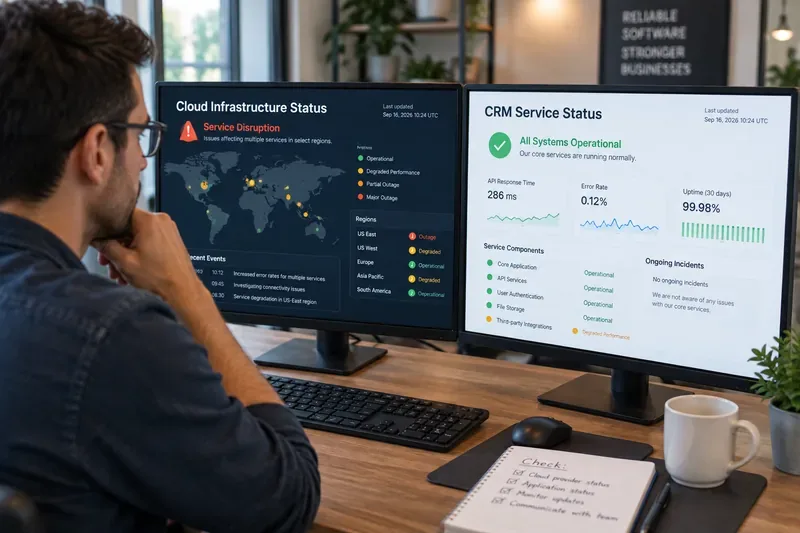
An illustrative service-status view showing the information that matters most during a Salesforce disruption: your instance, current incidents, planned maintenance, and notification options. It is not a live status screenshot.
Quick answer: is Salesforce down right now?
There is no reliable single yes-or-no answer for every Salesforce customer because availability can differ by instance, product, region, and service. Salesforce’s own support documentation says to start with Salesforce Trust Status and search for your domain or instance.
As of the September 16, 2026 research check for this article, I could not verify an official Salesforce-wide outage from the crawlable Trust Status results. However, the live dashboard is dynamic and can change after publication, so the official status page should be treated as the current source of truth.
What you see
What it may mean
Best next check
Salesforce will not load for many users
Possible instance or service disruption
Search your domain or instance on Salesforce Trust Status
Only one user is affected
Account, browser, device, network, or permission issue
Test another browser, network, or user account
Pages are slow but available
Possible degraded performance, network latency, or local infrastructure problem
Check Trust Status, then test network connectivity
Only an integration or API is failing
Could be service-specific, authentication-related, rate-related, or third-party
Check the relevant service status and integration logs
Problems occur during a known maintenance window
Scheduled maintenance may affect availability or selected features
Review the maintenance entry for your instance
How to check your Salesforce instance status
Salesforce support documentation updated on August 4, 2026 explains two practical ways to identify your instance. In Setup, open Company Information and look for the Instance field under Organization Detail. You can also enter your Salesforce domain name on the Trust Status site, which returns the instance associated with that domain.
Salesforce notes that instance names beginning with two letters, such as AP0, are on Salesforce-managed first-party infrastructure, while names beginning with three letters, such as GBR10, indicate Hyperforce infrastructure. The infrastructure detail is less important for day-to-day troubleshooting than simply finding the correct instance to monitor.
Salesforce describes Trust Status as the place to see ongoing incidents, maintenance events, and historical performance information. Planned maintenance is published by instance, and current incidents are updated in real time. That matters because an issue can affect one set of instances while other customers continue working normally.
The status system can help distinguish among several different situations:
Service disruption: a service or instance may be unavailable.
Performance degradation: Salesforce may still work, but response times or certain functions can be impaired.
Scheduled maintenance: Salesforce may be fully available, partially interrupted, or temporarily unavailable depending on the specific maintenance notice.
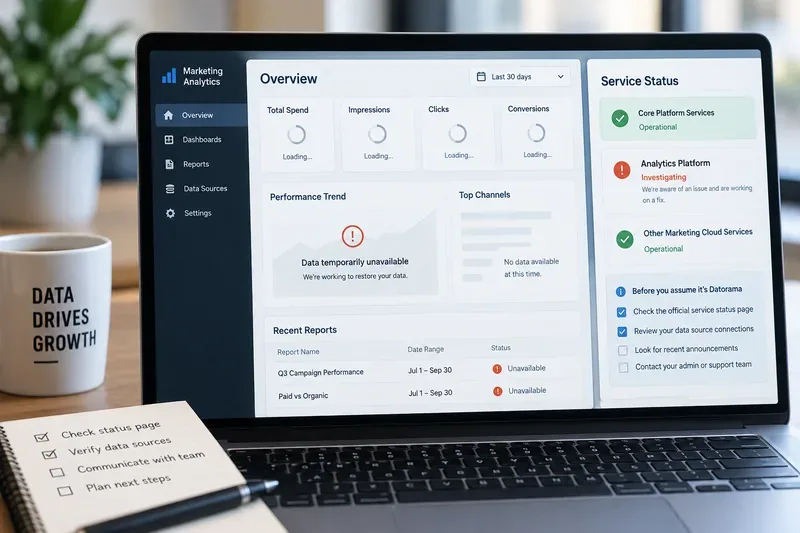
Product-specific issues: a problem may affect one cloud, feature, or service without taking down the entire platform.
For maintenance details, Salesforce says to search your instance or domain on Trust Status. Its official Maintenance and Release Timing documentation states that planned events can be posted well in advance while active incidents are updated in real time.
How to tell whether the issue is Salesforce or your network
Salesforce’s own troubleshooting guidance recommends checking Trust Status first. If there is no incident that matches your instance and symptoms, the next step is to determine whether the problem is local, ISP-related, or specific to your organization.
Run this short checklist
Check whether coworkers on a different network see the same problem.
Try a private or incognito browser window.
Try another supported browser.
Test from a different network, such as a mobile hotspot, if company policy allows it.
Check whether only Salesforce is affected or whether other cloud services are also slow.
Record the exact error message and the time the issue started.
If APIs are affected, compare browser access with API or integration failures.
Slow Salesforce performance does not necessarily mean a full outage. A degraded-performance incident can affect page loads, API calls, reports, or selected services while the rest of the platform remains reachable.
If Trust Status shows no relevant incident, establish a clear problem definition. Note when the slowdown began, which users are affected, whether the problem occurs in production, sandbox, or both, and whether it affects all pages or a particular function. This makes it much easier to separate platform problems from browser extensions, VPNs, proxies, corporate firewalls, DNS issues, or ISP routing problems.
What if login.salesforce.com works but your org does not?
A working Salesforce login page does not prove that every customer instance is healthy. Your org can sit on infrastructure with its own maintenance or service event. Likewise, a problem with your company’s My Domain, SSO provider, identity configuration, or network path can prevent access even when Salesforce’s broader login service is available.
If you know your My Domain, Salesforce recommends using it to find your instance on Trust Status. Its official My Domain documentation explains that status information is tied to the Salesforce instance behind the organization.
Scheduled maintenance can look like an outage
Before escalating an apparent outage, check whether your instance is in a maintenance window. Salesforce states that maintenance is scheduled by instance, usually during preferred windows intended to reduce business impact.
The impact varies. Salesforce documentation describes maintenance periods in which an instance can be unavailable, generally available with temporary interruptions, or available in read-only mode. The specific maintenance record is therefore more useful than a generic assumption that “maintenance means Salesforce is offline.”
How to get real-time Salesforce outage notifications
If Salesforce is business-critical for your team, repeatedly refreshing the status page is unnecessary. Salesforce Trust supports near-real-time notifications for service issues, maintenance events, and product releases.
According to the official Trust Notification Guide, customers can subscribe to instance notifications by email, SMS, or both. Salesforce recommends reviewing subscriptions after events such as sandbox refreshes, instance splits, or org migrations because the instance associated with your environment can change.
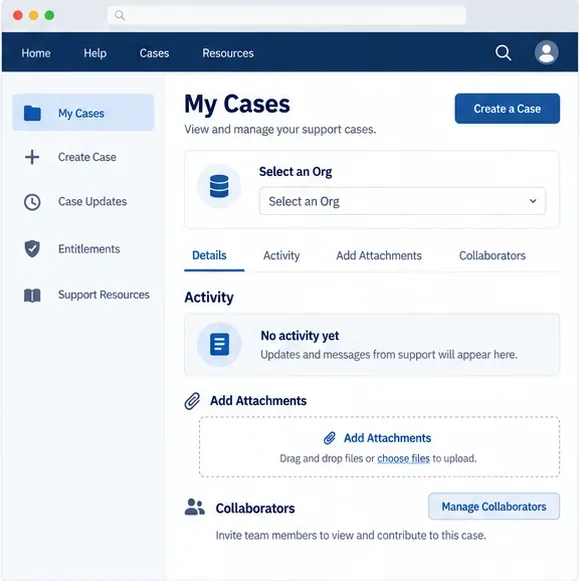
Open a support case when the problem continues and the public status information does not explain it, especially if multiple users are affected or a critical business process is unavailable.
Prepare evidence before escalating:
your Salesforce domain and instance;
the approximate start time and time zone;
affected users, locations, and networks;
screenshots or exact error text;
whether production, sandbox, APIs, or integrations are affected;
browser and network tests already performed;
traceroute or ping results when the issue appears network-related.
A concise incident description helps Support determine whether your case matches a known service event or needs org-specific investigation.
Practical status workflow for administrators
Check Salesforce Trust Status first. Search your domain or instance rather than relying on a global status claim.
Match the incident to your symptoms. Confirm the affected service, instance, start time, and incident status.
Check maintenance. A scheduled event may explain login failures, read-only behavior, or temporary interruptions.
Test another user and network. This quickly separates many local issues from broader platform problems.
Document the timeline. Record what failed, when it started, and what changed.
Subscribe to notifications. This reduces the need to manually watch the status page during an ongoing incident.
Escalate with evidence if needed. Give Salesforce Support enough detail to reproduce or route the problem efficiently.
Bottom line
If you are asking, “Is Salesforce down right now?”, the most accurate answer depends on your instance and the service you are using. At the time this article was researched on September 16, 2026, I could not verify an official Salesforce-wide outage from the crawlable official status results. Because the Trust dashboard changes in real time and incidents can be instance-specific, that observation should not be treated as a permanent all-clear.
For the live answer, go directly to Salesforce Trust Status, search your company’s domain or instance, and compare the listed incident or maintenance details with what your users are experiencing.