How to Configure a WireGuard Point-to-Site VPN on Debian 12
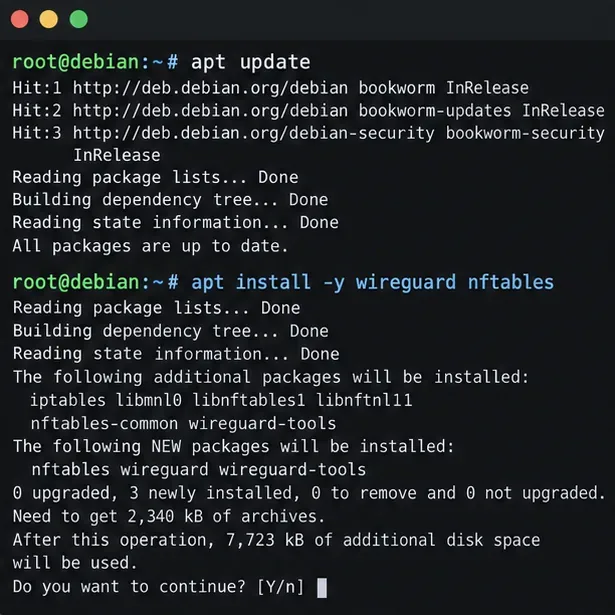
Set up a Debian 12 WireGuard VPN server for one remote client. Configure keys, IPv4 forwarding, nftables NAT, firewall access, and connection checks.
Task View brings multitasking to a whole new level in Windows 10. You can use the feature to access and manage open app windows on multiple virtual desktops, compartmentalizing different tasks for better focus. On top of that, Task View's Timeline improves workflow by allowing you to easily resume activities started on your Microsoft account. Continue reading to find out what Task View is and how you can use it to increase your productivity in Windows 10:
Contents
What is Task View?
Introduced with Windows 10, Task View is a multitasking feature that lets you access and organize your open app windows across multiple virtual desktops, while also allowing you to quickly resume past activities started on any device connected to your Microsoft account.
Task View in Windows 10
To put it simply, Task View is meant to help you focus on your current project, without distractions and time wasted searching for the needed app windows or documents. But, before getting into the different features that make Task View an essential tool in Windows 10, let's see how to access it.
How to open Task View in Windows 10
To access the Task View screen, you can use the button with the same name. Located to the right of the taskbar's search field, the Task View button has a dynamic icon, that looks like a series of rectangles stacked on top of each other. Click or tap on it to open Task View.

Press the Task View button
If the button is missing, right-click or press-and-hold on the taskbar to bring out a menu. Then, in the taskbar's menu, check the "Show Task View button" option by clicking or tapping on it.
TIP: If you're using Tablet mode in Windows 10, the option to show the Task View button is not available in the taskbar's menu. Turn off Tablet mode, then open the menu to check the "Show Task View button" option.

Show Task View on your taskbar
If extra buttons on the taskbar are not your thing, there's a Windows 10 Task View shortcut you can use.
Press Windows + Tab simultaneously on your keyboard to instantly access the Task View screen on your computer or device.

Open Task View with a keyboard shortcut
If you're using a touchscreen device, swipe in from the left side of your screen to access Task View.

Swipe from the left side to open Task View
How to use Task View to manage virtual desktops in Windows 10
Shown at the top of the Task View screen, virtual desktops are great for multitasking, allowing you to create and organize multiple workspaces, each suited to the task you're focusing on. You can use a virtual desktop for your social media and messaging apps, and have another where you open all the documents and apps required for the project you need to turn in next week. Using multiple desktops can help you keep focused on the task at hand and clear unnecessary clutter and distractions, thus increasing your productivity in Windows 10.

Virtual desktops in Task View
To learn more about virtual desktops, read: How to use multiple desktops in Windows 10.
How to use Task View to switch between open windows
When you open Task View, the screen dims, showing previews of all your open windows. The most recently accessed windows are shown first, while apps you have not needed for a while are pushed to the bottom of the screen. Click or tap on any window to access it immediately.

Task View displays all open windows
You can also use the arrow keys to highlight the window you need in Task View, and then press Enter on your keyboard to access it.

Highlight a window and press Enter
If you're using multiple virtual environments, first, hover the mouse cursor over another desktop to select it and see its open windows displayed in the middle section of your screen. Then, to access a window, click or tap on it or use the arrow keys to highlight it and press Enter.

Hover over a virtual desktop and select the window you want to access
TIP: If you want to get rid of some of the open windows from the Task View, read our tutorial on closing apps in Windows 10.
How to Snap windows and split screen with Task View
Task View offers a simple way to split your screen by snapping windows left or right on the current desktop. Right-click or press-and-hold on the window that you want to snap. Then, in the contextual menu, click or tap on Snap left or Snap right, depending on what you want.

Snap app windows into place
The app is immediately resized and repositioned to take up the corresponding half of your screen, as seen below.

The window is snapped to the left of the screen
Did you know you can make multitasking even easier and snap up to four app windows on the screen simultaneously? To learn how to do that, read How to split screen on Windows 10 and view apps side by side.
How to use Task View's Timeline in Windows 10
If you scroll down in the Windows 10 Task View screen, you can see the Timeline, which offers a log of your activities on all the devices connected to your Microsoft account for the last 30 days. On top of allowing you to resume work from where you left off, this feature also makes recently accessed files easier to find. For more details, read our tutorial about the Windows 10 Timeline.

The Timeline in Windows 10
How do you use Task View in Windows 10?
The Windows 10 Task View is a versatile tool that lets you quickly find what you're looking for and enables you to organize your working environment depending on your needs. We use virtual desktops for different projects and activities, and the Timeline comes in handy to continue working on documents across different devices. However, we don't really access the feature to snap windows or switch between open apps. What about you? Are you using everything Task View has to offer? Let us know in the comments.
Set up a Debian 12 WireGuard VPN server for one remote client. Configure keys, IPv4 forwarding, nftables NAT, firewall access, and connection checks.
Harden a Debian 12 workstation with a careful CIS Benchmark workflow: select the right profile, patch safely, review services and access, configure nftables, and document evidence.
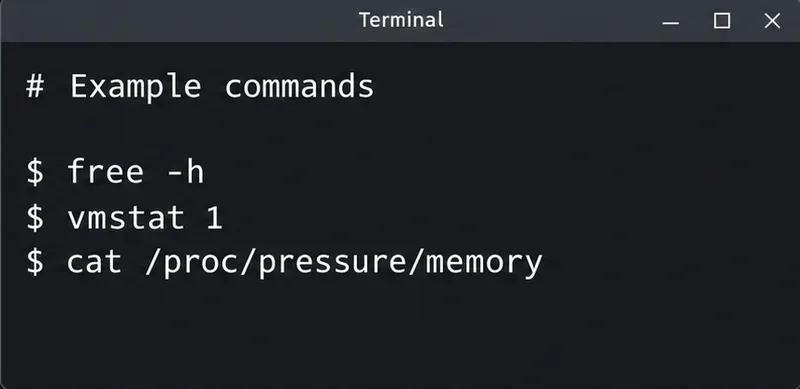
Diagnose MySQL OOM kills on Debian 12, check VPS memory limits, configure swap, and tune database memory and concurrency without promising a universal fix.
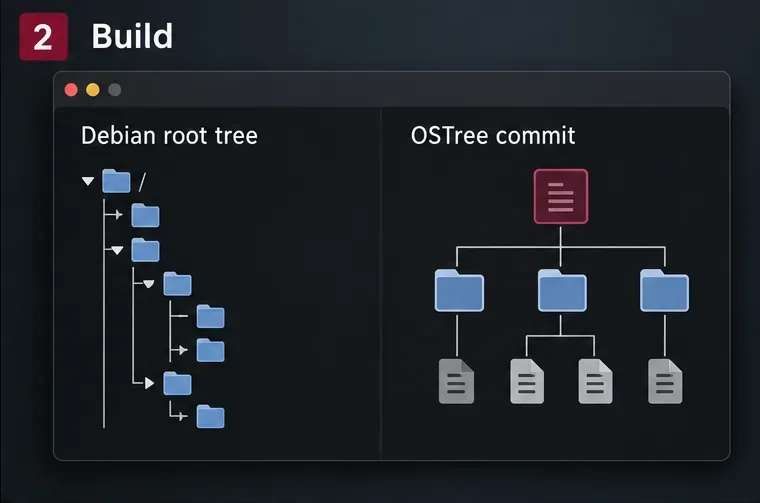
Learn how to create and test a Debian-derived OSTree desktop in a VM, including system-tree preparation, boot integration, deployment checks, and rollback.
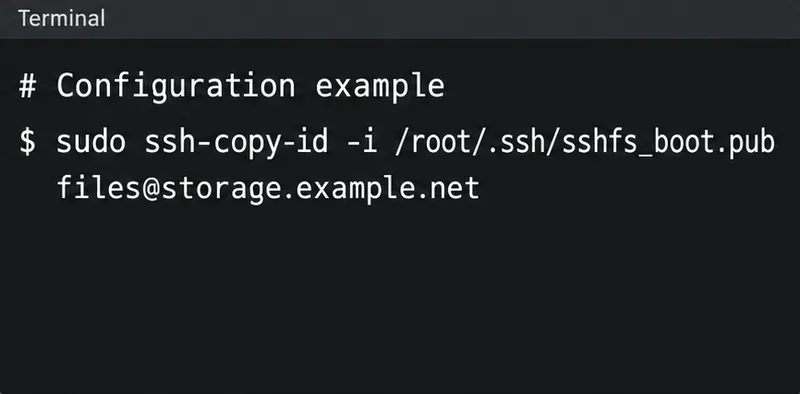
Configure an SSHFS boot mount in Debian with SSH keys, fstab, and systemd automount. Includes reboot checks, permissions, timeouts, and troubleshooting.
A practical October 2026 Chicago and Illinois home-maintenance checklist covering first frost, heating safety, gutters, leaves, pipes, renters, and winter-storm preparation.
Plan Chicago’s October garden with Illinois Extension advice on garlic, bulbs, indoor herbs, microgreens, frost protection, and a week-by-week checklist—using climate normals separately from the live forecast.
National Voter Registration Day is September 15, 2026. Learn how to register online, by mail, or in person and verify your voter status.
New to podcasting? Learn the 2026 trends shaping video, discovery, transcripts, AI, analytics, monetization, and a practical launch plan.
A practical UGC masterclass for sourcing, permissioning, briefing, publishing, and measuring customer and creator content without losing authenticity.