6 Ways to Fix Laptop Not Receiving Mouse

The situation that the laptop does not recognize the mouse  is a very common situation. There are many people who feel extremely uncomfortable when encountering this problem. However, do you know how to effectively fix this problem? The following article will share with you ways to fix a laptop that does not want to receive a mouse quickly.

1. Change the connection port and test the mouse

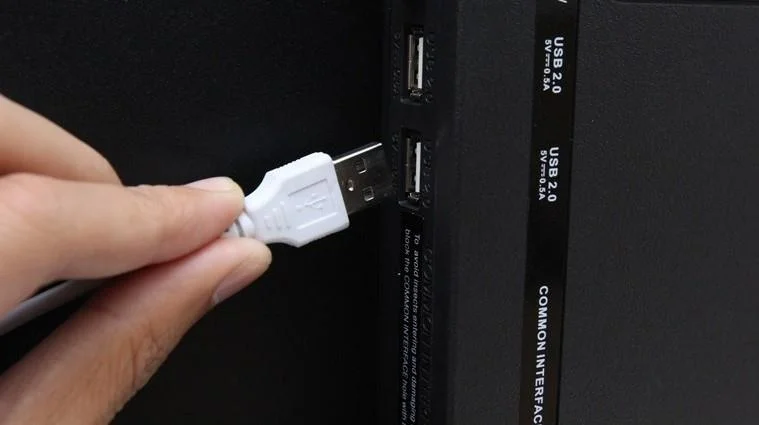
If the laptop does not recognize the mouse , the first thing you need to do is change the connection port and check the mouse. This method is quite simple and worth trying for many laptops if you do not accept a mouse. If you're using a USB-powered mouse, you can unplug it and plug it in to another port. This will help you know if your mouse is damaged or the USB port is faulty.
6 Ways to Fix Laptop Not Receiving Mouse

Change the connection port and test the mouse

When plugging in the mouse port to another USB pin, the computer recognizes the mouse, then surely the USB port on your computer is having a problem. You can try connecting the mouse to another computer and see if that works. If not, you should replace a new mouse to use.

During use, you need to clean the pins and periodically check them. After a period of use, the connection port is easily damaged and the exposure is greatly reduced.

2. Restart the laptop

In case you have changed the USB port but the laptop does not recognize the mouse , you need to restart the laptop. This method is quite simple but also an effective way for you to fix common basic errors. It is possible that the software in the computer is in conflict with other connected devices on the computer or due to an operating system error. So you need to restart the laptop.

6 Ways to Fix Laptop Not Receiving Mouse

Restart the computer

Besides, maybe in the process of working, your operations easily cause the computer to fall into a state of conflict in both software and hardware. Restarting the laptop will help bring it back to a more stable state.

3. Reinstall the mouse driver

If the laptop does not recognize the mouse , you can reinstall the driver for the mouse. This problem is often encountered when you use new laptops to reinstall the operating system, using a ghost download on the network that is tweaked with many factors. However, it is also possible that the computer device has a driver error. This is completely normal. You can proceed to install the mouse driver with the following steps:

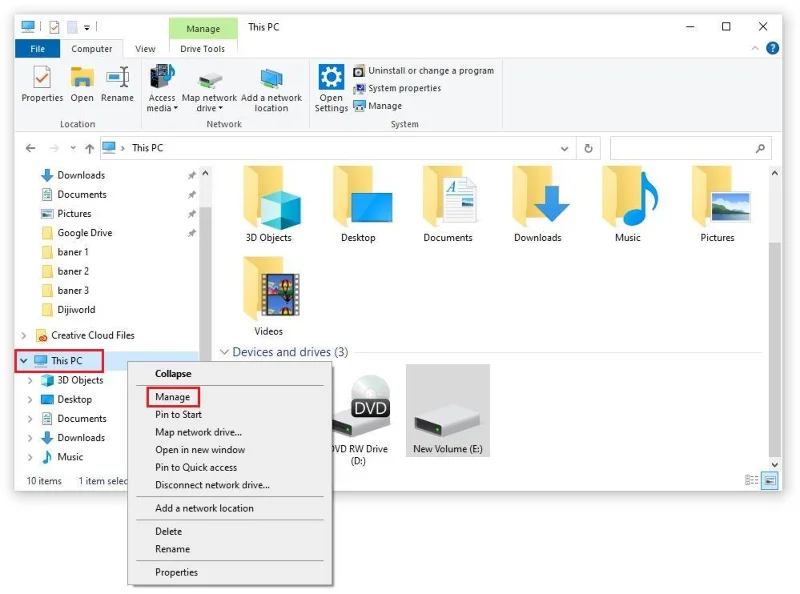
Step 1: Right-click the This PC icon  . Select the Device manager item.

6 Ways to Fix Laptop Not Receiving Mouse

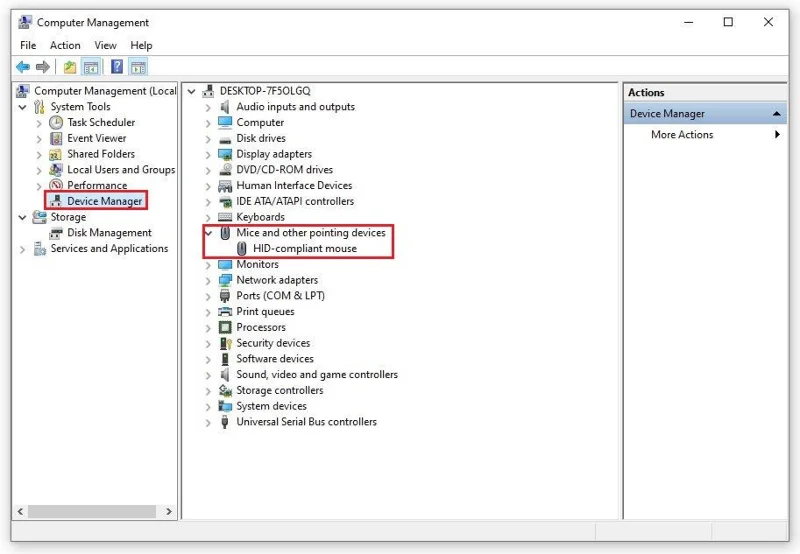
Step 2: On the Device manager interface => Select the item Mice and other pointing devices. This step will help you check if the device has enough drivers or not.

6 Ways to Fix Laptop Not Receiving Mouse

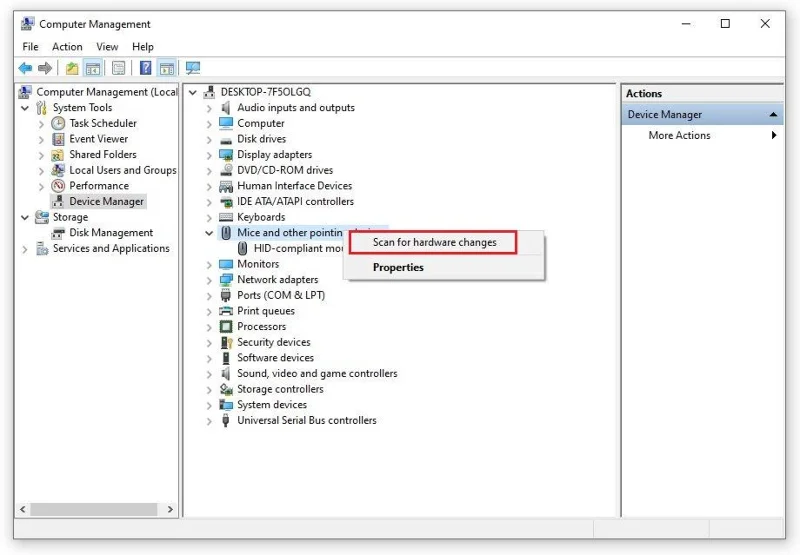
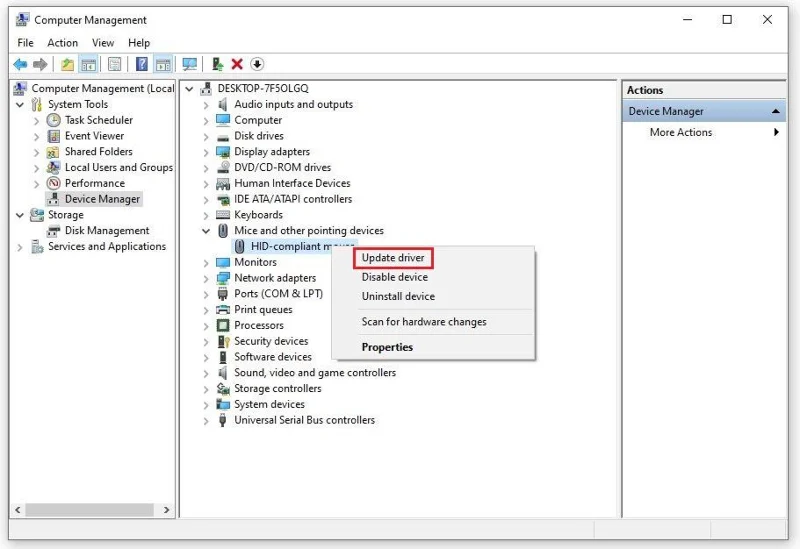
Step 3: If the device already has a driver, you can choose “ Uninstall device ” to remove the old driver and reinstall the new driver with an upgraded version. If your computer does not have a mouse driver, download it by right-clicking on the line " Mice and other pointing devices ". Continue to select “ Scan for hardware changes ” so that the computer automatically detects and downloads the new driver to the computer.

 6 Ways to Fix Laptop Not Receiving Mouse

Reinstall the driver for the mouse

6 Ways to Fix Laptop Not Receiving Mouse

During the download process, you are not allowed to turn off the computer because this will affect the process. Make sure your device is always connected to the internet.

4. Check Touchpad On/Off Status

In case the laptop does not accept the mouse but the touchpad mouse is available on the computer, what will you do? Please immediately check the on-off status of your touchpad! Many laptop models today can adjust the touchpad through certain keyboard shortcuts. This equipment is quite convenient but also encounters many problems.

6 Ways to Fix Laptop Not Receiving Mouse

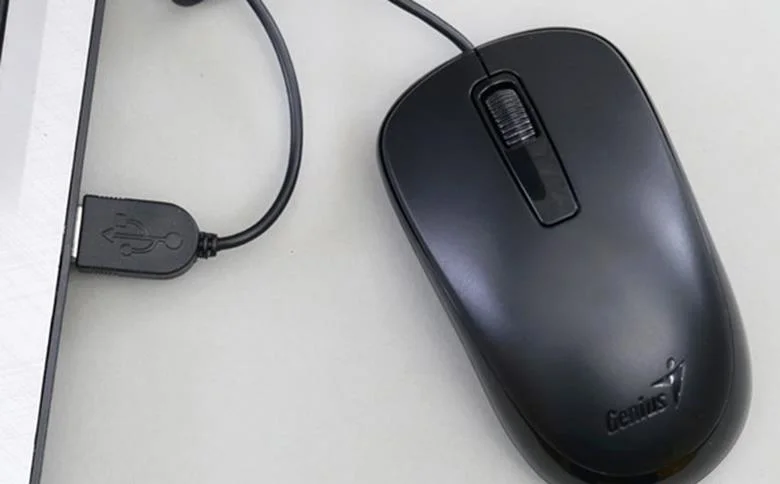
Mouse touchpad

Chances are, in the process of using the computer, you accidentally press the wrong key combination, which leads to disabling the touchpad. The shortcut key combination to turn on / off the touchpad on the laptop will be the Fn + F8 key combination.

5. Scan for viruses on your computer

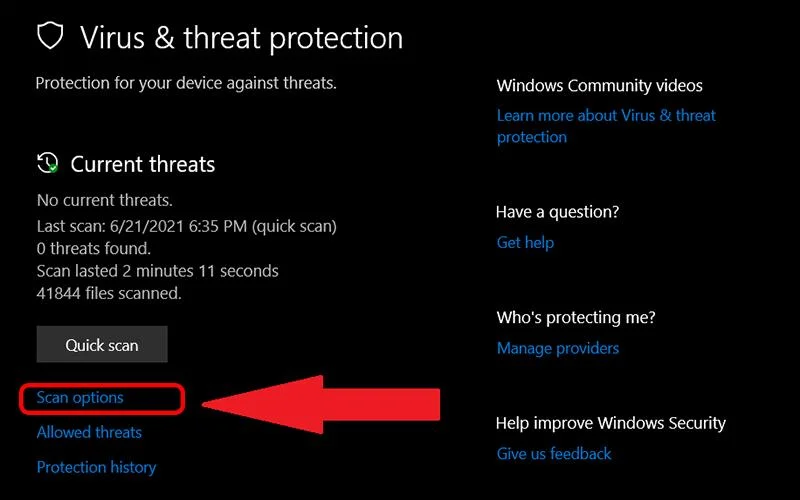
Viruses are the main cause of minor errors, damage to software and operating systems installed on computers. So, if you encounter a situation where the laptop does not recognize the mouse and applying the above methods still does not work, check if your computer has a virus.

6 Ways to Fix Laptop Not Receiving Mouse

Scan virus

At this point, you should scan for viruses to remove viruses that are harmful to your computer. Although you do not need to do this regularly, you should periodically scan for viruses every 3 months.

6. Faulty Hardware

Faulty hardware is also the reason why the laptop does not recognize the mouse . It seems that the wire connecting the mouse, keyboard to the mainboard is broken, affecting other devices. You can't fix this problem by yourself, but you should bring it to a computer repair center to check. Here, a team of technicians will help you fix the problem your computer has and will achieve the expected effect.

Through this,  WebTech360 has told you how to fix the situation where the laptop does not recognize the mouse . There are quite a few problems that lead to this situation, but they are also quite easy to fix. The above ways will help you solve the problem quickly and restore the effective use of the mouse.
Leave a Comment

Top 5 Most Popular Comic Drawing Software On Computers

Top 5 Most Popular Comic Drawing Software On Computers

Are you confused about which manga drawing software is the best? WebTech360 will suggest software for drawing comics on your computer.

7 Best iOS Emulator Software On Windows, Mac Computers 2023

7 Best iOS Emulator Software On Windows, Mac Computers 2023

The best iOS Emulator software on Windows and Mac computers in the article will help you manipulate on your computer in a convenient and extremely simple way.

5 Best Free Driver Update Software 2023

5 Best Free Driver Update Software 2023

The free driver update software in the article will help you save a lot of time and automatically upgrade your device in a convenient way.

5 Free Live Streaming Software On Youtube, Facebook 2023

5 Free Live Streaming Software On Youtube, Facebook 2023

Free livestream software on Youtube, Facebook is an essential choice for those who intend to sell online on Youtube and Facebook platforms.

5 Best Free And Ad Blocking Software 2023

5 Best Free And Ad Blocking Software 2023

The best and free ad blocking software in the article will save you a lot of time with annoying ads before.

Instructions for Installing Nintendo 3DS Emulator To Play Pokemon, Mario

Instructions for Installing Nintendo 3DS Emulator To Play Pokemon, Mario

Citra 3DS is an emulator that plays Nintendo games. WebTech360 will guide you to install Citra emulator to play Nintendo 3DS games.

Download Furmark and how to use it to test GPU power

Download Furmark and how to use it to test GPU power

Furmark software is essential to help you test GPU power on Windows computers. To download and use the software, you should refer to the instructions in this article.

Download CPU-Z | CPU Test, Computer Configuration

Download CPU-Z | CPU Test, Computer Configuration

To capture the details of your computer's hardware, cpu z is where you can find all the information. All parameters of the machine can be seen through this software.

Download Crystal Disk Mark, Detailed Installation and Usage Instructions

Download Crystal Disk Mark, Detailed Installation and Usage Instructions

Crystal Disk Mark helps you test the read / write speed of computer storage devices effectively? Let's learn about this tool through the following section of the article.

Windows XP – Why Are Many People Still Using It To This Day?

Windows XP – Why Are Many People Still Using It To This Day?

Stability is a strong point of Windows XP. That also explains why this operating system is still trusted today!

6 Best Web Browsers 2023 You Should Refer

6 Best Web Browsers 2023 You Should Refer

Do you want to choose a suitable browser for your computer? WebTech360 will suggest you the top 6 best web browsers!

Should You Replace Your Laptops Video Card, How Much Does It Cost?

Should You Replace Your Laptops Video Card, How Much Does It Cost?

Broken laptop card errors are completely normal and common. Because of the problem of how to replace the laptop video card, how much does it cost?

Summary of 3 Free, Most Powerful Hard Drive Freezing Software 2023

Summary of 3 Free, Most Powerful Hard Drive Freezing Software 2023

If you are looking for free hard drive freezing software for your computer, you cannot ignore the 3 most powerful software 2023 in the following article.

Summary of 5 Software to Reduce Ping, Lag When Playing Game LOL Valorant

Summary of 5 Software to Reduce Ping, Lag When Playing Game LOL Valorant

Ping reduction software supports stable computer transmission, ensuring game loading speed to help gamers play games in the most comfortable way.

How to Fix 0x80070020 File in Use Error Windows 11

How to Fix 0x80070020 File in Use Error Windows 11

Struggling with the frustrating 0x80070020 file in use error on Windows 11? Discover proven, step-by-step fixes to resolve it quickly and get your system running smoothly again. No tech expertise needed!

How to Download Windows 11 ISO with Product Key

How to Download Windows 11 ISO with Product Key

Discover the step-by-step process to download Windows 11 ISO with a valid product key. Get the latest official files, avoid pitfalls, and install effortlessly for a seamless upgrade experience.

How to Fix Printer Error 709 in Windows 11 Network

How to Fix Printer Error 709 in Windows 11 Network

Struggling with Printer Error 709 in Windows 11 Network? Discover proven, step-by-step fixes to restore seamless printing. Say goodbye to connectivity woes and get back to productivity fast!

Solving Windows 11 Mouse DPI Changing Automatically

Solving Windows 11 Mouse DPI Changing Automatically

Struggling with your mouse DPI shifting unexpectedly in Windows 11? Discover proven fixes for the "Mouse DPI Changing Automatically" issue, from simple tweaks to advanced solutions, to regain smooth control.

Troubleshooting Windows 11 Update Error 0x80070422

Troubleshooting Windows 11 Update Error 0x80070422

Struggling with Windows 11 Update Error 0x80070422? Discover proven fixes to resolve this frustrating issue quickly. Step-by-step guide to get your updates running smoothly without hassle.

Solving Game Bar FPS Counter Not Showing in 2026

Solving Game Bar FPS Counter Not Showing in 2026

Struggling with Game Bar FPS counter not showing in 2026? Discover proven fixes to get your FPS overlay working smoothly on Windows. Step-by-step guide for gamers.

Best Power Settings for Windows 11 in 2026

Best Power Settings for Windows 11 in 2026

Discover the best power settings for Windows 11 in 2026 to optimize battery life, boost performance, and ensure efficiency. Tailored tips for laptops, desktops, and modern hardware.

How to Fix Windows 11 VMware and VirtualBox BSOD

How to Fix Windows 11 VMware and VirtualBox BSOD

Struggling with Windows 11 BSOD errors from VMware and VirtualBox? Discover proven, step-by-step fixes to eliminate crashes and get your virtual machines running smoothly. Updated with the latest solutions for seamless virtualization.

How to Download Windows 11 Pro 64-Bit for Free

How to Download Windows 11 Pro 64-Bit for Free

Discover safe, legal ways to download Windows 11 Pro 64-bit for free. Follow our step-by-step guide to get the latest ISO from Microsoft and install effortlessly—no risks, no costs. Perfect for upgrades and fresh starts.

Troubleshooting Windows 11 Wallpaper Engine Crash Fix

Troubleshooting Windows 11 Wallpaper Engine Crash Fix

Struggling with Wallpaper Engine crashes on Windows 11? Discover proven troubleshooting steps to fix crashes, optimize performance, and restore smooth animated wallpapers. Get your desktop back in action today!

How to Reset Windows 11 Password Without Login

How to Reset Windows 11 Password Without Login

Stuck outside your Windows 11 account? Learn proven, step-by-step methods to reset your Windows 11 password without logging in. Safe, easy fixes for forgotten passwords in the latest updates.

Solving Windows 11 CPU Temperature High Idle Fix

Solving Windows 11 CPU Temperature High Idle Fix

Struggling with high CPU temperature at idle on Windows 11? Discover proven fixes to lower your CPU temps, boost performance, and prevent overheating. Step-by-step guide with the latest tips for a cooler, smoother PC experience.

Fixing Theme and Background Sync Errors in Windows 11

Fixing Theme and Background Sync Errors in Windows 11

Struggling with theme and background sync errors in Windows 11? Dive into this expert guide for quick, effective fixes to restore seamless personalization. Get your desktop back on track without the hassle.

Solving Windows 11 Variable Font Not Supported Error

Solving Windows 11 Variable Font Not Supported Error

Struggling with the Windows 11 "Variable Font Not Supported" error? Discover proven fixes to resolve this issue and get your fonts working smoothly. Step-by-step solutions for a frustration-free experience.

How to Fix Windows 11 Registry Database Corrupt

How to Fix Windows 11 Registry Database Corrupt

Struggling with the frustrating Windows 11 "Registry Database Corrupt" error? Discover proven, step-by-step fixes to restore your system quickly and safely. No tech expertise needed—get back to smooth computing today!