How to Zoom on Chrome
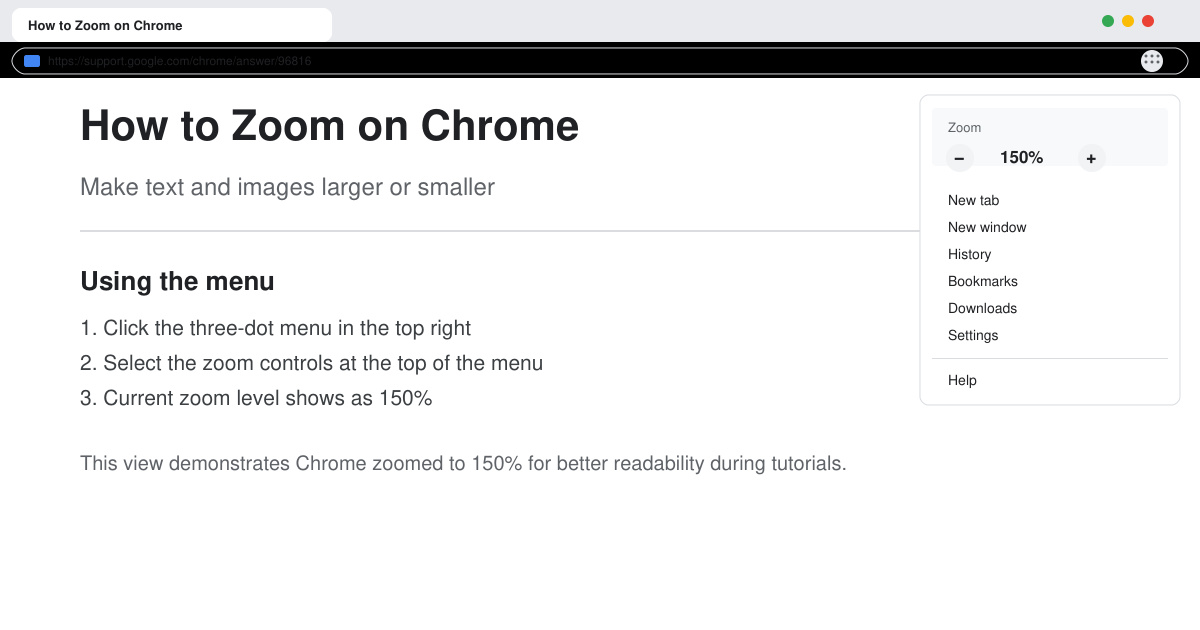
Learn how to zoom on Chrome with keyboard shortcuts, menu options, and touch gestures to improve readability on any webpage in seconds.
Hisense is an increasingly popular brand when it comes to Smart TV technology. They manufacture budget-friendly LED and ULED (Ultra LED) units that enhance contrast and definition for a better viewing experience.

Knowing how to install and update apps is immensely important to get the most out of your Hisense TV.
How to Install Apps on a Hisense TV
Hisense TVs, like any other Smart TV, come with several factory-installed apps. Some of these are crucial for any viewing experience on a Hisense TV, while others you may never use. Either way, factory-installed apps cannot be removed and are default on your Hisense TV.
Fortunately, other interesting Hisense apps may exist in your TV’s app store. Follow the procedures below to download certain apps from your Hisense Smart TV.

Updating Your Apps on a Hisense TV
Updating apps from Hisense’s native database isn’t user-associated. If such an app gets an update, it automatically installs on your device. Try removing and reinstalling it if there is a problem.
Option 1: Reinstalling an App on Your Hisense TV
Option 2: Updating Firmware on Your Hisense TV
Don’t forget that factory-installed Hisense TV apps cannot be deleted. Regardless, it may also not update to its latest version. Because you cannot remove the app, your best bet is to update your TV’s firmware. You must keep the firmware up-to-date to ensure your TV works properly. Outdated apps aren’t the only problem that old firmware causes.
Option 3: Updating Google Play on Your Hisense TV
Some Hisense TVs use the Android OS, which means you use the Google Play Store to download apps.
If a downloaded Android app isn’t working properly, find it on the Google Play Store, and you’ll see an “Update” button if it isn’t running on the current version.
Suppose you have an Android Hisense TV that doesn’t seem to have access to the Google Play Store. It’s always best to contact your retailer or manufacturer to solve the issue rather than sideloading the Google Play Store through a third-party app. Google Play almost always comes preinstalled on any Android device.
Option 4: Use Vewd
Vewd is an online storefront that offers apps specifically designed for smart TVs. The apps are all stored on the cloud and are accessed through Vewd directly. All app updates are done by Vewd, independently from your smart TV. Vewd is compatible with Android TVs only, but it is also installable on some non-Android Smart TV sets.
Note: You may have to manually update the Vewd app if your TV is not an Android version, which can be inconvenient.

While some Hisense TVs may be challenging to install, update, and manage apps, others make it easy. When automatic updates fail, you can update an app by removing and reinstalling it using the instructions above. Getting the latest firmware also helps make several new app versions compatible. Aside from having no access to manufacturer app databases, Google Play apps, or Vewd apps, avoid using third-party services to compensate. The majority of apps that you may need are available in the native App Store.
Learn how to zoom on Chrome with keyboard shortcuts, menu options, and touch gestures to improve readability on any webpage in seconds.
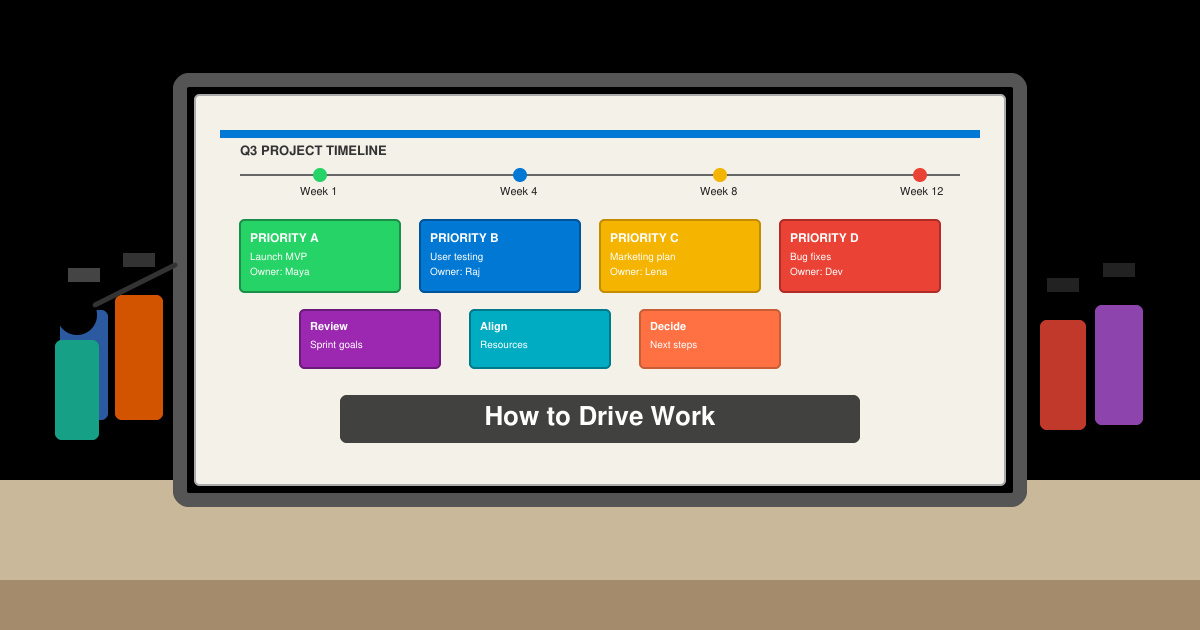
Discover how to drive work with clear processes that keep projects moving and teams aligned. This guide covers practical steps to improve output and reduce delays across any workplace.
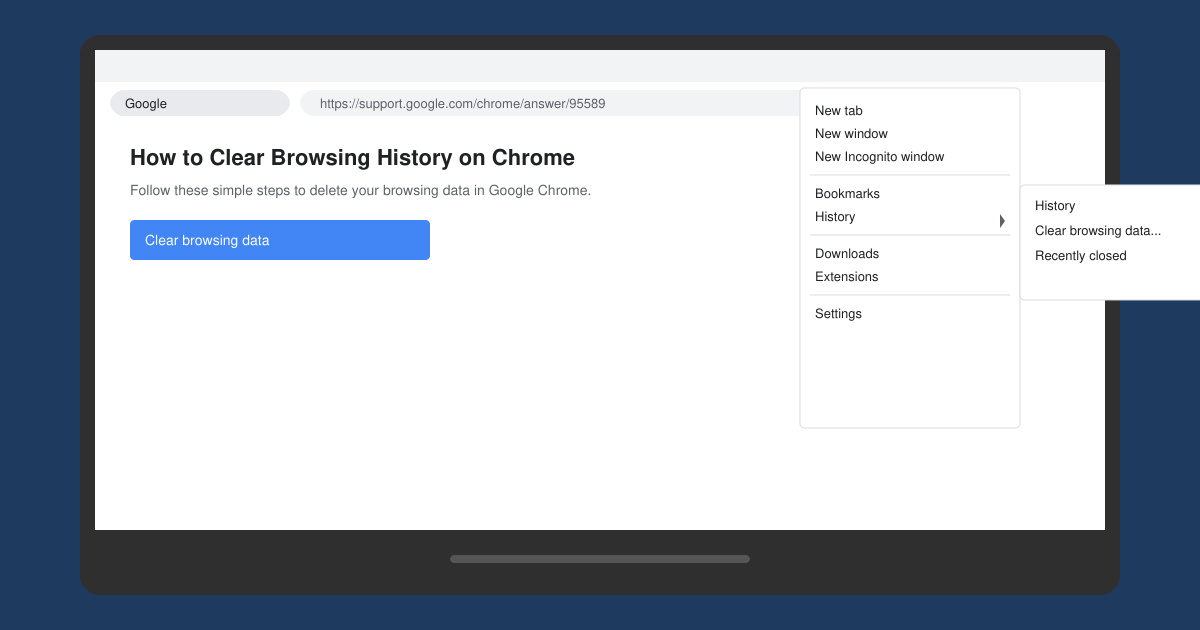
Learn exactly how to clear browsing history on Chrome in under a minute. Follow these precise steps to remove data from your desktop or mobile browser and improve privacy.
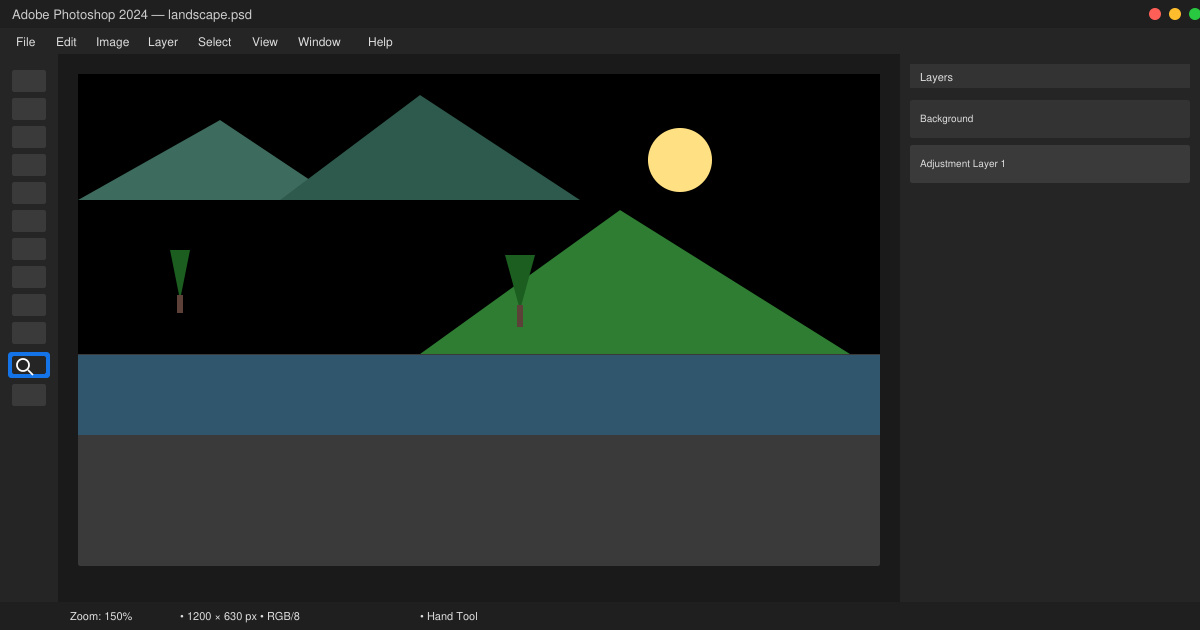
Learn how to zoom in on Photoshop with precise methods for detailed photo editing and design work. Follow these steps to master zooming quickly in Adobe Photoshop.
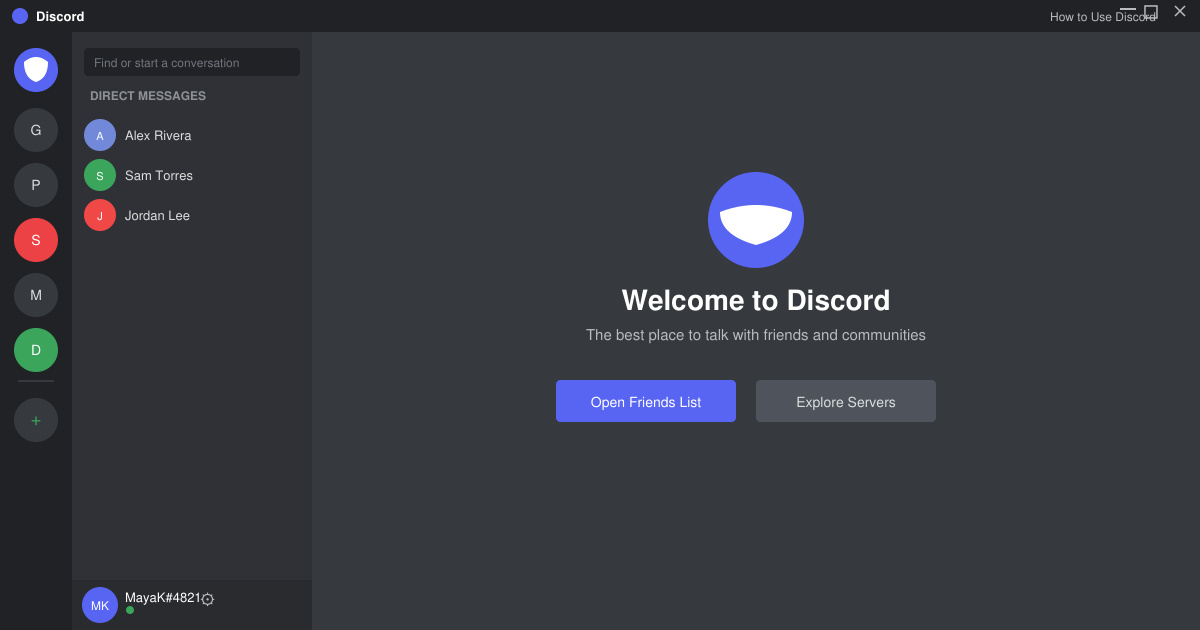
How to Use Discord starts with creating an account and joining servers. This guide shows exactly how to set up voice chats, manage channels, and connect with communities quickly.
Master how to boil broccoli perfectly every time with this step-by-step guide. Learn exact timing and techniques for tender, vibrant, nutrient-rich results.
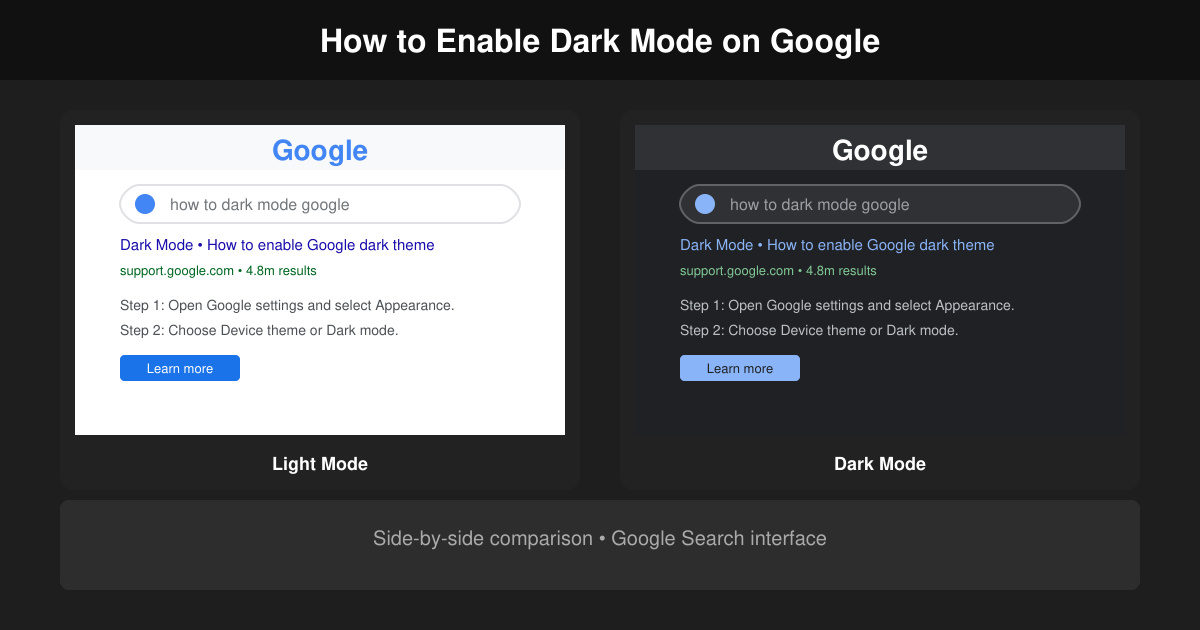
Learn how to dark mode on Google across Search, Chrome and apps to cut eye strain at night. This guide shows the exact settings to enable Google dark theme in under a minute.
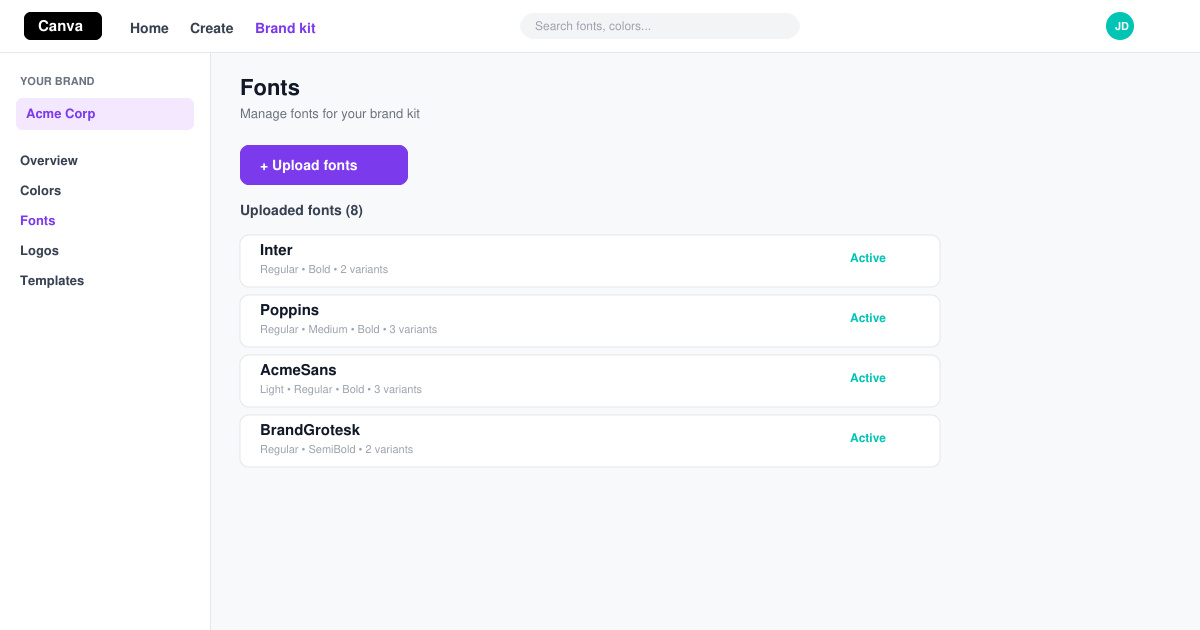
Learn exactly how to add font to Canva with this step-by-step guide. Upload custom fonts through Brand Kit to use them across all your designs in minutes.
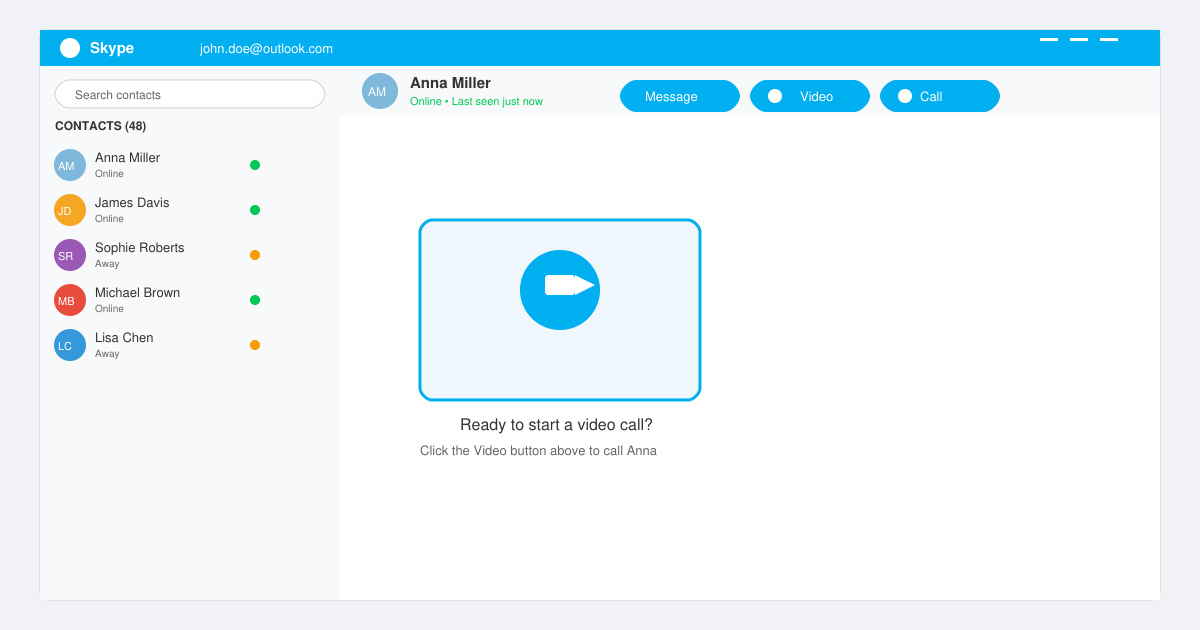
How to Use Skype for free video calls, messaging, and screen sharing. Follow this complete guide to install the app, set up your account, and start communicating in minutes.
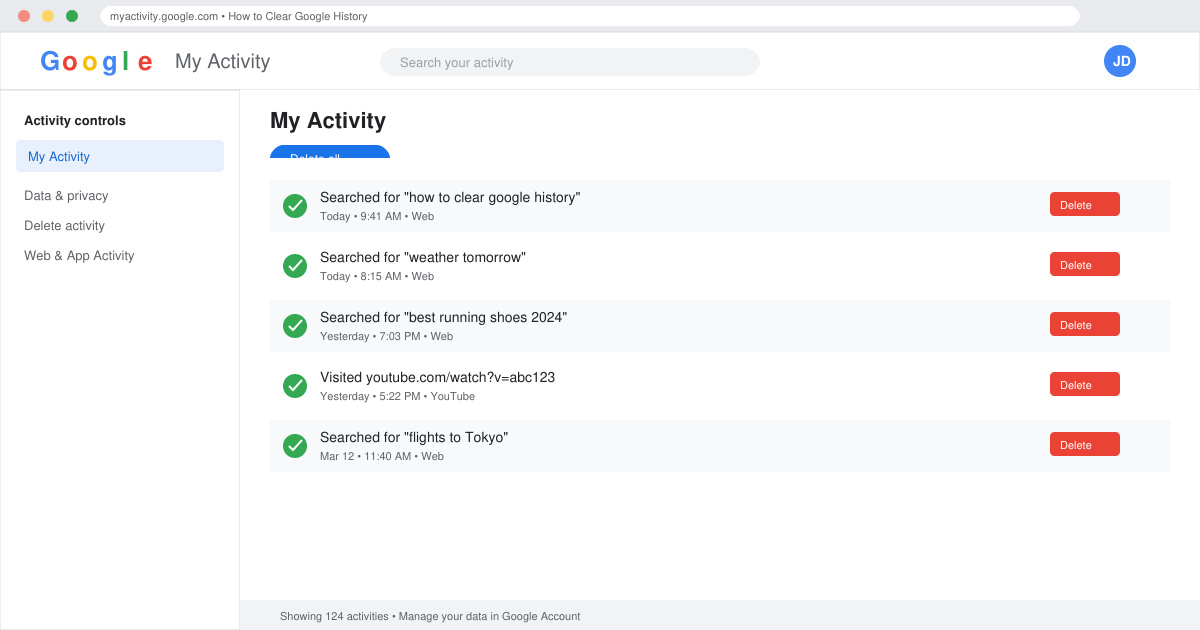
Learn how to clear Google history quickly to protect your privacy. This step-by-step guide shows you how to delete search activity from your Google account on any device.