Sent an email to the wrong person or spotted a typo right after hitting Send? Outlook lets you recall a sent email — but only if both you and the recipient use Microsoft Exchange or Microsoft 365, and the message hasn't been read yet. Here's how to do it in under two minutes. Knowing how to clear browsing history on Chrome helps you remove stored sites, cookies, and cached files that can slow down your browser or expose your activity.
Why You Should Clear Browsing History on Chrome
Chrome stores every website you visit, along with form data, cached images, and cookies. Over time this collection grows large and can reveal personal information if someone else uses your device. Clearing the data regularly frees disk space and resets tracking elements from advertisers. The feature also lets you choose exactly which items to remove so you do not lose saved passwords or sign-ins you still need.
Before you begin, update Chrome to the latest version through the three-dot menu under Help → About Google Chrome. This ensures all menu options match the current interface. You can perform the process on Windows, macOS, Linux, Android, or iOS with only minor differences in navigation.
How to Clear Browsing History on Chrome for Desktop
-
Open the Clear Browsing Data Window
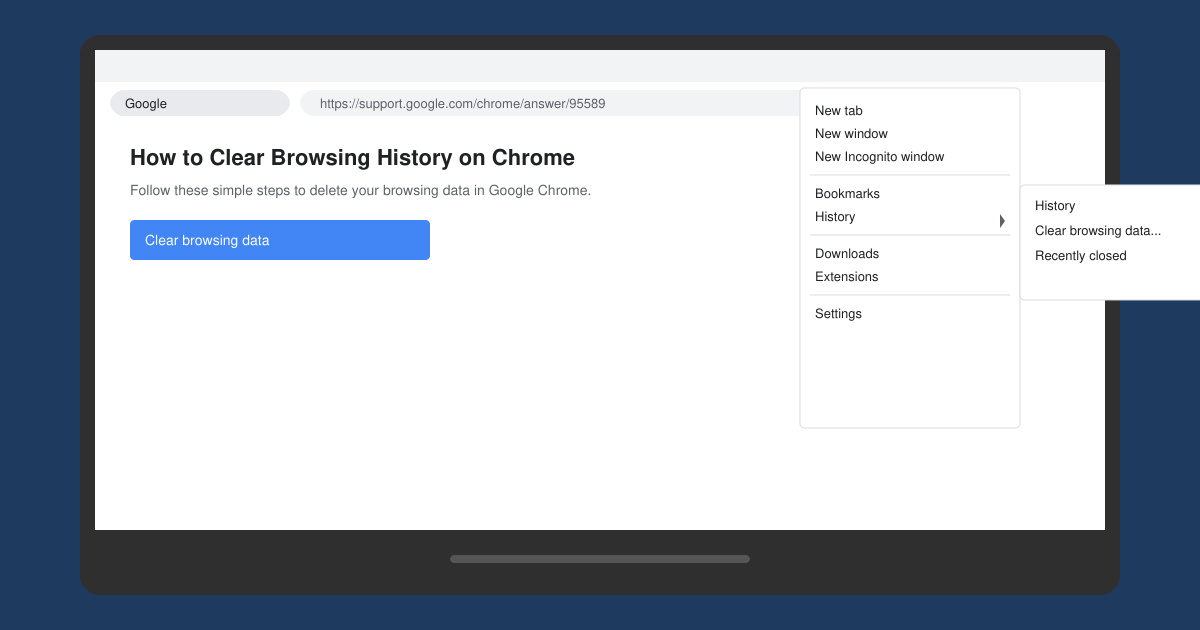
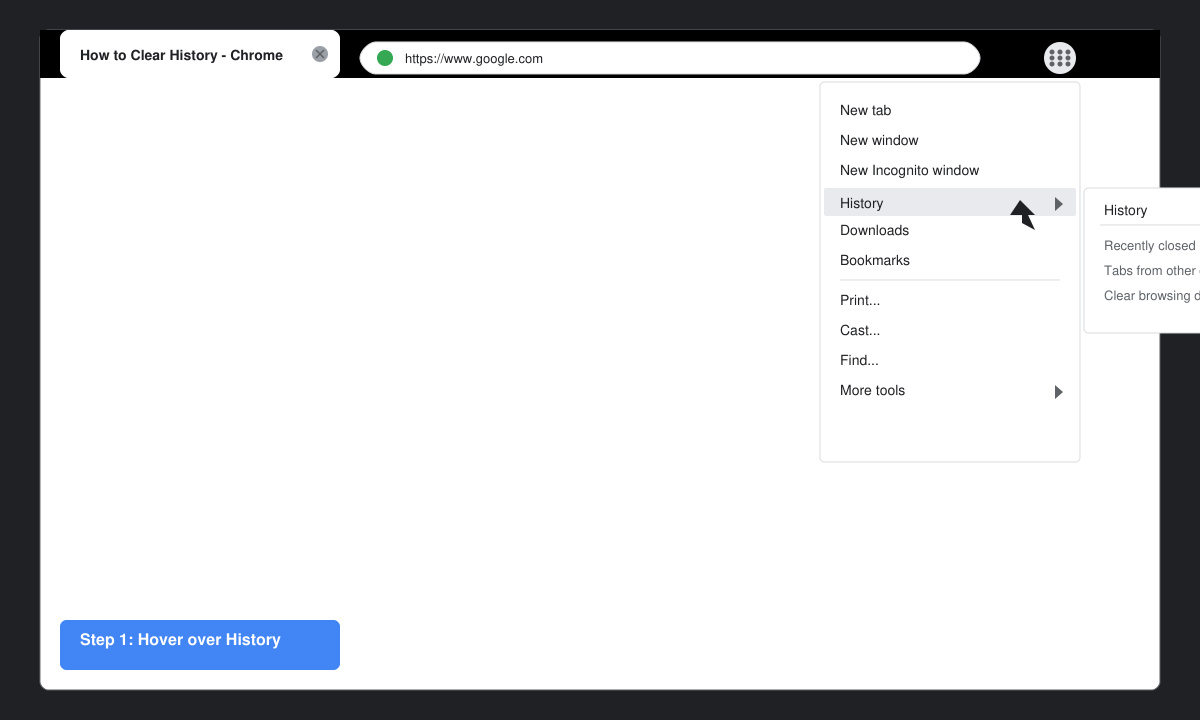
Launch Chrome and click the three vertical dots in the top-right corner. Hover over History, then select History again from the submenu. On the left sidebar click Clear browsing data to open the dedicated panel.
-
Choose the Time Range and Data Types
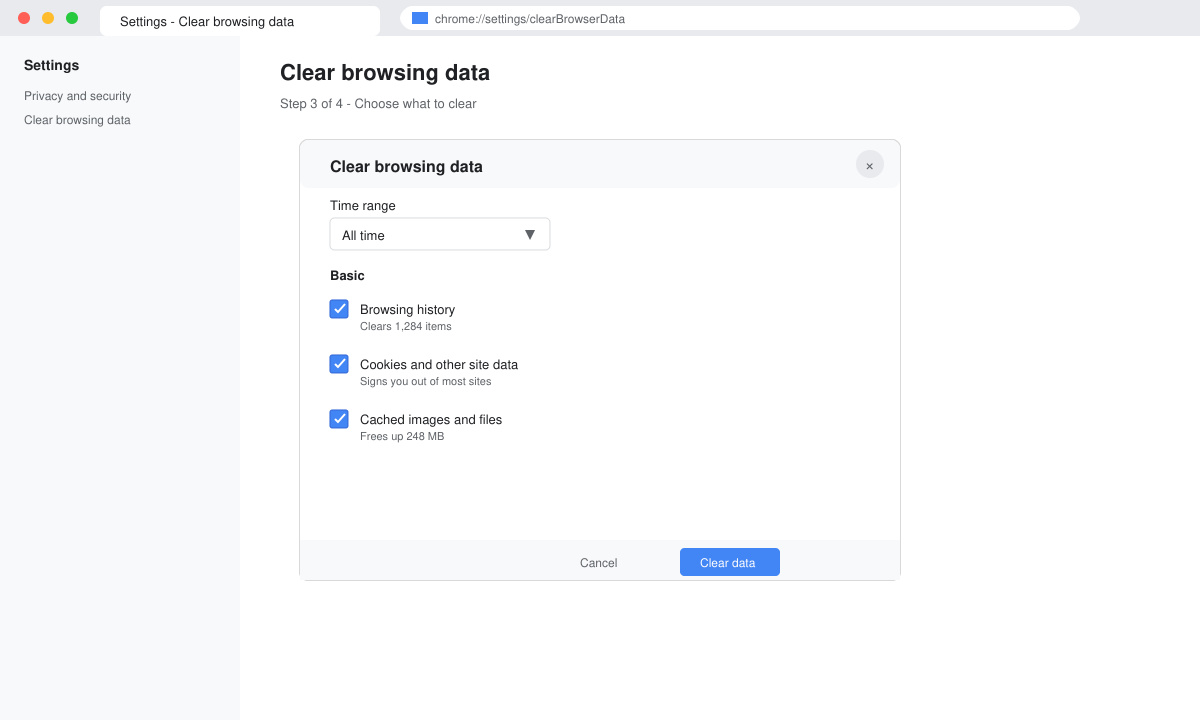
In the new window select a time range from the dropdown: Last hour, Last 24 hours, Last 7 days, Last 4 weeks, or All time. Check the boxes for Browsing history, Cookies and other site data, and Cached images and files. Leave Passwords and other sign-in data unchecked if you want to stay logged into sites.
-
Review Advanced Options and Confirm
Click the Advanced tab to see additional categories such as Download history, Autofill form data, and Site settings. Uncheck anything you prefer to keep. When ready, click the blue Clear data button. Chrome removes the selected items immediately and shows a brief confirmation message.
How to Clear Browsing History on Chrome on Mobile
On Android or iOS the path is slightly different. Open the Chrome app, tap the three dots in the top-right corner, then tap History. Tap Clear browsing data at the bottom of the screen. Select the same data types and time range, then tap Clear data to finish. The mobile version also offers a shortcut in Settings → Privacy and security → Clear browsing data.
Common Mistakes and Quick Fixes
- Users often clear all data when they only want to remove specific sites. Use the search bar inside the History page to locate and delete single entries instead.
- If the Clear data button stays grayed out, make sure at least one checkbox is selected and that Chrome has storage permission on mobile devices.
- Syncing across devices can restore cleared items. Go to chrome://settings/sync and pause sync before clearing if you want the change to stay permanent on the current device.
Frequently Asked Questions
Does clearing history log me out of websites?
Only if you also delete Cookies and other site data. Leaving that box unchecked keeps you signed in while still removing visited page records.
Can I recover deleted browsing history later?
No. Once you confirm the clear action the data is permanently removed from your device. Google does not keep a backup you can restore.
Will this speed up Chrome noticeably?
Yes, especially if you had months of cached files. Many users report faster page loads and lower memory usage after clearing several gigabytes of accumulated data.
Conclusion
Regularly clearing your browsing data keeps Chrome running smoothly and protects your privacy on shared or public computers. Follow the steps above whenever you notice slowdowns or want a fresh start.









