Stop ONLYOFFICE Co-Editing Lag by Finding the Bottleneck
Trace slow collaborative editing to Docker resource pressure, proxy connections, or document load, then choose the fix that matches your measurements.
If your search results feel too personalized or you simply want to remove old activity, knowing how to clear Google history helps you regain control. This process deletes data stored in your Google account and browser, improving privacy without affecting core account functions. The instructions below cover the main methods used in 2026.
Google saves your searches, YouTube views, location data, and Chrome browsing in a central location called My Activity. Before you begin, sign in to the Google account whose history you want to remove. You can choose to delete items individually, by date range, or everything at once. Note that clearing history does not delete files stored in Google Drive or Gmail.
Some activity may remain visible to Google for a short period even after deletion because of cached servers. If you use multiple devices, repeat the process on each one for complete removal.
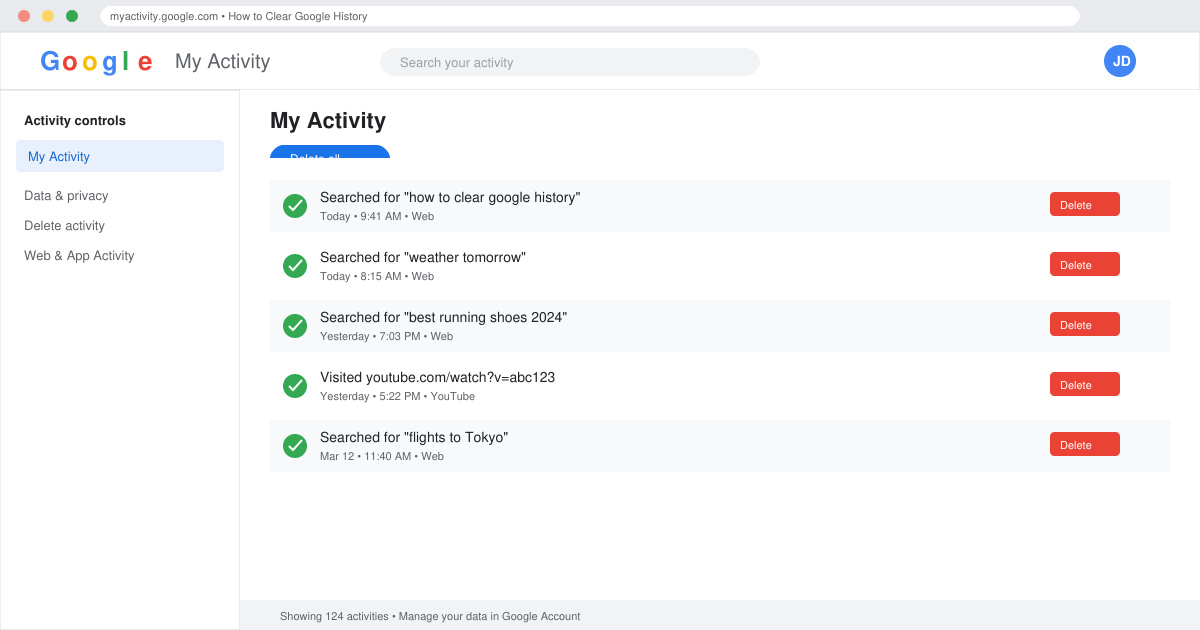
Open a browser and go to myactivity.google.com. Sign in with the correct Google account if prompted. You will see a timeline of recent searches, visits, and app usage.
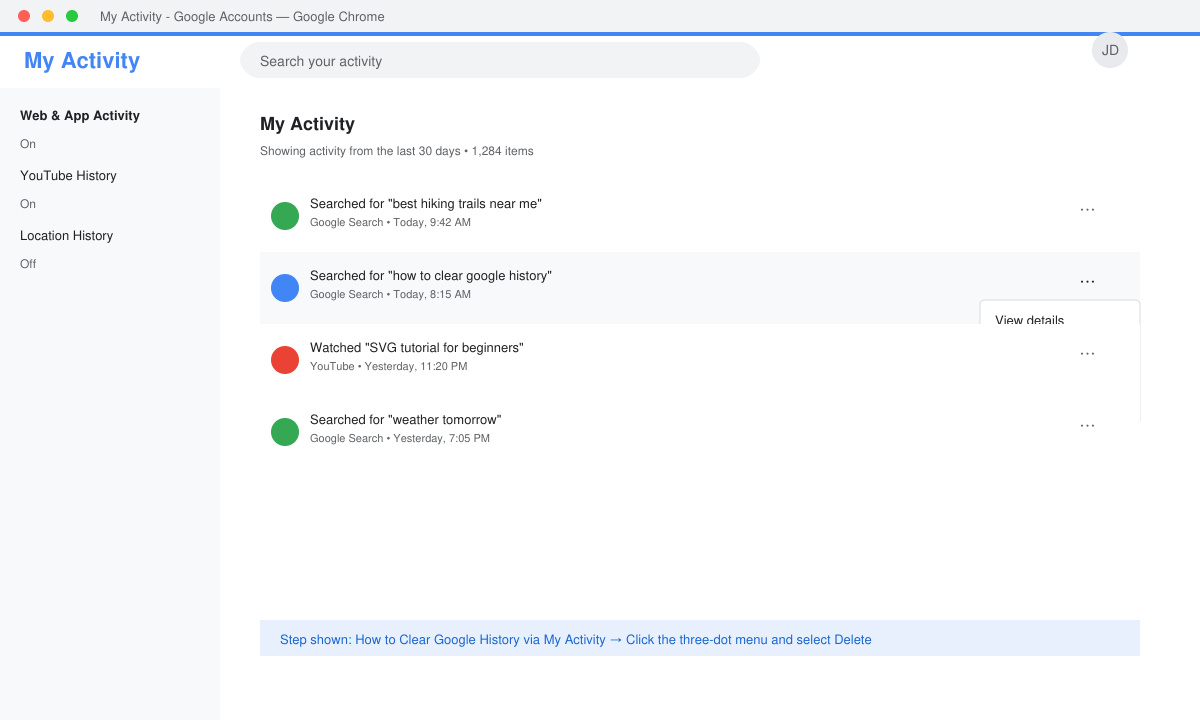
Click the three-dot menu beside any entry and choose Delete. For bulk removal, click the Delete button at the top left, then select “All time” or pick a custom date range. Confirm your choice when the pop-up appears.
Google shows a summary of how many items will be removed. Click Delete to finish. The page refreshes without the selected entries. Repeat for other categories such as Location History if needed.
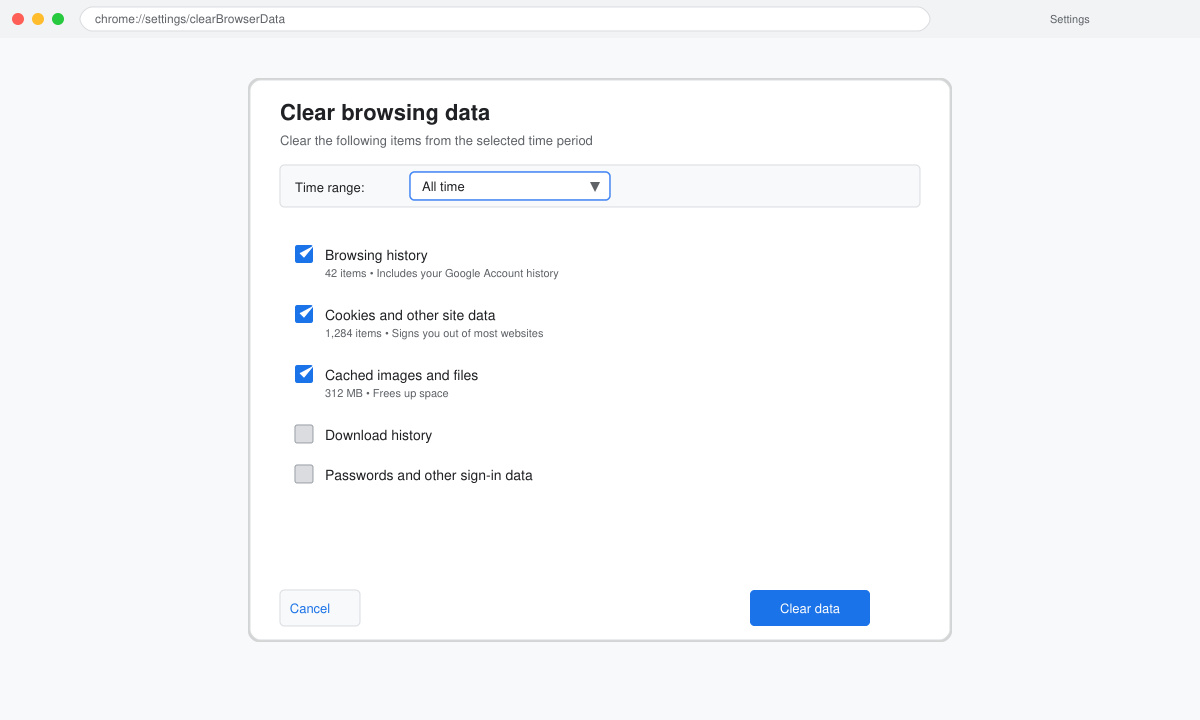
Launch Chrome on your computer or phone. Click the three-dot menu in the top right, then select Settings. Scroll to Privacy and security and click Clear browsing data.
Select the time range (last hour, last 24 hours, or all time). Check the boxes for Browsing history, Cookies, and Cached images. Avoid clearing passwords unless you intend to log out of every site.
Click the Clear data button. Chrome removes the selected items immediately. Restart the browser to verify that new searches no longer show previous suggestions tied to deleted history.
No. Passwords are stored separately in your Google Password Manager. You must choose the Passwords option specifically if you want to remove them.
Once you confirm deletion, the data is permanently removed from your account. Google does not provide a restore option for activity that has been cleared.
Clearing history reduces personalization, but Google may still use other signals such as your location or current searches. Adjust ad settings separately in your account for stronger control.
Following these steps lets you remove unwanted data stored by Google and Chrome in minutes. Perform the process regularly to keep your activity list under control.
Trace slow collaborative editing to Docker resource pressure, proxy connections, or document load, then choose the fix that matches your measurements.
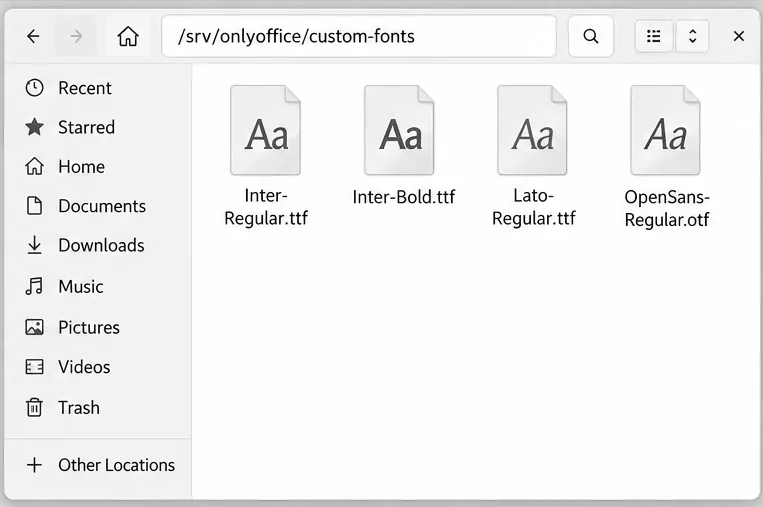
Install custom fonts in ONLYOFFICE Document Server, compare persistent Docker mounts with direct copies, rebuild the font list, and verify the result.
Choose where TLS should terminate, mount a trusted certificate and private key safely, and verify HTTPS access to a Dockerized ONLYOFFICE Docs server.
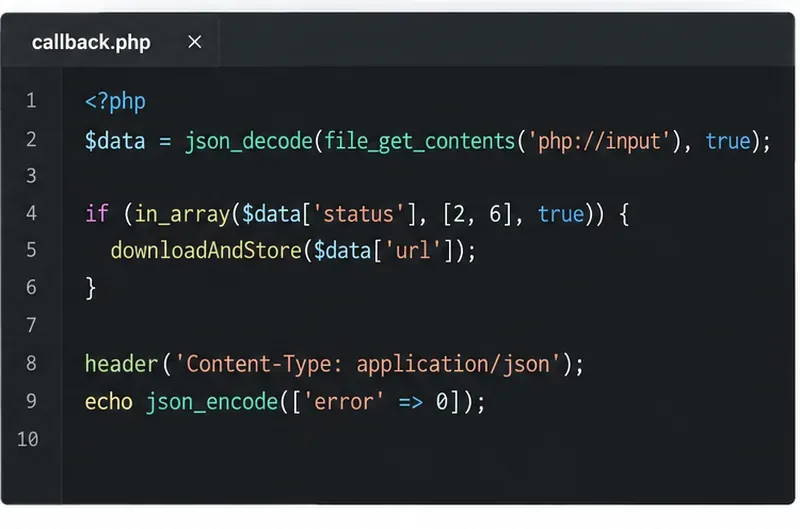
Embed the ONLYOFFICE editor in your PHP app, sign its configuration with JWT, and save edited files through a secure callback.
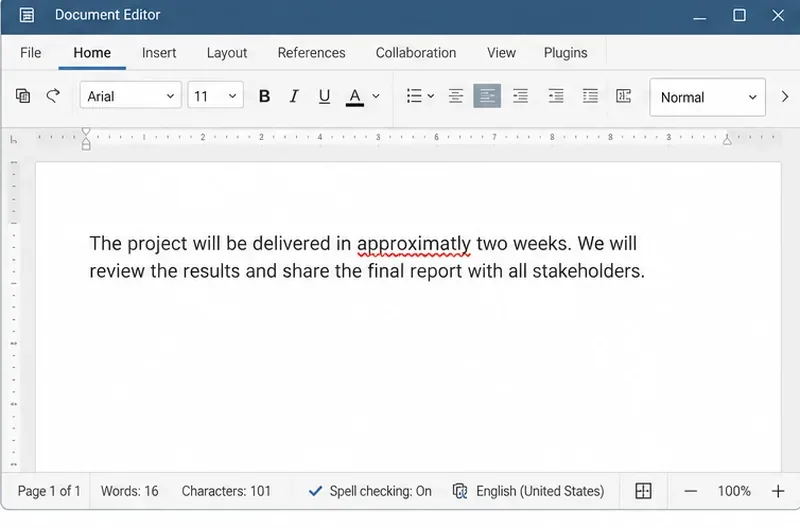
Set the proofing language for the whole document or selected text, confirm spell checking is active, and identify when a server dictionary is missing.
Enable persistent Track Changes for everyone in one ONLYOFFICE document, verify edits are recorded, and understand the limits of this setting.
Find whether Nginx, Docker networking, or an internal ONLYOFFICE service is returning 502, then verify the corrected upstream and health check.
Diagnose failed ONLYOFFICE saves by checking the Nextcloud callback route, proxy redirects, and storage logs, then verify the edited file persists.
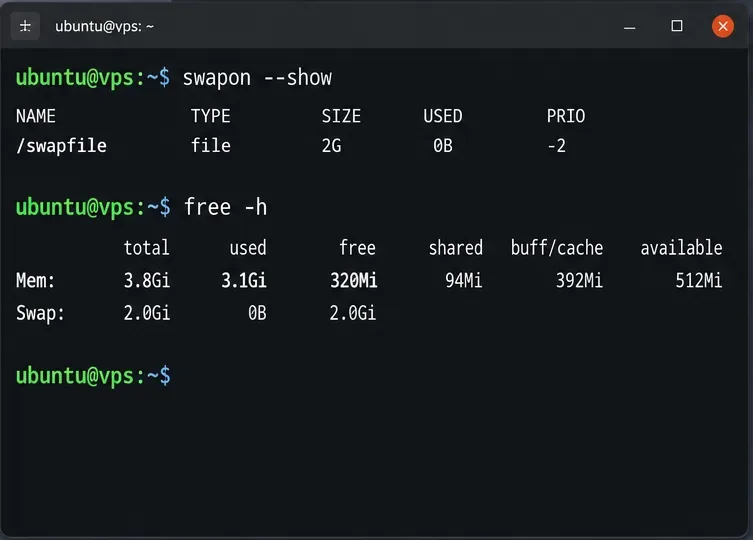
Find the cause of ONLYOFFICE memory crashes, check Docker limits, size VPS RAM correctly, add swap safely, and verify that documents open and save.
Separate browser download problems from server-side conversion errors and use the right log or access check to get your PDF export working.